
Introduction to Android Studio (Video)
Watch our video intro to Android Studio, Google's IDE for Android apps: basic setup, a comparison with Eclipse + ADT, and a fix for Windows startup issues.
In this tutorial we are going to see how to work with the new IDE developed by Google for building Android applications. It is a more specific IDE than Eclipse and everything is much more integrated, and the first impression is that it makes the work easier when it comes to writing code and building graphical interfaces.
To download Android Studio: Download Android Studio & App Tools (Android Developers)
To download the Android SDK: http://developer.android.com/sdk/index.html
To download the ListView project for Android Studio, click HERE (to understand the code, you have a complete tutorial by clicking here).
In the video we show how to do a basic configuration of the IDE so you can work with it. Here is the video:
Comparing the project structure of Android Studio vs Eclipse + Android ADT
For those of you coming from Eclipse, I should say that both work environments are very similar. So don’t be scared, it’s really easy: all they did was move the folders around.
Android Studio has the Android files we usually program with in the "Project" tab (see the image below, the squares marked in red, to see at a glance where the files are). We expand the name of our project twice, then the "src" folder and inside it "main". There you will find our whole project structure, which probably looks familiar from Eclipse. Unlike Eclipse, where they are directly in the "Package Explorer" tab, right in our project’s folder.
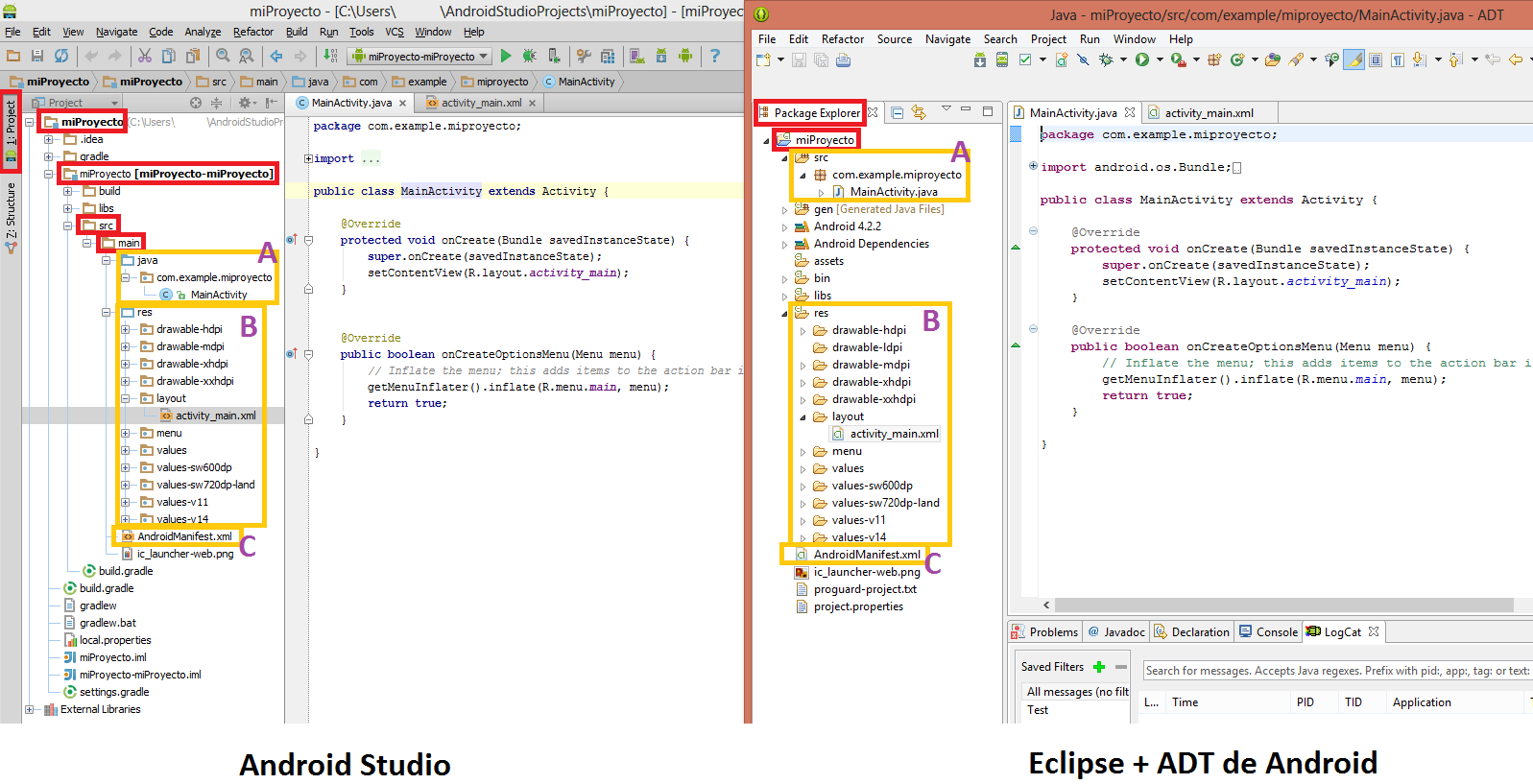
From here, comparing is very simple. In the image above we have boxed in gold the files we usually use when building Android programs. Notice that each purple letter corresponds to the same thing:
A) The dynamic files in Java.
B) The static files in XML.
C) The AndroidManifest.xml
As you can see, they are similar.
Problem on Windows: Studio won’t start on Windows
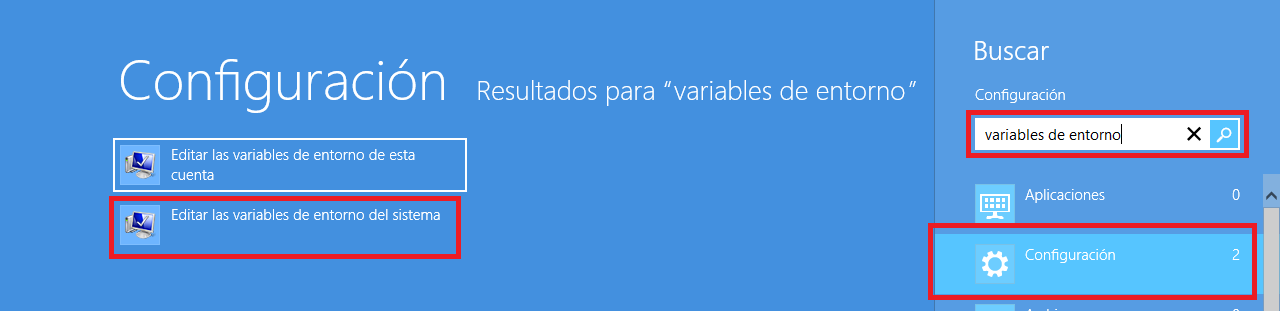
There is a problem on Windows where Android Studio doesn’t run, that is, you double-click the Android Studio icon and nothing happens. To fix it, do the following. Go to the search tool. In Windows 8 the search is in the top-left corner, select the magnifying glass; in Windows 7 or Vista it is in the Start button; and in XP you have no choice but to go to the Control Panel. Search for "environment variables". Click the "Settings" box, and there choose "Edit the system environment variables". The following image shows how to find this in Windows 8:
A window called "System Properties" will open on the desktop, where you click the "Environment Variables…" button. In the new window, which is called "Environment Variables", click the "New…" button. In the "New System Variable" box, enter the following:
- Variable name: JAVA_HOME
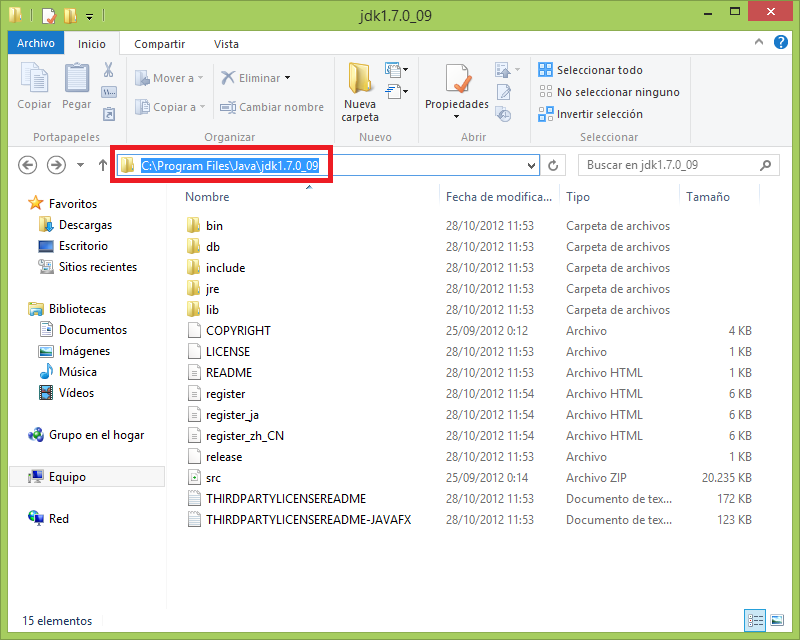
- Variable value: The path where the Java JDK is installed, by default it is in C:Program FilesJavajdk

In my case, which is the default location, the JDK is installed in the following folder; I copy its path and paste it into the "Variable value:" field.
We run Android Studio again and it will work.
“Introduction to Android Studio (Video)” by Ricardo Moya at jarroba.com, licensed under Creative Commons Attribution-NonCommercial-ShareAlike 3.0. Registered at Safe Creative.

You may also like


Installing the Android SDK and Linking It with Eclipse
Learn how to install the Android SDK and link it to Eclipse with the ADT plugin, step by step, so your Android development environment works perfectly.
Setting Up the Tools You Need to Develop for Android
Learn how to get your Android environment ready: use the SDK Manager, create an emulator with the AVD Manager, and set up LogCat filters in Eclipse.
Leave a comment