
Maven in Eclipse
Learn how to get started with Maven in Eclipse and use it. Step-by-step installation and usage. Everything you need to know about Maven.
It’s very easy to work with Maven in Eclipse. If you don’t know what Maven is, or words like "archetype", "artifact", "default lifecycle", "Maven phases", etc. sound strange to you, or if you want to dig a little deeper into Maven, I recommend reading this first article where we explain it in detail. We’re going to do the same thing we did with the command terminal in that other article I mentioned before, but with Eclipse.
A very common question is: for Maven, is it better to use Eclipse or the command terminal? The answer is whichever you like best. Some people prefer the terminal; if you’ve read the previous article you’ll have seen that it’s very simple. My arguments for using the Maven plugin in Eclipse are the convenience, speed and optimization it brings to development, plus autocompletion and help for Maven.
For this project we’re going to use Eclipse with the tools already integrated (such as the Maven plugin). You can download the Eclipse called “Eclipse IDE for Java EE Developers” from Eclipse Downloads (Eclipse Foundation)

Note that this Eclipse comes with an embedded Maven, which means we don’t need to have downloaded Maven from the Maven website, as we did in the previous article. I do recommend downloading Maven as we did before, so you have the latest version of Maven, since the one embedded in Eclipse is usually a version or so behind.
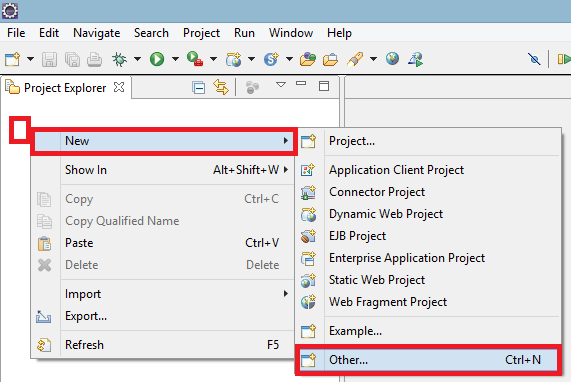
Let’s create a new Maven project. As usual in Eclipse, right-click on the blank area called “Project Explorer”. In the dropdown select “New” and then “Other…”.
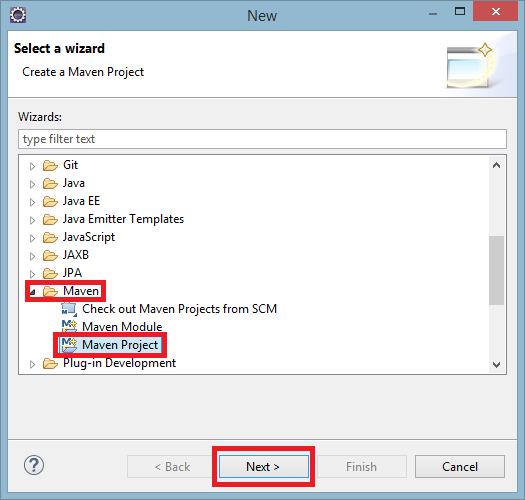
In the window that opens, look for the “Maven” folder, select the “Maven Project” project type and click “Next”
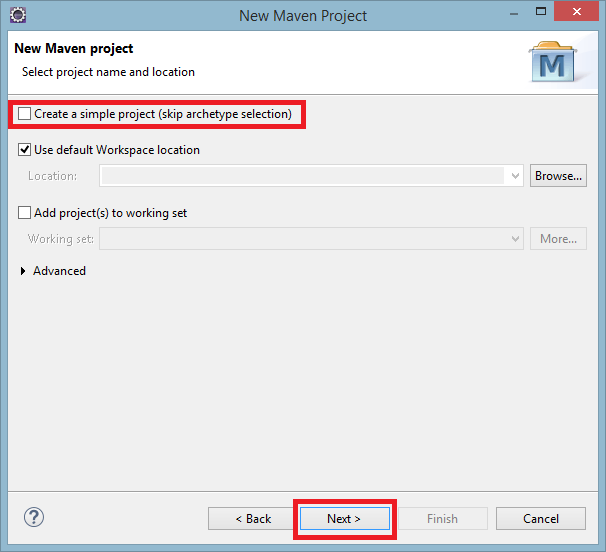
In the next step of the wizard we can check the “Create a simple Project (skip archetype selection)” box, which will automatically create a simple project without having to select an archetype. If we leave the box unchecked, a search box will appear so we can choose the archetype.
For this example we’re going to download a simple archetype (the same one we downloaded with the command terminal). To do that, we leave the box unchecked and click “Next”.
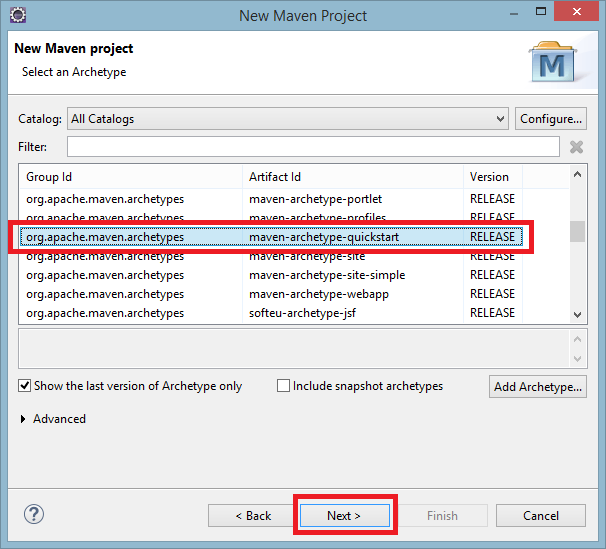
We can select one of the archetypes that are already there by default, or one from some other location. For this example we’ll select the one whose “Group Id” is “org.apache.maven.archetypes” and whose “Artifact Id” is “maven-archetype-quickstart”. Click “Next”.
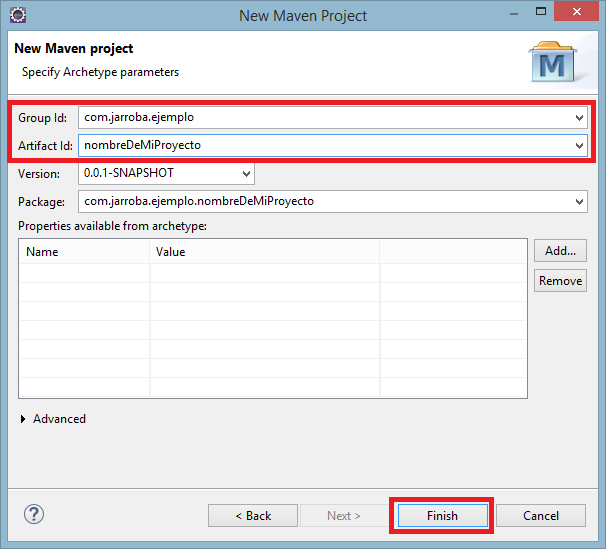
All that’s left is to configure our project –just like we did before in the terminal- by setting the “Group Id” (I’ve used “com.jarroba.ejemplo” as an example) and the “Artifact Id” (I’ve used “nombreDeMiProyecto” as an example). Click “Finish”.
You may wonder: if the archetype has a “Group Id” and an “Artifact Id”, why do I have to write new ones? The ones we used for filtering are the values that the creators of that archetype entered when they made their new project; since we’re going to create a new project, we have to use our own details, not someone else’s (if our project ever became an archetype for other developers, they would search for it using our details and replace them with their own).
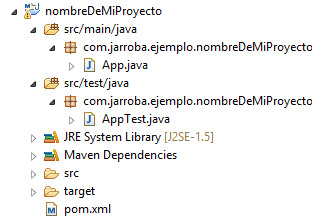
Now we’ll have our project created with its “Hello Word!”, exactly exactly like we did in the terminal 🙂
Programming with Maven in Eclipse
First, let’s try out the lifecycle commands of a Maven project.
Right-click on the project and choose “Run As”. In the dropdown you’ll see that there are already several commands pre-configured by the Maven plugin in Eclipse; that is, by clicking a button we’ll run these commands without having to type a single word in the command line.
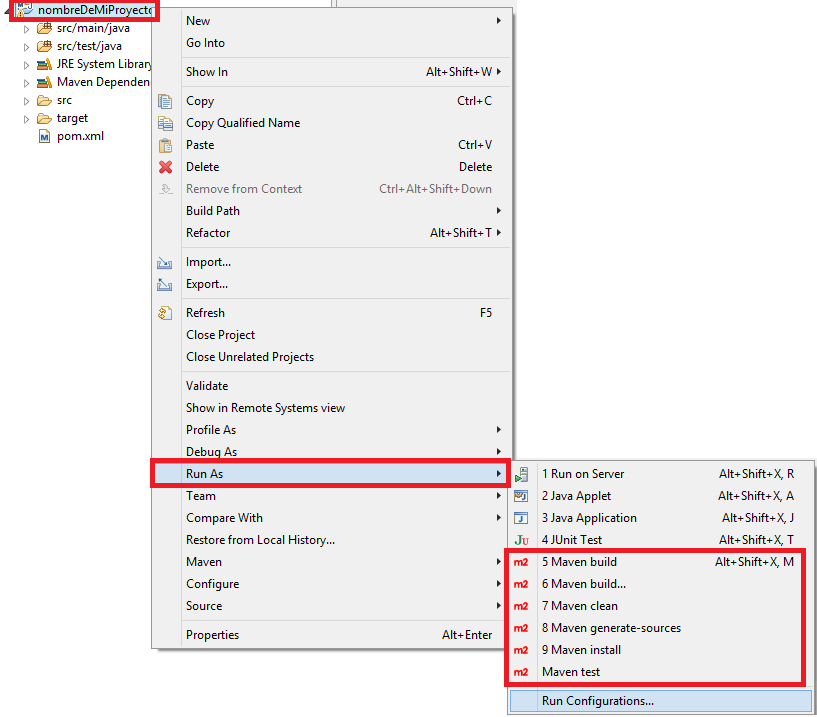
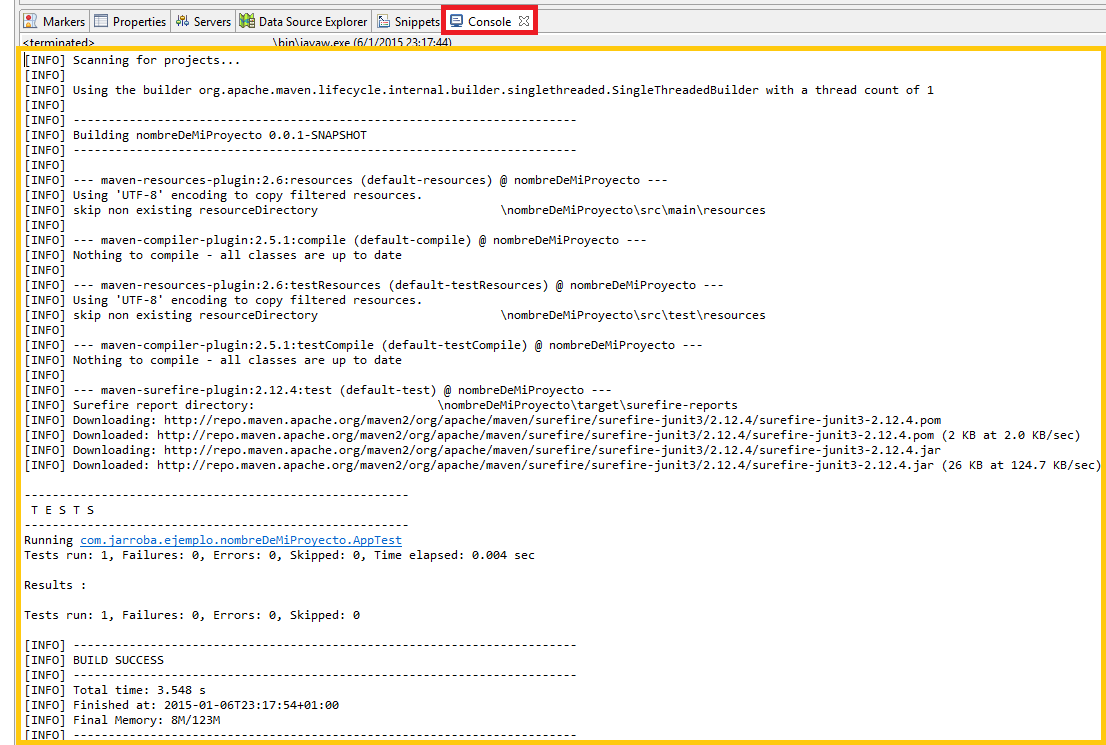
If, for example, we click on “Maven test”, Eclipse’s “Console” will show us the following Maven output.
You’ll have noticed that a Warning appears on the project (a yellow triangle with an exclamation mark). If we go to the bottom tab of Eclipse called “Markers” we’ll read the following:
Java Build Path Problems
Build path specifies execution environment J2SE-1.5. There are no JREs installed in the workspace that are strictly compatible with this environment.

It’s warning us that it can’t find the Java JRE.
To fix it, we’re going to add a plugin so that Maven takes care of managing the JRE for us (we could do it manually from Eclipse, but this way I show you how plugins are used, and it’s much more convenient).
For that, let’s go to our beloved POM. When you open the file in Eclipse, you have to click the “pom.xml” tab; the other tabs are wizards to configure the POM in a simpler way. We won’t go into them here, but take a look at them, they’re useful.
And we add the opening and closing tags for <build>. Inside them we add the one called <pluginManagement> so it manages the plugins for us. In turn, there will be <plugins> in the plural, which will contain <plugin>. And we’ll use the plugin called “maven-compiler-plugin”, telling it that we want both “source” and “target” set to the latest version of the JRE we have installed (I have “1.8” installed). So we’ll insert the following code inside the <project> tags:
<build>

	<pluginManagement>
		<plugins>
			<plugin>
				<groupId>org.apache.maven.plugins</groupId>
				<artifactId>maven-compiler-plugin</artifactId>
				<configuration>
					<source>1.8</source>
					<target>1.8</target>
				</configuration>
			</plugin>
		</plugins>
	</pluginManagement>

</build>
It will look like the following image. And you have to save the “pom.xml” file.
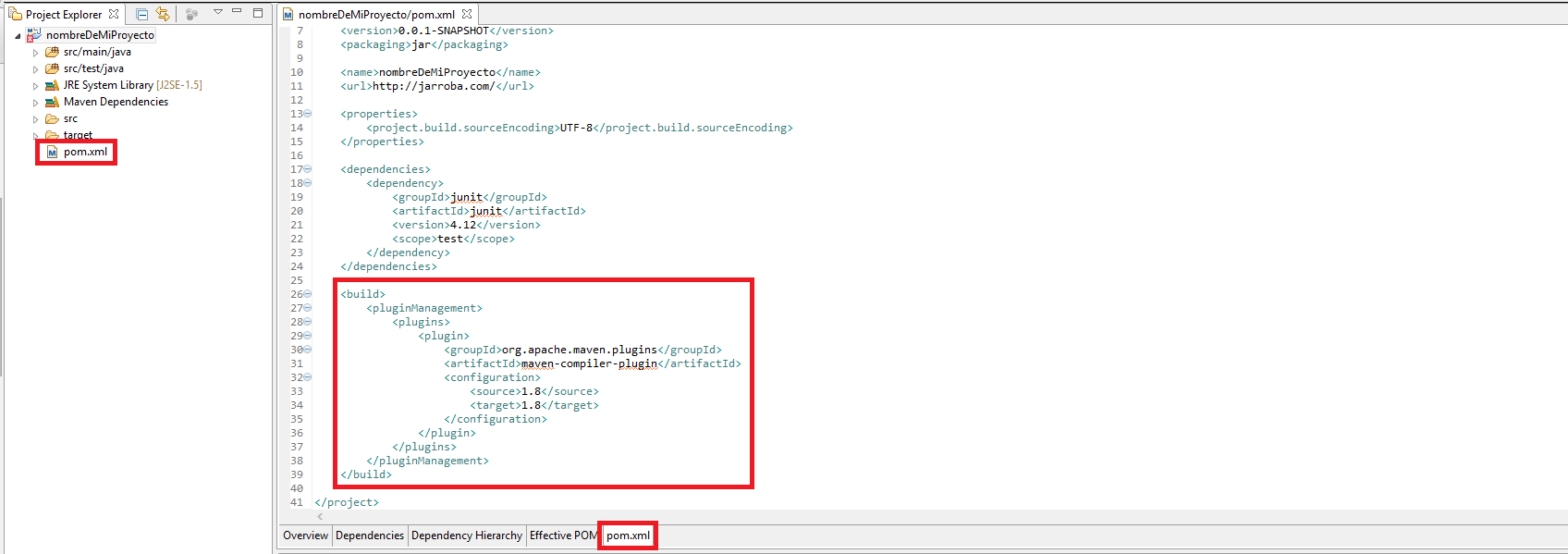
You’ll see that it not only hasn’t fixed the problem, but it has given us another one, and a red one at that! No problem, we’re just missing one thing.
Maven Problems
Project configuration is not up-to-date with pom.xml Run Maven->Update Project or use Quick Fix.

What’s missing is updating the project. Anything we insert between the <build> tags requires a special update step, which is very simple.
To do that, right-click on the project, click “Maven” and then “Update Project…”
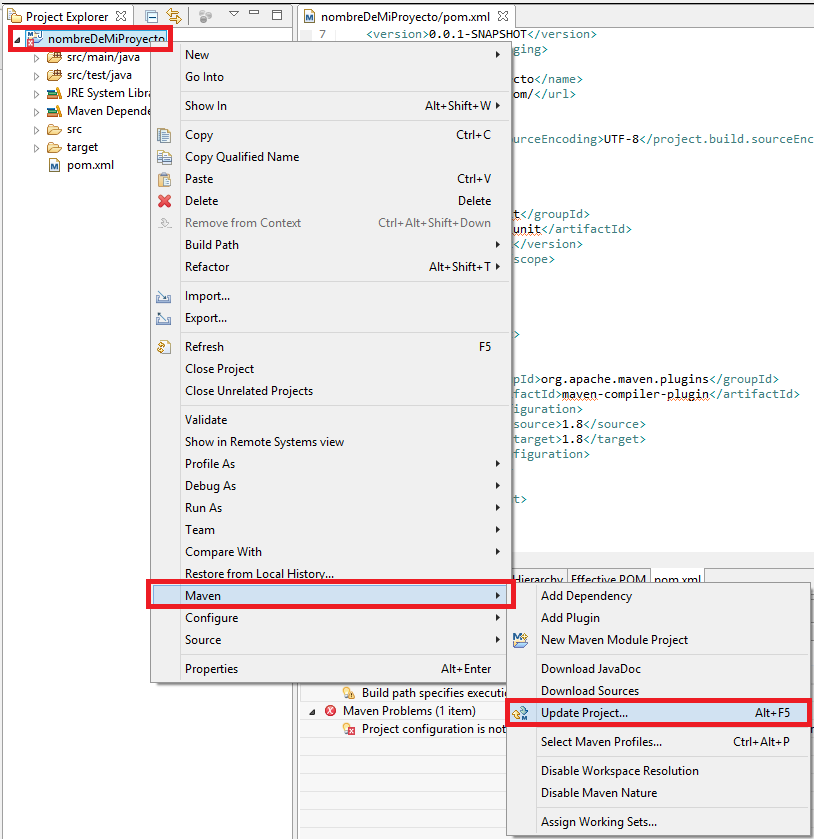
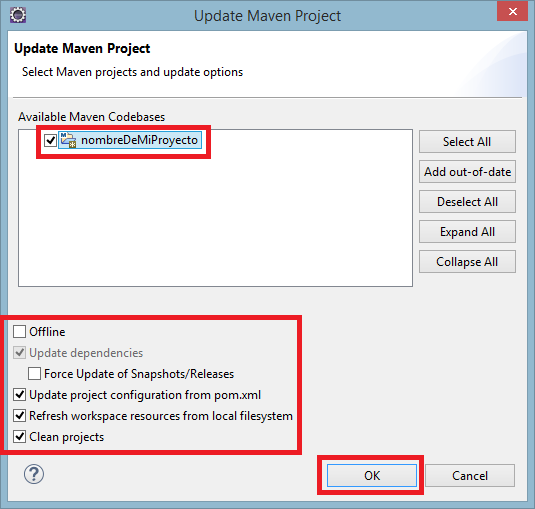
In the window that opens, select our project and tell it to update the configuration from the “pom.xml” by checking “Update Project configuration from pom.xml”. Everything will already be selected and ready by default, so we won’t need to select anything else (I’ve marked the checkboxes in red in the image so you can see that everything is correct) and click “OK”.
It takes a few seconds to process. Then check that all the problems have disappeared 😀
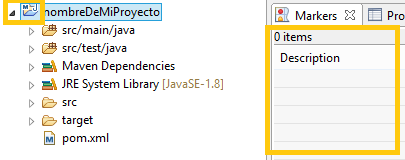
Now our project is free of problems. All that’s left is to code.
Let me take the chance to explain what we’ve done. We’ve used the following tag: <build>.
Build configuration <build>: it takes care of declaring the project structure, managing plugins, and configuring reports. <build> does many other things; here we’ll explain two tags it can directly contain: <pluginManagement> or <plugins>.
<pluginManagement>: It’s almost the same as not using this tag. The only difference is that instead of configuring the plugin information for this particular project build, it is meant to configure the builds of projects that inherit from this one by using this plugin management tag. It only configures plugins that are referenced inside the plugins elements of the children. The children have every right to override what has been defined in <pluginManagement>. It contains <plugins>
<plugins>: plugins give us extra functionality. In the code example, the plugin automatically configures the project to be compatible with the Java JRE for version “1.8”. <plugins> can be either inside or outside <pluginManagement>, depending on what we need. Each plugin is defined in the singular as <plugin>.
<plugin>: A plugin has some of the following elements:
- <groupId>, <artifactId>, <version>: a plugin is still a Maven project made by another developer or by ourselves.
- <extensions>: if “true”, it loads the extensions of this plugin, “false” otherwise. The default is “false”.
- <inherited>: if “true”, it applies the plugin configuration to the POMs that inherit from this one, “false” otherwise. The default is “false”.
- <configuration>: each plugin will have its own specific settings. In the example code it asks for two input values, <source> and <target>, but they will vary for each plugin. You could say they are the “setters” or build parameters of the plugin; that is, whatever parameters the plugin’s developer wanted.
- <dependencies>: it can also have dependencies (libraries) that are needed to run the plugin.
- <executions>: A plugin may have multiple goals. Each goal may have a separate configuration, possibly even binding a plugin goal to a different phase. It configures the execution of a plugin’s goals.
- <id>: It identifies the execution block among all the others.
- <goals>: It contains a list of <goal> goal elements.
- <phase>: This will be the phase in which the list of goals will run. It allows binding any goal to a phase in the build lifecycle, altering the default one in Maven.
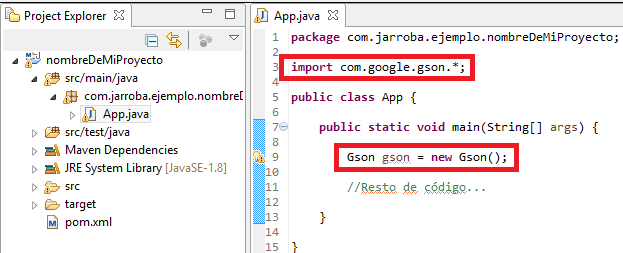
A quick example of programming with dependencies would be: imagine we want to use JSON serialized into objects (a simple POJO object that gets converted into JSON). We do a bit of research and think a good idea would be to use the Gson library, which does this job for us. Gson is a library developed by Google, so we would have to go download it from somewhere and import it. It’s much simpler with Maven: we go to Maven Repository: Search/Browse/Explore and look for the latest version of Gson.
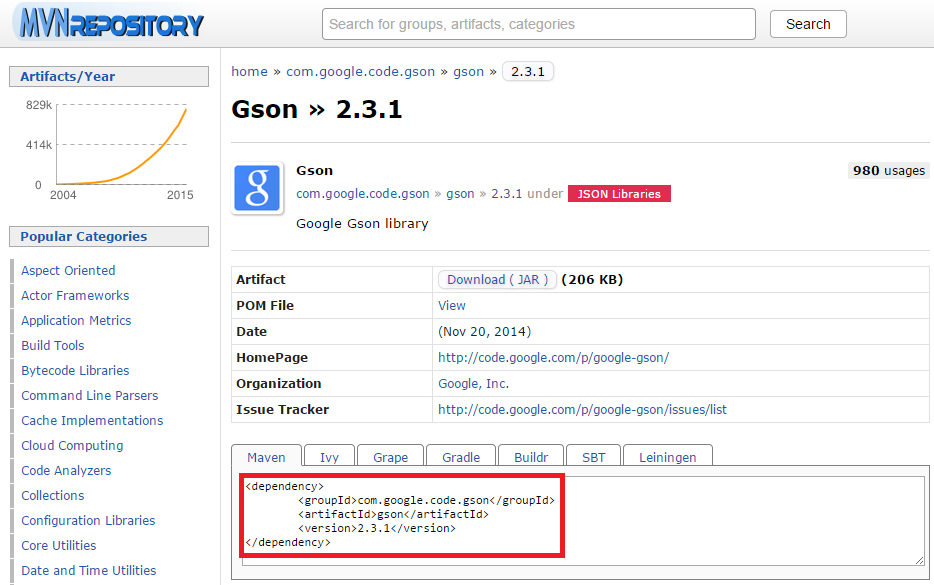
We copy the Maven dependency into our project’s POM inside <dependencies> (we can add a <scope> if we want):
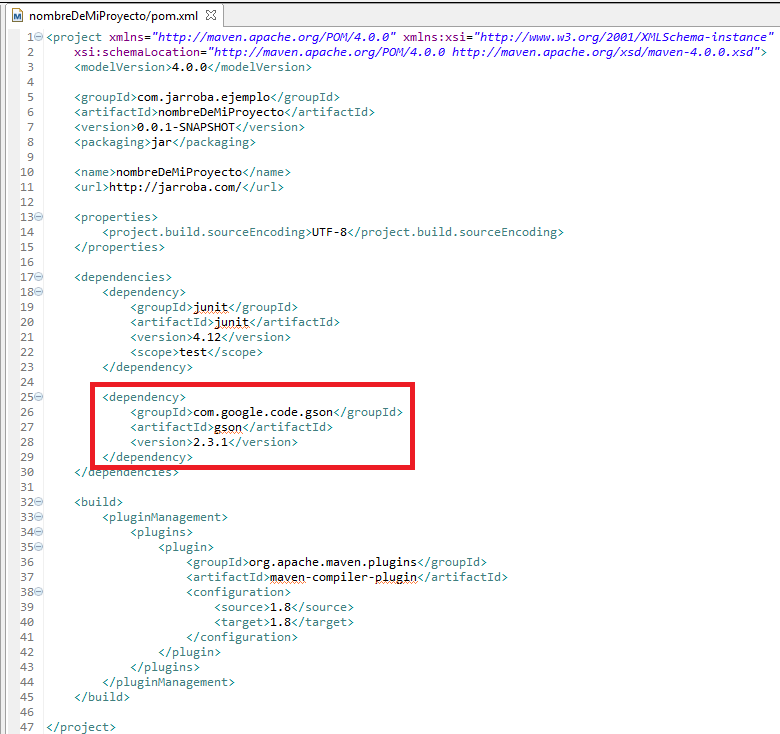
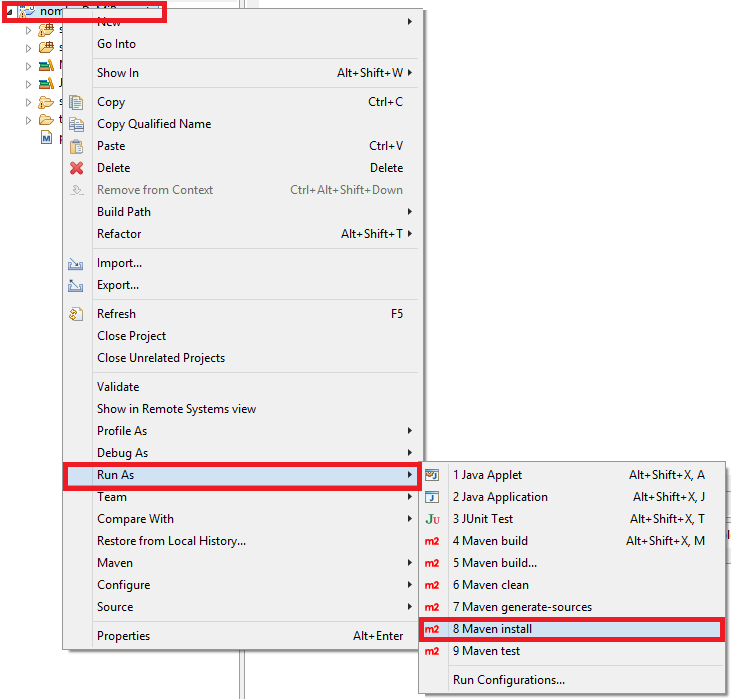
Now we save the POM and build our project so that Maven fetches it from the Maven Repository: Search/Browse/Explore repository to our computer.
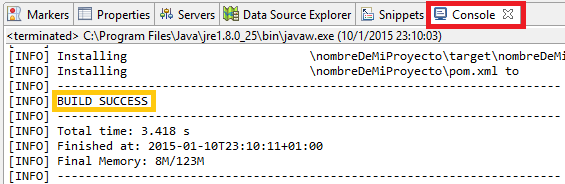
When Maven finishes working.
Now we can open our Java classes and start working. Like the Gson library in the following example:
I’ve helped you get through the door; the rest of the program is up to you 😀
“Maven in Eclipse” by Ramón Invarato at jarroba.com, licensed under Creative Commons Attribution-NonCommercial-ShareAlike 3.0. Registered at Safe Creative.

You may also like

Maven
Complete Maven tutorial. Learn everything you need to know to master Maven: install it, create projects, lifecycles, plugin goals and the pom.xml file.

How to Install Eclipse the Right Way (One IDE Among Many)
Learn how to download and install Eclipse step by step: pick the right version, set up your workspace, install Java and the JDK, and fix common startup errors.

How to Program Web Apps and Servlets in Eclipse
Learn how to set up Tomcat in Eclipse, install the web development plugins and run a local server to program web apps and servlets step by step.
How to Set Up Eclipse for PHP Programming (VIDEO)
Learn how to set up the Eclipse IDE for PHP development with a local XAMPP server. Follow our video tutorial and try the example PHP code step by step.
Leave a comment