
How Servers and Hosting Services Work
Learn how servers and hosting services work, from DNS and ISPs to creating your own cloud VPS server and connecting to it securely over SSH.
Understanding how this interconnected world works, where data travels from one part of the planet to another through what we call “the Internet” (or through a “local network”; that is, a cable or Wi-Fi that connects your devices so they can share, for example, movies without needing to connect to “the Internet”), for endless purposes, is very important and interesting, since it will give you access to its full potential along with the skills needed to build great technologies. You don’t need advanced knowledge, because in the following sections we will break down the web of “the Internet” step by step in a practical way (so after finishing these steps you will be able to build whatever interests you most), and you will also understand each part involved in considerable depth. If you are interested, or you are a developer, understanding this in a simple way lets you get the most out of interconnections and data handling, so you can do whatever we please. And what do we please? Here are a few examples:
- Being able to upload files to a server that we control (for example, movies, so we can watch them anywhere in the world just by connecting to the server).
- Creating our own website (such as our own social network).
- Managing our own online video game matches by having a server.
- Being able to create our own VPN (for example, with an encrypted VPN tunnel we can connect to a public Wi-Fi without anyone being able to listen in on what is sent through it)
- Processing a huge amount of data on powerful servers. An example: we have placed humidity sensors in a field and we collect data every second; after a few months this will create files with several Gigabytes of data (they could be “Excel”-type files with millions of rows; each row with a date along with the geographic location and the humidity of the sample taken at that moment) and we want to process all of it to make predictions (for example, we could predict when it will rain using machine learning). This requires heavy processing that we can’t do on our regular computers, so special machines for data processing are used.
- Creating applications that receive data (for example, an application that connects to our server to process or query data, such as the humidity data mentioned above).
- Having our own email server so we don’t have to depend on third parties if our information is sensitive.
- Creating our own software services and servers. For example, we could create an analyzer for a product-selling website (Scraping, more information by clicking here) that sends an alert to our phone when the price of a certain product changes.
Among plenty of other possibilities.
What is a server?
Suppose you have a laptop without much memory or processing power, and you have another, bigger desktop computer with its tower that is much more powerful for processing whatever you want; but you want your laptop to have the processing power of the desktop computer (for example, so you can take your laptop anywhere and work with the resources of your desktop computer). Well, you can make the desktop computer the “Physical server” (the host) for your laptop (the client).
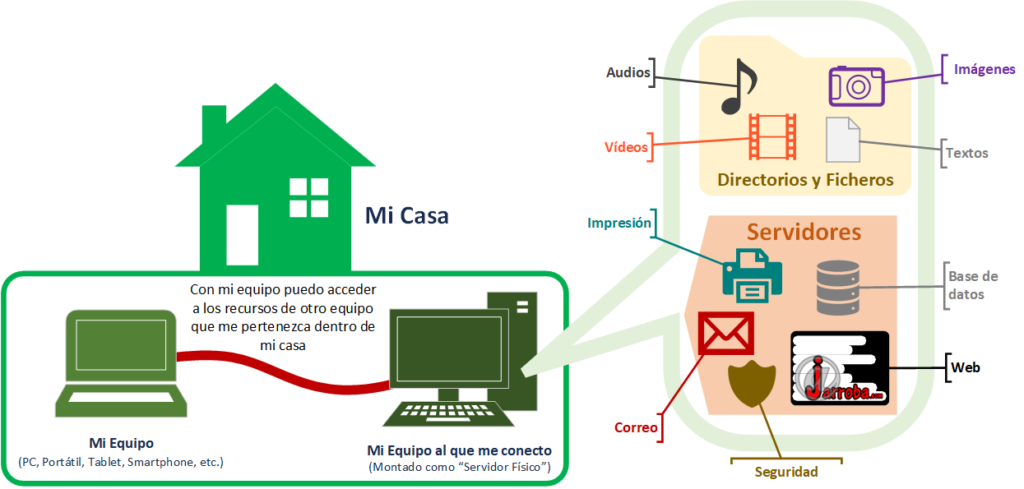
The “Physical server” (in this example, the desktop computer) can store any file such as audio, videos, images or text, and share them with the laptop when it needs them. On the other hand, you can also install “Software servers” on the “Physical server”, such as a print server (which, connected to a printer, can manage the print queue of several computers connected to it), a mail server (where emails arrive without any intermediaries), a web server (like the physical web server that runs this website Jarroba ), a database server (to store the information you need in tables), a security server (running antivirus or firewall), a video server (to send video by streaming), a video game server (to run a game and stream the video while collecting the controller inputs), etc.
So with our laptop we could, for example, ask the “Physical server” (the desktop computer) for the code processed by the “Web (Software) Server” to view a website that will be processed with the desktop computer’s resources; or, to make it clearer, have the desktop computer run a video game through a “Video game server” (with everything that implies: a good graphics card, a decent processor, lots of RAM and hard drive), and with our laptop -with hardly any resources- we could play the video game as if we had all the power of the desktop computer (from the “Physical server” we would receive the processed video on the laptop and we would send from the laptop the commands we pressed to control the game on the “Physical server”).
Difference with a Physical server NOT managed by us
Having a “Physical server” is very interesting because of all its potential, as I will explain later; and even more so if WE DON’T manage it, but a hosting service company does, such as clouding.io. Both a “Physical server” set up at home and the “Physical server” of a hosting company work in a very similar way physically, but they don’t have the same advantages.
Earlier we said that the desktop computer would act as a “Physical server” once configured as such. A desktop computer has a part in common with the computers that hosting companies use: the tower. We can break a desktop computer down into the mouse, the keyboard, the monitor and the tower. The latter, the tower, is what holds the brain of the computer with the processor, the RAM, the hard drive, the power supply, the graphics card, all joined together by a motherboard, and to control it easily the hard drive needs to have an operating system installed (such as Linux, Windows, Mac, etc.); and, even if it doesn’t look like it, the contents of the tower are found in all computers such as smartphones, tablets, laptops, smartwatches, etc.
Hosting services mostly use lots of “towers” (without a screen, keyboard or mouse); they usually build them in horizontal cases and call them “Rack Units” (or simply “U”). They stack several “Rack Units” inside a “Rack Cabinet” (also called a “(Physical) Server Tower”), a cabinet that will have a power supply and ventilation; and the room where several of these “Rack Cabinets” are kept is called a (Physical) “Server Farm”.
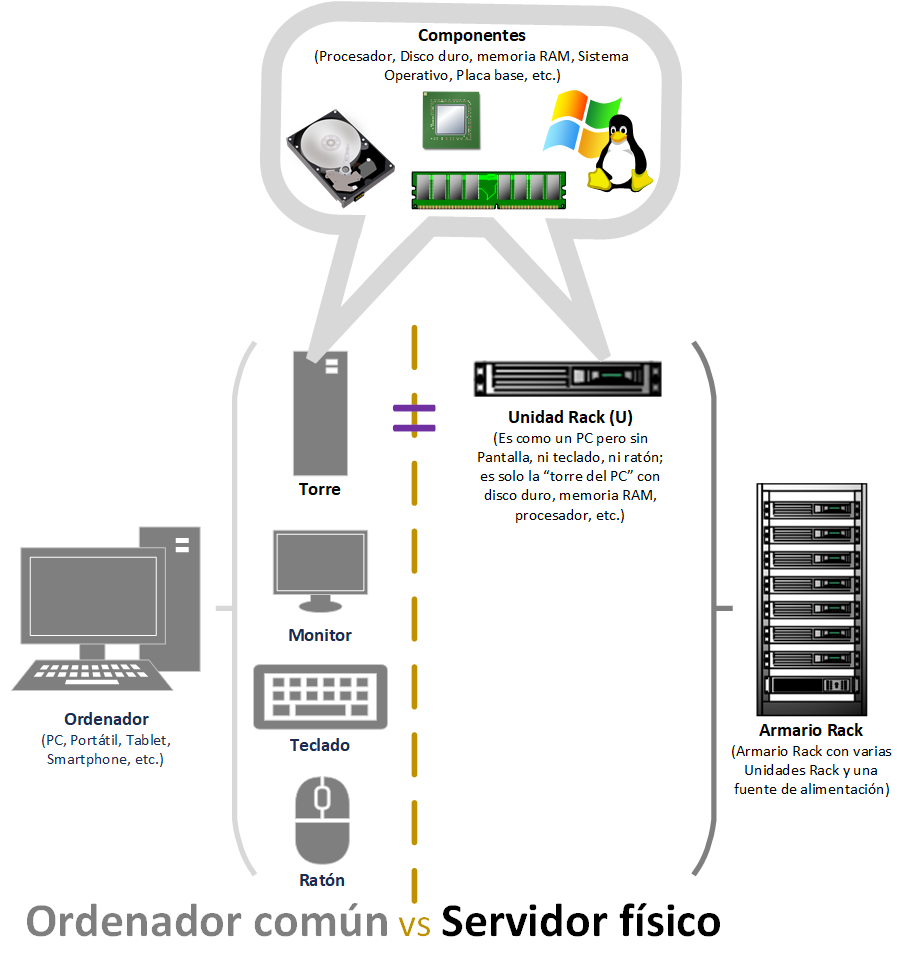
The differences between using a computer at your home/company as a “Physical server” and a “machine” (“Physical server”) with the same characteristics at a hosting company are:
- The physical computer is paid once at a very high price and the hosting service price is much lower (you pay month by month, and in a month when we don’t want to use the “Physical server” of our hosting service we can pause it or cancel; also, the physical resources are usually shared with other customers, which lowers the price even more, though without mixing data between customers).
- If a part of the physical computer breaks, we can’t use the computer and we have to fix it ourselves (buy the part and either repair it ourselves or take it to a shop); and with a hosting service, if something breaks, say a RAM module fails, they will redirect its use to another RAM module while they replace it with a new one at no extra cost to you and without interrupting the service they are giving you (that is, you will keep using their “Physical server” without noticing that something broke and without worrying about repairing it).
Physical Server vs Software Server
People popularly call “Server” the physical computer where we are going to install Software “Servers” (the ones we mentioned before such as “Web Servers”, “Video Game Servers”, “Mail Servers”, etc.); but it is not correct to use the word “Server” alone at a technical level, since the definition of the word “Server” is not unambiguous (it can’t be interpreted in only one way). For example, the phrase “Server of Servers” is quite confusing. Is it a “Physical Server” that has “Software Servers”? Or is it a “Software Server” that controls “Physical Servers” to balance them? Or is it a man who controls Servers?
To avoid confusion, it is not unusual in companies to hear the “Physical Server” called a “machine” (the physical computer, tower or “Rack Unit”), and the “Software Servers” called “X Server” (where X is the type: Web, Video Game, mail, etc.).
Server at a hosting service company
So, if we don’t want to manage a “Physical server” ourselves, we can rent a “computer tower” from a hosting company (such as clouding.io). As we said before, this computer tower will belong to us as long as we pay for the service and we will be able to do practically anything we want with it (except actions that could be dangerous or illegal, which can’t be performed by law or because they are blocked).
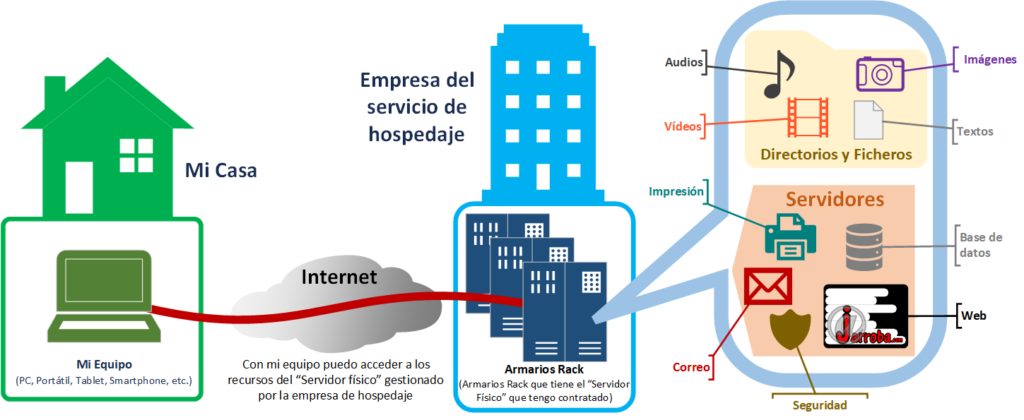
At home we will have a computer (machine) 100% for ourselves and we will be in charge of managing the physical parts of this “machine”; but with a hosting service or at a company we can have other options:
- Dedicated (or private) (physical) Server: it is the entire “Physical server” for you, that is, a whole Rack unit will belong to you (in the computer tower example, it would mean that you can use the entire tower). Since it is all ours, we can run whatever we want. The downside is that it is expensive and that if we want to upgrade something we will most likely have to stop the server completely.
- Shared Server: It is not an entire “Physical server” for you, but a portion of it. In other words, the “Rack unit” is used by several customers, but each customer has their data kept separate; for example, if we rent 50GiB of hard drive capacity, we won’t have a hard drive exclusively for ourselves; instead, the hosting company may have a 500GiB hard drive divided among 10 customers, each customer getting a 50GiB partition (and customers can’t access each other’s partitions, so they can’t see data that doesn’t belong to them); customers usually have no usage limits, so if another customer makes intensive use of their part of the hard drive, it will affect the performance of our usage (if that hard drive is a spinning disk, the drive head has to read both their data and my data; so if the head is being heavily used by other customers, it will take longer when I need to read my data). Another drawback is that we can’t run whatever we want, since the hosting service limits it so that one customer can’t harm another. The advantage is that it is much cheaper than a dedicated server.
- VPS Server (from English “Virtual Private Server”): To us it will look like a dedicated server (but it doesn’t necessarily have to be one at the hardware level), so we can run whatever we want (since if something goes wrong it won’t leave this virtual machine) and customize as much as we want (since it won’t affect other customers); the hardware is virtually exclusive to us, which means that if we have rented one processor core at 1 GHz we will always have that, even if at the hardware level a processor with 8 cores at 3 GHz each is being used, where several virtual VPS Servers from different customers are running at the same time (we will always have our full share, no more and no less). It has the advantages of the dedicated server (our own hardware resources and being able to run whatever we want) and the advantages of the shared one (cheaper than a dedicated server).
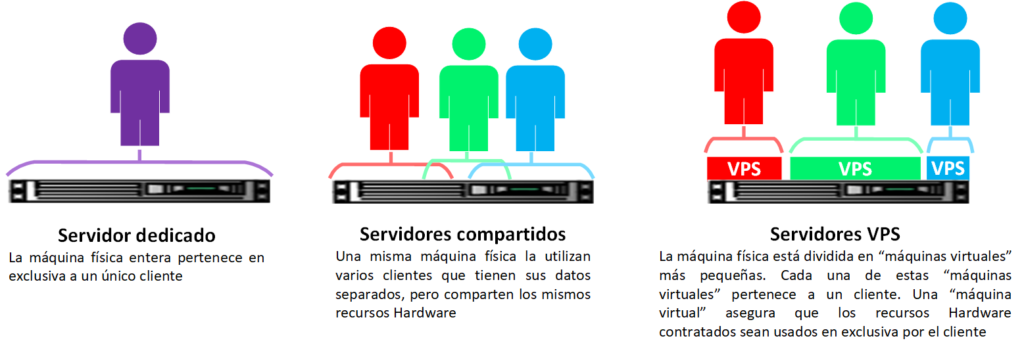
A VPS Server makes it possible to cut costs further and to keep the parts of the Rack unit in use most of the time (since something bought and not used generates no value, and if a component breaks, hosting companies replace it without us noticing, since it saves a lot of money and gives the same result).
Note
What about at a company?
If you work for a company, your company may have its own “Rack cabinet”. This “Rack cabinet” will be managed by the company’s “Systems department” and works very much like a hosting service (except that here you don’t have to rent a “machine”); instead you use the machine provided by the company, which the systems department will manage (who will take care of fixing whatever breaks, updating it and buying new components to expand its capacity). Depending on the needs of the work you do at your company, you may need to ask the systems department for a new “machine”, for example to process large amounts of data; if your company approves the new “machine”, your company’s systems department will be the one to decide whether to give you a part of the resources (shared or VPS) that already exist in the “Rack cabinet” or to buy new ones; for you, who asked for the new “machine”, you will just have to use the new “machine” (just like with a hosting service, you won’t have to worry about the physical parts of the “machine”).
On the other hand, there are several architectures; the most common are:
- Traditional: The physical server as is; that is, you work directly on a physical machine (a rack unit, for example). One shortcoming is that if any hardware component fails you will have to wait for it to be repaired (and if it is a hard drive, it will be a good idea to have had a backup somewhere else so you can restore it).
- Cloud (Cloud computing): It consists of distributing the data and the processing among several physical machines (among several rack units), ideally in different locations. Virtualization is usually used so that, to whoever uses the server, everything seems to be in a single place, but it is actually distributed.
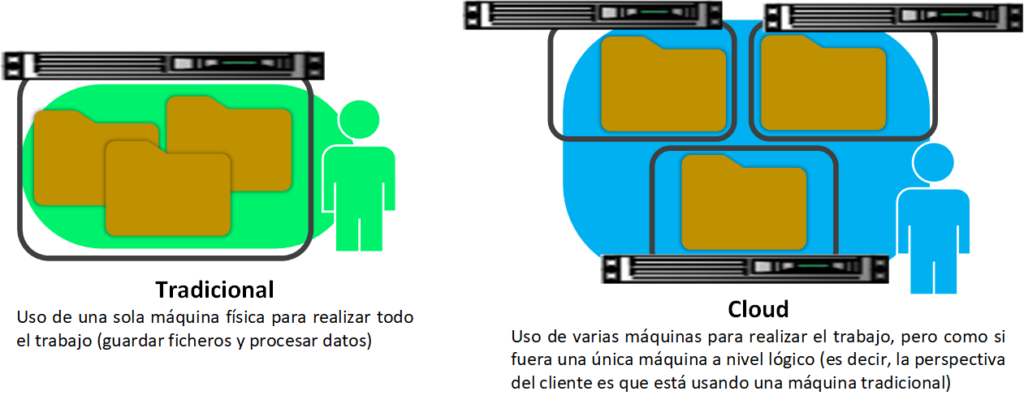
This gives rise to the “Cloud VPS Server“, which is the union of Cloud and VPS, offering the advantages of both plus a few extras. The juiciest extra is that it lets us resize (scale) our “Cloud VPS Server” “hot” (without having to stop the server and whenever we want); for example, if at first we rent a “Cloud VPS Server” with 100 GiB of hard drive, tomorrow we can purchase an expansion of that hard drive without having to stop the “Cloud VPS Server” (for example, if we had an active website on that “Cloud VPS Server”, we would never stop serving our website because of this maintenance). Resizing a “Cloud VPS Server” without having to stop the server itself is very important, since it lets us adjust the costs of the “Cloud VPS Server” (imagine that during vacation season the visits to your website drop by half; are you going to pay for the same hardware resources for your “Cloud VPS Server” if you will have plenty to spare for a while? It makes no sense, so you resize the “Cloud VPS Server” and we save costs; for example, we reduce the RAM since there will be less usage, we pay less for the “Cloud VPS Server” and performance doesn’t get worse for the users who keep using the website).
Request from your computer to the physical server (at the hosting service company)
Pointing directly at the “public IP” (a bit later you will understand why it is called a “public IP”) that the hosting service gives us, the trip is quite direct, but I want to show you the more complex trip, which goes through a domain name (since you will probably want to build your own website, and here I will show you how to get to build a website later on).
For example, suppose you are on your home computer (or smartphone, laptop, tablet, etc.) browsing with your favorite browser (Chrome, Firefox, Safari, Edge, etc.) and you want to visit the website “https://jarroba.com” [1] (this bracket refers to the number in the red circle with the same number in the following image); in this example the “domain name” is the word “Jarroba.com” and this “domain name” is translated into a “public IP” by a DNS server [2].
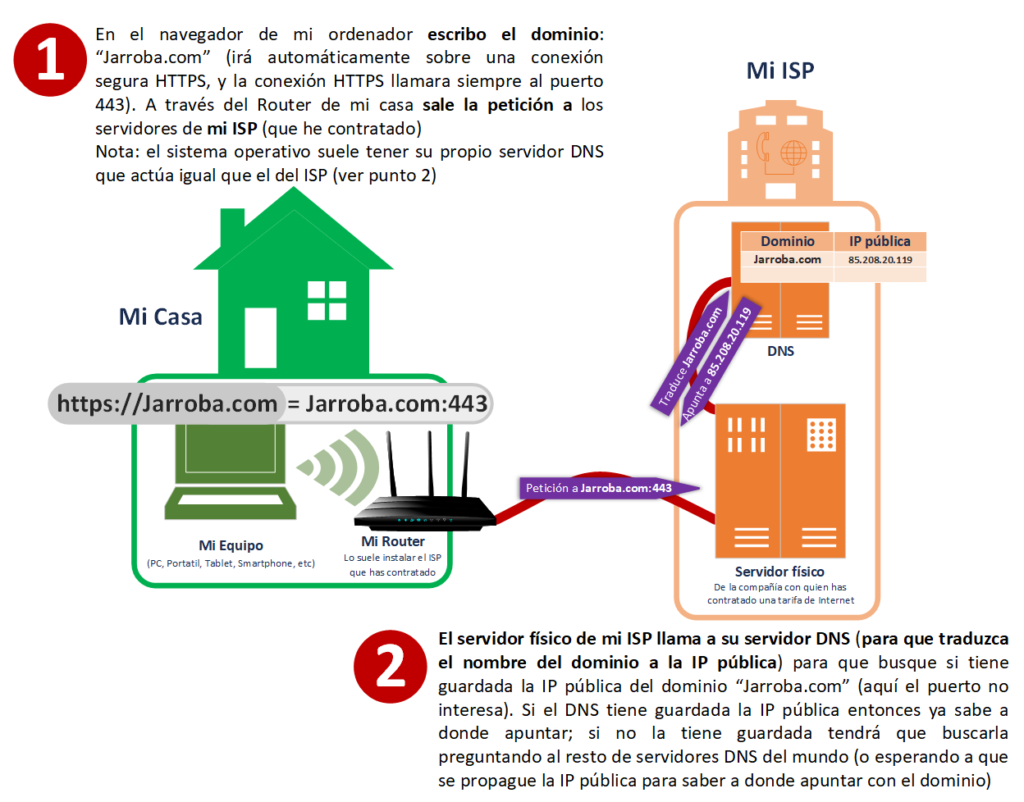
There are many DNS servers along the path of the request (from the moment it leaves your browser until it reaches the hosting service’s physical server), for example:
- In your computer’s operating system there is a “DNS (Software) server” running right now; if it knows the translation, the request would be routed directly.
- At the ISP you have a contract with (in the previous image it is the only “DNS server” I draw, at [2], to keep it short and because it is the best known, since it is usually the one that gives us most of the translations).
An aside: ISP (from English “Internet Service Provider”) is the Internet service provider you have a contract with, such as: Movistar, Orange, AT&T, etc.
Back to DNS servers, which store the information of the “public IP” that corresponds to the domain name: when a DNS server is asked for the “public IP” that corresponds to a “domain name”, two things can happen:
- It knows the translation: because it has previously stored the translation (we call “translation” the correspondence between a “domain name” and the “public IP”).
- It does NOT know the translation: it doesn’t know how to translate the “domain name”, so the DNS server can ask other DNS servers for the translation (possibly from other ISPs); or else wait for it to propagate (“DNS propagation” happens when a new domain is registered; it takes several hours because it involves sending the translation to the different DNS servers around the world so that they know it). Either way, once the translation is obtained, it will be saved in the database of the DNS server that asked for it, for later use (to offer it to whoever asks for it).
If your ISP knew where to send the request to the other ISP used by the “hosting service company” (or if, by chance, your ISP and the “hosting service company’s” were the same), then it would be a direct request; but let’s suppose not, to have a more complete example.
The servers (physical and software) of your ISP will have to ask the IXP [3]. An IXP (from English “Internet Exchange Point”) is a neutral server where the different ISPs have agreed to share information [4]; an IXP is a large Router that looks at the request and routes it to the corresponding ISP’s network by the shortest path. To do so, it will split the IP address in v4 format into two halves: network and host; for example, if our IPv4 is “85.208.20.119”, then “85.208” indicates the network and “20.119” the host; knowing the network where to send the request, the IXP server knows where the ISP that owns that “public IP” is and will send the request in that direction.
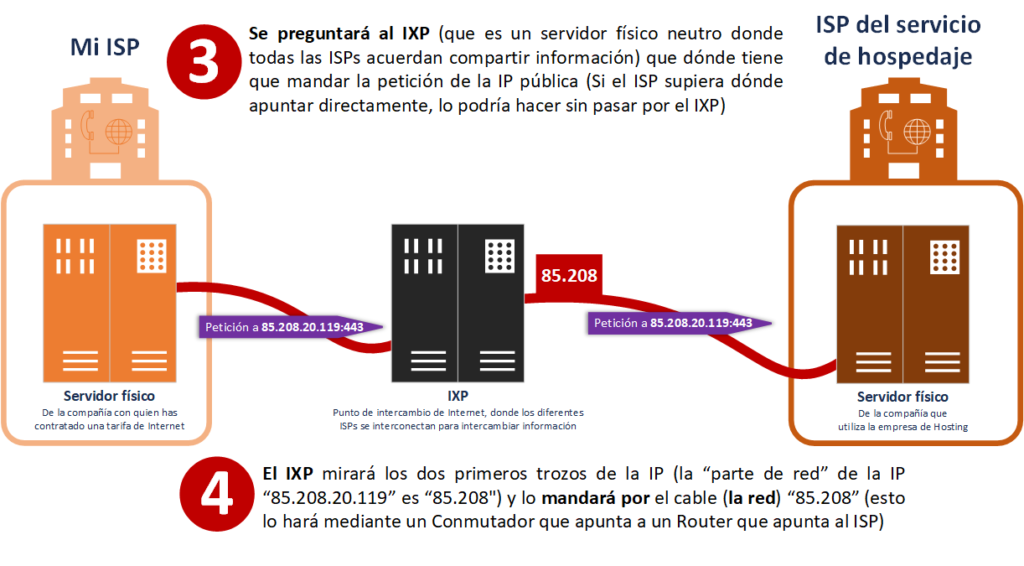
The ISP of the “hosting service company” knows where to send the request [5]. Then, the Router of the hosting company, which also knows where to send the request [6], will convert the “public IP” address into a “private IP” (by applying a “subnet mask”). This is to travel inside its network and reach the “physical server” where the website we wanted to access is located [7].
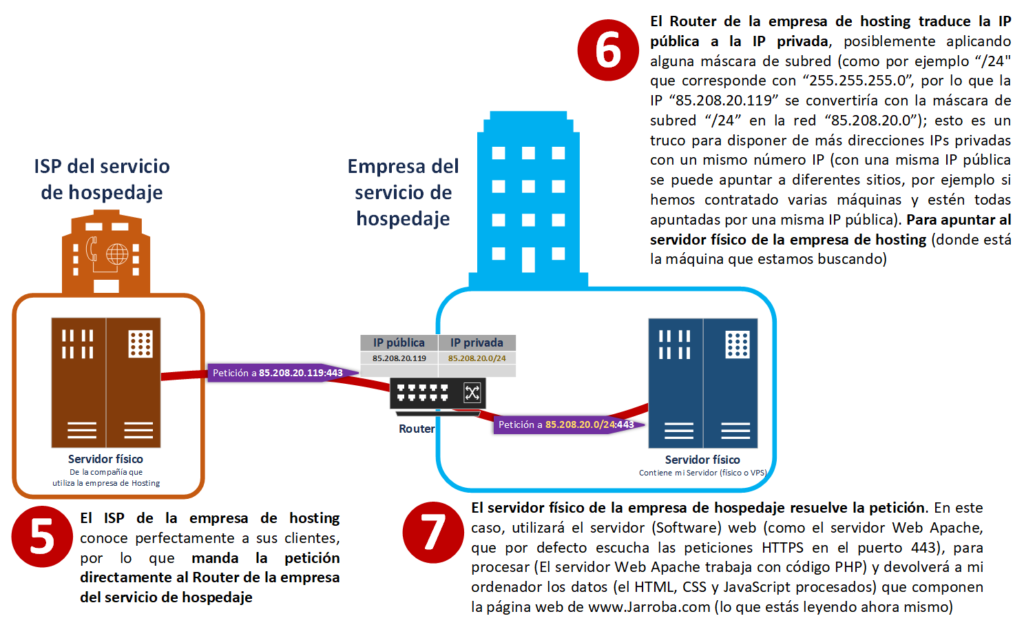
On the “physical server”, the request will be processed by some “Software server” that is listening. A web request can be processed by a “Web server” (such as Apache, which we will learn to use later), which will be in charge of listening on port 443 (for secure HTTPS requests), picking up the request and generating the data that the browser will download to build the web page you are viewing (the CSS, HTML and JavaScript files).
Note about “the Internet” described above: I wanted to describe the “Internet network” from start to finish so that you understand it from the moment the request leaves the client until it reaches the server (without going into the layer model); it is complex, since there are many network topologies (and interconnected ones) and the dynamism at a worldwide level is overwhelming; they keep changing and it may not hold true in practice (everything above is theory strung together from start to finish), but I have tried to summarize in order to put everything in one line and so that the complete idea of how it works is understood. That is why I included the IXP part simply to link the different servers without having to resort to the abstract idea of the “Internet” cloud, and so that you can see the possible “physical servers” with their “Software servers” working along the path of a request; as well as to learn the difference between “public IP” and “private IP” in a complete context.
If you are more curious and want to learn in depth about the “Client Server” architecture, we recommend this article where we talk about the subject.
Set up your Physical server (or Cloud VPS Server)
We can create our server on an old computer we have and leave it connected 24 hours a day, every day of the year; or, more efficiently, conveniently and cheaply (in electricity, parts and maintenance), use a hosting company. Here I will explain the latter, mainly to clearly see the difference between our computer (client) and another computer (a “Physical server” acting as host) on the other side of the world that we can manage from our computer.
Sign up for a Hosting service
We can use whichever hosting service we want, since they are all quite similar, some perhaps simpler than others, and some come with auto-setups of many tools (for example, they can set up everything needed to start working with WordPress; but to begin with, I recommend learning to set it up on your own so that it is easy for you to solve any problem and create new features). Here we are going to try all of this with the hosting service from clouding.io which will let us fully manage our server by hand, and for free to learn . The free service from clouding.io offers €5 to spend on learning to manage our own server. All the steps described in detail below will take you only minutes to complete; and these €5 are more than enough to learn for over a month if you manage it well (and if you like it you can buy more).
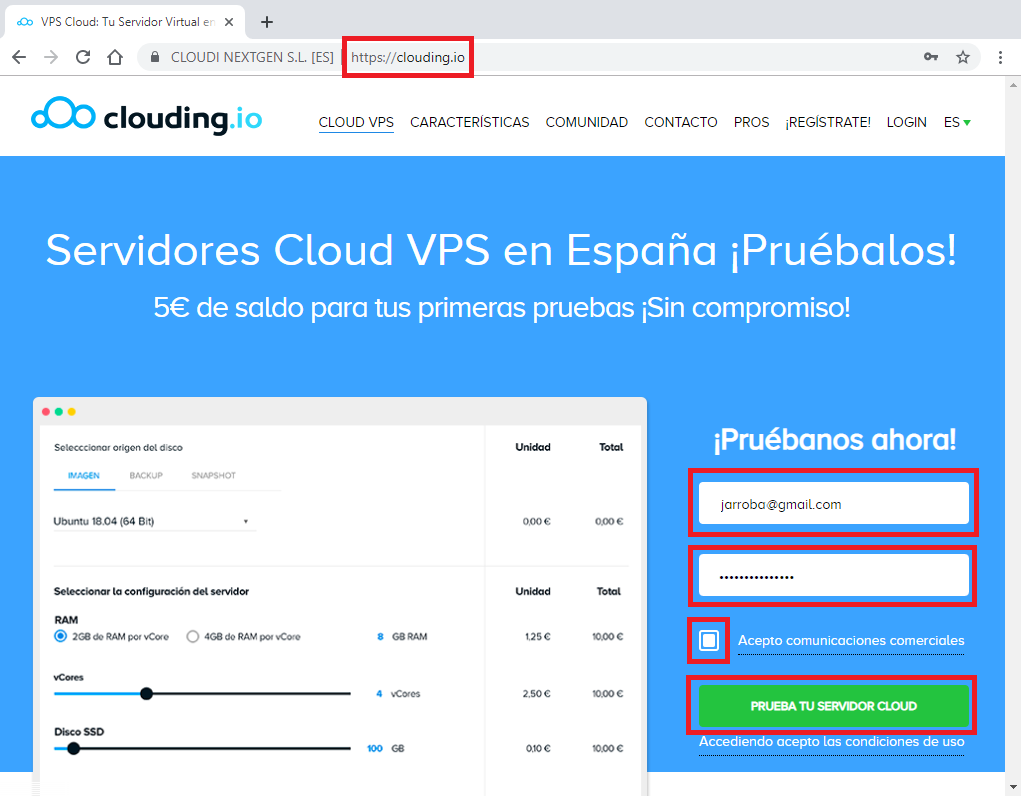
We go to clouding.io and fill in the sign-up form where they ask for the minimum, which is the username and the password; once we spend the free balance they will offer us the full service and for that they need us to tick the checkbox “I accept commercial communications”. To continue we click the “Try your cloud server” button.
On the next page they will ask us for security confirmations, both for us (so that we have ways of recovering our account; also, as security for our private data and that of our future users/customers, it is necessary to make sure that it will be ours and only ours) and for them (as a hosting company they need to protect themselves from others using their services for illegal acts, and for that they have to be very sure about the precise identification of their users).
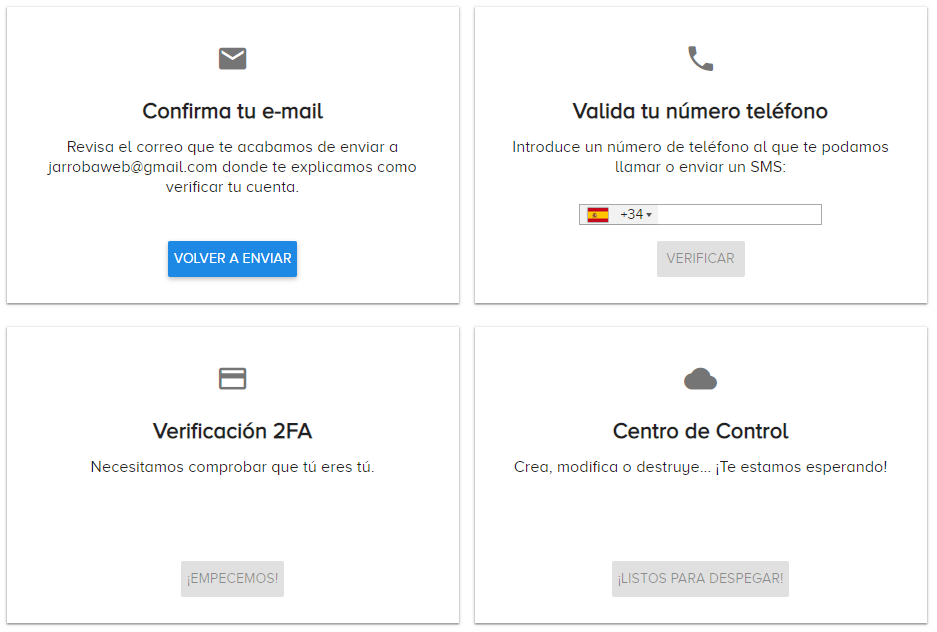
That’s why they are going to ask us for:
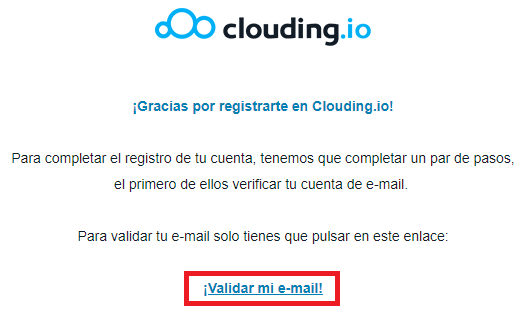
1. Confirm our email. They will send us an email to validate our e-mail like the following:
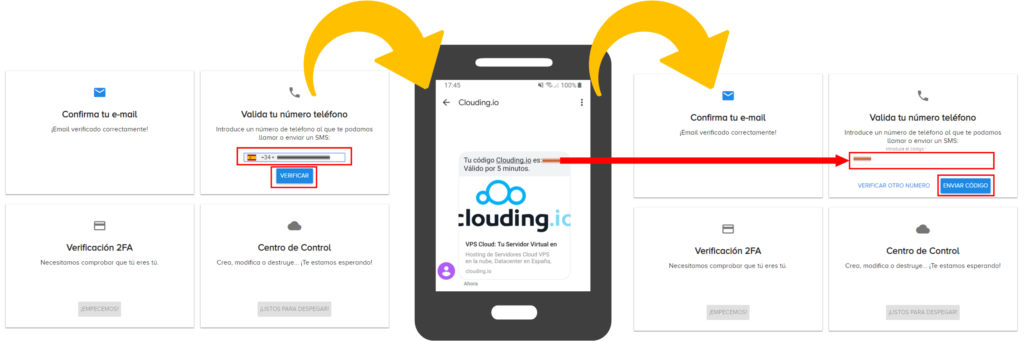
2. Validate our phone. We will enter our phone number to receive an SMS or a call, which will give us a validation code that we will enter in the form field and then click “Send code”:
3. Validate our bank account. They won’t charge us anything (except €1 that they will refund, to validate that our bank account works and isn’t fake). We will have to enter the card details: Card number, CVC (the 3-digit number on the back of the card, more information at https://jarroba.com/digito-de-control-deteccion-de-errores/), the card’s expiration month, the expiration year and the holder (the name that appears on the card). We can uncheck the “Save for future use” box (for the security of our banking data, the recommendation is that no website stores our card; it’s better to enter it each time it is needed; although for convenience we can leave this box checked, as we like).
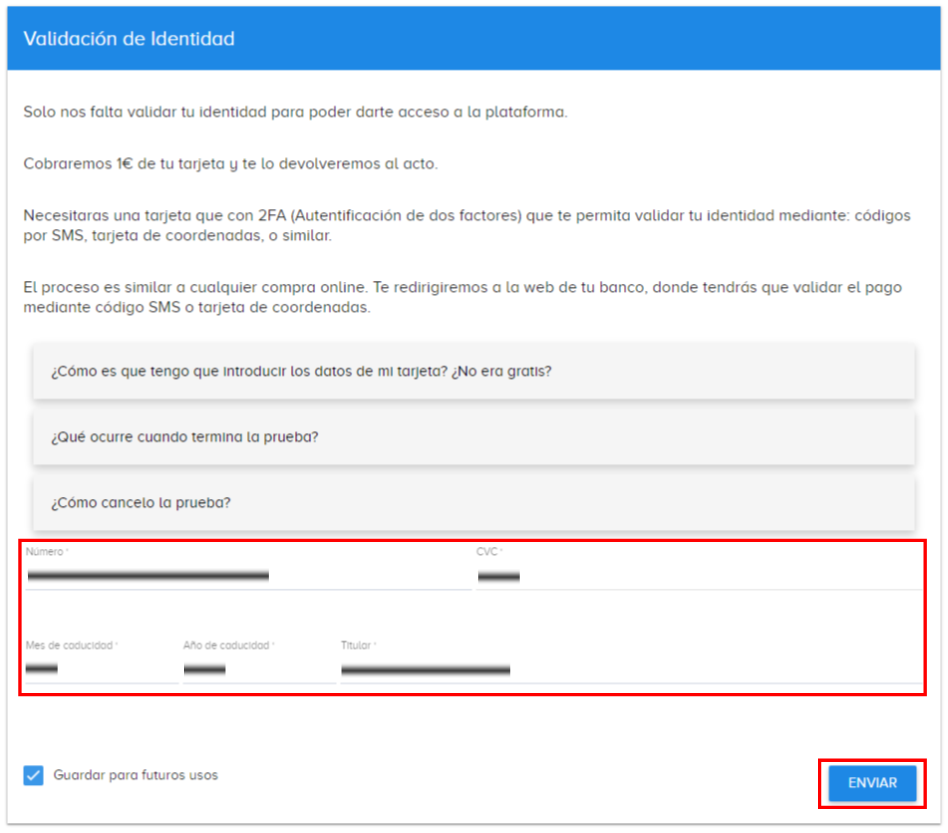
Once we have these three items validated we can click the “Ready for takeoff” button to start managing our server.
Create our Cloud VPS server
When we log in we will see the “control panel” of our hosting service (this panel we see is NOT the “physical server”; people often confuse them because you can control the “physical server” from here, but remember that it is NOT the “physical server”).
Creating a “machine” (“physical server”) on clouding.io is very quick (we will actually have a “cloud VPS server”, which we will manage as if it were a “physical server”). We just go to the “Servers” tab and, within it, to the “My Servers” tab. And now we click the “Click here to create your first server” button to start creating our cloud VPS server.
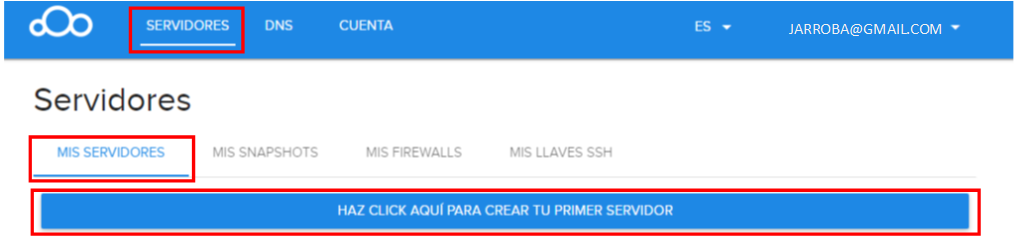
Creating a “physical server” is just like buying a new computer, tablet or smartphone. We could say that we are in a “store” choosing the parts it will have (processor, memory, operating system, etc.); after all, we are renting a computer with these characteristics, and we can use it as if we had it physically (accessing it from another computer); we only have to worry about using it (exactly like when you subscribe to a movie service like Netflix or HBO: you don’t physically hold the movies on physical discs; instead we can access their servers from anywhere directly over the Internet, to enjoy the movies as if they were physically ours, stored on the hard drives of a computer that is perhaps on the other side of the world).
To do that we are going to use our money (the €5 that clouding.io gives us; if we want to add more we can too) and “buy” our machine.
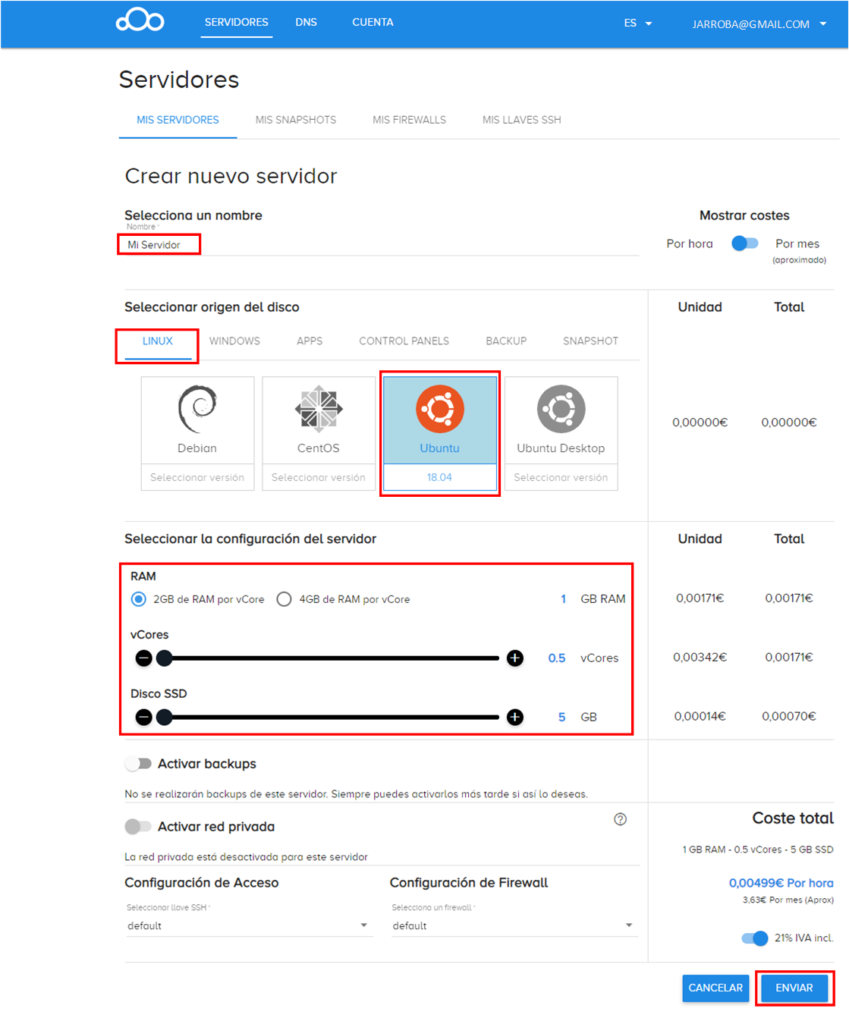
So in “Select a name” we will put a name on the machine we are going to buy (remember that we will buy for free with the €5 that clouding.io gives us). In “Select disk source” we will choose an operating system that our machine will have installed; so that it’s free for us and for the explanations that follow in this article, we will choose “Ubuntu” in its latest available version (in this case version “18.04”). Further down, in “Select server configuration” we will choose the physical configuration we want for our machine; if you are just starting, I recommend the minimum configuration, which will be more than enough and gives us the maximum time to learn (later we can expand these resources if we need to; also, as you can see in the detail on the right, you are charged for usage time, and if we choose the minimum we can try it for about a month and a half with the €5 they give us, which is pretty good); I chose:
- RAM: 2GB of RAM per vCore
- vCores: 0.5 vCores
- SSD disk: 5GB
When we finish configuring our physical server, we click the “Submit” button to “Buy” our “machine” (our “Cloud VPS server”).
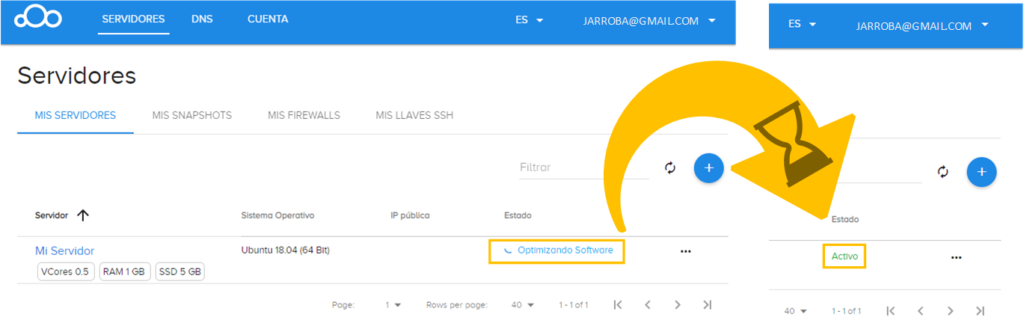
We wait a few minutes for our “Cloud VPS server” to be configured automatically (it is being configured while the status is “Optimizing Software”); when we see the word “Active” in the status, it means it has been configured correctly and we can use our “Cloud VPS server”.
Control panel of our cloud VPS server
Remember, from this “control panel” we manage our “Cloud VPS server” (or “Servers” if we create more with the “+” button; although for what I’m going to explain later, one is enough for us).
To manage our server we are going to enter by clicking on the name we gave to the “Cloud VPS server” (in my case I called it “Mi Servidor”):
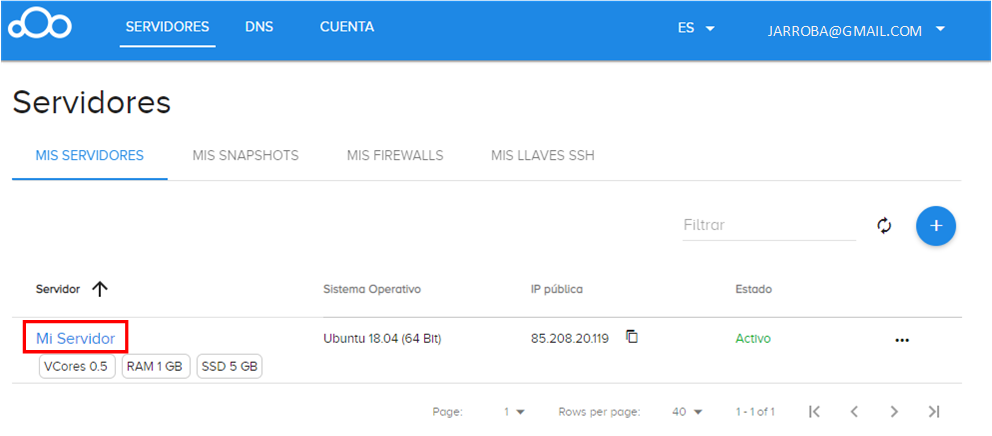
We will have arrived at the “control panel” of our cloud VPS server.
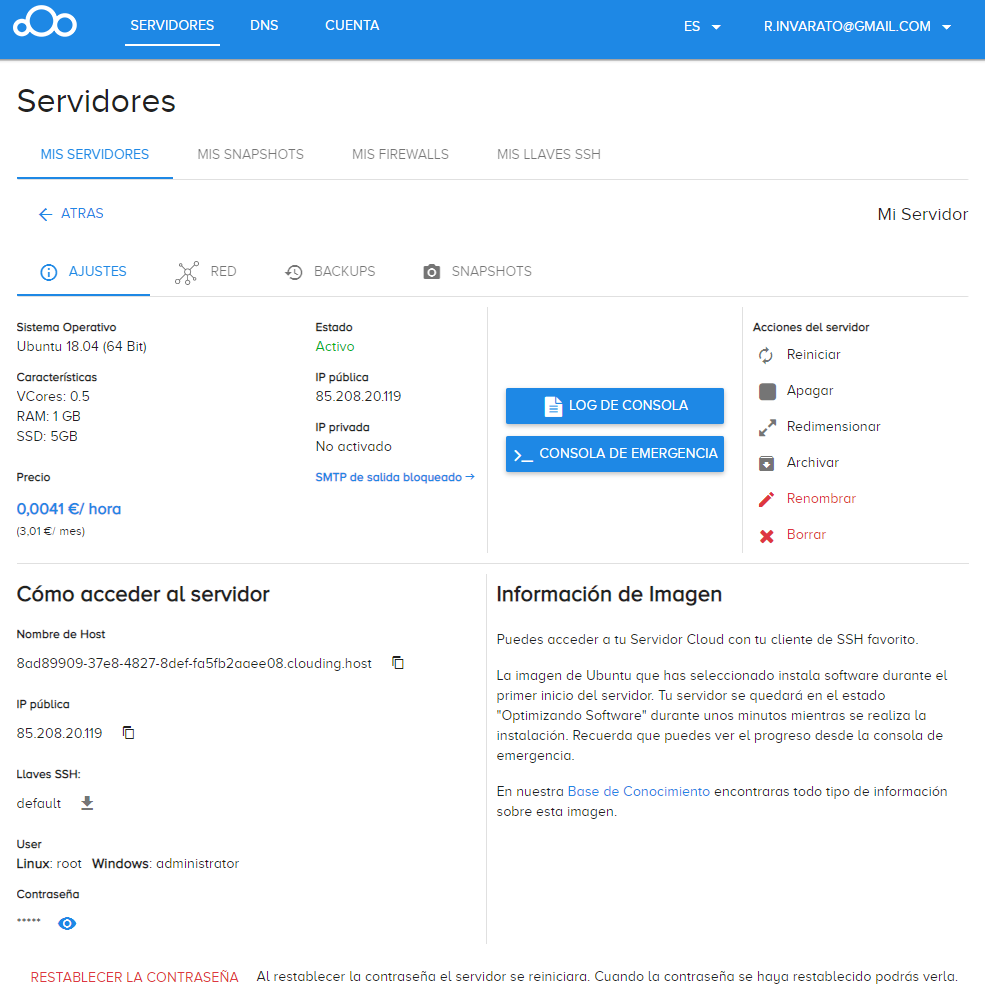
Control panel tabs
A quick summary of the tabs of the clouding.io “Control panel” (just to get to know them; you don’t need to click on any of them now, to follow this article the “Settings” tab will be enough for us):
- Settings: Where we have the public IP, the physical configuration of the server and the different access keys.
- Network configuration (Network): We can configure the private network or the Firewall.
- Backup (Backups): To create a copy of the data (normally just text, databases, images, videos, scripts, etc.) on a different hard drive (so that if a hard drive fails, we have a backup of the important data on another one).
- Instant volume copy (Snapshots): To create an immediate and exact “capture” (a copy of metadata) of the server’s state (if we save a “snapshot” now and later something happens on our server, such as installing something that makes the server’s operating system unstable, we can undo the changes back to the saved “snapshot”).
In the “Settings” tab we make sure that the “Status” shows “Active” (if it showed “Off” we can click the “Turn on” button that would appear under “Server actions”).
Note about the Status: From this panel we can turn off the server by clicking the “Turn off” button under “Server actions” (although, since the physical resources are reserved for us, we will still be charged for the service; we can “Archive” the server so that we are only charged for the space used; or “Delete” the server so that it doesn’t cost us any money). If we want to keep a website active 24 hours a day, we can’t turn off the server, otherwise we will stop giving access to whoever wants to see our website.
Access keys to our cloud VPS server
In the “Settings” tab we will see many interesting things, but what interests us is getting the keys to work with our server in the “How to access the server” section (this part is important, since later we will use all these keys, each one in its place).
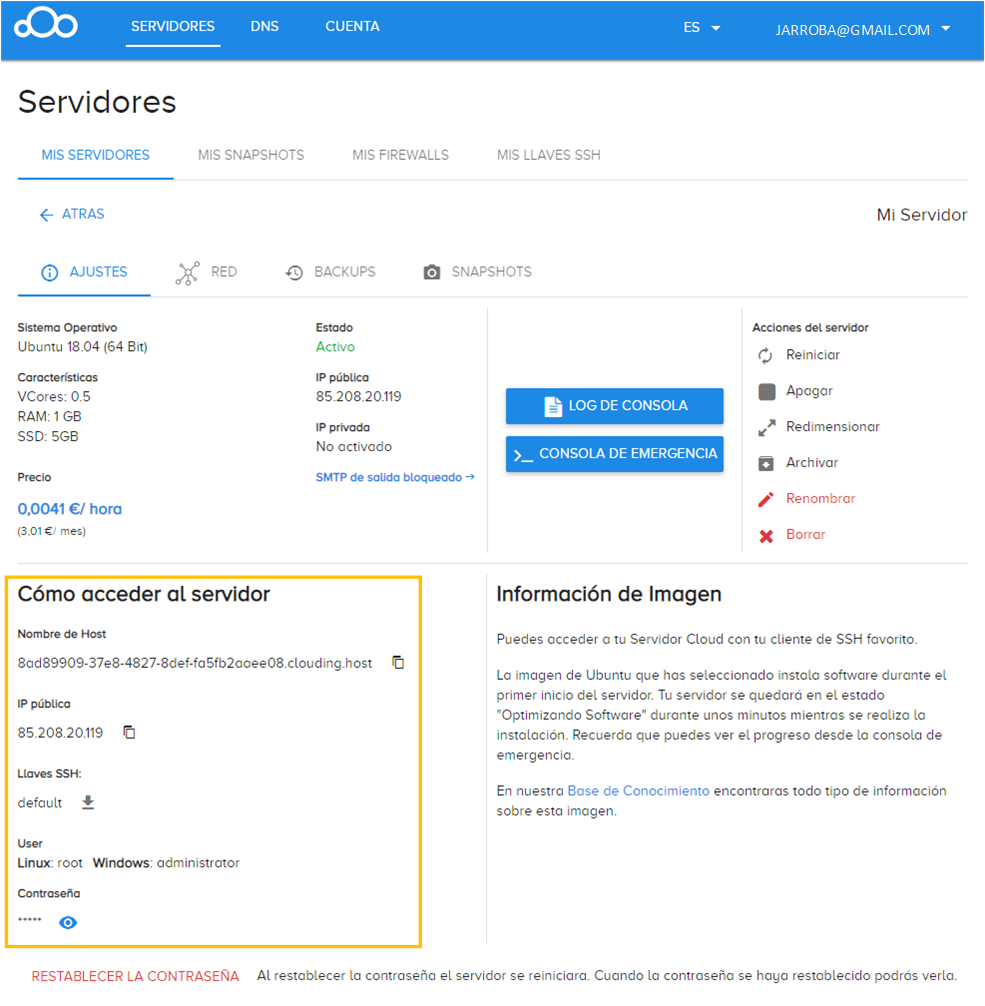
There are several keys that we are going to have, so we have to understand the differences and not mix them up:
- Username and password for access to the “control panel” of the hosting service (in this example it is the website portal.clouding.io itself).
- File with the Public key to connect via SSH (and SFTP), here called “SSH Key”.
- Username and password of the Operating System installed on our Cloud VPS server. By default, a random password has been generated for us; the user called “root” with all permissions to modify the Operating System is the same for everyone by default, so it will be good practice to change this name for security (since someone unwanted trying passwords could guess it and then make changes to our operating system; if we change the default name, which is “root”, we will have more security).
Connecting to our server via SSH
The SSH protocol (from English “Secure SHell”) gives us a place to enter data securely, which will also be sent securely, so we can give orders to our cloud VPS server.
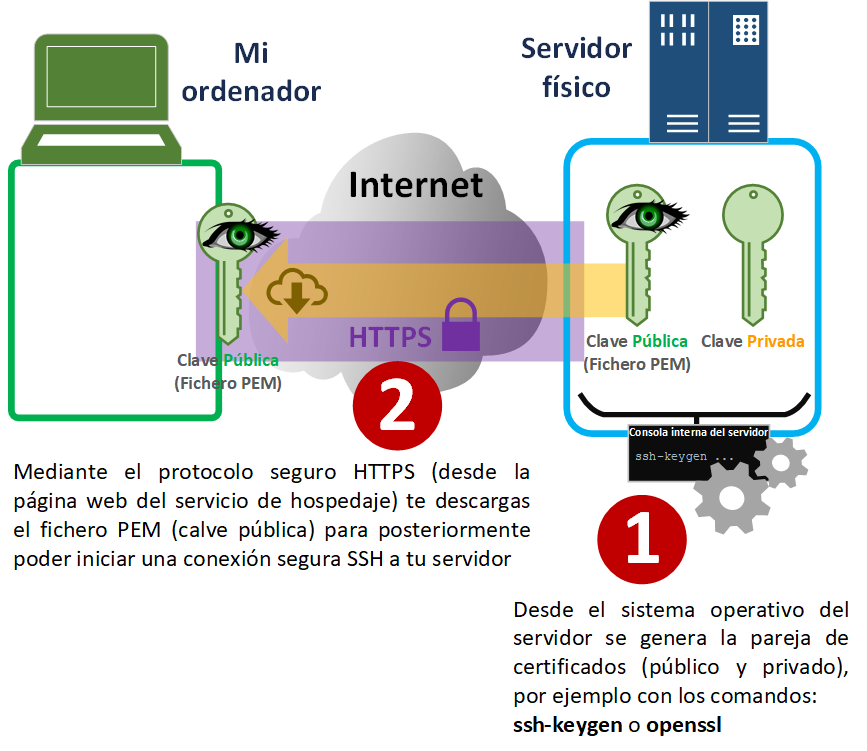
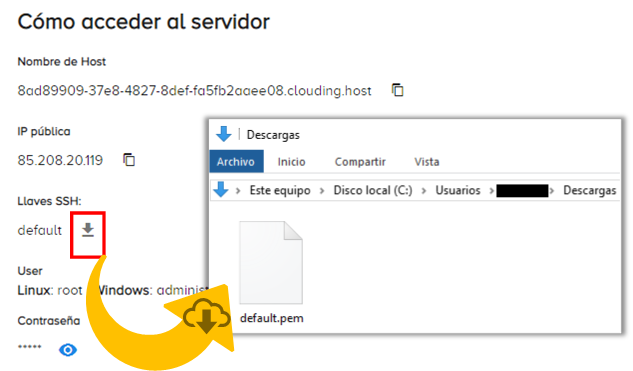
The first thing we need to connect via SSH securely (cryptographically) is the Public key that the server will have automatically created for us (along with the corresponding Private key that the server keeps; we can also create it ourselves). This Public key will be a file with the “.pem” extension that we can download from the control panel (I explain this later).
The following image represents the creation [1] of the public and private key pair (here we don’t have to do anything since the hosting service does it automatically; I’m only showing it as a curiosity, so you know where they come from); and the secure delivery over HTTPS [2], which for us is simply clicking the download button:
Now, let’s download the “SSH Key” that the “control panel” created for us by default (in the future we can create others, but for now the default one is fine). A file with the “.pem” extension will be downloaded (if you’re curious, you can open the file with a text editor and discover that it is actually a password hundreds of characters long, much longer than any password we would be willing to type by hand; so it is much more secure, and it is important that nobody copies this “.pem” file because it is your password to start communicating with the server).
Note about operating systems: It doesn’t matter which operating system the computer you’re doing these steps from has (since I’ll explain steps for Windows, Linux or Mac); what you need to be clear about is that you are going to connect to your cloud VPS server, which has installed as its operating system, for this example, the Linux distribution called Ubuntu.
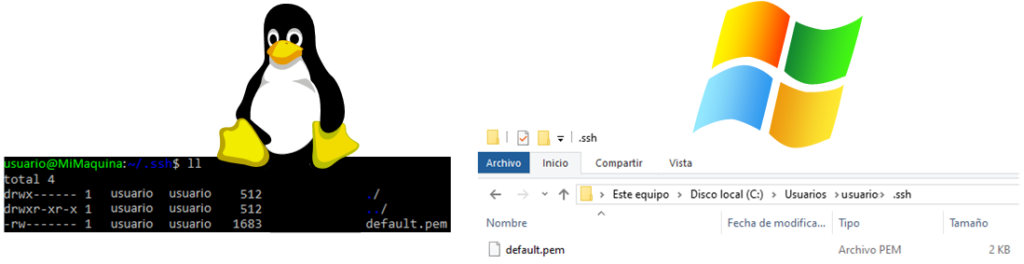
As a standard, it’s good to move these cryptographic keys (public or private) used for the SSH connection to the “.ssh” folder of your operating system, since several programs will look for them there directly.
Connecting from Windows via SSH
On Windows 10 there are several ways to make the SSH connection:
- Windows Subsystem for Linux (WSL) (personally the one I recommend, but it only works on an updated Windows 10; information to install WSL at Instalación de WSL (Microsoft Learn)). If you use the Windows Subsystem for Linux, then follow the part of the instructions below that says “Linux or Mac”, since they will be the same (you will be using a Linux system on top of Windows).
- Virtual machine with Linux installed. Virtual machines you can download: VirtualBox (Downloads (Oracle VirtualBox)) or VmWare Player (https://my.vmware.com/web/vmware/free#desktop_end_user_computing/vmware_workstation_player/15_0). Then you will have to download a Linux distribution such as Ubuntu (Enterprise Open Source and Linux (Ubuntu)) to install it on the virtual machine.
- Putty is a program for making SSH connections from Windows; you can download it from Download PuTTY: latest release (0.85) (I recommend downloading the archive with all the programs in case we need to use them, where it says “putty.zip (a .ZIP archive of all the above)”, for example for 64-bit Windows: putty.zip (PuTTY)). If you are going to use Putty, then follow the instructions below that say “Windows”.
The “.ssh” folder is located at (it is usually created by programs that need an SSH connection directly or indirectly; if this folder exists, it’s because you have used one):
- Linux (if you have a Mac computer you have to follow these steps, since its core is Linux-like): ~/.ssh (it’s the same as /home/<user>/.ssh)
- Windows: C:\Users\<user>\.ssh
If the “.ssh” folder doesn’t exist, you will have to create it with:
- Linux (command): open a terminal and create the “.ssh” folder with (and restrict its permissions with chmod as shown below)
mkdir ~/.ssh
chmod 700 ~/.ssh- Windows (interface): go to the path “C:\Users\<user>\” and right-click on the background of the folder to open the context menu, choose “New” and then “Folder”, and rename the folder to “.ssh”. A dot at the start of a folder name can only be typed on an updated Windows 10; in earlier versions you have to create the “.ssh” folder from the “Command Prompt” with the command:
mkdir "C:\Users\<usuario>\.ssh"To move the “.pem” file to the “.ssh” folder (we can rename it to tell it apart from others; I’ll leave it as “default.pem” so as not to cause confusion):
- Linux (command): Move the file and restrict its permissions with:
mv ~/Downloads/default.pem ~/.ssh/
chmod 600 ~/.ssh/default.pem- WSL (command) the command would be (move the “default.pem” file from the Windows downloads folder to the “.ssh” directory of the Linux environment):
mv /mnt/c/Users/<usuario>/Downloads/default.pem ~/.ssh/- Windows (interface): we copy the “default.pem” file from the downloads folder (from “C:\Users\<user>\Downloads”) to the “.ssh” folder (to “C:\Users\<user>\.ssh”).
Note about restricting permissions: it is good practice to restrict the permissions on keys for security (and in newer versions of Ubuntu it is mandatory to restrict the permissions on key files).
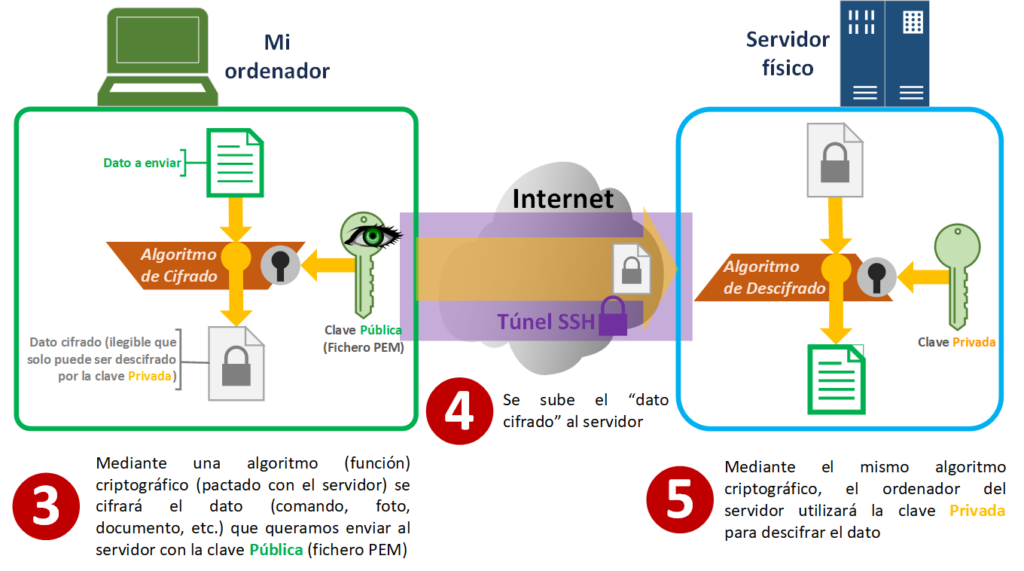
We now have everything ready to connect to our cloud VPS server through an “SSH Tunnel”. In short, the “SSH Tunnel” encrypts the data (which can be commands, or files such as images or videos) that we are going to send with our Public key [3] (the file with the “.pem” extension that we saved in the “.ssh” folder), sends the encrypted data to the server [4], and on the server it decrypts the encrypted data with the private key so that the server can work with the unencrypted data.
Data we need from the “control panel” of our cloud VPS server
In the following steps we are going to need the “How to access the server” section (write them down somewhere or remember that they are here so you can copy them):- The public IP, which in my case is “85.208.20.119”
- The SSH key, which we have already set up
- The Linux user, which by default is “root”, and the password, which we can see by clicking the eye icon.
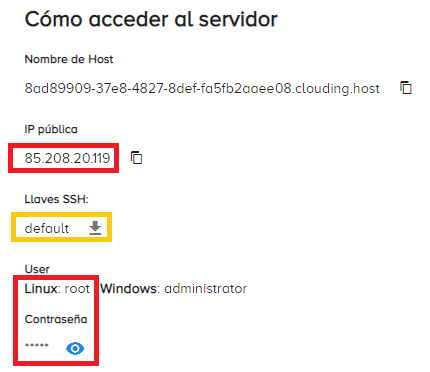
Note: Instead of the “public IP” we can use the “Host Name”, which is the domain name assigned to us by default (the “Host Name” points to the “public IP”); in these examples I will use the “public IP” because it is shorter.
To connect from Linux or Mac (or Windows with WSL)
With the command:
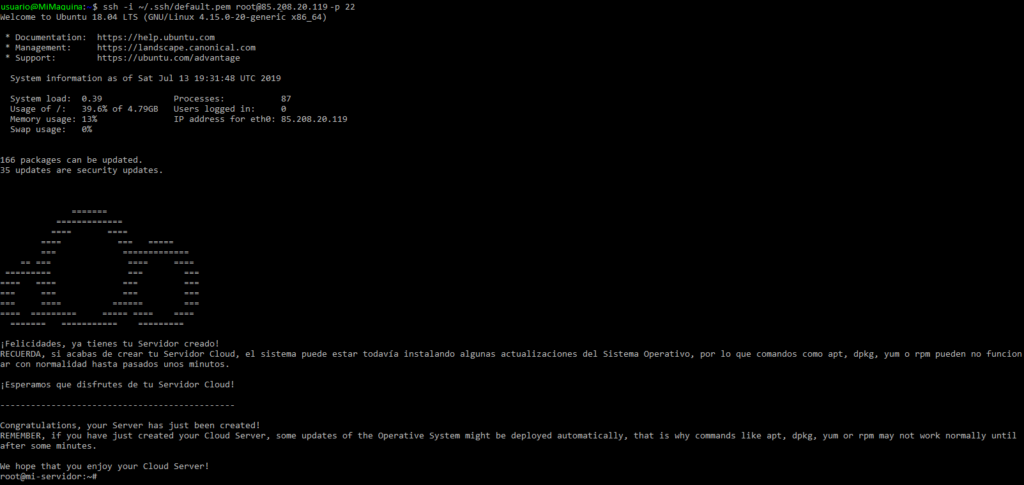
ssh -i ~/.ssh/default.pem usuario@ip -p puertoBy default the user is “root”, the port is “22” and the IP is the one that appears in “How to access the server”; for this example it would be:
ssh -i ~/.ssh/default.pem root@85.208.20.119 -p 22The first time we enter the command we won’t have the host saved as known, and it will ask us whether we want to save it; we type “yes”:

And if we have entered the access data correctly (and the machine is running), we will be inside our cloud VPS server through an SSH tunnel:
To connect with Windows using Putty
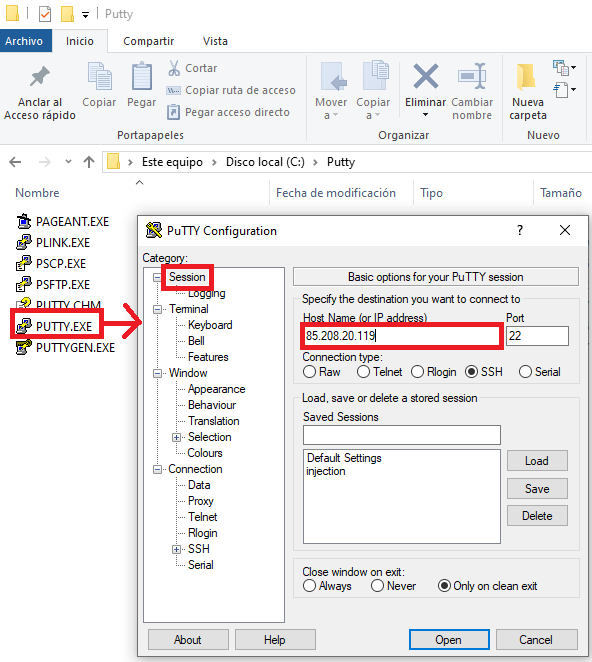
Run “PUTTY.exe”. In Putty go to the “Session” category (which will probably be the one loaded by default) and type the IP of the Cloud VPS Server in “Host Name (or IP address)”.
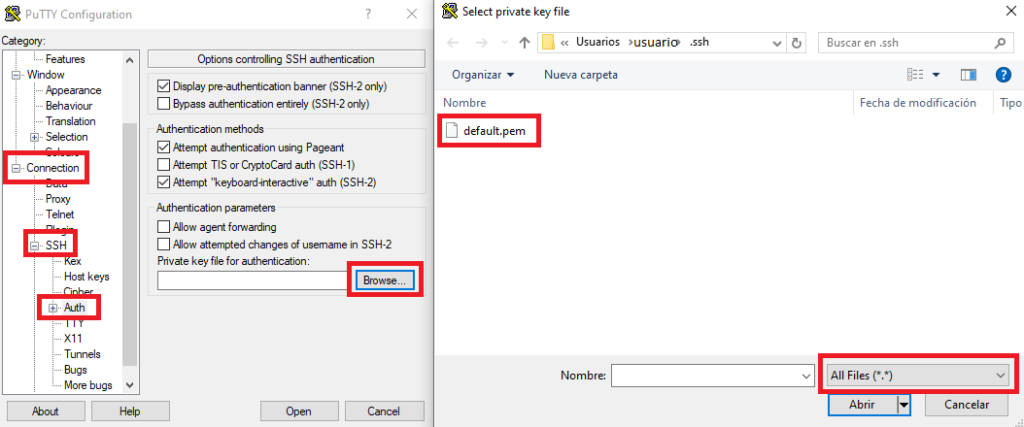
Then go to the “Connection/SSH/Auth” category and where it says “Private key file for authentication” click “Browse…”. The Windows file picker will open, go to the “.ssh” folder at “C:\Users\<user>\.ssh”; if you don’t see any file, it’s because the PPK filter is set, change the filter to “All Files (*.*)” and select the “.pem” file with your private key (for this example it is “default.pem”) and click the “Open” button.
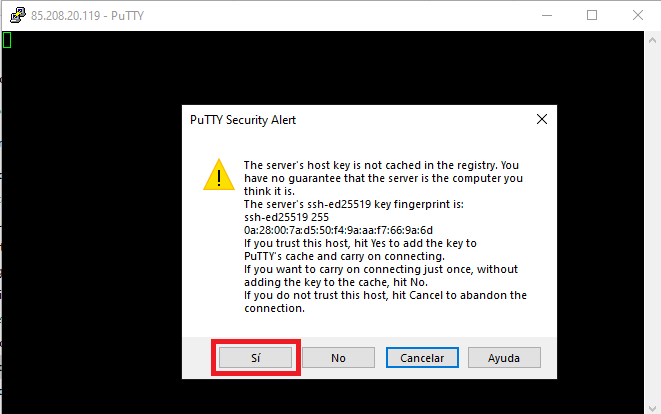
Click the Putty “Open” button at the bottom right. The screen will turn black and the first time it will warn us and ask whether we want to add the server to the list of known ones; we click “Yes”.
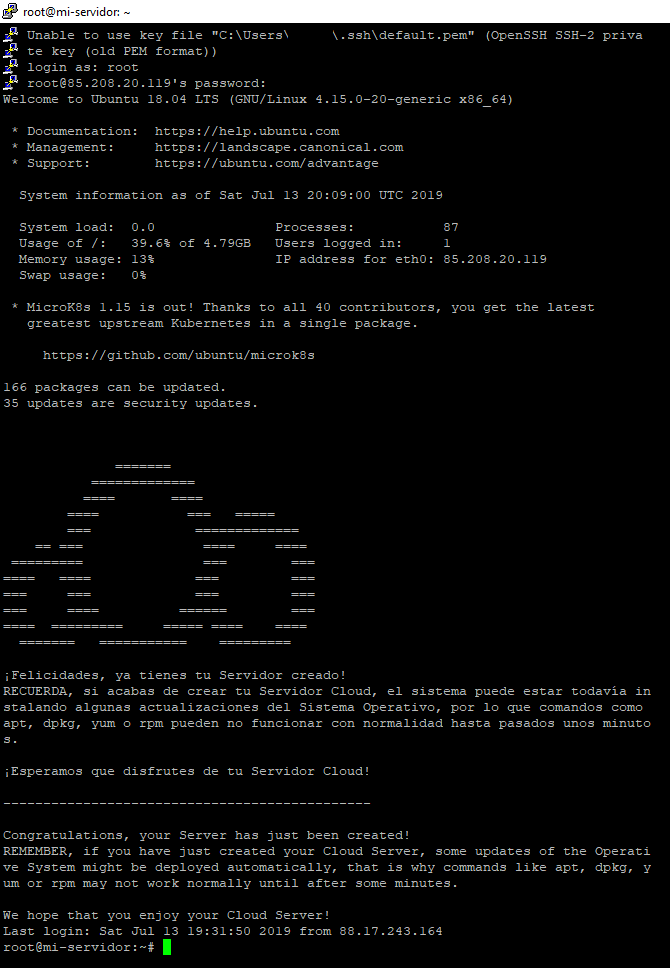
Now it will ask for the username and password that appear in the “control panel” of our Server under “How to access the server”. The default Linux user is “root” and the password appears hidden, but if we click the eye we will see ours, and that is the one we have to enter:

We will have established an SSH tunnel to communicate with our cloud VPS server.
What now?
With what you have learned in this article, you can already use your Cloud VPN Server for whatever you want.
If you want to learn much more at a professional level, the best thing to do now is learn to configure Software servers on this Cloud VPN Server, manage the Firewall, edit code both remotely and locally, all the way to creating a website, and all of this step by step by clicking here (since that other article is designed as a second part, to complete and expand the knowledge offered by the article you have just read).
Much more for my Cloud VPS Server
If you want your Cloud VPS Server to be more powerful and secure, you can improve it from the “Control panel” at portal.clouding.io.
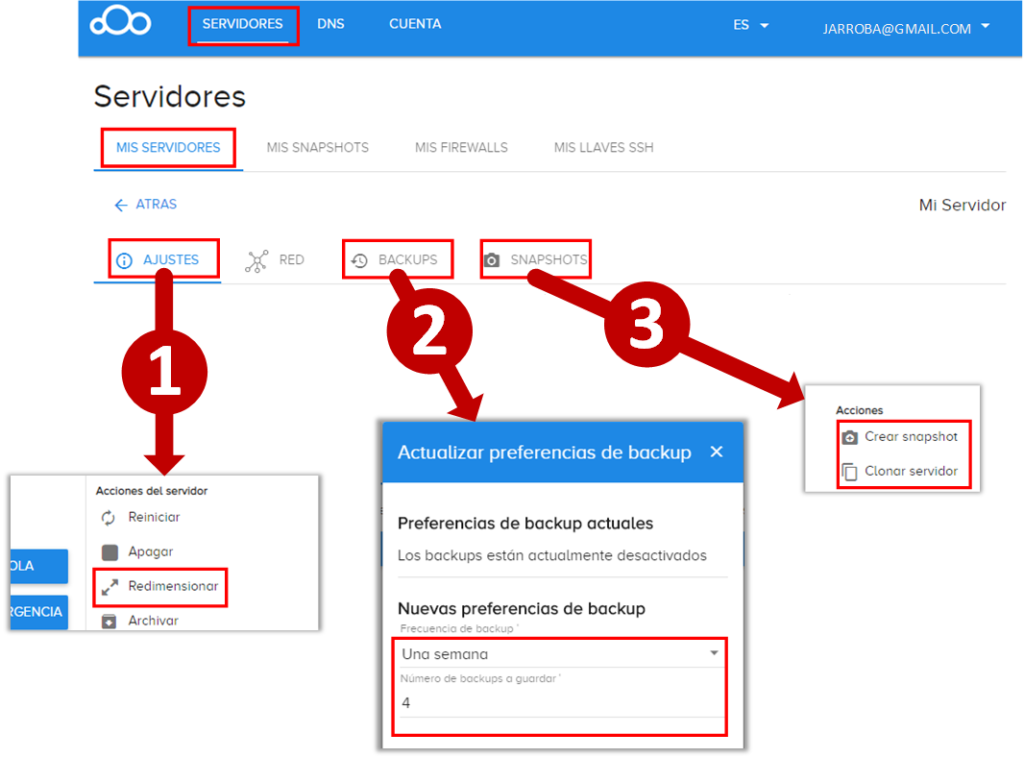
Go to the “Servers” tab, and within it to the “My Servers” tab, and select the Cloud VPS Server you want to modify. Depending on what you need, you can purchase each of the following services at an additional cost:
- Resize the hardware of my Cloud VPS Server [1]: As we said earlier, it is very important to resize our cloud VPS server so we neither fall short nor overshoot on hardware. In the “Settings” tab, clicking “Resize” will let you choose a new configuration (for example, more hard drive, more RAM or more processor cores).
- Keep a backup of your Server’s data, just in case [2]: In the “Backups” tab you can enable the backup service very easily and configure how often the backups are made.
- Clone our entire Cloud VPS Server or simply create an instant snapshot of the Server, so that if in the future we had some unstable Software, we could quickly go back to a previous version [3]: In the “Snapshots” tab you can either clone the Server to another one (it will ask which hardware we want) or directly create a snapshot of the Server.
Bibliography
- Proveedor de servicios de Internet (Wikipedia)
- Alojamiento web (Wikipedia)
- Internet exchange point (Wikipedia)
- Secure Shell (Wikipedia)
- Domain Name System (Wikipedia)
- Protocolo de internet (Wikipedia)
- Servidor (Wikipedia)
- Servidor virtual privado (Wikipedia)
- Server farm (Wikipedia)
- Sistema de nombres de dominio (Wikipedia)
- Cloud computing (Wikipedia)
- Virtual private cloud (Wikipedia)
- https://clouding.io/kb/
- Mejores DNS públicos de 2026: rápidos, seguros y privados (ADSLZone)
- On-premise (en local): instalación de software en un servidor propio (TIC Portal)
- Welcome to RIPE and the RIPE NCC (RIPE NCC)
- ARIN (American Registry for Internet Numbers)
- LACNIC – Registro de Direcciones IP en LAC
“How Servers and Hosting Services Work” by Ramón Invarato at jarroba.com, licensed under Creative Commons Attribution-NonCommercial-ShareAlike 3.0. Registered at Safe Creative.

You may also like

Using Servers and Building a Website
Learn what you can do with a physical server: install Apache, build your first website, edit it with Vim or an IDE, upload files over SFTP and pick a domain.
Client vs Server
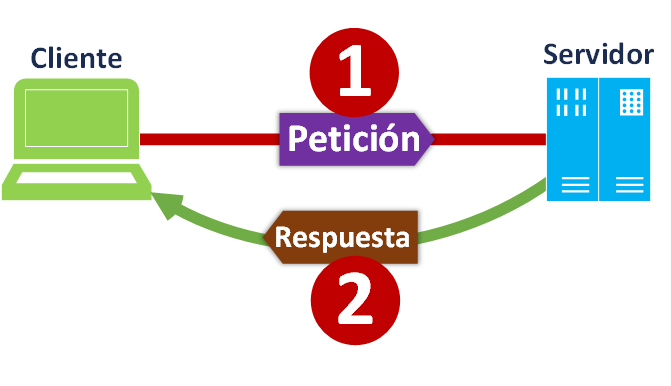
Client and Server is an architecture for communicating and splitting up tasks. The Client asks for something and the Provider (Server) offers what was asked.
Leave a comment