
Build Your Own Software Server (Sockets with Python)
Learn step by step how to build your own server with Python sockets. Keep a real-time connection or monitor devices. Open a port in the firewall.
To build our server step by step we will use Sockets And what can you do with Sockets? Well, since they keep the connection open in real time, we can send and receive data back and forth. For example, we could build our own chat; that is, a desktop application on our computer (or smartphone) that receives and sends messages, so that the server side receives and sends messages in real time.
Another thing we could do is monitor just about anything. Does “the Internet of Things” ring a bell? (for example, collecting sensor data in real time and sending it to our server through boards like Arduino or Raspberry). For example, we could monitor the presence in our home so that we get an instant alert on our phone if a motion sensor detects something; or we could control the irrigation of a garden by sending temperature and humidity data to the server, and then the server software (which, for example, could be this very Python we are going to see in this article) would decide whether to water the plants, turn on the infrared lamps, cover the plants with a motorized awning, or, a bit more industrial: activate robotic tractors to harvest only the fruits/vegetables that are at their peak ripeness, whose data is being monitored in real time through sockets. If you are interested in how to create a socket with Arduino, at the end of the article, after understanding Client and Server Sockets, I will tell you where to learn how to use it; it is just as easy as what you are going to learn here.
To understand this article I recommend that you be clear on the differences between Client vs Server, which we explain in an easy read of just a few minutes by clicking here, where we also explain some dangers you need to keep in mind. Another article that is closely tied to the previous one, and that is worth spending a few minutes on, is the one about the client request, which you can read by clicking here.
By the way, if what you want is to use software servers that already exist (for example, to create your own website), I recommend you take a look at this article by clicking here. On the other hand, if you want to understand at a technical level how the different servers and hosting services work, you can check out the previous article by clicking here. I recommend it if you are just starting out in development, since this article takes for granted certain details explained in the earlier ones (in other words, the articles I just recommended, although they stand on their own, could well make up a complete course to become a Back-end and Front-end professional).
Socket
A network socket is used for a direct connection between two applications, as if both applications were connected to each other with nothing in between (the socket abstracts away everything else in the middle, from the moment the data leaves one application until it reaches the other over the network).
From a developer’s perspective, it is used to program applications without worrying about anything other than receiving and sending data through the socket. In other words, the developer just has to put a method like this one inside an infinite loop (the following line is pseudo-code, don’t copy it, since it is only useful as an example):
getDatosDesdeSocket(ip=“85.208.20.119”, port=50000) And keep getting, line by line, the data that arrives from the network; without worrying about other network matters: whether there are physical ports along the data’s path, whether there are intermediate servers, whether chunks of the data are missing, etc. By the way, this infinite loop may have reminded you of what servers do, and yes, with this kind of method you can create your own server from “scratch”.
Don’t confuse the “network socket” with the “electronic socket”. The “electronic socket” is also called a “Zócalo” in Spanish; on a computer tower’s motherboard, “socket” usually refers to the physical slot where a processor is attached and connected. There are also other, lesser-known uses of the word socket in electronics, such as adapters that let you avoid soldering chips onto a printed circuit board (like a motherboard).
In this article, whenever the word “Scoket” appears, we mean the “network socket”.
Terminals: Local and Remote (SSH)
We are going to need two terminals open on your computer (yes, both on the same computer), and it is important that you can tell them apart:
- The terminal with the SSH connection to our physical server (the Server): where we run the commands that give orders to the Ubuntu Linux distribution (the operating system) of our physical server. Note about the following images: I will represent this terminal in blue on the right, with the server icon and the Linux logo. We explain how to establish an SSH connection to our server in the article about how servers work; although for testing you can also simulate the server locally (if you are learning, I recommend testing on a real physical remote server whenever you can, since it makes the difference between “Local” and “Remote” very clear, and you will also learn about real production and how to deal with its quirks); to simulate a remote server locally, if you are on Linux you just open another terminal, and if you are on Windows you use the Windows Subsystem for Linux (WSL) (again, we explain it in the article I mentioned earlier).
- The regular terminal on your computer (the Client): where we will run the commands that give orders to our computer’s operating system. Note about the following images: I will represent this terminal in green on the left with a laptop icon and the Windows logo (on your computer you can have whatever operating system you like, such as Linux, Mac, Windows, etc. I use Windows here so that, if you are learning, you can clearly tell which part is the client and which is the server; also, the Windows and Linux commands I am going to use here are the same for both systems).

Note about the text size in the images: since both terminals are placed side by side for comparison, the text may look very small depending on your resolution. If you click on the image, it will open in a new window at full resolution, so you can zoom in as much as you like.
Note about Windows/Linux/Mac/etc.: I chose Linux for the server because it is usually the most common, and Windows for the computer so that the difference between both sides, Client and Server, is very clear. But you could have both machines running Linux, or both running Windows, or any combination of operating systems.
With the Client terminal we will go to where we want to create the file with the Python script that will represent the Client. I want to create it on the Windows desktop, so I will use the command:
cd C:\Users\usuario\DesktopAnd in the Server’s SSH terminal we will go to where we want to keep the other file with the Python script in the folder “/usr/local/bin” (we could save it somewhere else, but this is the recommended place to keep scripts):
cd /usr/local/bin
Getting Python
For the following example I am going to use Python, but it works very similarly (if not exactly the same) in any programming language. You can use any server to follow the next steps; you will need to have the latest version of Python installed (in my case it will be version 3.7) on both the physical server and your local machine.
Note: if you are coming from the first article, in this article I will keep using the “Cloud VPS Server” from clouding.io, which comes with Python 3 preinstalled, so we won’t have to install it ourselves (we would skip this command).
If we need to install Python 3 on a physical Linux server, we do it with the following command (you can check the latest Python version at Download Python (Python.org)):
sudo apt install python3.7To install Python on a Windows server, we download the installer from Download Python (Python.org)
After installing Python, I recommend closing and reopening each of the terminals (so that the automatically installed environment variables take effect).
You can check that Python is properly installed in any of the terminals by typing:
python --versionIf it shows the Python version, it is working correctly.
Python Scripts
Now we need the Python scripts in place, so I’ll let you choose how you want to proceed (pick one, and only one, of the following two options):
- Create them yourself (you will learn more this way), by retyping the code I give you below while you work through it (I recommend this option for learning, and it is the one the rest of this article will guide you through step by step; besides, you will always have the complete code on GitHub).
- Download from GitHub and upload directly both the server Python script (“MiServidorCreado.py”) and the client Python script (“MiCliente.py”) from View on GitHubInvarato/JarrobaPython / sockets. You will have to upload the file called “MiServidorCreado.py” to the “/usr/local/bin” folder on the Server (you can do it with FileZilla by dragging it into the “/usr/local/bin” folder as explained previously) and move the file called “MiCliente.py”.
How do I create the files myself?
If you want to learn, then you have chosen wisely 😉
On Linux you can create them with Vim directly in the folder where you want them. For example, from the “/usr/local/bin” folder we can use the following command and type in the code (in the previous article about how to use servers I gave a short explanation of Vim, which I recommend you quickly review by clicking here):
vim MiServidorCreado.pyCreating the file directly on the server saves us from having to upload it.
Otherwise, we can create both files on our computer and then upload the server one.
On any operating system (Windows, Mac or Linux) with a graphical interface (the server’s operating system has no graphical interface, but your computer does) you can use an IDE like the ones mentioned previously. For example, in Sublime Text by clicking “File” and then “New File”.

Remember to rename the files; I named mine “MiServidorCreado.py” and “MiCliente.py”.
You will have to upload the file called “MiServidorCreado.py” to the “/usr/local/bin” folder on the Server (you can do it with FileZilla by dragging it into the “/usr/local/bin” folder as explained previously) and move the file called “MiCliente.py” to, for example, “C:\Users\usuario\Desktop”.
Opening a Port in the Firewall
Since we are creating our own “software server”, we need to open a port in the firewall of our “physical server”. This is because, by default, the firewall blocks all connections (it blocks all IPs and ports) that are not defined, for security reasons (which prevents dangerous and unwanted connections).
The firewall is a set of “firewall rules” (also called “firewall policies”), and each of these “firewall rules” has the following data:
- Transport protocol: usually TCP or UDP, although there are many others. For example, a socket uses TCP, which will be the protocol we need (and who says sockets use TCP? It is in the specification, and also out of necessity, since TCP doesn’t lose data and makes one-to-one connections; more information at Socket de Internet (Wikipedia)).
- Source IP: the source IP from which we expect to receive data (for example, if we want to connect to a “software server” running on the same machine (locally) for testing, we will use localhost, which is “127.0.0.1”. To listen for connections from a specific IP we will put that IP; for example, to connect to our “physical server” we would put its IP.
- Port: the port that our software server will listen on (and which comes together with the source IP). We can choose a port between 49152 and 65535 (ports 1 to 1023 are the reserved “well-known” ports, and ports 1024 to 49151 are the “registered” ports, which are mostly reserved; so to be safe we pick one in the private port range, 49152 to 65535; more information about reserved ports at List of TCP and UDP port numbers (Wikipedia))
To connect our socket you need to open a firewall port; I am going to open port 50000 just because I feel like it. I’m also telling you here because in the following paragraphs, up to the next heading, “Python Sockets”, I’m going to explain step by step how to open the specific port on one type of firewall; if you already know how, you can skip it.
In my case, since I am using a clouding.io “Cloud VPS Server” as the physical server, to open a new connection we have to go to the control panel of our hosting service (in this example, and to continue from the previous article, we will use https://portal.clouding.io).
Depending on the hosting service (or if we have set up our own server), the following steps may vary slightly, but they will probably have similar names.
In my case I have to go to the “My Firewalls” tab. Here we can do one of two things: either create a new firewall and assign it to our “physical server”, or modify the one we already had (remember that when I created my “Cloud VPS Server” I assigned it the default firewall called “default”; we can check by going to the “My Servers” tab for a moment and seeing which firewall we chose). For simplicity I am going to modify the “default” firewall (follow these steps to learn; in the future I recommend creating a new firewall so you keep the default one as a base for other future “physical servers”).
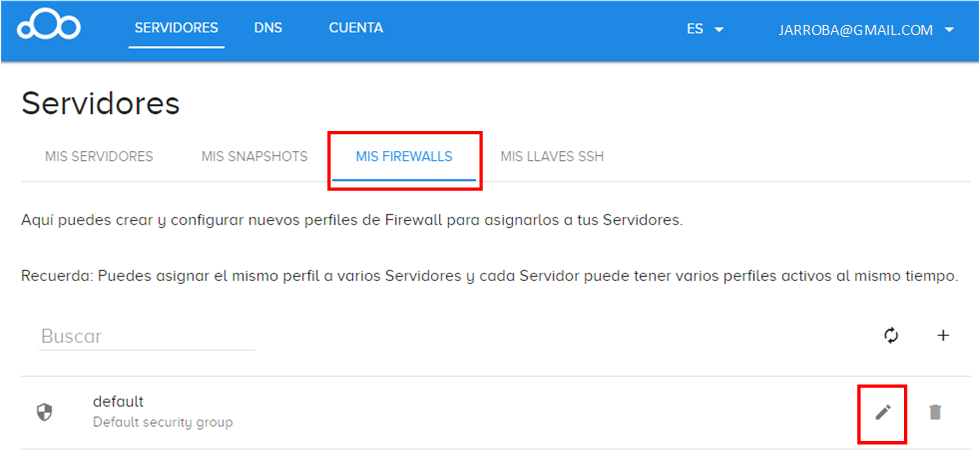
When we modify the “default” firewall, which was already created for us, we will see that it already has a few default “firewall rules”.
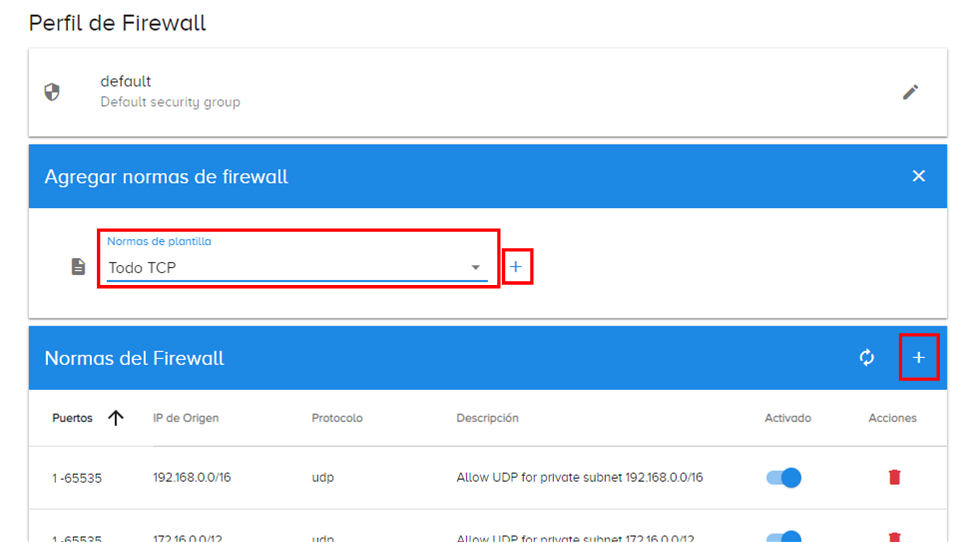
Since we want to open a port, we are going to add a new “firewall rule”; in my case, by clicking the “+” in the blue bar with the text “Firewall Rules”.
In my case a new box with a dropdown will open. We will choose the TCP protocol, which is the one we are going to use with the socket, and click the “+” next to it.
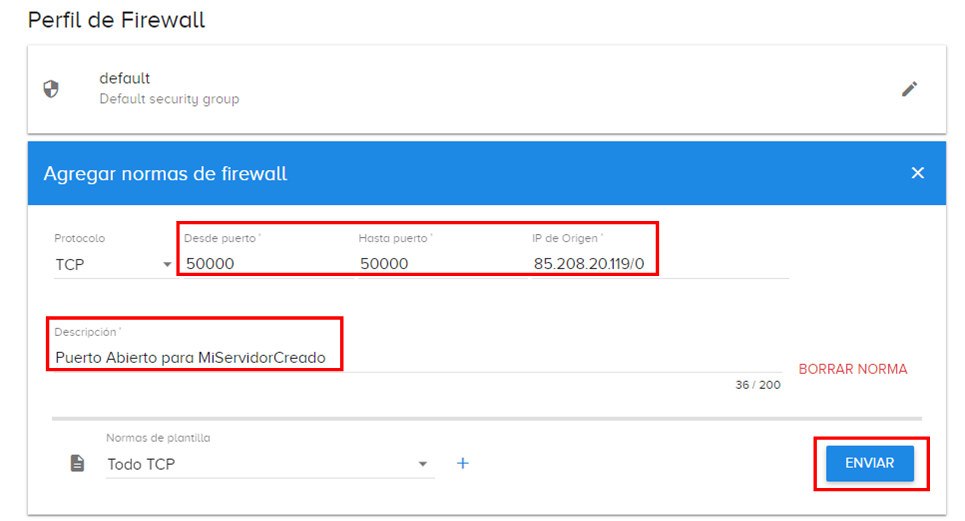
Now we will fill in the form for our “firewall rule”. We said we want our software server to listen specifically on port 50000; since it is a single port, we put it in both “From port” and “To port”. Since we will be connecting to the “physical server”, the “Source IP” will be that of our “physical server” (in my case, I created a “Cloud VPS Server” and it was assigned the IP “85.208.20.119”), so for me it will be “85.208.20.119/0” (you have to add a subnet mask, in this case “/0”, since it is a private IP; we explain this in the previous article about how servers work). It is important to add a “Description”, which we will use as the name of our rule so we remember what it is for (in case we need to delete it in the future because it is no longer used, for security reasons); I will call it “Puerto Abierto para MiServidorCreado”. When we are done we click the “Submit” button.
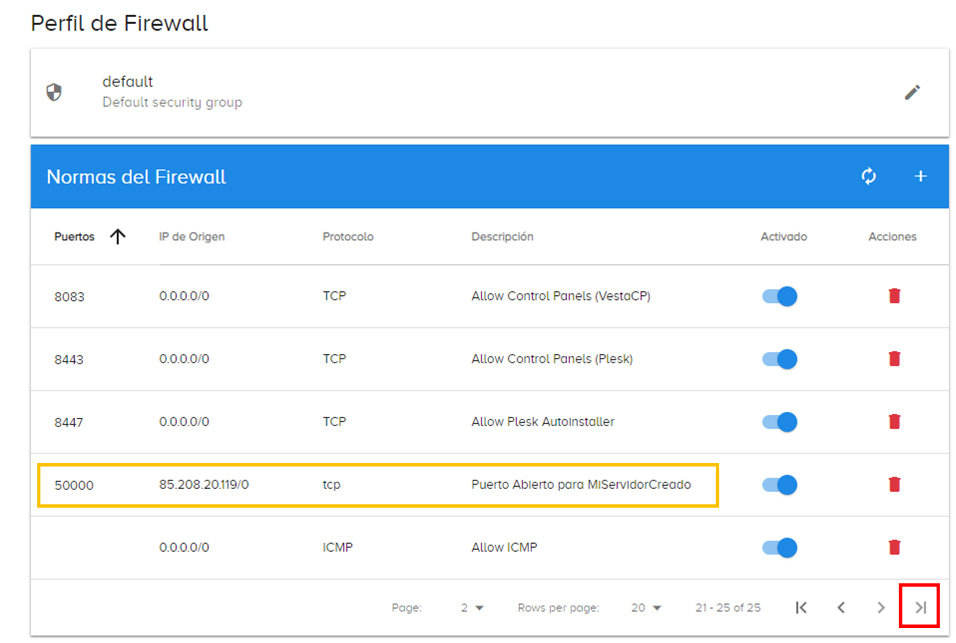
If everything went well, we will see our new “firewall rule” created at the end of the list of “Firewall Rules”:
Once we have learned how to open our ports in the firewall, this will help us create our own server with code.
Python Sockets
We are going to use Python, so I recommend having a bit of previous practice; you don’t need much, but you should be able to read basic code (you can check our articles about Python by clicking here).
The client file, which I will call “MiCliente.py”, will have the following code, in which we will modify the HOST variable (with the IP of the physical server that will be running the software server I will explain later; in my case it is the IP given by the portal.clouding.io control panel, as I showed you earlier) and the PORT variable (I will use the same private port I opened before; if you opened a different one, you will have to use that one).
# The client program that talks to the software server listening on the physical server
import socket

# The remote host. It would be "localhost" if the client is on the same machine as the server
HOST = "85.208.20.119"

# The port our server is listening on
PORT = 50000


if __name__ == "__main__":
	print('[Cliente 1] Iniciando socket con el host "{}" al puerto {}'.format(HOST, PORT))
	with socket.socket(socket.AF_INET, socket.SOCK_STREAM) as mi_socket:
		tupla_para_el_enlace = (HOST, PORT)

		print('[Cliente 2] Conectando a: {}'.format(tupla_para_el_enlace))
		mi_socket.connect(tupla_para_el_enlace)

		mantener_el_socket_abierto = True
		while mantener_el_socket_abierto:
			dato_para_enviar_str = input("[Cliente 3] Escribe el dato a enviar al servidor: ")

			if dato_para_enviar_str == "cerrar":
				print("[Cliente 6] Cerrando socket desde cliente")
				break

			mi_socket.sendall(bytes(dato_para_enviar_str, encoding='utf8'))

			print('[Cliente 4] Datos enviados, esperando respuesta del servidor ...')
			dato_recibido_en_bytes = s.recv(1024)

			dato_recibido_en_str = dato_recibido_en_bytes.decode("utf-8")
			print("[Cliente 5] Respuesta recibida desde el servidor: {}".format(dato_recibido_en_str))

		print("[Cliente 7] Socket cerrado desde cliente")
This Python script (which could well be an application on our computer) uses the “socket” library to make the connection, and the connection stays open (the “while” loop) so we can type the data (with the “input” function, which reads from the keyboard) that we want to send in real time (like a chat) with “sendall”; the server will respond and we will receive the data with “recv” (“sendall” and “recv” work with bytes, which is why I convert strings to bytes with the “bytes()” method and vice versa with the “decode()” method). The client connection will stay open (inside the “while” loop) until we type the word I reserved as “cerrar” (which will close the socket and notify the software server). You will have noticed that we use AF_INET, which indicates that we will use the IPv4 address family, which needs the host and the port.
Socket address families
There are several socket address families; these are the most common ones (available in Python):
- AF_INET: IPv4 addresses. Represented by the host and the port.
- AF_INET6: IPv6 addresses. Represented by the host and the port (as well as the “Flow Label”, documented at https://tools.ietf.org/html/rfc6437, and the “scope id”, which indicates which interface to use)
- AF_UNIX or AF_LOCAL: Unix local addresses. Represented as a string that points to a file on the system.
The server file, which I called “MiServidorCreado.py”, also needs its PORT and HOST variables modified (for the same reason as before).
# Our software server running on the physical server
import socketserver

# IP address
HOST = "85.208.20.119"

# The private port we want to listen on, one of those between 49152 and 65535  1-65535
PORT = 50000


class MiControladorTCP(socketserver.BaseRequestHandler):
    """
    The class that will handle requests for our server.

    It is instantiated once per connection to the server, and must
    override the handle() method to implement communication to the
    client.
    """

    def handle(self):
        """
        Overridden method to handle the communication that happens on our server.
        Here we will receive the client's messages and reply to them
        """
        print('[Servidor 3] Cliente conectado desde: {}'.format(self.client_address[0]))

        socket_abierto = True
        while socket_abierto:
            print('[Servidor 4] Esperando por petición del cliente...')
            dato_recibido_en_bytes = self.request.recv(1024).strip()
            if dato_recibido_en_bytes:
                dato_recibido_en_str = dato_recibido_en_bytes.decode("utf-8")
                print('[Servidor 5] Recibido desde el cliente: {}'.format(dato_recibido_en_str))

                respuesta_en_str = "## RESPUESTA DEL SERVIDOR: {} ##".format(dato_recibido_en_str)

                self.request.sendall(bytes(respuesta_en_str, encoding='utf8'))
                print('[Servidor 6] Se ha respondido al cliente con el mensaje: {}'.format(respuesta_en_str))
            else:
                print('[Servidor 7] El cliente ha cerrado el Socket desde su lado, cerrando socket desde el Servidor...')
                socket_abierto = False


if __name__ == "__main__":
    tupla_para_el_enlace = (HOST, PORT)

    try:
        print('[Servidor 1] Enlazando Socket en: {}'.format(tupla_para_el_enlace))
        with socketserver.TCPServer(tupla_para_el_enlace, MiControladorTCP) as servidor:
            print('[Servidor 2] Iniciando buble del servidor. Para interrumpir pulsar a la vez las teclas: [Ctrl]+[C]')
            servidor.serve_forever()
    except KeyboardInterrupt:
        print('[Servidor 8] Interrupción por teclado')
    finally:
        if servidor is not None:
            servidor.shutdown()
        print('[Servidor 9] Servidor Cerrado')
This second Python script (with which we will create our own server) uses the “socketserver” library (we could also have used “socket”, but this library makes the task of creating our own software server much easier; besides, “socketserver” works similarly to “socket”). We will create a handler class that I called “MiControladorTCP” which inherits from “socketserver.BaseRequestHandler”, in order to override the “handle()” method, whose “self” parameter will give us the data we need to use recv and sendall (these work the same way as in the previous “MiCliente.py” code; except that here we will receive and send data to the clients that connect). As before, we keep the socket open with the “while” loop, which in this case will end when the client orders it (when we type the word “cerrar” in “MiCliente.py”); that is, when the server (“MiServidorCreado.py”) receives an empty text in recv. We will pass this handler class “MiControladorTCP” to “socketserver.TCPServer” and use the “serve_forever()” method to make our server always active (this is really another “while” loop under the hood, which creates a new socket whenever a client requests one; in short, here we have two “while” loops: one waiting for a client to connect and another keeping the socket active so that several pieces of data can be sent within the same socket); the server will stop when we press the “Ctrl” and “C” key combination, which is when the “shutdown()” method is called to properly shut down the server.
With the files each in its place (for my example I put the file “MiServidorCreado.py” in “/usr/local/bin” on the physical server, and the file “MiCliente.py” is on my computer in “C:\Users\usuario\Desktop”)
With this we can now start the software server we created, so that it listens for requests, with the Python command (I like to run Python with the -u parameter so that the output, what we print with the “print()” method, is not buffered and is shown to me immediately; otherwise, we would have to wait for the program to finish before the data shows up on screen. You usually don’t need it). We will start it from the SSH terminal connected to our physical server:
python3 -u MiServidorCreado.py
You will see the helper messages I added. The first one tells us where the socket was bound (in my case to IP 85.208.20.119 and port 50000), and the second tells us that the server loop has started (I added the help text, which says that to stop our software server we have to press the “Ctrl” and “C” key combination at the same time).
Checking that our server is running on that port
If you open a third terminal and connect it by SSH to our physical server (as we saw in the previous article https://jarroba.com/como-funcionan-los-servidores-y-servicios-de-hosting/) we can run the “lsof” command in parallel to see what is going on.
The “lsof” command shows information about files that are open by a process. Using the “-i” parameter followed by a colon and the port number of our software server (in my case the port is 50000), it will show the files that are open on a specific port:
lsof -i :50000And you will see:

It tells us that the software server we created and ran is working correctly.
With the software server running (started), we can start a socket from the client. To do that, in the client terminal (the one that is NOT connected over SSH) we type:
python3 -u MiCliente.pyNote about the names of the “python” or “python3” environment variables: two versions of Python currently coexist, so the “python” variable is usually used to run Python 2, and the “python3” variable to run Python 3 (since a computer can have both versions of Python installed at the same time). Since Python 2 is falling out of use as it becomes obsolete in favor of Python 3, if your computer doesn’t need to tell the two versions apart, it may be that automatically (or because you changed the system environment variable by hand) the Python 3 executable now points to the “python” variable (that is what happens on my computer, where I only have Python 3, so I don’t need to tell them apart and I only have the “python” variable pointing to Python 3; on a physical server it is more complicated, since companies that make heavy use of physical servers have a lot of code written in Python 2, so both Python versions still have to coexist). For this reason, you will see in the examples that I typed in my computer’s terminal:
python -u MiCliente.py
You will see that our client (the program on our computer) has connected to the server immediately and shows us the IP of the client that connected (do NOT confuse it with the IP we wrote for our physical server). The server will be waiting for the client’s request (it wants us to send it data), and the client will be waiting for us to type something (like a chat).
In the client terminal we type whatever we want and press the “Enter” key. I typed: “Mi Dato 1”.

The data is sent from the client to the server. You can see that the server receives the data correctly and sends back an acknowledgment (so the client knows the server received the data).
Messaging applications
At this point you may be thinking of WhatsApp (or Telegram, Hangouts, etc.) and its read receipts (which users of these apps colloquially call “checks” or “ticks”; that is, the symbol: ✔).
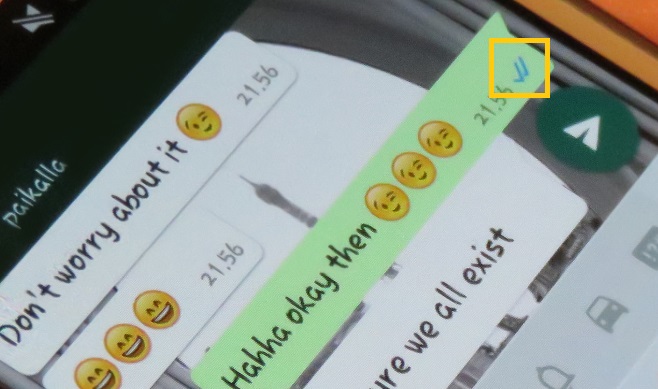
Which has three states (of which we care about the first two, since the third is a combination of the first two):
- One “check”: When you send a message to your friend, it means the message has left the smartphone (the data we sent from the client to the server). At this point our smartphone doesn’t yet know whether it has reached the server or not.
- Two “checks”: When the physical server has received the message, it replies to my smartphone, and with this acknowledgment we are shown two “checks” on screen (the server’s response that the client has received).
- Blue “checks” (I include it out of curiosity): When the friend has read the message I sent (we don’t do this in the code here, but imagine another socket open with the friend’s smartphone; the friend reads the message and sends a confirmation to the server, the server receives the read receipt, and over our open socket the server sends us a second response telling us that our friend has read the message)
Since we have both ends of the socket in a loop (“while”) (the client end and the server end) to keep both ends open, we can send as much data as we want. You can try sending several pieces of data; I will send “Mi Dato 2”.

Now we want to end the socket from the client end. As we programmed it, typing the word “cerrar” will close the socket on the client (think of a user closing a messaging app, like closing WhatsApp, which under the hood closes the socket with the server), which will send an empty message to the server to tell it that the client is done with its socket. Then our software server will decide to close the socket from its side and keep waiting for another connection from another client.
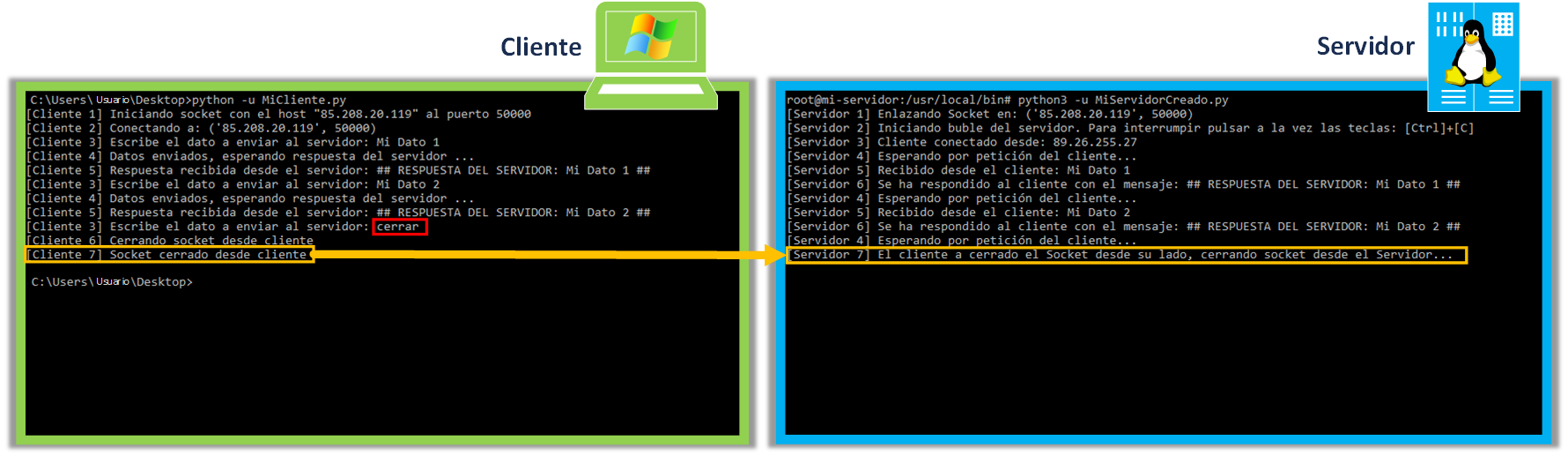
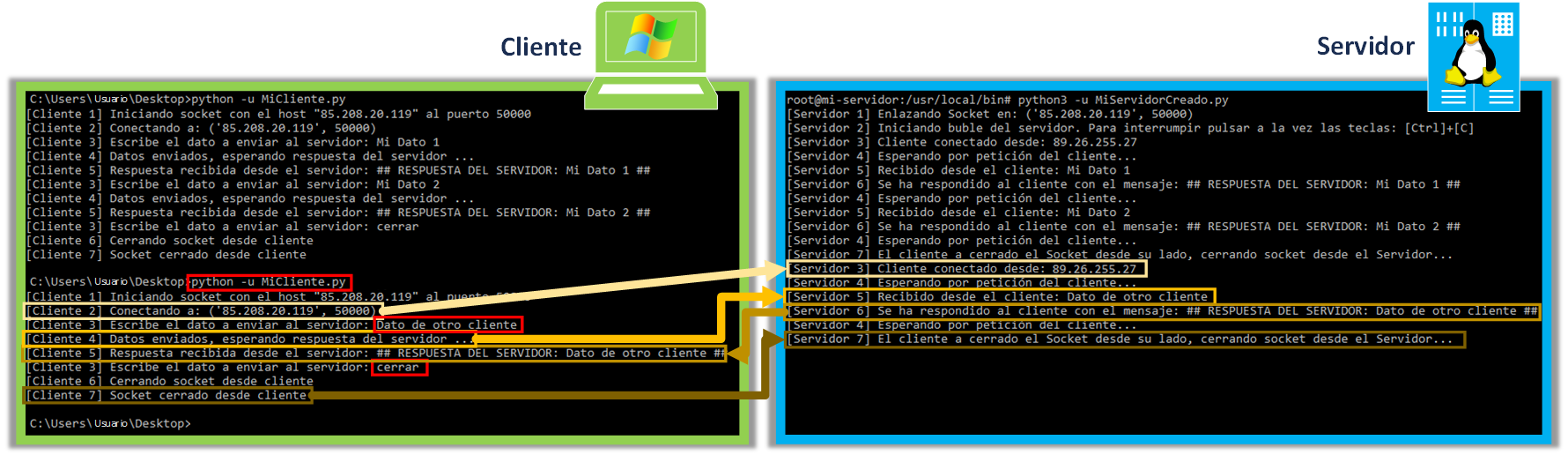
If we run the Python script “MiCliente.py” again from the client side (it would be like opening the WhatsApp app again, for example).
python -u MiCliente.pyWe will see the connection being established again, since the server loop (which we started with the “serve_forever()” method) is still waiting for another client. From the client we can send data again and end the connection with the word “cerrar” as we did before.
Although a software server is supposed to run all the time (otherwise WhatsApp wouldn’t work 24 hours a day), we may want to stop ours. With the SSH terminal connected to our physical server selected, we press the key combination “Ctrl” and “C” at the same time to end the software server we created.

The server loop will end.
At this point you know how to create a socket on both the client and the server and test it from both sides. Now all that’s left is to use this knowledge for whatever you set your mind to 🙂
Other Types of Servers with Python
Python has several ready-made software servers that we can use:
- Socket server: socketserver — A framework for network servers (Python docs)
- HTTP server: http.server — HTTP servers (Python docs)
- XMLRCP server: xmlrpc.server — Basic XML-RPC servers (Python docs)
Socket vs WebSocket
The difference is important, because we can NOT simply listen to a WebSocket with a Socket.
WebSocket is written in JavaScript and is used for direct (full-duplex) communication between a web page and a server (like the chats built into email or social network websites to talk to your friends in real time). If you want to learn how to write WebSocket code, you can find more information at Escribiendo aplicaciones con WebSockets (MDN)
“Normal” Sockets (TCP) use the “Transport layer” of the OSI protocol stack (closer to the binary transmitted as electrical pulses) while WebSockets use the “Application layer” (farther from the electrical pulses, but closer to the user). If you are curious about the OSI model, you can find more information at Modelo OSI (Wikipedia)
To give you an idea, when you open a web page in a browser, the browser establishes a single TCP socket to the physical server it connects to (for example, the Apache web server). And everything goes through this TCP socket: the entire HTTP protocol (which also works in the OSI model’s “Application layer”) and the WebSocket protocol.
On the other hand, note that HTTP (URL schemes: http or https) and WebSocket (URL schemes: ws or wss) are different protocols.
HTTP can be invoked from the browser with a URL like https://jarroba.com and WebSocket with wss://jarroba.com/servidorsocket
That TCP socket used by the browser will connect to the ports (which you may well recognize; they are the ones a web software server, like Apache, listens on):
- 80 for insecure traffic: http and ws (WebSocket)
- 443 for secure traffic: https and wss (WebSocket Secure)
WebSocket uses the idea of a socket when you program it, but it is not a socket; this is simply so that programming one is as easy as programming the other (so that once you learn one, you already know how to use the other right away). In other words, a WebSocket pretends to be a “normal” socket but runs on top of one that has already been created (the TCP socket), which we have no direct control over when programming web pages.
That is why WebSockets are NOT directly compatible with TCP Sockets (for example, you can’t create a WebSocket on a web page with JavaScript and then create a normal socket on the server with Python).
In addition, WebSocket requires a negotiation to establish the communication (handshake) with the server (just like the HTTP protocol) by sending a series of headers over the TCP socket and a message in a specific format (frame).
Could we handle a WebSocket with a Socket? Yes, if we handle both the negotiation (handshake) and the message (frame) that WebSocket requires according to the WebSocket specification https://tools.ietf.org/html/rfc6455
Sockets with Arduino
Here is where you can learn more about creating sockets with Arduino, as long as your board has Wi-Fi so it can communicate: https://www.arduino.cc/en/Reference/WiFi, and here is an official code example for using the Wi-Fi API: https://www.arduino.cc/en/Reference/WiFiStatus
A complete example of creating a socket with Arduino as the client and Python as the server can be found on this other blog: ESP32 Arduino: Sending data with a socket client (techtutorialsx)
References
- socket — Low-level networking interface (Python docs)
- socketserver — A framework for network servers (Python docs)
- http.server — HTTP servers (Python docs)
- xmlrpc.server — Basic XML-RPC servers (Python docs)
- Socket de Internet (Wikipedia)
- Network socket (Wikipedia)
- List of TCP and UDP port numbers (Wikipedia)
- Internet Assigned Numbers Authority (IANA)
- Linux lsof Command Tutorial for Beginners (15 Examples) (HowtoForge)
- Socket de Internet (Wikipedia)
- WebSocket (Wikipedia)
- Protocolo de internet (Wikipedia)
- Escribiendo aplicaciones con WebSockets (MDN)
- tools.ietf.org/html/rfc6455
- tools.ietf.org/html/rfc6437
- arduino.cc/en/Reference/WiFi
- arduino.cc/en/Reference/WiFiStatus
- ESP32 Arduino: Sending data with a socket client (techtutorialsx)
- clouding.io/kb
Attributions
WhatsApp image obtained from Wikipedia WhatsApp (Wikipedia) (By Helar Lukats, CC BY-SA 4.0, https://commons.wikimedia.org/w/index.php?curid=48993365) and modified by www.Jarroba.com
“Build Your Own Software Server (Sockets with Python)” by Ramón Invarato at jarroba.com, licensed under Creative Commons Attribution-NonCommercial-ShareAlike 3.0. Registered at Safe Creative.

You may also like
Fault-Tolerant, Highly Available Apache Kafka Cluster
Learn how to set up a Kafka cluster with multiple brokers, distributed across several real cloud servers, step by step.


Apache Kafka Consumers and Producers with Java and Python
Learn step by step how to program Kafka Consumers and Producers in both Java and Python, and test them in a real environment.
Leave a comment