
Docker Basics: Docker Desktop and Docker Objects
Free, complete Docker course. Docker is a platform to build, deploy and run applications in containers. Learn Docker Desktop and Docker objects.
I want to give you the most complete overview I can of Docker and everything it makes possible, along with several of its tools (such as Docker Desktop, Docker Engine, Docker Daemon, Docker Compose, all the way to Kubernetes), from the very basics to the most advanced topics.
Anyone with a minimum of computer knowledge can use Docker images, and nowadays I would recommend that everybody learn Docker, because it offers many benefits. One of the most basic is being able to learn, hands-on and at home, practically any current technology you want (from common technologies like databases or servers, all the way to enterprise Big Data and Cloud technologies for free, if you feel like it); another benefit is fully understanding computing abstractions, in case you’re not lucky enough to have someone explain them to you; among other additional benefits that I’ll go over.
If you know little or nothing about Docker, I recommend reading this article first. However, if you’ve already wrestled with Docker, you don’t need to read these articles in order: if you already know something, you can jump straight to the article that interests you based on your knowledge and profile:
- For everyone (this article): basic theory and using Docker without commands, running already-built images with Docker Desktop.
- Developers: advanced theory with commands, using Docker Compose, building images with a Dockerfile, and we’ll focus on creating Dockerized microservices.
- Systems: Kubernetes, repositories and deploying Dockerized projects.
I want this first article to be very quick (despite everything Docker has to offer) so you can understand and use Docker right away, without using a single command. So I’m going to mix theory with real Docker usage so that you understand it in the simplest way possible and can fend for yourself (the strictly technical theory is already perfectly explained on the official Docker documentation site: Docker Docs ).
Benefits of Docker
But first I have to tell you about the perks of Docker (and nobody is paying me for this), because nowadays the best way to learn any technical software is to use Docker and, on top of that, you’ll learn how things are done at a modern company.
Just knowing how to use Docker’s prebuilt images will open a lot of doors without needing much knowledge. Here are a few ideas that come to mind:
- Do you want to learn SQL or have your own database in a moment? Within seconds and without installing anything, you can use any database you can think of (MySQL, PostgreSQL, Cassandra, MongoDB, Neo4j, etc.) and practice for free from home.
- Say that at university you’re practicing MapReduce through Streaming with Spark or Flink, but you do it all locally with Python or Java, with that bittersweet feeling that you’re missing how it’s done in a real environment. Just spin up an image and you have it simulated as if it were deployed on an enterprise server. Want to see how it works in a multi-node system? Copy and paste to deploy more.
- Do you need to understand how message queues work? In a moment you’ll have a fully functional Kafka or RabbitMQ running, and you can even add connectors (like Debezium, for example).
- Do you have Java, Python, PHP, Ruby, Go, etc. code, or anything else you can think of, but you don’t know how to or don’t feel like installing the compiler on your computer? No problem, in a few seconds you’ll have it running without installing anything on your computer.
- Say you’re practicing with microservices deployed on servers: without installing anything, set up a Tomcat, Jetty, Httpd, Node.js, Django, etc. fully working in a moment.
- Do you want to learn the most advanced Big Data and/or AI technology at a low level? Install whatever you want and learn like a professional who uses it at a real company; for example, you could use: ElasticSearch with Kibana, Druid, Hbase, etc.
- Do you need to try data visualization tools on your system? Go ahead: Grafana, Prometheus, Superset, etc.
- If you’re a developer, you know what a “development environment” is (other environments are integration, production, etc.) and that sometimes its level of abstraction can be a bit baffling. So what if I told you that between the project you code locally and the “development environment” there’s another “intermediate environment” that simulates the whole “development environment” giving you total visibility of everything that happens, but locally, always clean and under your control? You’ve guessed it: you can do that with Docker.
Besides everything you can do in terms of usage, here are its technical advantages too:
- Failures are decentralized: If one container fails, it won’t affect other containers running on the same system.
- Dependencies and versions are independent: each container has its own dependencies and versions, so they don’t step on each other (for example, if on our computer we first install Java 17, its installer will overwrite the JAVA_HOME environment variable, but then, if we install Java 8 because we need it for old code, that installer will also overwrite JAVA_HOME, so the new code running on Java 17 will stop working; in Docker we can have one container with Java 8 and another with Java 17, each with its own compatible code).
What is Docker?
All the advantages above are my own take and a side effect of what Docker is really for. Docker is a platform to build, deploy and run applications (Docker images) in containers (where an instance of an image runs).
I won’t go on any longer, because you learn what Docker is by doing, so let’s start with the basics (and even the most basic thing, which is using the “prebuilt Docker images” I mentioned earlier, will give you a ton of possibilities).
Installing Docker
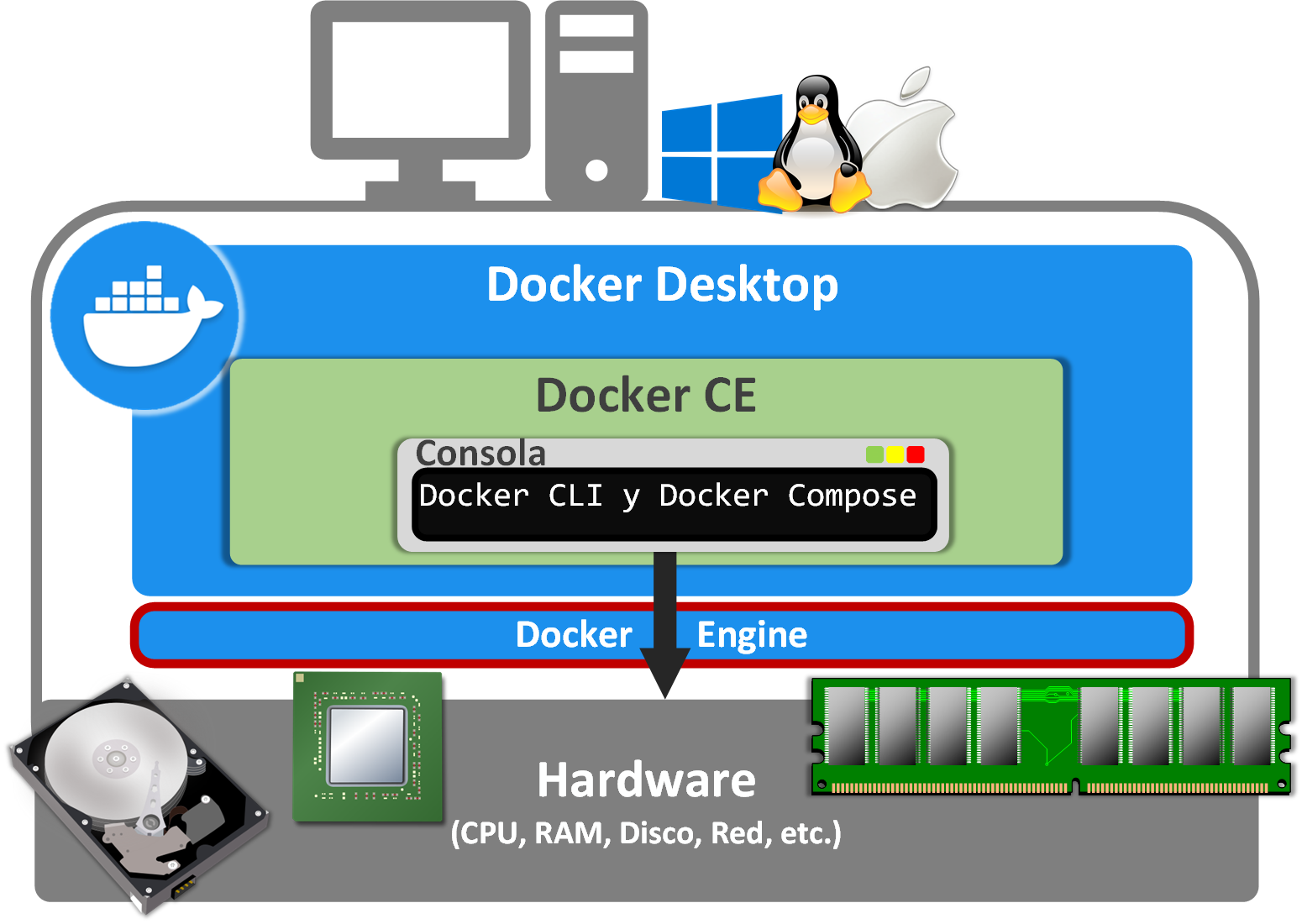
The most important part of Docker is the “Docker CLI”, which lets us interact with the Docker engine (“Docker Engine”). To have it installed on our computer, we can choose one of the following two ways, PICK ONE, although if you’re just starting with Docker I recommend “Docker Desktop” (below I’ll mention a bunch of names that may sound strange; don’t worry, we’ll go through them and understand them):
- “Docker CE” (Docker Community Edition; open source and free): Includes “Docker Engine”, “Docker CLI”, “Docker Daemon”, “Docker Build” and “Docker Compose” (among others; we’ll see some in this article and others in the next article).
- “Docker Desktop” (also free): Includes “Docker CE” (everything above), plus a user interface and a local Kubernetes.
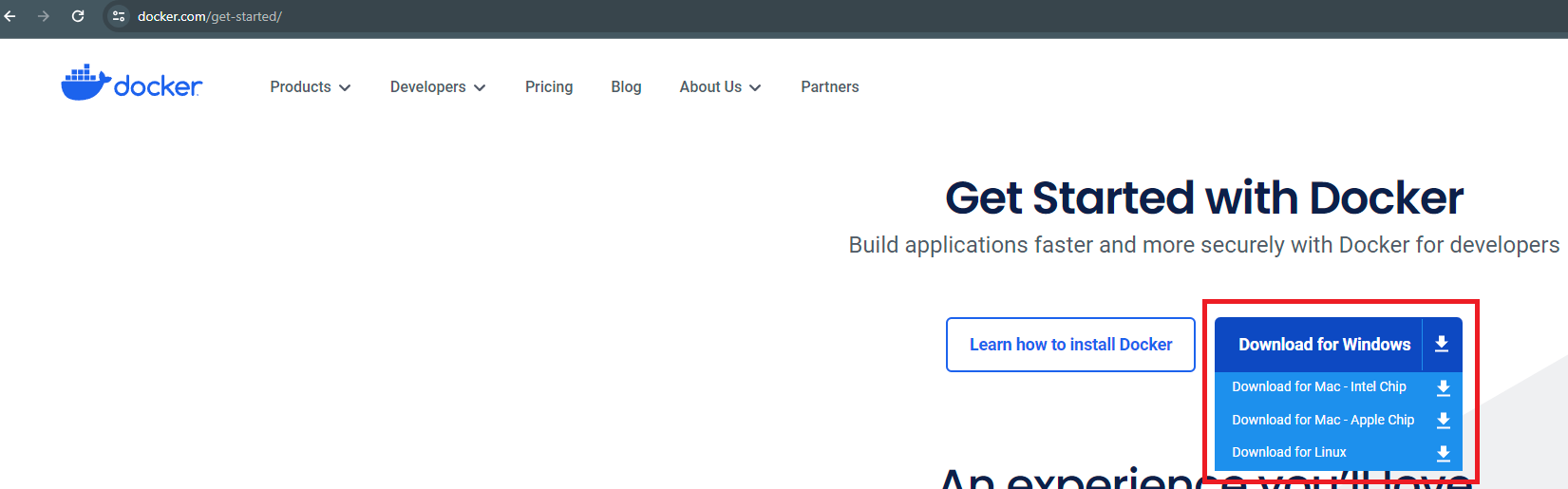
The easiest option is to install “Docker Desktop”, but it’s only available for Windows, Mac and certain Linux systems. You can download it for free from: Get Started (Docker)
Tip
If you use Windows
Docker works very well on Linux, so when the installation asks you to choose between Hyper-V and WSL 2, I recommend using WSL 2 (at first you won’t need to know anything else about WSL 2, but for advanced topics you will, and it’s better to work on Linux, that is, WSL 2, since most enterprise Docker systems are built on Linux).
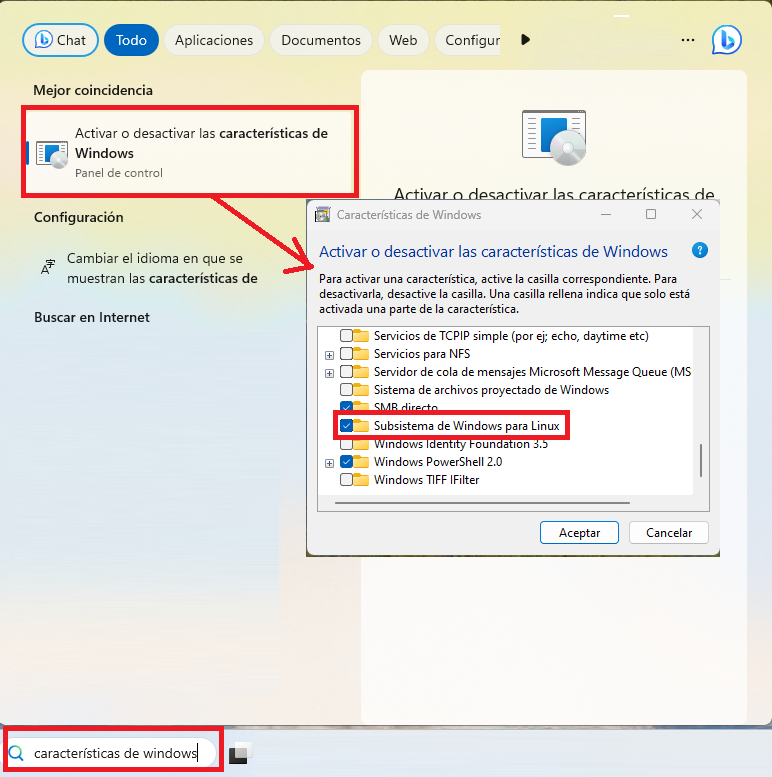
WSL 2 is NOT enabled by default in Windows. To quickly enable WSL 2, search Windows for “Turn Windows features on or off”, and in the window that opens enable “Windows Subsystem for Linux”, accept and restart the computer.
And from the “Microsoft Store” we can install the Linux distribution we want. To start, I recommend “Ubuntu”.
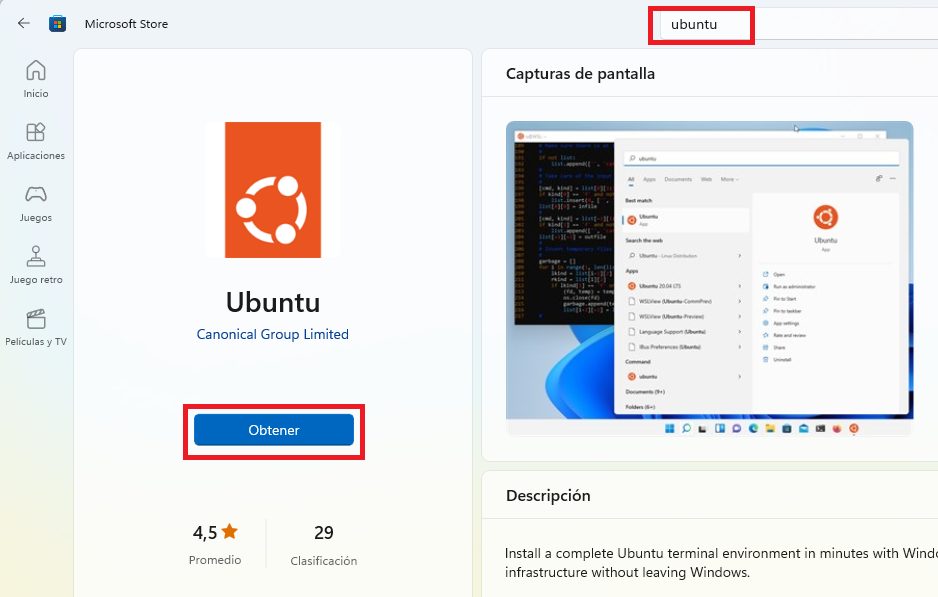
Once installed, open it and follow the steps to finish configuring it, which really just means adding a root user and a password (memorize it or write it down, because you may need it).
If you already had WSL 2 installed, I recommend updating it by running this command in the Windows command line:
wsl --updateNote if you have problems installing WSL 2: you can find more complete information on how to enable WSL 2 at: Instalación de Linux en Windows con WSL (Microsoft Learn)
Once we download the installer, we run it and the installation process will begin; follow the steps to the end.
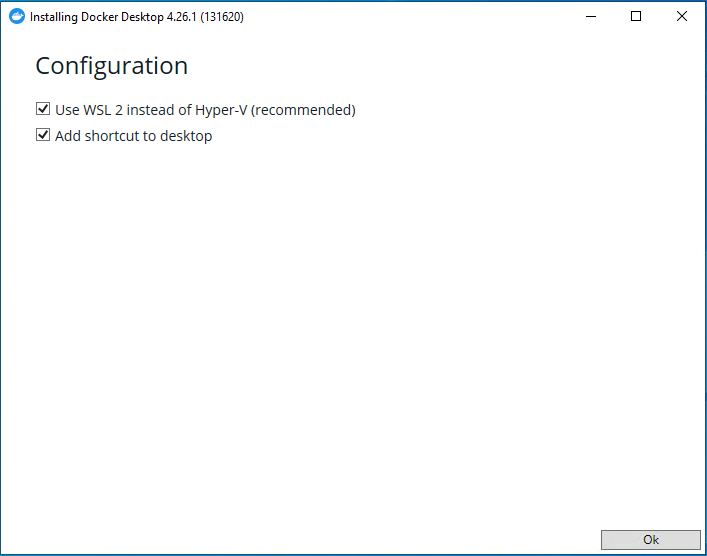
When the installation finishes, it will ask us to restart the computer.
And after it restarts, we’ll launch Docker. The following window may open to finish configuring Docker; choose “Use recommend settings” and finish:
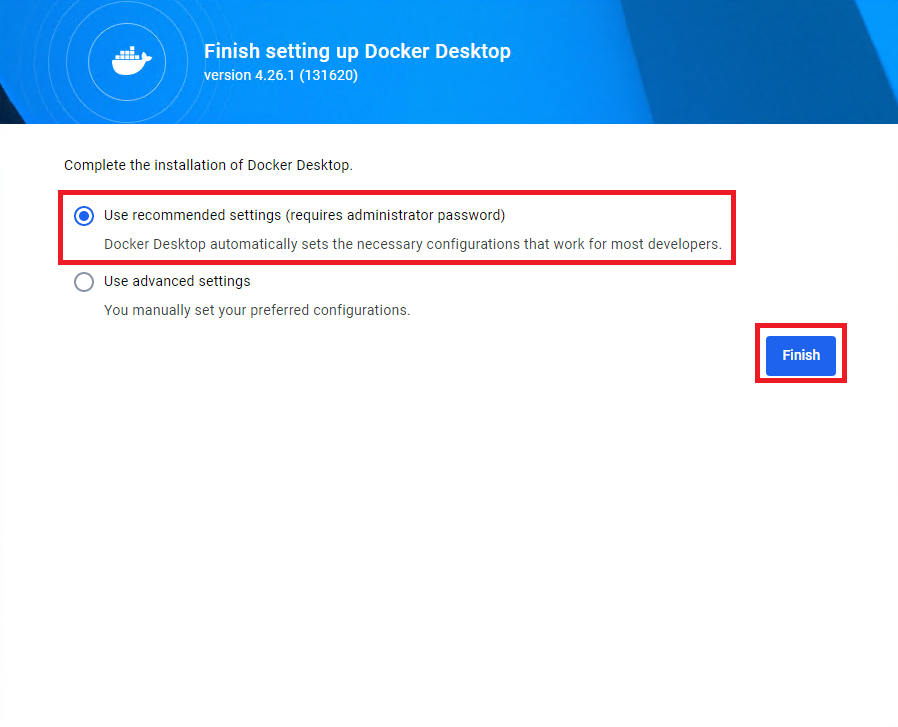
Note
Installing “Docker CE”
You may not be able to install “Docker Desktop” for some reason and need to install “Docker CE” instead, so I explain it in the next article. Then you can come back to this one to read the basic theory, but you won’t be able to use the graphical interface, since it doesn’t have one, although in the next article you’ll learn the same things, but with commands.
Starting “Docker Desktop”
We run “Docker Desktop” (on Windows, double-click the shortcut) and a window with the program will open. The first thing we’ll see is an option to sign up (“Sign up”); we can do it or not (“continue without signing in”), as we prefer, although I recommend signing up so you can access “Docker Hub” from this application.
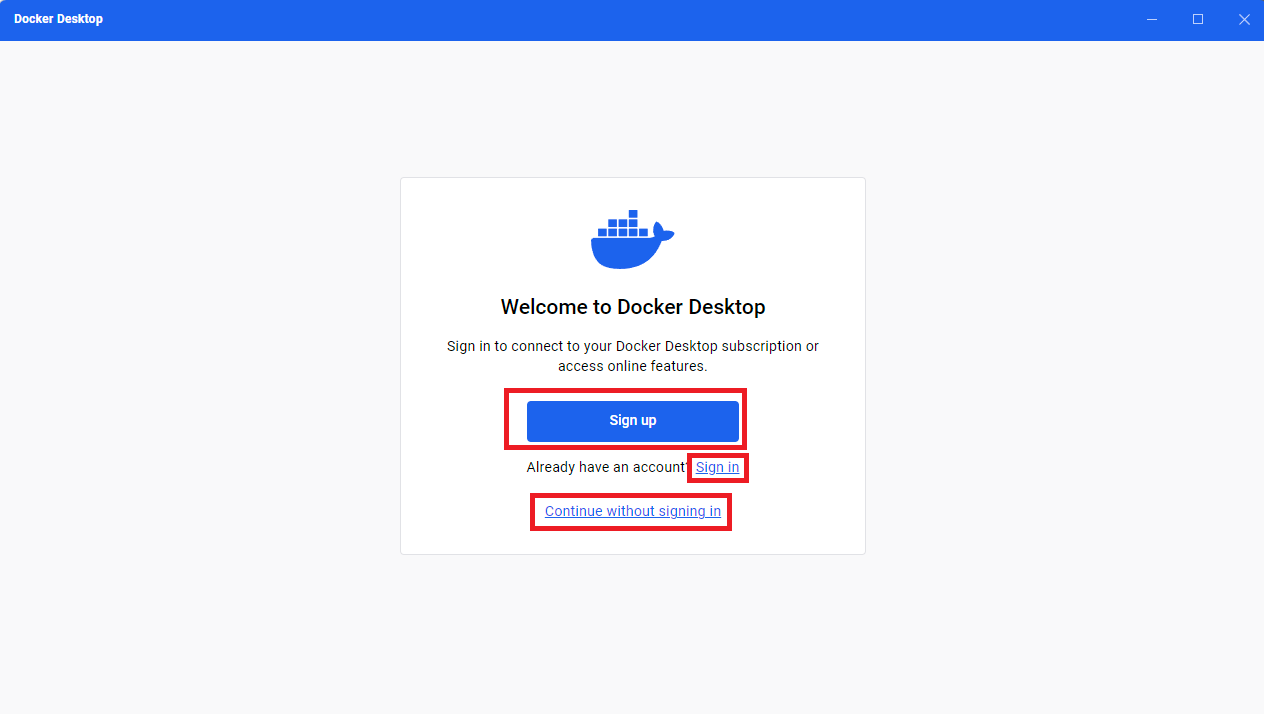
Then it may ask what you do for a living.
After that, we’re in. If all went well, the first thing it tells us is that the Docker engine is running (“Engine running”); you’ll also be able to see Docker’s status next to the Windows clock (it will say “Docker Dektop is running”).
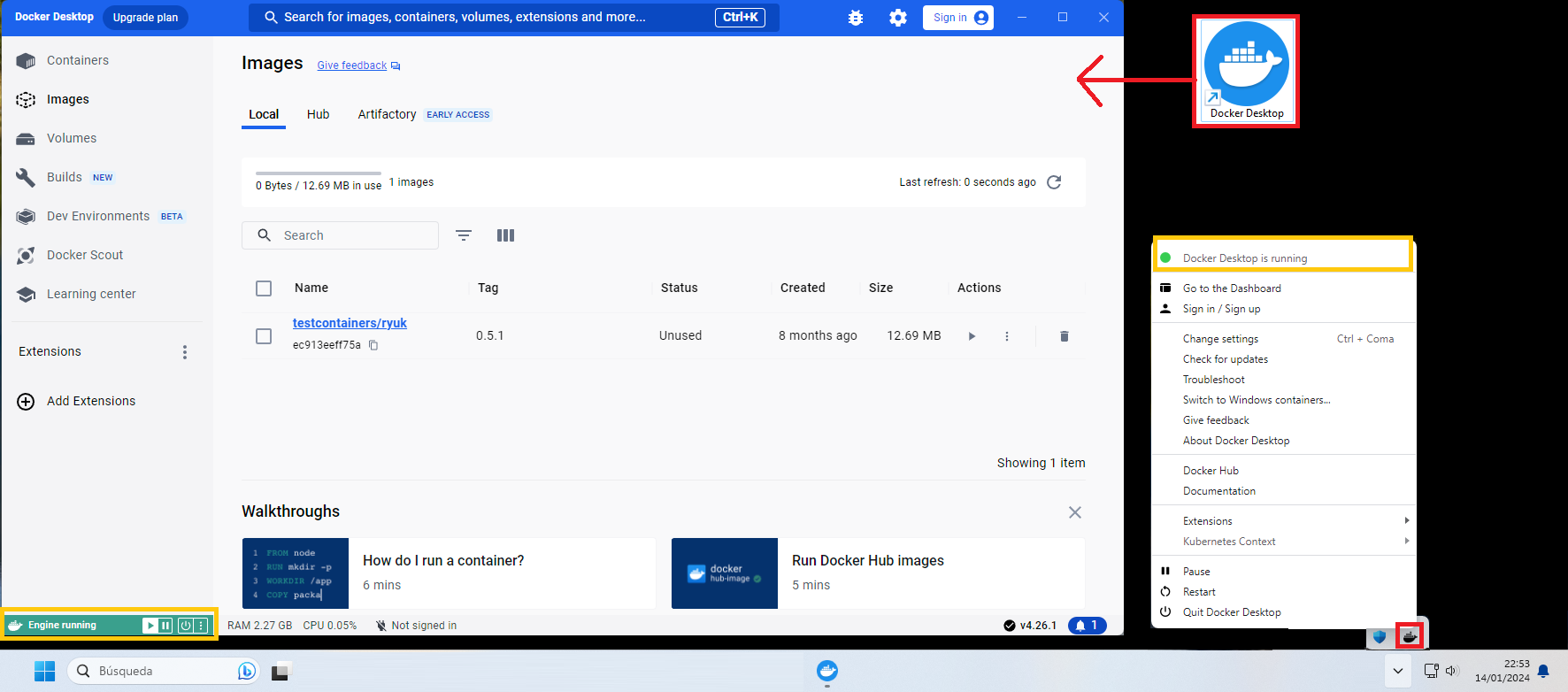
This interface will let us manage Docker containers, as we’ll see later.
Whenever we want to work with Docker, we have to do it with Docker in the started (“started”) state.
Note if it says “Docker Engine stopped”: you can try restarting; if it keeps giving you trouble, something is missing and it isn’t starting properly. On Windows, WSL 2 may not be installed correctly.
Note for when you finish using Docker: it’s not enough to close “Docker Desktop”; you also need to stop the “Docker Engine” (which is what consumes the most resources). With “Docker Desktop”, when you click “Quit Docker Desktop” it takes care of stopping the “Docker Engine” and then closes the “Docker Desktop” application.
Docker Hub
“Docker Hub” is the image repository (like Docker’s “app store”) and you can browse the available images in three ways:
- From the web: Explore Docker's Container Image Repository (Docker Hub) (where as soon as you land you’ll see images of very well-known technologies that will catch your eye, like the Python, Ubuntu, Redis, Nginx images, etc.)
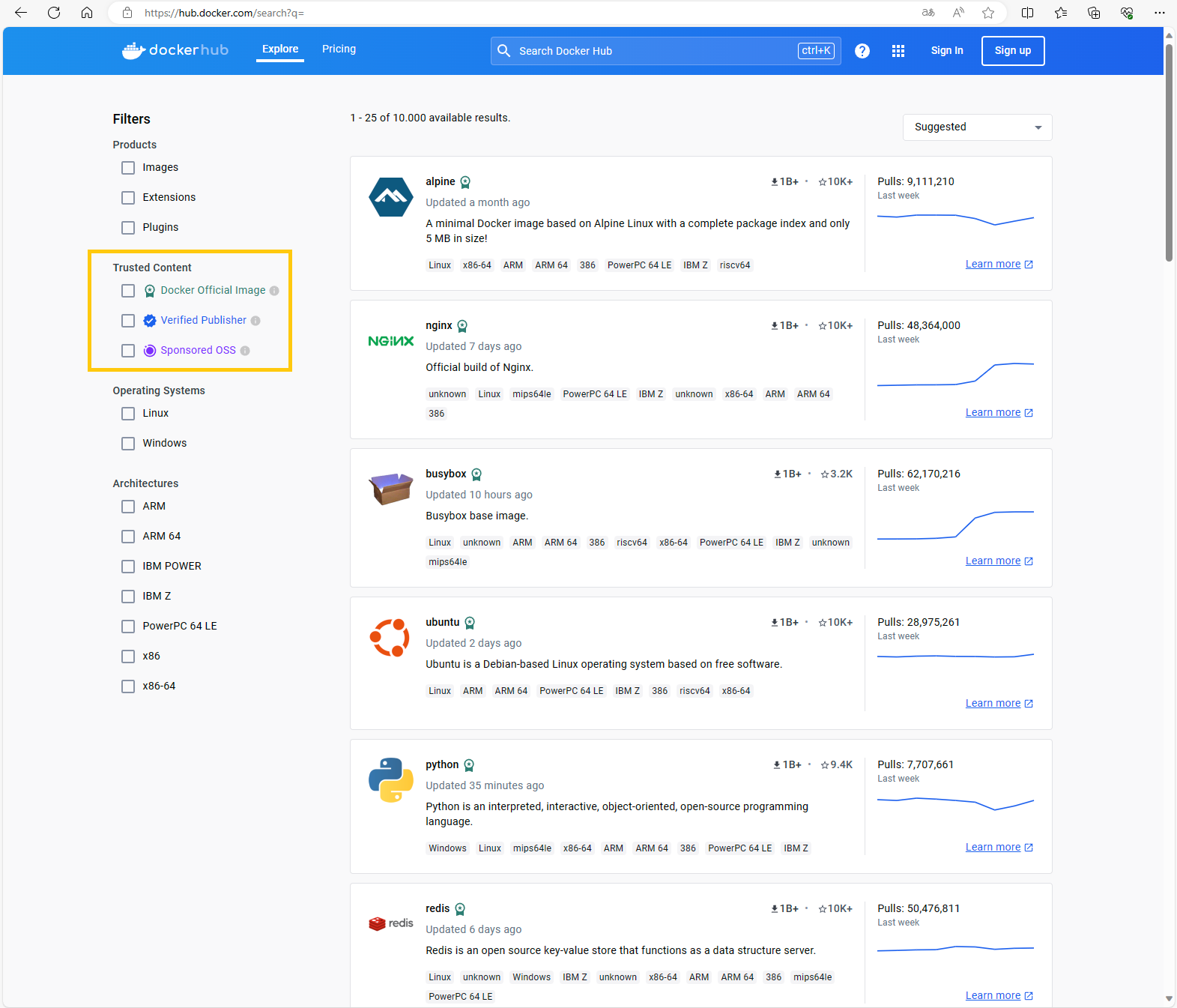
Important note about this “Docker Hub” repository: it has a bit of everything, from official images (“Docker Official Image”), ones verified by the publisher (“Verified Publisher”), sponsored ones (“Sponsored OSS”) and ones that give you no guarantee of reliability whatsoever (keep in mind that anyone can upload images to “Docker Hub”, so some images may contain viruses or may not even work). To get reliable images, you can filter on the left side of the website, and I mainly recommend official images (“Docker Official Image”) and those verified by the publisher (“Verified Publisher”); if you click the following link, I’ve already ticked them for you: Explore Docker's Container Image Repository (Docker Hub)
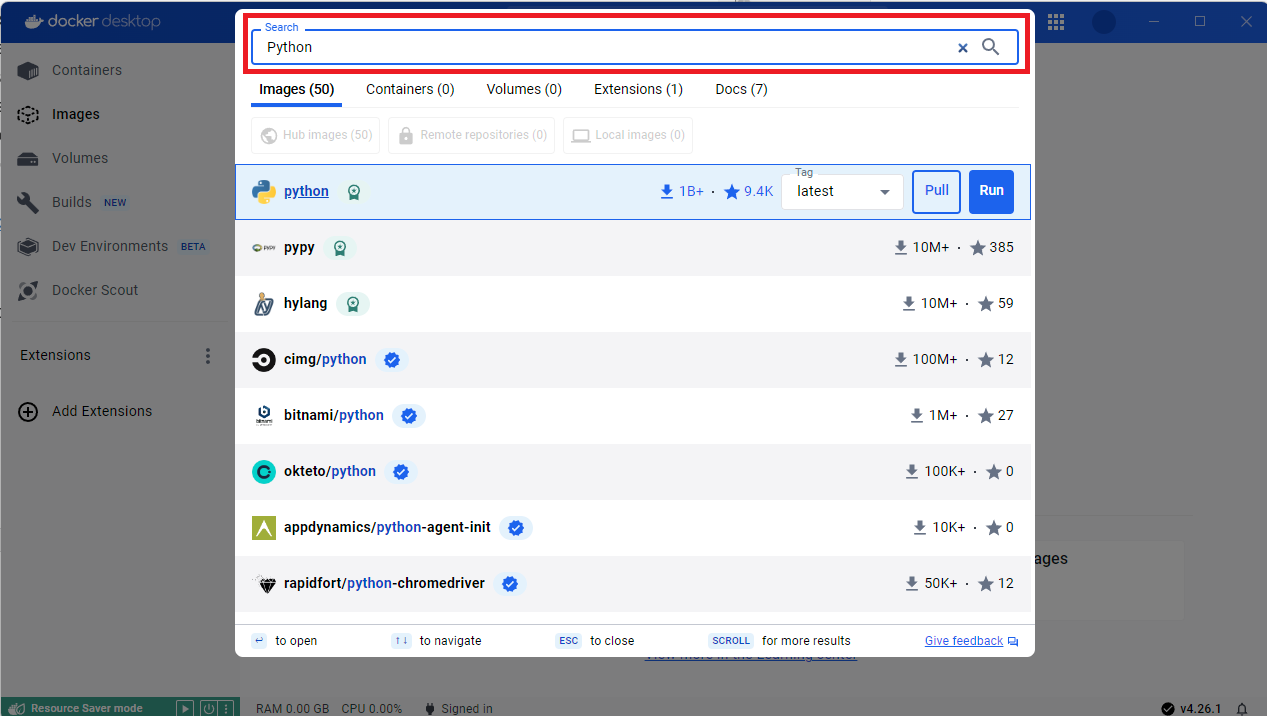
- From “Docker Desktop”: the search bar is at the top of the application and connects to the same website I mentioned before, so you’ll find the same thing (the green badge icon next to an image’s title indicates that it’s an official “Docker image”):
Docker Objects: Images and Containers
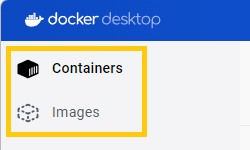
It’s important to know the Docker objects (In “Docker Desktop” we can see many of them organized in the vertical menu on the left; so this part also works as a quick “Docker Desktop” tutorial):
Docker image: a read-only software template with “instructions” (“layers” in Docker) to create a Docker container. By “software template” I mean a package already “built” (“build”) from a real template (the Dockerfile, which will interest you if you’re a developer and which we’ll cover in depth in the next article). Images can be uploaded to repositories to share them (similar to “git”, such as the public “Docker Hub” repository or a private repository like “Harbor”).
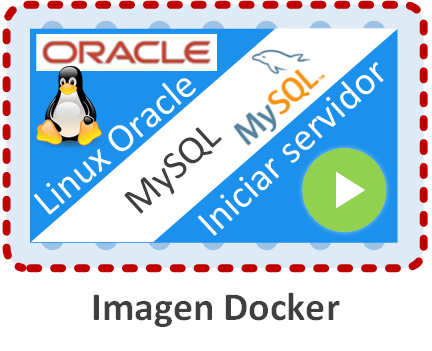
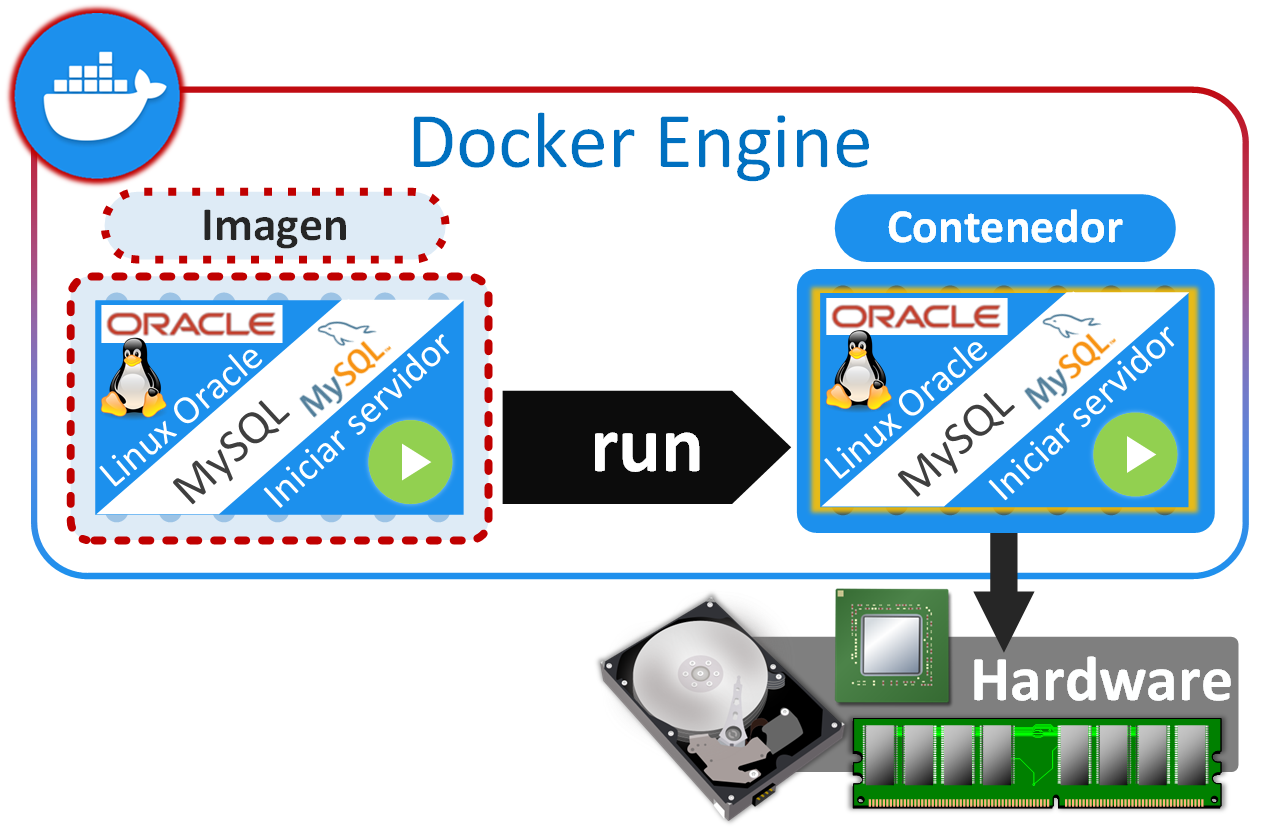
For example, in the following drawing I show you a representation of a “MySQL” “Docker image” that we’ll use later (the drawing is my own, so you can understand in depth how they’re put together). This “Docker image” already has a series of example instructions prepared (by someone out in the world; you don’t have to do this in this article, by the way, I based it on the real documentation):
- A first instruction would be to have an “Oracle Linux” operating system (it could be on any operating system, Ubuntu, Debian, etc. Usually a very lightweight one).
- Another instruction could be to have MySQL installed on that operating system with its configuration already prepared (by someone who isn’t you).
- And a last instruction would be to “start the server” of the database (so that you only have to run the image’s contents without doing anything I just told you about, you’d just enjoy the technology; in this case, you could learn SQL with a real, working database).
Docker container: an isolated environment with everything needed to run (Java, Python, databases, the code of the project you’ve developed, dependencies, scripts, etc.) that has no knowledge of the operating system Docker runs on (“Docker Desktop”, which includes “Docker Engine”, which in turn includes “Docker Daemon”; the “Docker Daemon” being the server that runs Docker images and keeps them as containers). To create a container you need a Docker image, and during creation you have to define a series of parameters (such as Volumes or Networks, which are other Docker objects we’ll see later). So from a single image we can have as many containers as we want, all running on the same computer or spread across several computers (by moving the image to another computer, either by doing a “pull” from a repository or by copying it, it’s very easy to create a container from it).
It’s important to be aware of the two kinds of container behavior when we start them (it’s important to understand this, because if you set up a container and see it stop immediately, it’s quite likely because of this or because of an error):
- Ephemeral containers: containers that start and finish almost immediately, once their main thread finishes executing (the Python image I showed you earlier creates this kind of container, since we want our Python code inside to run and, as soon as it’s done, to stop and free up resources; we could have Python code in an infinite loop, in which case the container will stay active waiting indefinitely). Usually this kind of container is so fast that we don’t have time to interact with it.
- Daemon containers (or long-running): containers whose main thread is busy forever; they’re usually servers (web servers, database servers, etc.). We can interact with these containers, run commands in a terminal, view their file system, etc. Next, we’ll try one of these containers with a “MySQL” database server (these are the ones that matter in this article and the ones I recommend you use to learn, for example, how to write SQL queries on whichever database you want. You have them all at your disposal in a very similar way!).
Next, here’s a drawing of what we’ll actually do shortly, so you can see the difference between a “Docker image” and a “Docker container”. We run (“run”) a “Docker image” and it creates a “Docker container” running everything (an “Oracle Linux” with a MySQL that is started and running on your computer’s hardware, but separated from your operating system, and therefore ready to use) and which we can work with (create databases and run SQL queries). It’s worth mentioning that from the “Docker image” we can run as many “Docker containers” as we want (that is, we could have a thousand MySQL instances running at once by just pressing a button).
Downloading an image from “Docker Hub” with “Docker Desktop”
For this article I’m going to use the “MySQL” image as an example. If you don’t know MySQL, a quick word: it’s one of the best-known relational database engines and easy to learn (more information at MySQL). Also, I’m going to show you not just how to install it, but how to use it.
To download the MySQL image from “Docker Hub”, go to the “Docker Desktop” interface and in the search bar at the top (where it says “Search”), type: mysql
A list with quite a few images will appear, but here we’ll choose the image called “mysql” and we’ll pick the version called “8.3” (I’m pinning this version on purpose so you don’t have trouble following this article, since other versions may change).
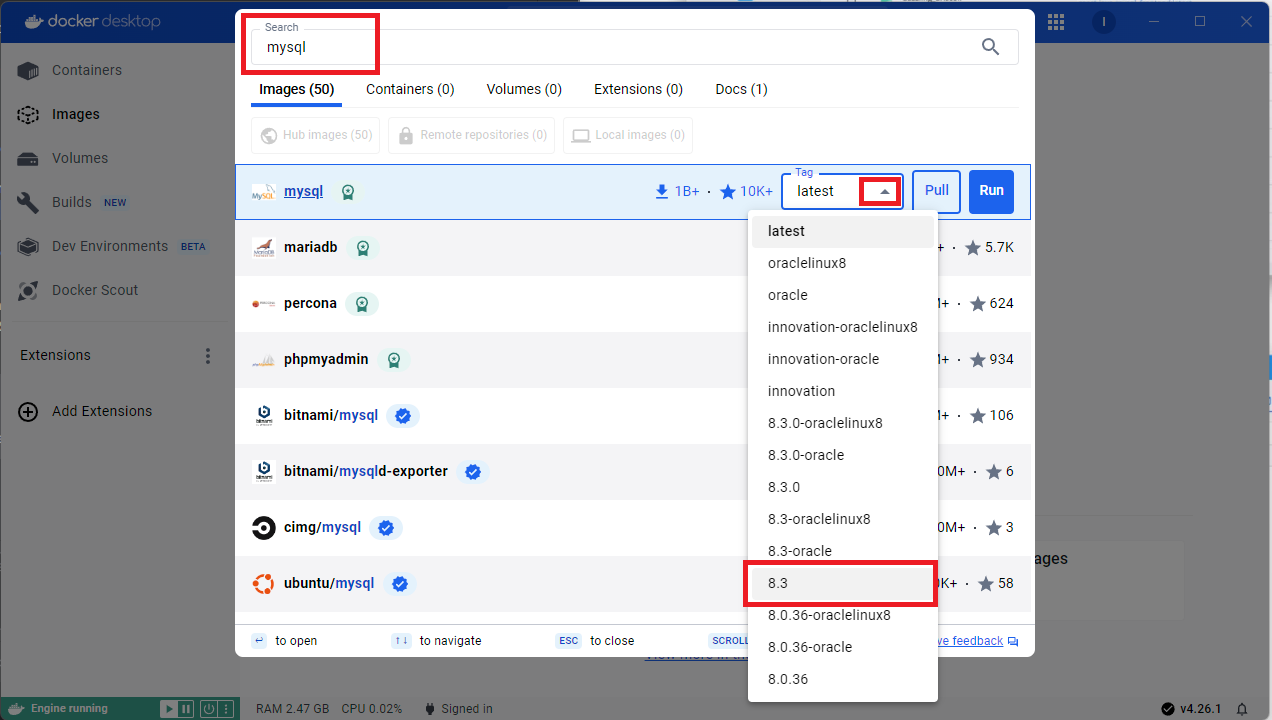
After selecting the version, we have two options to download the image:
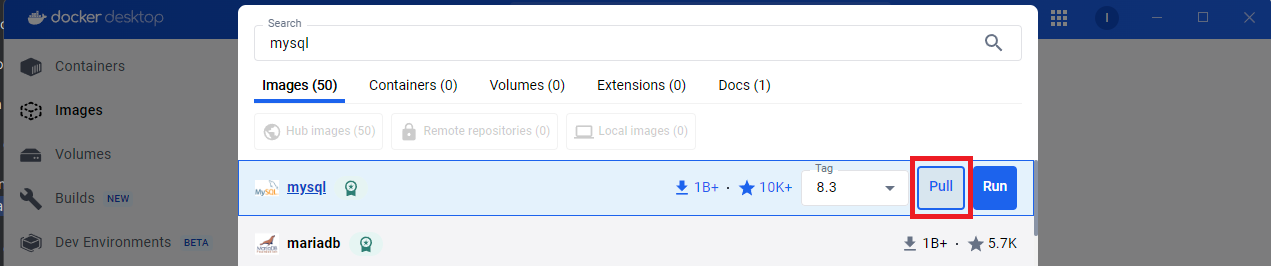
- Pull: downloads the image from “Docker Hub”.
- Run: downloads the image from “Docker Hub”, creates a local container and runs the image inside it.
To go step by step, we’ll select “Pull”:
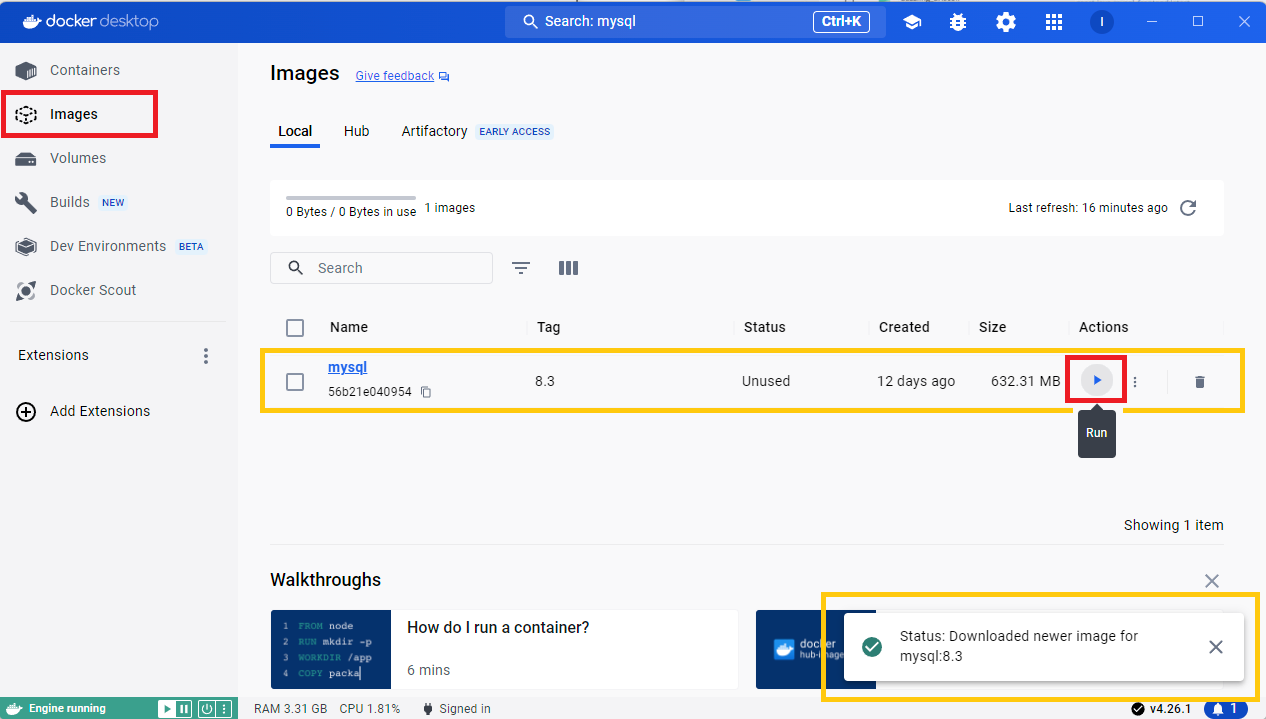
Once it’s downloaded, go to “Images” in the left menu, where we’ll see our downloaded “mysql” image, and to start the image click the “Run” arrow on the right (although this button is also called “Run”, it doesn’t download the image, it only creates the container where the image runs, since it’s already downloaded):
A window will open asking for several parameters. They’re all optional for running the image, but some are required for what’s inside the image to work (in this case, for the MySQL installation inside the image to work properly).
- Container name: we can give the container a name if we want (otherwise a random one is assigned). In the example I’ll use “miMySQL-container” so I can tell it apart from other containers we may have in the future. By the way, I recommend using whatever name you like (usually the same as the image) but including the word “container”, like “myMysqlContainer” or simply “mysql-container”, because that makes it easier to tell containers from images, and when you’ve been coding for hours it helps you quickly distinguish between images and containers (this is just my suggestion, not a standard or anything like that).
- Ports: we can map any ports we want on our computer (local) to those of the container (the ones inside it, which are the ports shown in gray on the right, “3306” and “33060”). This is useful if you work with container networks and want to connect to your container, but right now they aren’t needed, so I won’t fill anything in for this example. If we leave it empty, it’s by default the same as entering what’s in gray (in the example, “3306:3306” and “33060:33060”, which means, for instance, that we’ll be able to connect from our computer to “localhost:3306”).
- Volumes: If we want, we can define either a “Bind mount” or a “Docker Volume”. We’ll see them later, so for now we’ll leave it empty
- Environment variable: Here we’ll define the environment variables we need. If you’ve worked with databases, you may be wondering: what’s the MySQL root password? Here we’ll tell it NOT to ask us for a root password (this is very insecure, so it’s not recommended for Production environments, but for playing with the database it’s the simplest) and in the “variable” field we’ll put exactly the text “MYSQL_ALLOW_EMPTY_PASSWORD” (copy it without quotes) and in “value” the word “yes” (without quotes). By the way, I didn’t make this up; it’s in the MySQL image documentation: mysql – Official Image (Docker Hub)
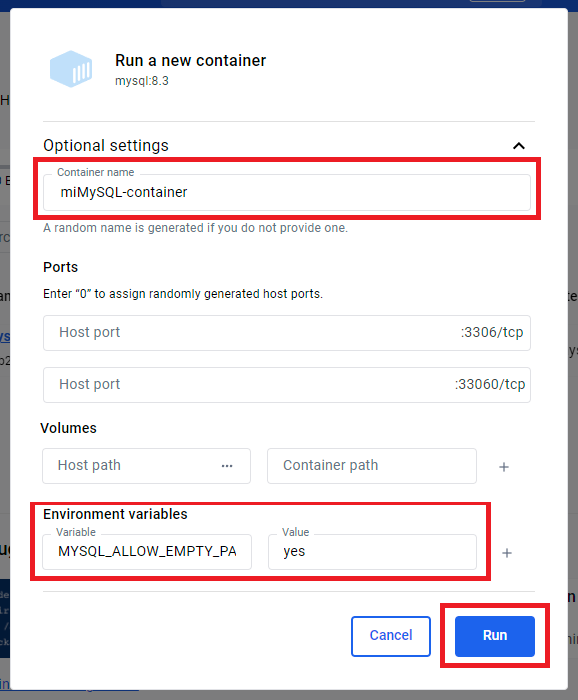
Note in case you want to set a root password: Instead of the previous environment variable, in the “variable” field enter “MYSQL_ROOT_PASSWORD” (without quotes) and in “value” the password you want, for example, “contraseniaroot”, but remember it because it will be asked for later.
We click “Run” to create our Docker container with the MySQL image and the configuration parameters we’ve just entered.
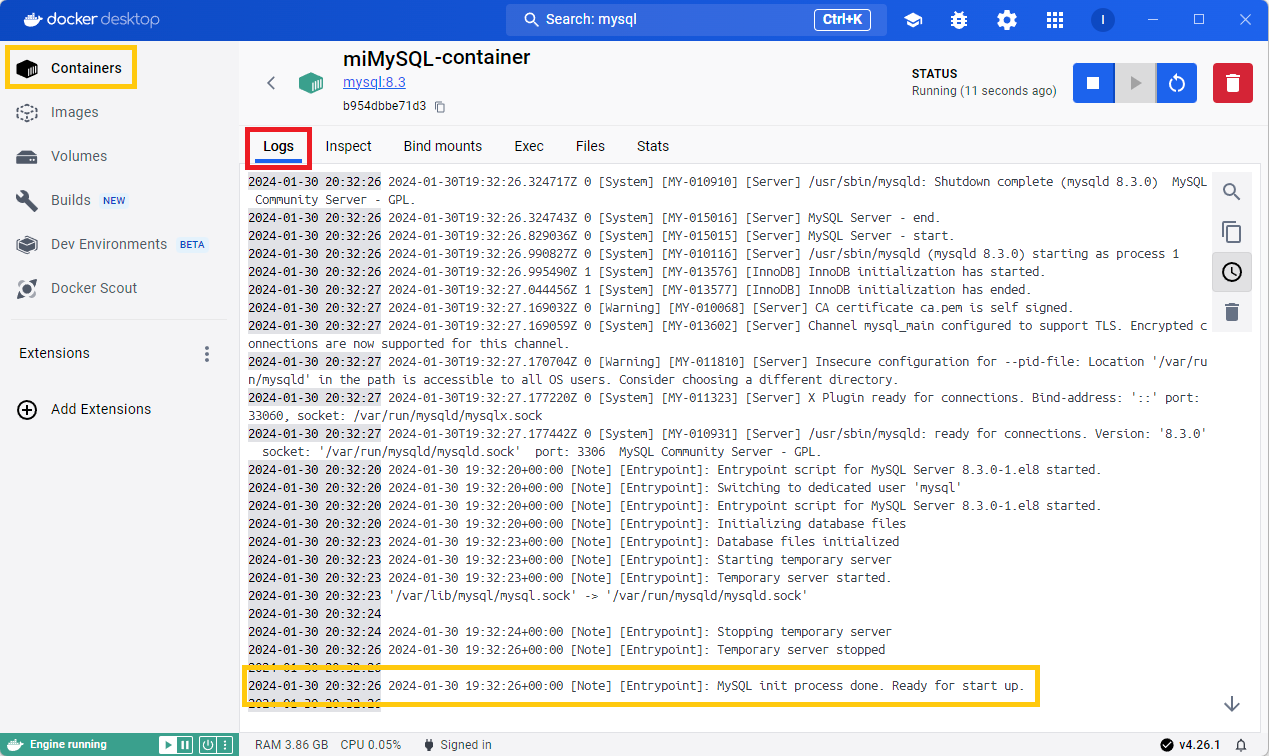
The container we just created will open directly (notice that the left menu has automatically switched to “Containers”). At the top you’ll see the name we gave our container (in my example “miMySQL-container”), and in the first tab called “Logs” we’ll see the “logs” (also called “traces” or “records”) of our container. We’ll wait a few seconds until the log saying “MySQL init process done. Ready for start up.” appears (which tells us our container with MySQL installed is ready to be used). These logs are important, since they tell us both when things go well and when something goes wrong (we’ll see errors).
Here I encourage you to navigate in the left side menu between “Containers” and “Images” so you can see the differences:
- Images: we have the mysql image we downloaded from “Docker Hub” (the image can take up quite a bit of disk space).
- Containers: we have our running “myMySQL-container” container, which we created from the previous image (since the container is running, our computer will be working quite a bit).
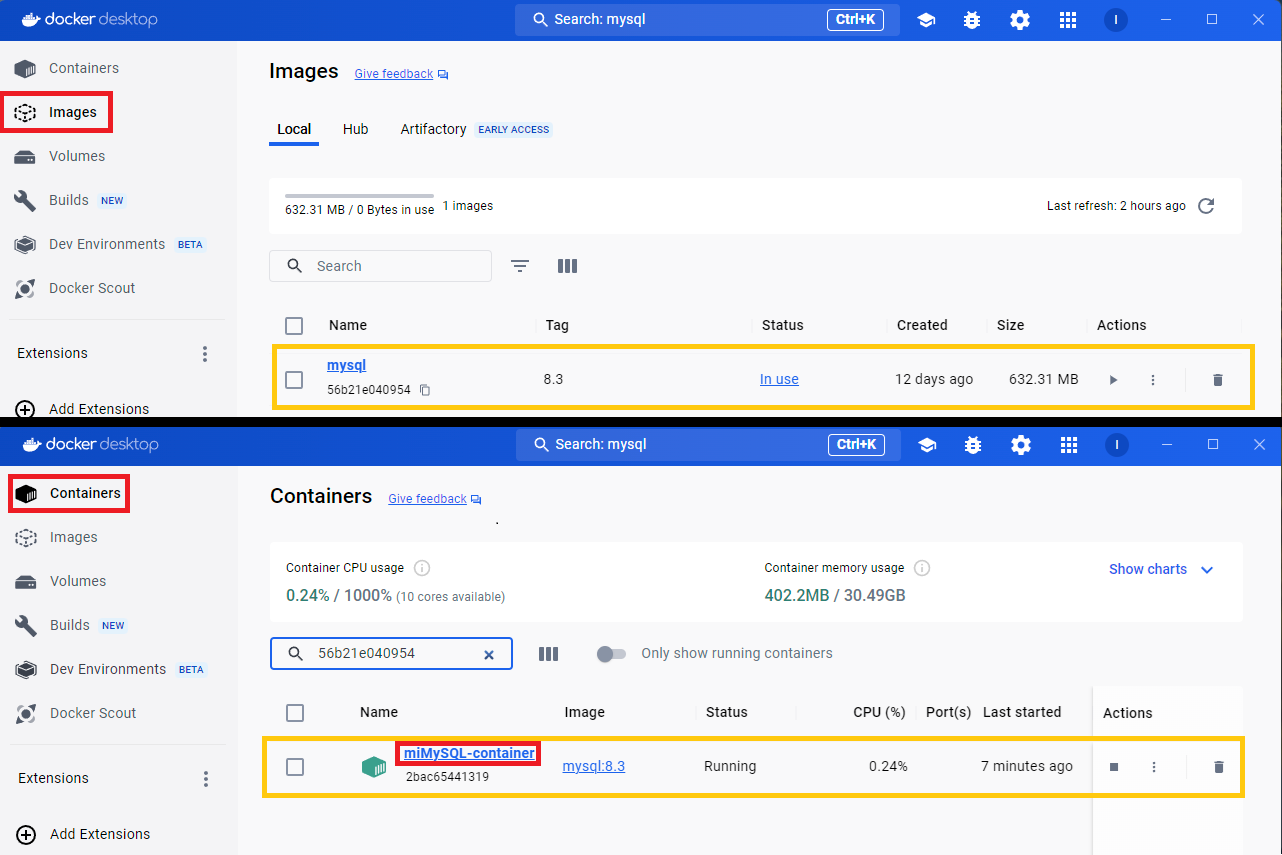
To continue, go to “Containers” and click your container’s name (in my example “myMySQL-container”).
We’ll go to the “Exec” tab of our container. This is our container’s interface, where the file system of our container’s operating system lives (since it’s a Linux operating system, we can type its commands to view directories, like: ls ). But didn’t we say we weren’t going to code anything? Typing a command and SQL queries isn’t coding 😉 To start the MySQL terminal, all we need to do is type the command: mysql
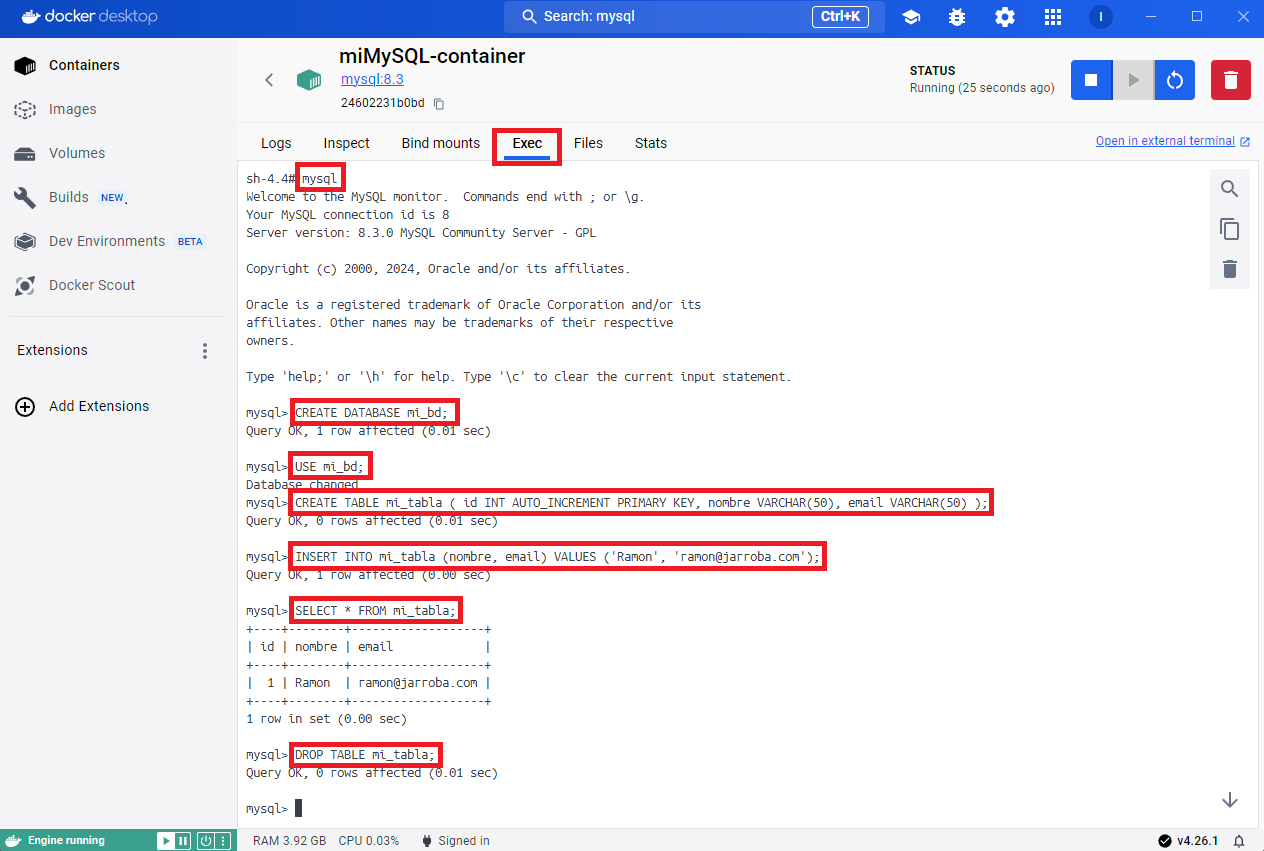
Note if you set a root password: you need to run: mysql -u root -p
After starting the MySQL terminal we can write any SQL queries we want. For this example I wrote the following (here’s a quick summary of the SQL statements I used in the example, since there are other SQL articles, and in case you want to take the chance to learn SQL, you can now practice as much as you like in a real environment):
- CREATE DATABASE: creates a database inside the MySQL engine.
- USE: to use one of the databases you’ve created.
- CREATE TABLE: creates the table inside the database in use.
- INSERT INTO: inserts a record with values into an existing table.
- SELECT: queries the data in a table.
- DROP TABLE: deletes an existing table.
CREATE DATABASE mi_bd;
USE mi_bd;
CREATE TABLE mi_tabla ( id INT AUTO_INCREMENT PRIMARY KEY, nombre VARCHAR(50), email VARCHAR(50) );
INSERT INTO mi_tabla (nombre, email) VALUES ('Ramon', 'ramon@jarroba.com');
SELECT * FROM mi_tabla;
DROP TABLE mi_tabla;
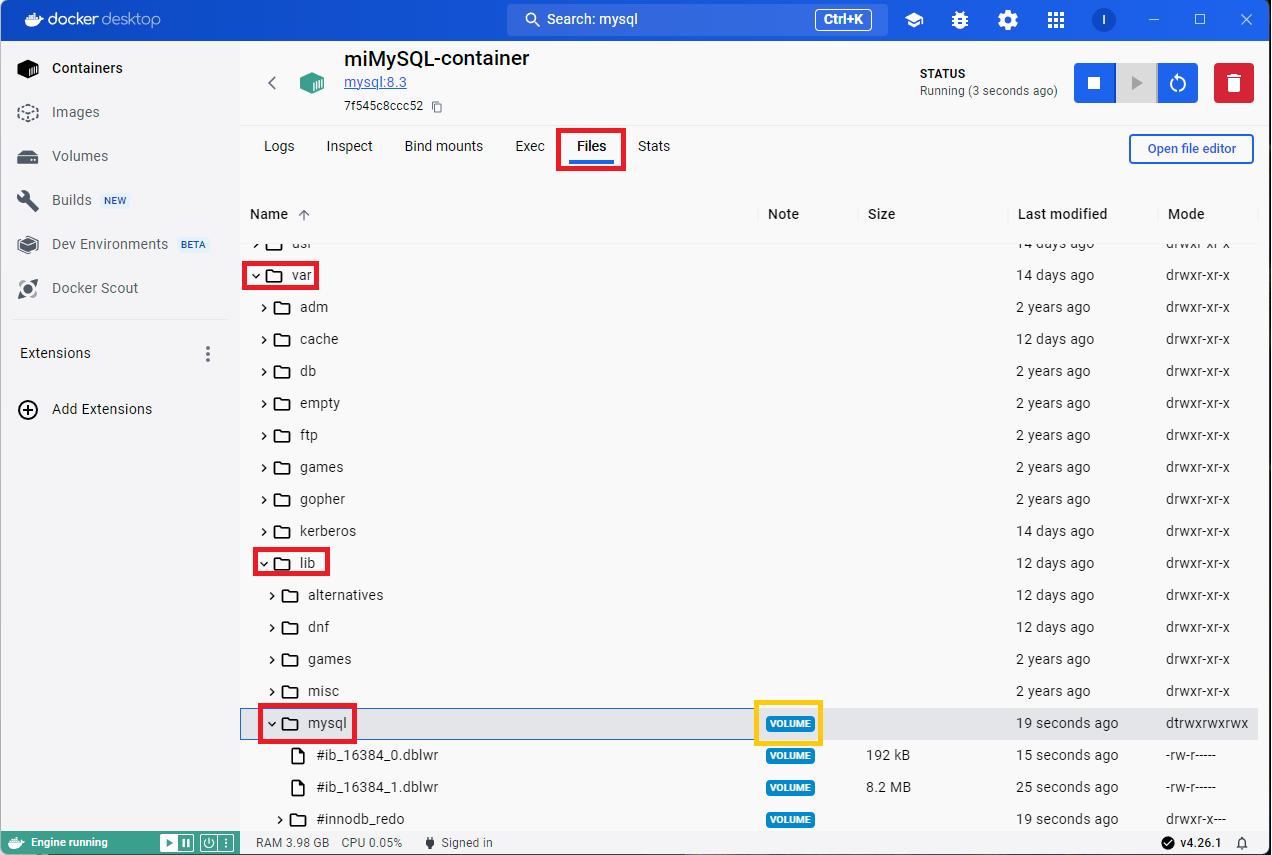
Another important question: where is the data from the tables I create in my database stored? If you go to the “Files” tab and navigate to the “/var/lib/mysql” directory (I know this directory from the MySQL documentation), that’s where the files with all the information we save in the database are (it’s where MySQL stores everything). Why am I telling you this? Because if you look, to the left of the “mysql” directory there’s a “VOLUME” note. Since we haven’t done anything with volumes, an automatic volume has been mounted for us, and every automatic volume is temporary, meaning that if you stop this container you’ll lose all the databases, tables and all the information you’ve entered into MySQL (let’s say it’s in the volatile RAM, not on the hard drive).
How do we make the data persist when we stop the container? We’ll see it in a moment, but for that we have to create the container again.
To continue, and once you’ve finished working with our container, at the top right there are several controls (like the stop square, the start arrow and the restart button). We’ll click the trash can to stop the container and destroy it (this only deletes the container, not the downloaded image).

Docker Objects: Volumes
To persist data on disk, so that when in the future we start again a container we stopped in the past (that is, we restart a container) and we want the data to be kept (persistence), we need volumes. In Docker there are two types of volumes:
Docker Volume: we create them ourselves with whatever name we want and Docker manages them (in “Docker Desktop” we’ll see them in the left side menu under “volumes”). A volume is independent of containers (so you could use the same volume for several containers) and can be preserved wherever you want (for example, you can carry them on a USB stick). Volumes have to be deleted by hand, otherwise they exist forever. A volume is added when creating the container from the image, and you just need to give its name.
Bind mount: we create a normal folder in our computer’s (host) operating system and bind this folder to a directory inside the container. When the container stops, we can keep working with the files on our host computer, and they remain persisted in that folder. It’s handy for development and for quickly moving files around, since whatever we edit in this folder from the host is immediately reflected inside the container and vice versa. But it’s dangerous, because we’re letting the container create files in our host computer’s file system (which could corrupt and damage our operating system if used incorrectly, for instance by generating files until the disk is full or passing viruses from the container, if the image isn’t trustworthy). A bind mount isn’t managed by Docker but by us; if you want more security, it’s better to use a Volume.
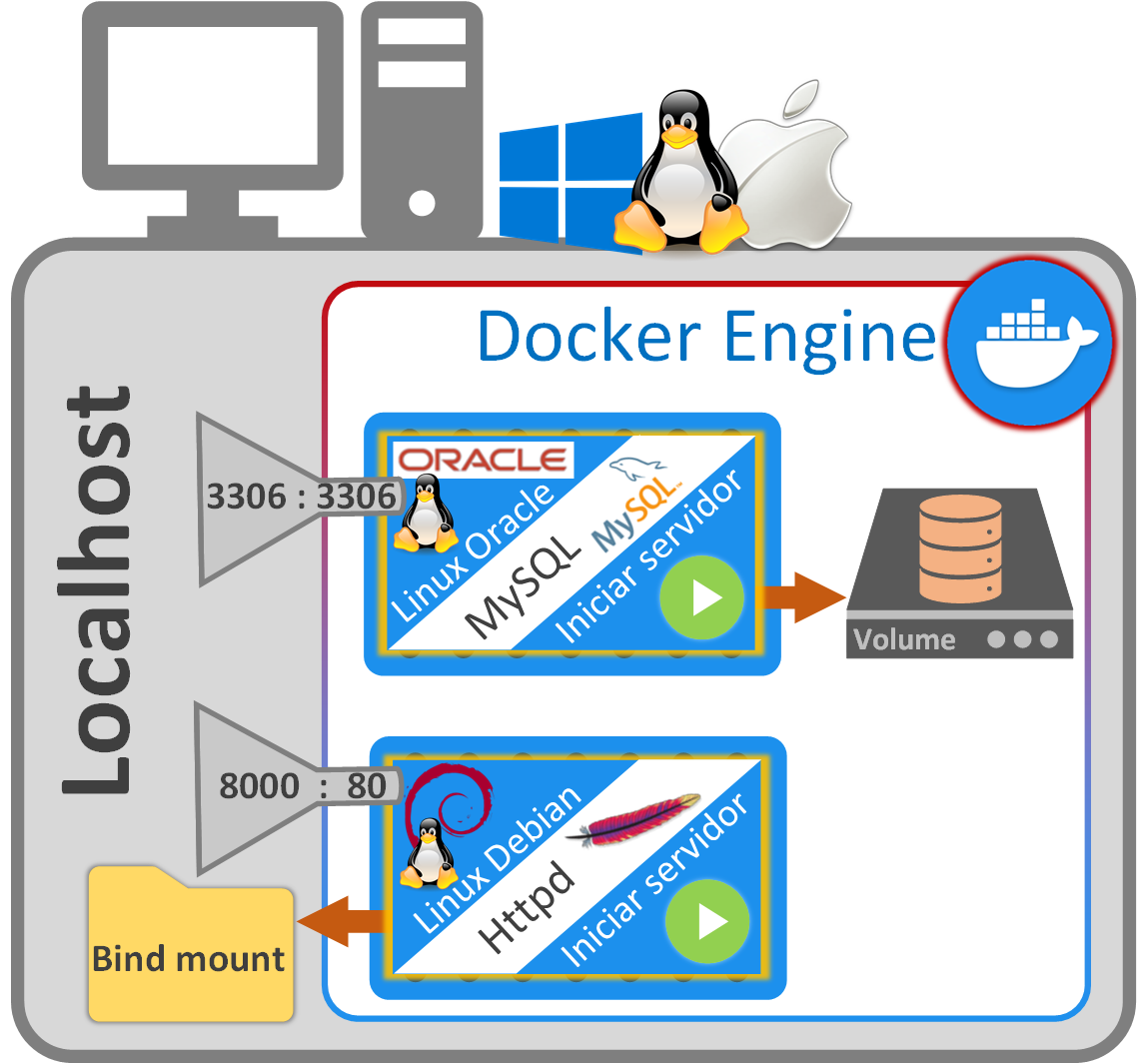
Here’s a drawing of what we’ll set up next: a “Docker image” with MySQL attached to a “Docker volume” to persist its data and with the container’s port 3306 mapped to your computer’s 3306 (which is the same as leaving the “host port” blank, as we did previously). We’ll also create another image with “Apache HTTP Server” (better known as “Httpd”), with the “www” folder as a “Docker Bind mount” so we can build a web page in real time while it’s served by the “Httpd” server. We’ll also map the container’s port 80 (the one “Httpd” listens on) to port 8000 on our computer (so we can see our web page from our favorite browser at the address https://jarroba.com/ ).
Creating a volume
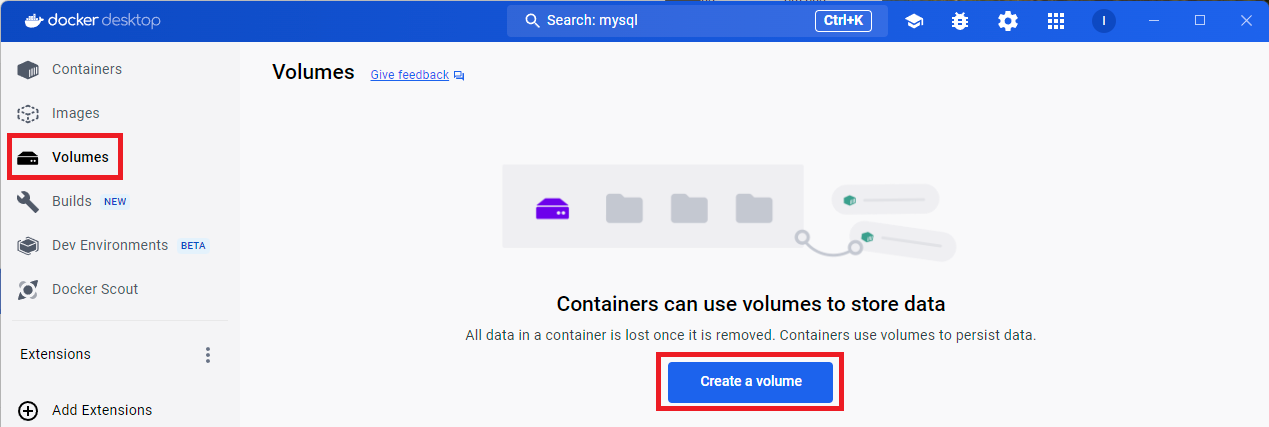
To create a Volume managed by Docker, go to the menu on the left of “Docker Desktop” and choose “Volumes”. Then, create a new volume by clicking “Create a volume”.
A window will open asking for the volume name, which I’ll call “MiVolumenDocker” (copy this name, since we’ll use it later).
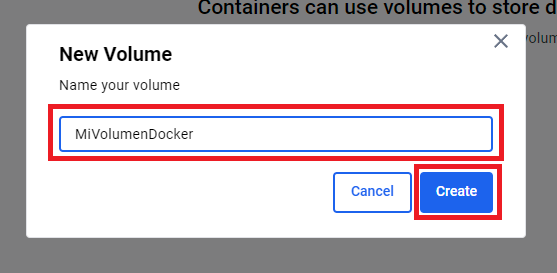
When you click “Create”, you’ll immediately see our volume created in a list (since we can have as many volumes as we want).
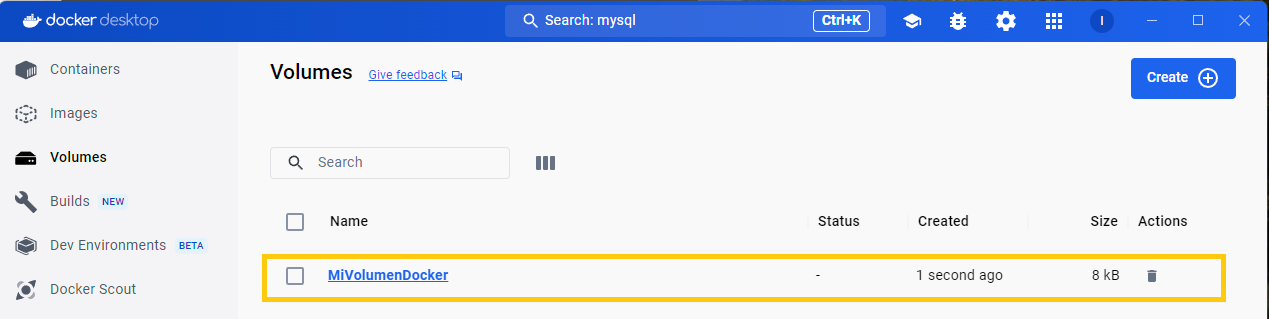
We go back to “Images” and, as we saw in previous steps, create a new container with the following configuration (which is very similar to the “Bind mount” one, but easier):
- Container name: example “miMySQL-container”.
- Volumes: in the “Host path” field we’ll enter the name we gave earlier to the volume we created, which in my example was “MiVolumenDocker”, and in the “Container path” field we point to what we want to persist, which in my case is “/var/lib/mysql” (Docker tells them apart depending on what you put in “Host path”: if it’s a path to a directory, Docker creates a “Bind mount”, as we’ll see later; but if what you enter is a single word, then for Docker it’s a “Volume”).
- Environment variable: in the “variable” and “value” fields we’ll enter, without quotes, “MYSQL_ALLOW_EMPTY_PASSWORD” and “yes” respectively.
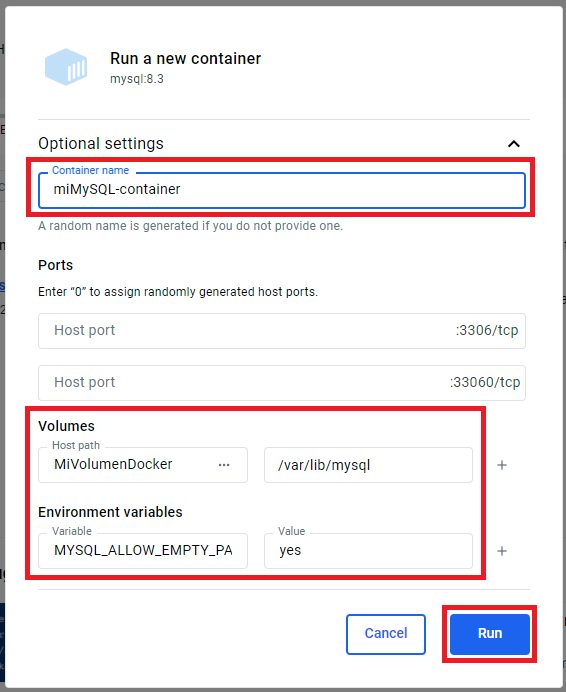
We click “Run” and our container will start.
Inside the container, in the “Files” tab, if we go to the path “/var/lib/mysql” we’ll see that it’s recognized as “VOLUME” (if you remember, “VOLUME” also appeared when no volume was defined, because Docker created a temporary one that was deleted when the container was removed; the difference now is that this “VOLUME” is persistent, so if we stop the container and restart it, we’ll keep our data).
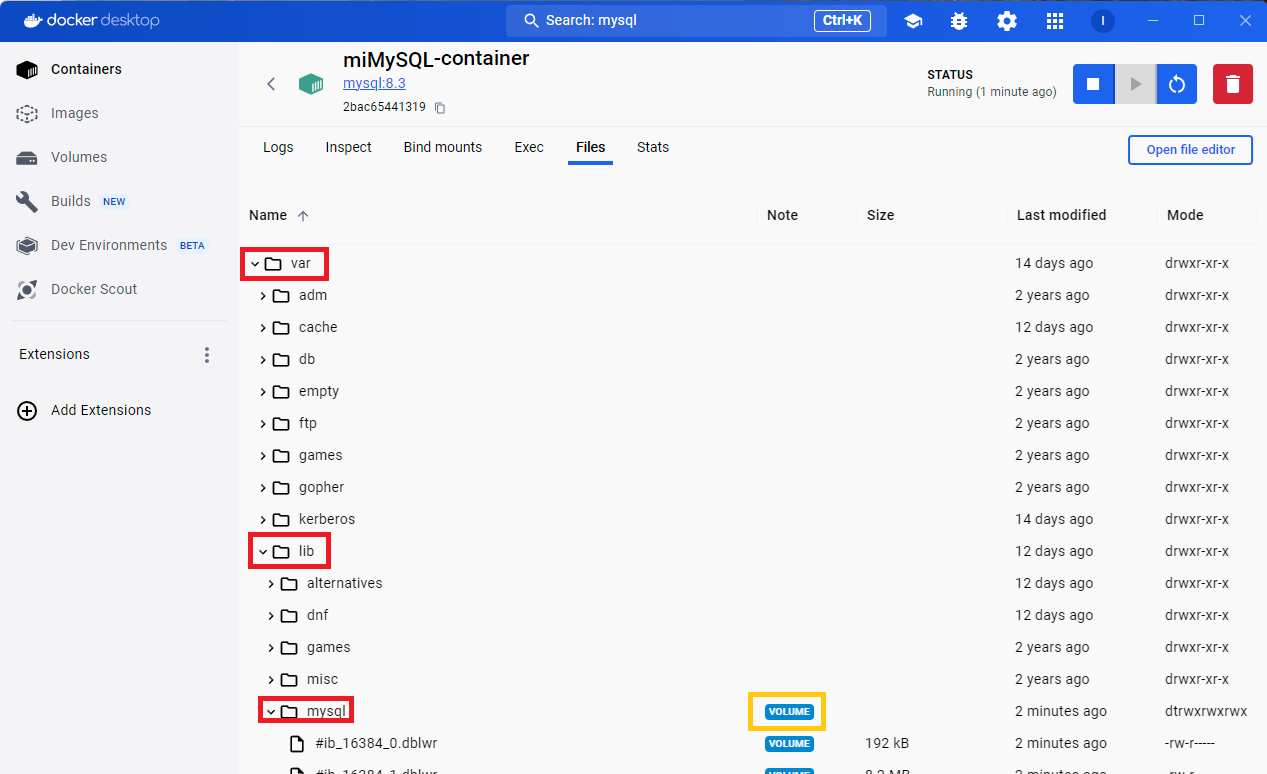
With this, even if we stop the container and restart it, our data will be persisted on disk; when we start the container again, the data, for example the tables and inserts (“INSERT”) we’ve made in the database, will still be there and we won’t have lost them.
Creating a Bind mount
To set up a “bind mount”, we simply pick a folder on our computer that we want to bind (and everything we put in it will be visible from inside the container) and create a new container from our image.
Note on the insecurity of “bind mounts”: it’s important that you understand the security problems I mentioned earlier. This “MySQL” image is official, so we should be able to trust it, but always at our own responsibility.
For this example we’re going to see how useful a “Bind mount” is, so we’ll use the Apache HTTP Server image (also called “httpd”; more information at Welcome! (The Apache HTTP Server Project)), which is widely used to build web pages. To do so we’ll download the image as before and start the container, which will leave the “httpd” server running, and we’ll be able to work live with HTTP, CSS and JavaScript files and see the results in our browser just as if they were uploaded to a real enterprise server.
To do that, as we saw before, we’ll download the “httpd” image, version 2.4 (httpd – Official Image (Docker Hub)); here we’ll create the container directly with “Run” to save ourselves some steps.
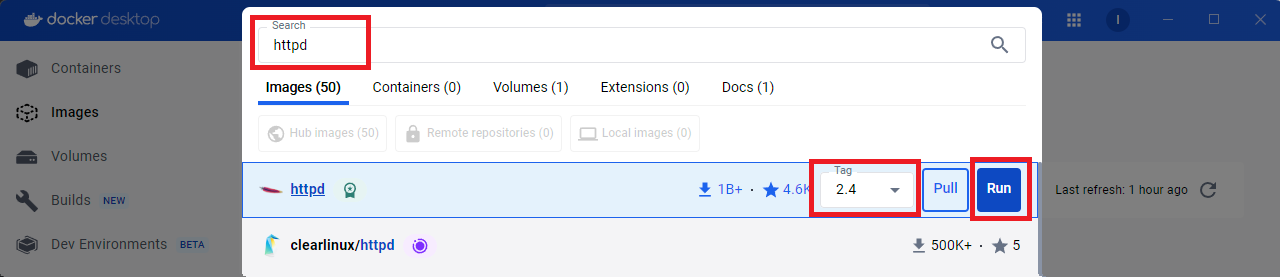
The Run window will open asking for the parameters, which I’ll define:
- Container name: example “MiServidorApache-container”.
- Ports: notice that the port inside the container is “80”. This port is so widely used that we’ll most likely have trouble using it on our computer, so here I’m going to map it to a port of my choosing that isn’t in use on our computer, for example 8000 (that is, port 80 inside the container will be exposed to my computer as 8000).
- Volumes: in the “Host path” field (the path on our computer, which is the host) we’ll click the three dots and choose a folder on our computer (I decided to create a folder on the Windows desktop (choose a suitable place) called “www” (this name is a convention for web resources; it’s also often called “htdocs” or “public_html”, but you can call it whatever you like); then, in “Container path” we’ll enter the path inside the container that we need. And which one do we need? Looking at the official documentation Configuration Sections (Apache HTTP Server Version 2.4) or, easier, at httpd – Official Image (Docker Hub), it tells us the working directory is “/usr/local/apache2/htdocs/”, so this is the path we’ll want to map and where we’ll place the web files (HTTP, CSS, JavaScript).
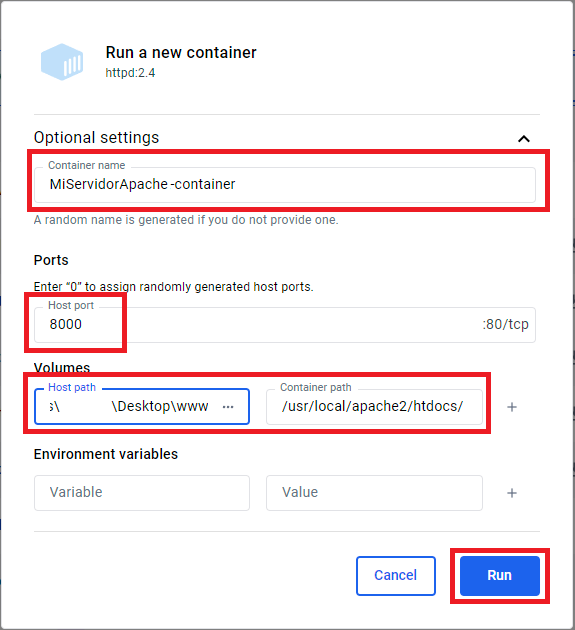
When we click “Run”, the running container will be created and, once it finishes loading (it’s very fast, a matter of seconds), Docker takes care of exposing it on our local machine (localhost) with the port mapping we defined earlier (8000). So, if you’ve followed this article, all you have to do is go to your favorite web browser and type: https://jarroba.com/
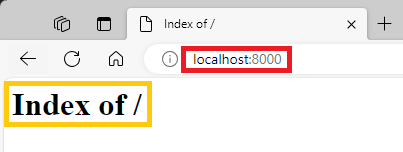
If you look, the page shows “Index of/”. This is generated by the Apache HTTP Server, and it’s the default page when the web resources folder is empty (the “/usr/local/apache2/htdocs/” directory).
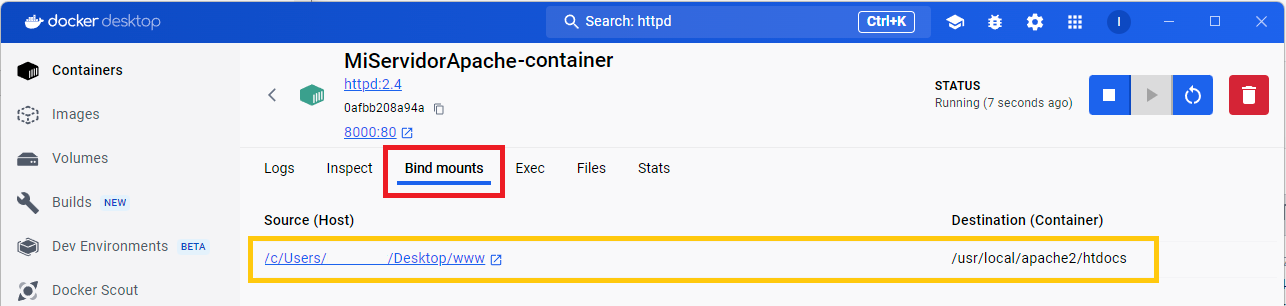
If you remember, we bound that directory with “Bind mounts”, so in the “Bind mounts” tab we can see the folder on our computer under “Source (Host)” and under “Destination (Container)” we’ll see the path it points to inside the container.
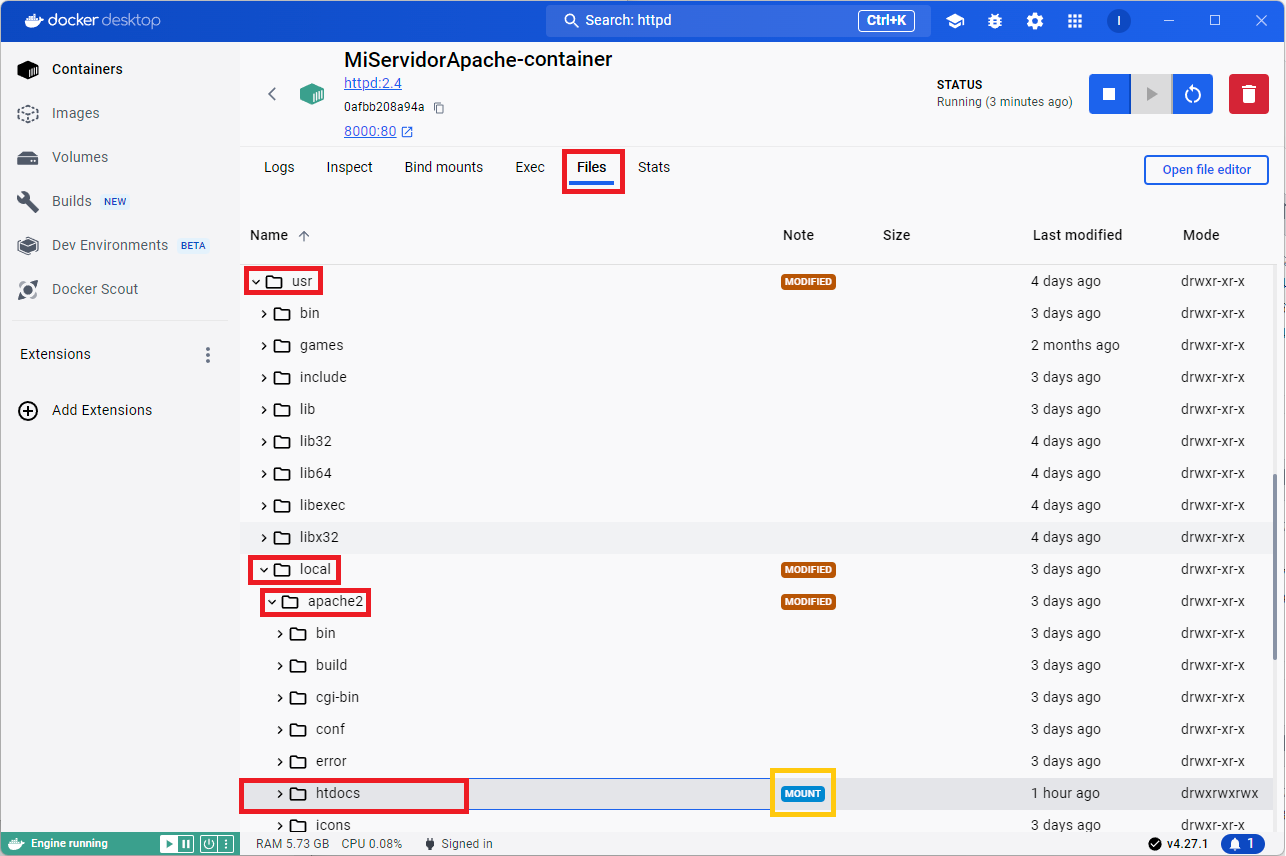
In the container, if we go to the “Files” tab and navigate to “/usr/local/apache2/htdocs/”, we’ll see the “MOUNT” label, which tells us this folder doesn’t actually exist inside the container, but is mounted and bound (“bind mount”) to a folder on our computer:
We minimize Docker Desktop and go to the folder we created and bound on our computer, which in my case is on the Windows desktop with the name “www”. Now, if we create or modify files inside this folder, the container will immediately see the changes in real time. To test it, we’ll create a file called “index.html” (it’s important that the extension is “html” and the name “index” is so it’s taken as the home page), which we’ll edit with our favorite editor (Vim, Sublime Text, Windows Notepad, etc.) and write some HTML code, which for my example will be the following (and save the changes, it’s important to save):
<!DOCTYPE html>
<html>
<head>
    <title>Mi Sitio Web</title>
</head>
<body>
<h1>Ejemplo de texto de www.jarroba.com</h1>
</body>
</html>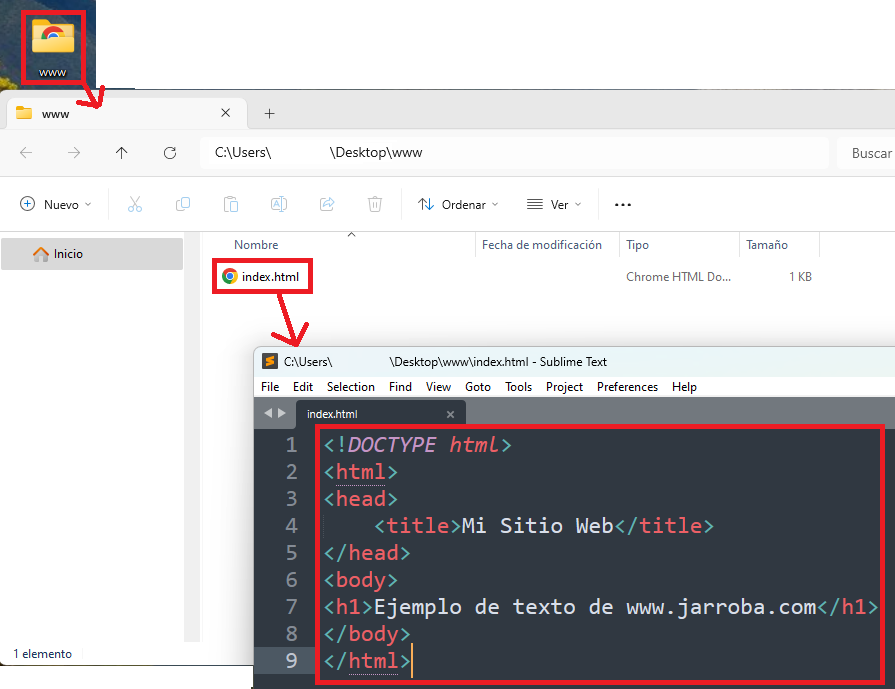
And if we go back to the browser and click refresh (or press “F5”), we’ll immediately see that the server inside the container has picked up the changes from the folder and lets me see the web page I’ve created:

By the way, even if we stop the container and restart it, our data will be persisted on disk (in my example, the contents of the “www” folder) and, what’s more, we’ll have it accessible from our host computer even when the container isn’t running.
Docker Containers vs Virtual Machines (VMs)
The beauty of a Docker container is that it runs directly on the kernel of the operating system of the computer it’s installed on (the host). By contrast, a virtual machine emulates hardware to run on.
Advantages of running directly on the kernel:
- Less complexity: it makes programming easier and increases processing speed (compared to emulating hardware).
- Easier to create and debug drivers: if you develop a driver for a physical device, you’ll want to test it directly on the device itself, not on an emulated one.
- No limits: by default it can take advantage of all the machine’s hardware. By contrast, a virtual machine can’t use all the physical hardware (mainly because it has two operating systems running, the host and the virtual one, both with their user space and kernel space, which consumes quite a lot of physical resources).
Advantages of emulating hardware:
- Isolation: what runs inside a virtual machine doesn’t interfere with what runs on the host’s hardware.
- Flexibility: you can install and run several applications on the same virtual operating system (it’s like having another computer inside your computer; for example, a Windows host with its desktop and an emulated Ubuntu Linux with its desktop).
- Hardware emulation: emulating everything, from the CPU, memory, network card, USB controllers, etc. For example, your computer physically has a hard drive of many terabytes, but you could emulate (simulate) having a very small hard drive (for instance, to see what happens when the computer runs out of storage); or, with an Intel processor, you could emulate having an AMD processor.
A Docker container has the application code, its environment, libraries, system tools and runtime. By contrast, a virtual machine is a virtualization of a whole machine, with its advantages: running several applications, sharing common libraries between different applications (reducing disk size), although with the drawback that there may be conflicts between dependencies and versions.
A Docker container does NOT have an operating system with a user interface (with a desktop, icons, buttons, mouse pointer, etc.); it’s controlled only through commands (“Docker Desktop”, Rancher What is Rancher? (Rancher docs) or Portainer Portainer — One platform, not twelve tools (Portainer) don’t count as user interfaces, since they’re only for managing containers, that is, starting and stopping them, but you don’t have control inside the container through an interface). On the other hand, a virtual machine can have an operating system with a full user interface and applications with an interface (a whole Windows or Ubuntu installed, with its desktop and icons, where we can use the mouse with applications like the music player, for example). Having a user interface makes many tasks easier and gives you more information at a glance, but it has the drawback of being very heavy on disk and consuming a lot of processor time; not having a user interface speeds things up enormously and that’s why Docker containers start so fast. It’s worth noting that there are widely used “tricks” to get a user interface in Docker, like spinning up a server that provides a web interface (so we can see what’s happening in a usable interface in the Chrome or Edge browser, for example).
Docker is an open source platform. But virtualization technology doesn’t have to be (for example, VirtualBox Oracle VirtualBox is open source vs VMware Cloud Computing for the Enterprise (VMware by Broadcom), which is not).
“Docker Basics: Docker Desktop and Docker Objects” by Ramón Invarato at jarroba.com, licensed under Creative Commons Attribution-NonCommercial-ShareAlike 3.0. Registered at Safe Creative.

You may also like
Advanced Dockerfile: Multi-Stage Builds, Registries, and Tricks
Free Docker course. Expert Docker tricks: multi-stage builds, optimizing images, faster build times, and distributing images through Docker registries.
Dockerfile: Directives and Dockerizing Projects
Free Docker course. A Dockerfile is a file of directives for building and deploying custom applications with Docker. Learn how to Dockerize your projects.
Leave a comment