
How to Install Apache Kafka
Learn how to install and use Apache Kafka in a professional cloud environment step by step: technical tips, commands, scripts and more.
Let’s install Apache Kafka step by step. It is installed and used practically the same way on any operating system, although here I will do it on Linux with the Ubuntu distribution (for Windows I suggest using WSL, although you can also install it directly on the operating system).
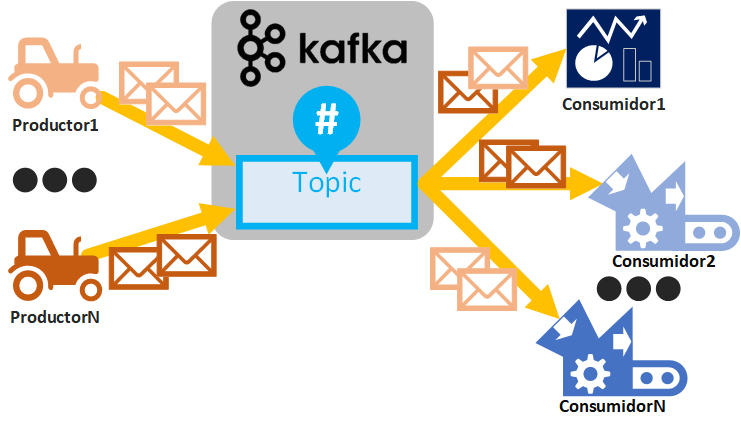
Note about Kafka on Docker: As an alternative to the installation described in this article, you can use the “Docker Compose” with Kafka that I created and left at View on GitHubInvarato/docker / kafka (I only recommend it if you have experience with Docker Compose). Either way, I recommend reading this article, since it covers some very necessary theory.
Choosing Where to Install Apache Kafka
Before continuing, we need to be clear about where we will install Apache Kafka, since that is where our Consumers and Producers will have to connect.
Remember that the three key pieces that will be interconnected in Kafka are: Consumer, Producer and the Apache Kafka server (and other Apache Kafka servers if it is distributed).
So we can have different combinations (which you will learn to use as you keep reading), such as:
- Everything local (only for learning): Apache Kafka server, Consumers and Producers all local. Local means either everything on your computer, or everything on the same remote machine. Since everything is local, you won’t need to open ports to the outside.
- Partly local (for learning and for production): Consumers and Producers local, but the Apache Kafka server remote. If your computer holds the Consumers and Producers, and Apache Kafka is remote, you will get a complete picture of how things work in a company.
- Everything remote (a fairly realistic production environment): Apache Kafka server on one remote machine, Consumers on another remote machine and Producers on a third remote machine. This setup is the most complex and the most widely used in companies, since Apache Kafka can be distributed across multiple machines and many machines can act as Producers and Consumers (it is a configuration for real Big Data processing that I will teach you to set up later and I will leave it running so you can play with it). By the way, having everything remote doesn’t mean we can’t launch Producers or Consumers locally against those remote Kafkas.
To make each part clear, I will install Kafka remotely in the cloud to simulate a real business environment as much as I can, and I will leave the local side for the Consumers and Producers. If you are learning and already have some programming experience, you can follow this article as is (as I will explain, we will get some free credit to try the cloud, so we will work the way it’s done in a real company, but be aware that if the credit runs out they will start charging you, although it is more than enough to follow this article) or you can do everything locally (just by changing where the IPs point).
Working on a Real Remote Cloud Environment
To simulate a real company environment (which is as close to a real environment as I can give you, because it is a real environment) I am going to use the infrastructure of VPS Cloud: Tu Servidor Virtual en España (Clouding.io) (setting up a machine is very easy, in just a few clicks; I also explain how to set up a remote machine in the article “How Servers and Hosting Services Work”). A remote machine is a paid service and you have to add a credit card, from which 1 euro is charged to verify your identity; it is always refunded, no exceptions. Once that is done, VPS Cloud: Tu Servidor Virtual en España (Clouding.io) gives you €5 of trial credit, and that is more than enough to practice with Apache Kafka. We can delete these machines completely when we aren’t using them so we aren’t charged any more, unless we really want to build a real infrastructure and keep using them; that’s up to each person. If we decide to start using them, we can top up our balance whenever we want with a minimum amount of €2.
For the tests I will first create an “Ubuntu” machine with 2GB, 1 vCore and 20GB (I warn you that the more we give it, the more we will be charged).

The machine takes a few minutes to be created, but once it is ready we will have the “public IP” of our remote machine and SSH access to it (I explain it step by step in the article “How Servers and Hosting Services Work”).
I will connect to this remote machine via SSH and install Apache Kafka on it.
Note about the remote machine: I’ll warn you again that when you aren’t using the remote machine you have to DELETE it so you aren’t charged (if you only “turn off” the machine, the resources stay reserved for us and we have to pay for that exclusivity at the hourly rate we configured, even if it isn’t used). Another option is to ARCHIVE the machine; when it is archived you only pay for the NVMe SSD disk, not the RAM or the CPU. If you want to use the service to really have a production environment and pay for it, go for it, I recommend it, since it is a good service.
Installing Apache Kafka
We can download Apache Kafka from Downloads (Apache Kafka) (or, if we are on the home page, by clicking the “Download Kafka” button).
Note about Kafka on Docker: If you don’t want to install Kafka you can use View on GitHubInvarato/docker / kafka
On the download page several versions will appear that we need to understand in order to avoid incompatibilities:
- Kafka version: shown in large bold. In my case I will download Kafka version “3.1.0”.
- Compatible Scala version: Kafka is built on Scala (and Scala requires Java), but this version matters less to us, since it is the one that comes inside the package (along with Kafka). In my case I will choose version “2.13”.
- Compatible Java version: Since Scala requires Java, we will also need Java. The maximum version it supports appears below (you may have to scroll down); it is important not to exceed the Java version that our Kafka version runs on (if we exceed it, it won’t work).
On this page we will choose the binary version we want to install; in my case I’m going to choose “kafka_2.13-3.1.0.tgz”:

That takes us to another window with the download link, which in my case is “https://dlcdn.apache.org/kafka/3.1.0/kafka_2.13-3.1.0.tgz”, which we can download directly or copy (if we want to download it with wget):

Downloading and Extracting in the Shell
In the Linux shell (terminal) we can download it with the “wget” command into the current directory:
wget https://dlcdn.apache.org/kafka/3.1.0/kafka_2.13-3.1.0.tgzI’m going to extract it directly into my user’s home (the tilde “~” or “/home/myUser”):
tar -xvzf kafka_2.13-3.1.0.tgz -C ~This creates a directory with the same name as the archive, but without the extension: “kafka_2.13-3.1.0”. If we go inside (“cd kafka_2.13-3.1.0”) we will see (“ls”) that the Kafka files are ready. Below, I show you a screenshot with all the steps:
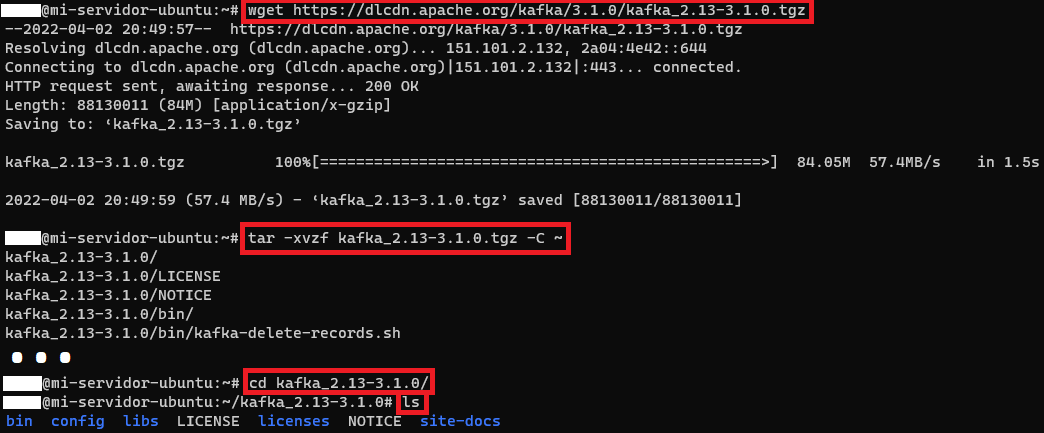
When we’re done we can delete the archive to free up space:
rm kafka_2.13-3.1.0.tgzChecking and Installing the Java JDK
We can check whether Java is installed with:
java -versionIf it isn’t installed we can install it with (I’m going to install version 11 of the Java JDK, the headless version that doesn’t include a graphical interface, so it takes up less disk space):
sudo apt install openjdk-11-jre-headlessNote about the installation: it will ask you to accept the download, so we press “y” and the “Enter” key.
Once it is installed correctly, with “java -version” we can see the Java information:

Tip
Adding to the PATH
If we want Kafka to always be available from anywhere in the current Shell session, we can add the KAFKA_HOME variable with the directory containing the Kafka installation, and add its “bin” directory to the PATH, for example, with:
export KAFKA_HOME=~/kafka_2.13-3.1.0
export PATH=$PATH:${KAFKA_HOME}/bin
If we want it to persist in all the Shell sessions we open in the future, we can use VIM (or the editor you prefer) to add the above “exports” at the end of the “.bashrc” file (this file is hidden in the user’s “home” or “~”; you can see it with “ls -a”), or you can run the following command to add them directly:
echo "export KAFKA_HOME=~/kafka_2.13-3.1.0" >> ~/.bashrc
echo "export PATH=\$PATH:\${KAFKA_HOME}/bin " >> ~/.bashrc
If everything has gone well so far, the test everybody usually does is to run “kafka-topics.sh” (from anywhere if you have set up the environment variables correctly, or from the Kafka installation inside the “bin” folder) and if it returns “stuff” (it returns the help), then everything is installed correctly so far:
kafka-topics.sh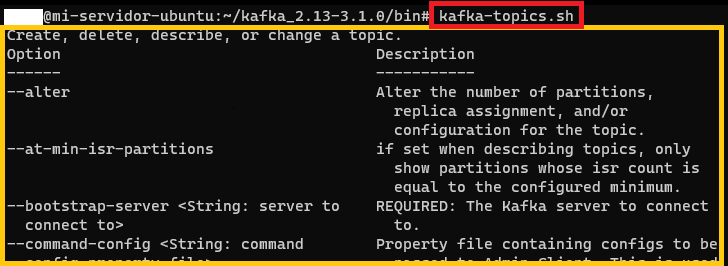
Quick Apache Kafka Installation Script
All of the previous steps can be put into a script to make installing Kafka faster, especially when you have to distribute it across multiple cloud servers (since the installation has to be done on each one). Below, I’m giving you a script to install everything above on each server (you have to change the value of the Kafka “version” variable and “package” with the name of the Kafka package, to the ones you want to install). Create a file called, for example, “myExecutable.sh” and paste the following code inside (you can use VIM):
#!/bin/sh

version=3.1.0
package=kafka_2.13-3.1.0
java_pkg=openjdk-11-jre-headless

echo "https://dlcdn.apache.org/kafka/$version/$package.tgz"
wget https://dlcdn.apache.org/kafka/$version/$package.tgz
tar -xvzf $package.tgz -C $(pwd)
rm $package.tgz

if type -p java; then
    echo "Java encontrado en: $PATH"
elif [[ -n "$JAVA_HOME" ]] && [[ -x "$JAVA_HOME/bin/java" ]];  then
    echo "Java encontrado en: $JAVA_HOME"
else
    echo "Java no encontrado, instalando: $java_pkg"
    sudo apt --yes --force-yes install $java_pkg
fi

export KAFKA_HOME=$(pwd)/$package
export PATH=$PATH:${KAFKA_HOME}/bin

echo "export KAFKA_HOME=$(pwd)/$package" >> ~/.bashrc
echo "export PATH=\$PATH:\${KAFKA_HOME}/bin" >> ~/.bashrc

echo "export KAFKA_HOME=$(pwd)/$package"
echo "export PATH=$PATH:${KAFKA_HOME}/bin"

echo "Hecho"
And you can run it with:
source miEjecutable.shAfter it finishes running (I’ve made it print “Hecho” at the end, which means “Done”), you can delete this file.
Starting the Zookeeper Server
Zookeeper is important because it is the one that manages the Kafka brokers.
We will start the Zookeeper server and pass it the configuration file “zookeeper.properties” (which is also in Kafka’s “config” folder); we can edit this configuration file (for example, with “vim”) to set Zookeeper’s different options if we need to (for example, we can change the port Zookeeper listens on by changing the value of the “clientPort” variable, whose default value is “2181” and which I recommend leaving as it is, otherwise it will have to be changed in other configuration files too; or “dataDir” to change the path where Zookeeper stores its temporary data; we can leave the default values untouched). After running the command, Zookeeper takes a little while to start completely (it is important to wait until Zookeeper has completely finished starting):
zookeeper-server-start.sh ~/kafka_2.13-3.1.0/config/zookeeper.properties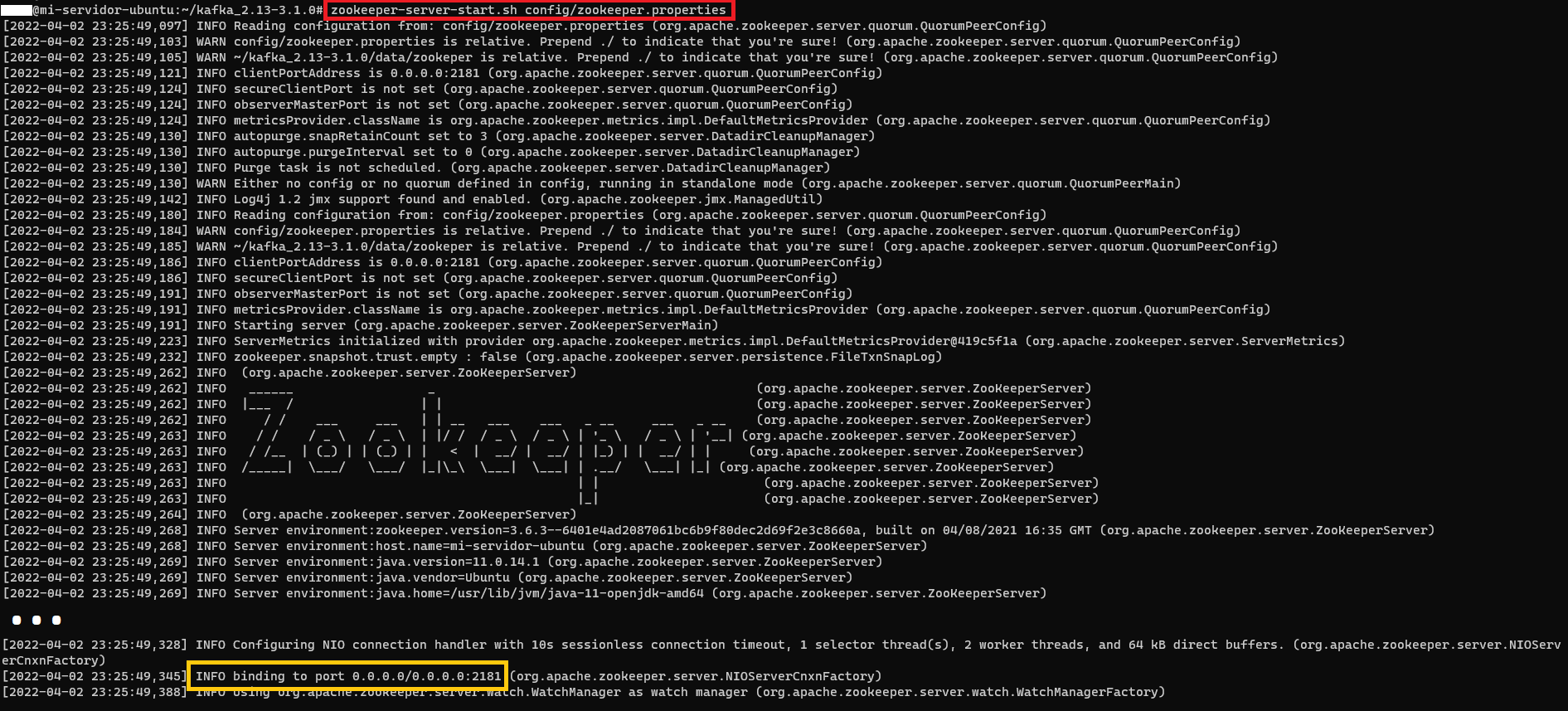
Once it has started completely we will see that it keeps listening on port 2181 (or whichever one we configured in “clientPort” of the “zookeeper.properties” file).
Checking That Zookeeper Is Listening on the Right Port
If we don’t change the configuration, the default port Zookeeper listens on is “2181”. We can check it with the following command:
ss -tulwn
Here is a quick summary of the “System administrator” tool (ss; more information at ss(8) — Linux manual page (man7.org)):
- -t: shows TCP connections
- -u: shows UDP connections
- -l: filters for sockets that are listening
- -w: shows RAW sockets
- -n: doesn’t resolve service names
Before starting a Kafka broker, we must make sure Zookeeper has finished starting (it takes less than a minute; we either wait or make sure by watching the output logs Zookeeper shows until the “binding” I showed earlier in the image appears).
Starting a Kafka Broker Server
We open a new Shell (another terminal), since the previous one is already busy with Zookeeper’s output and we want to keep watching it (in the future, once you’ve learned more, you will be able to send it to the background and do everything in the same terminal).
and then we can start the Kafka server with “kafka-server-start.sh” and pass it the “server.properties” configuration (which is also in Kafka’s “config” folder; just like the Zookeeper properties file above, we can edit its variables, such as the path where the Kafka broker stores its logs, which is the “log.dirs” variable; what matters is the broker identifier in “broker.id” and the “listeners” variable if we have more than one broker):
kafka-server-start.sh ~/kafka_2.13-3.1.0/config/server.properties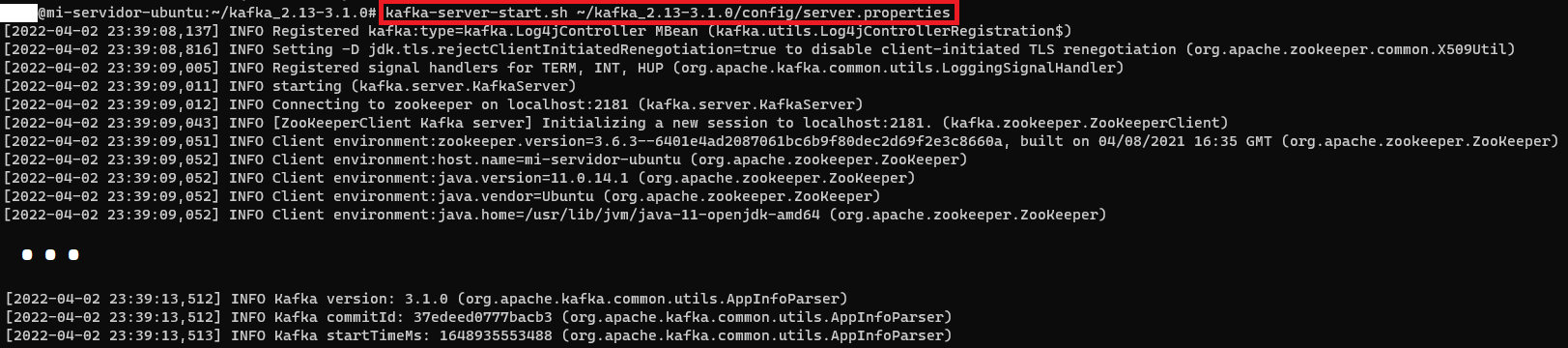
Warning
Out-of-Space Error When Starting the Kafka Server
You may get an error like this:
OpenJDK 64-Bit Server VM warning: INFO: os::commit_memory(0x00000000c0000000, 1073741824, 0) failed; error='Not enough space' (errno=12)It means the Java virtual machine needs at least 1GiB (=1073741824 bytes), so to fix it we will add the following variables:
export KAFKA_HEAP_OPTS="-Xmx1G -Xms1G"
export KAFKA_JVM_PERFORMANCE_OPTS="-Xmx256M -Xms128M"
Note about these values: this configuration is fine for development or testing; for production it may be necessary to increase the memory quite a bit more.
We can call the broker we have just started on port 9092 (which is the default port).
Note for multiple brokers per Zookeeper: With a single broker you don’t need to change anything in the “server.properties” file, but if we have more than one broker managed by the same Zookeeper, we will need to create a “server.properties” file for each broker, and each of these files must have a unique identifier (in “broker.id”) and a unique port (in “listeners”). We will see this with examples later on.
Ports That Must Be Open to Connect to a Remote Apache Kafka Server
To communicate with our remote machine (for example, from our computer) we need to have ports “9092” (for the Kafka broker) and “2181” (for the Zookeeper server) open.
For example, in the clouding portal, at https://portal.clouding.io/, we can go to “My Firewalls”, select the profile we want (I will use the “default” one, although we can clone it if we want), and with the “+” we will add the ports:
- Kafka broker port: Port “9092”, with the Source IP being that of the computer we want to connect from (or “0.0.0.0/0” to allow all IPs, although this is insecure since anyone else could connect to this port; I’m using “0.0.0.0/0” because by the time you read this article that machine will no longer exist, so be very careful with this, especially for production 😉 ), with the “TCP” protocol, and the suggested name is “Allow Kafka”. If you have more Kafka brokers, we will need to open one port per broker (according to what we have configured in each “server.properties” file; we will see an example later)
- Zookeeper port: Port “2181”, with the Source IP being that of the computer we want to connect from (or “0.0.0.0/0” to allow all IPs), with the “TCP” protocol, and the suggested name is “Allow Zookper”.
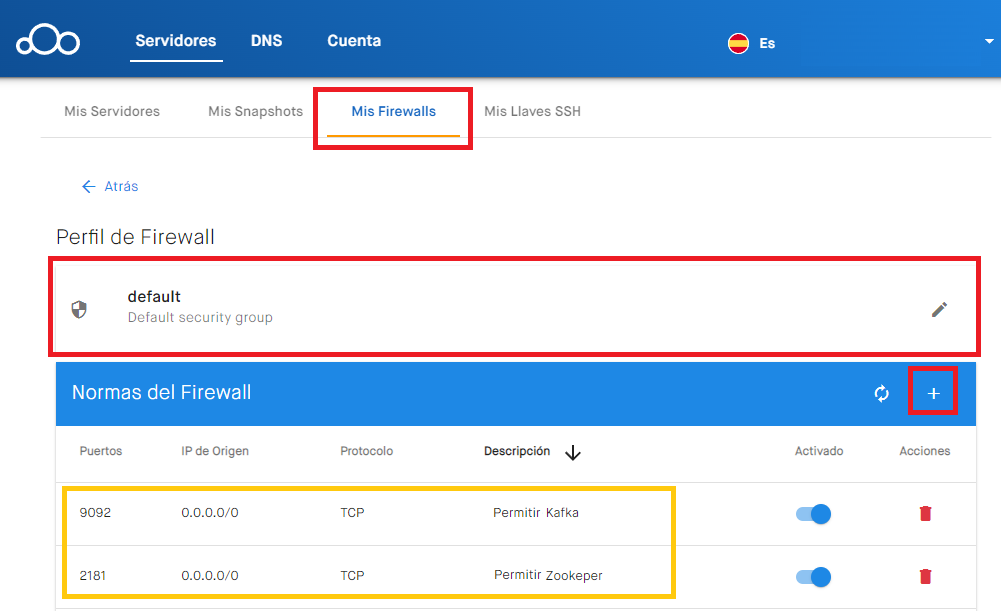
With this, the ports will be open.
Apache Kafka Commands
I’m always going to write the following examples calling “localhost”, that is, I will run the commands on the same machine where Apache Kafka is installed (since they require an Apache Kafka installation). If we want, in the future we can have several Apache Kafka installations and run a command that affects a remote one (for this we need to open the ports, which I explain later).
From the terminal, to create (–create) a new topic called “miNuevoTopic” (–topic miNuevoTopic), with a replication factor of 1 (–replication-factor 1), with 2 partitions (–partitions 2) and on the Kafka queue of the same server (bootstrap-server localhost:9092):
kafka-topics.sh --create --topic miNuevoTopic --replication-factor 1 --partitions 2 --bootstrap-server localhost:9092
Note about the path in the images: if you have exported the variables as indicated earlier, you won’t need to be in Kafka’s “bin” folder to run “kafka-topic.sh”; in the images I simply show it as a reminder.
Trick for creating topics quickly: instead of using “–create”, we can insert data into a topic that doesn’t exist (with a producer, as we will see later) and that nonexistent topic will be created automatically (this only works if the configuration allows it).
To delete a topic from Kafka:
kafka-topics.sh --delete --topic miNuevoTopic --bootstrap-server localhost:9092Note if we want to delete all the messages in a topic (empty a topic): The simplest way is to delete the whole topic with “–delete” and create it again with “–create”. There is also the trick of lowering the retention time to the minimum and then restoring it (for example, with: “kafka-topics.sh –alter –topic miNuevoTopic –bootstrap-server localhost:9092 –config retention.ms=1000”, wait for it to empty out, and then you will have to set the previous retention time again with another “–alter”).
To list (–list) the topics created:
kafka-topics.sh --list --bootstrap-server localhost:9092
To see the details (partition usage, replicas, etc.) of a topic:
kafka-topics.sh --describe --topic miNuevoTopic --bootstrap-server localhost:9092
To produce (write) messages to a topic (with “kafka-console-producer.sh”), it will keep listening for each line we enter (to send a message: type whatever you want and press the [Enter] key):
kafka-console-producer.sh --topic miNuevoTopic --bootstrap-server localhost:9092Note on finishing: When we have finished inserting messages, we can stop by pressing [Ctrl]+[C].

To consume (read) the messages of a topic (with “kafka-console-consumer.sh”), from the beginning (–from-beginning):
kafka-console-consumer.sh --topic miNuevoTopic --from-beginning --bootstrap-server localhost:9092Note about the previous command: it will wait forever for new incoming messages until we end the process (with [Ctrl]+[C]). If we want it to show only a maximum number of messages and then finish, we can use “–max-messages”, for example, to show 10 messages: –max-messages 10

Note about real-time Consumer and Producer: if we have two terminals, one with the Producer and the other with the Consumer, we can send data from the producer terminal and see it in real time in the consumer terminal.
An Idea of the Hardware Requirements
For development whatever we have will do; perhaps at least 20GB of disk space for the Java and Kafka installations so that we don’t run out of space when using Kafka.
For production there isn’t an exact figure either; ideally the more the better, although I’ll give you some numbers to get an idea:
- RAM: For production, at least 32 GB of RAM per machine is recommended, since consumers read from RAM; if there is no space, Kafka will write to disk, and having to read from disk will be very slow. Kafka uses the JVM heap (have at least 1GB for replicating partitions between brokers and for compressing logs) and the operating system’s page cache (consumers always read from memory)
- Hard drive: 500GB or more. Use multiple hard drives to maximize performance and get good balancing of read and write data (by configuring multiple data directories or using RAID 1 or 10).
- Processor: 4 cores or more. More cores is better than a higher processor clock speed.
- Network: at least 1 GbE-10 GbE and low latency.
- High-performance file system: XFS or Ext4
References
“How to Install Apache Kafka” by Ramón Invarato at jarroba.com, licensed under Creative Commons Attribution-NonCommercial-ShareAlike 3.0. Registered at Safe Creative.

You may also like
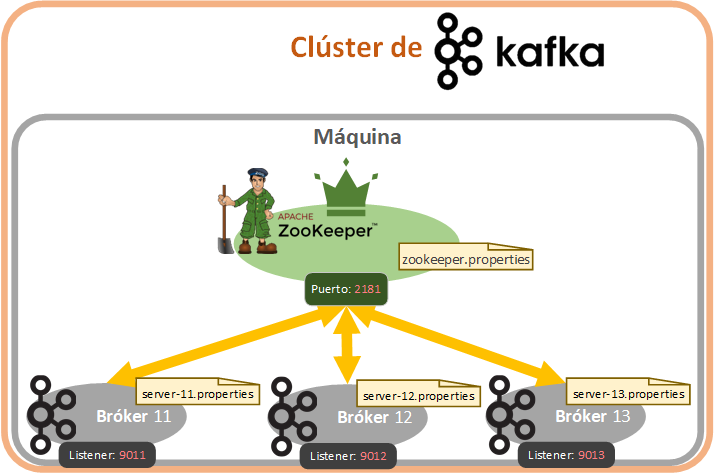
Fault-Tolerant, Highly Available Apache Kafka Cluster
Learn how to set up a Kafka cluster with multiple brokers, distributed across several real cloud servers, step by step.


Apache Kafka Consumers and Producers with Java and Python
Learn step by step how to program Kafka Consumers and Producers in both Java and Python, and test them in a real environment.
Leave a comment