
Pipenv: A Python Virtual Environment Manager
Pipenv is a Python virtual environment manager that creates and manages the environments for each of your Python projects. Learn how to use it.
If we want a manager that unifies and manages both Virtualenv and Pip, we can use Pipenv. Pipenv works on Windows, Linux and Mac, and it works exactly the same on every operating system (except for the path where things are stored). The best feature of Pipenv is that it creates (and manages) exclusive virtual environments in a folder separate from the project and gives us requirements files for free.
Before starting with Pipenv, I strongly recommend having some basic knowledge about “Python virtual environments”, especially the ones that are exclusive to a project. For that, you can take a look at the article we wrote about Python Virtual Environments: Standard and Anaconda (although it can be read on its own just fine, this article is designed as a continuation of that one).
Note about Pipenv and Anaconda: I don’t recommend using Pipenv with Anaconda, since Anaconda does more or less the same thing as “Pipenv” with a few exceptions (you can use Pipenv with Anaconda, but it means having a “virtual environment manager” inside another “virtual environment manager”, each one managing virtual environments on its own and in its own way). I recommend Pipenv if you work with “standard Python”. Pipenv is installed with PIP in the “Lib” folder of the “global Python” (if you don’t have Virtualenv installed, it will be installed automatically as a dependency, since Pipenv needs it). Once we install Pipenv, we will have a few Python environment variables in the operating system (which we can use in the terminal), which I list so they are clear: python, pip, virtualenv, pipenv. We will use the new “pipenv” to manage virtual environments (so we forget about “virtualenv” and its commands, although pipenv uses similar commands). Pipenv will create the virtual environments (it uses Virtualenv under the hood) in a folder that it manages called “virtualenvs”, and if we pass it packages when creating the environment, it can install them (it uses PIP under the hood).
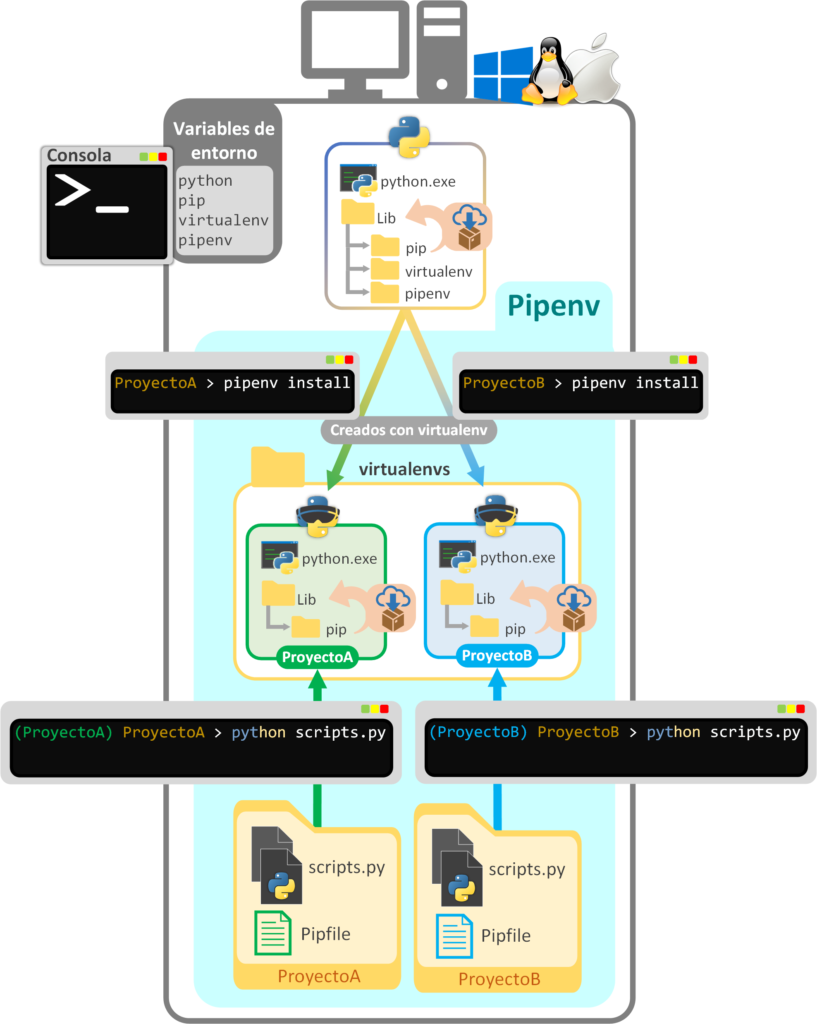
Pipenv will create one virtual environment per project in the “virtualenvs” folder, named after the project followed by an identifier. And inside the project it will create a requirements file called “Pipfile” (and “Pipfile.lock”; we will see both later) that will let us recreate the virtual environment (with the same Python version and the same packages with the same versions) somewhere else or on a different machine (without having to copy the whole virtual environment folder, which is not a good practice).
Installing Pipenv
“Pipenv” is installed with this command (it doesn’t come built in):
pip install pipenvUsing Pipenv
From the system terminal, go into a project you already have or create a new one as suggested in the following box.
Example I will use from now on
To see its usage clearly, let’s suppose we have a folder that I have named “mi_proyecto” (if you’re just starting out, create an empty folder, or use one you already have that is your project with your Python scripts) and go inside this folder.
For the example we can create an empty directory with (it works on any operating system):
mkdir mi_proyectoAnd we go inside (so that, in the next step, we can create the virtual environment exclusive to this folder and its contents):
cd mi_proyectoCreating a virtual environment
Create a virtual environment exclusive to a project (go to the project’s main folder and run):
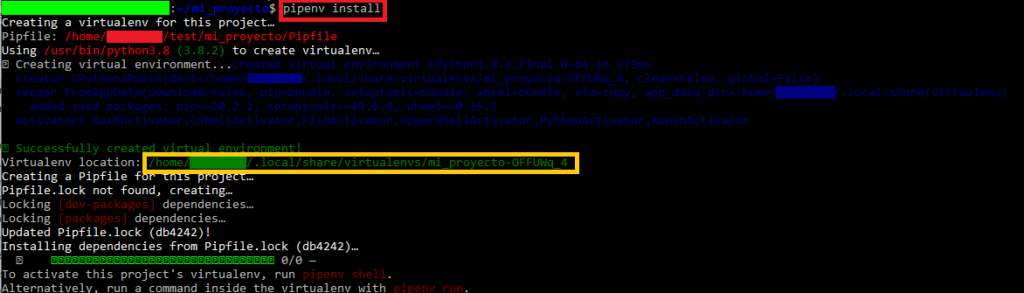
pipenv installOn Linux/Mac you will see something like this:
On Windows it works exactly the same:
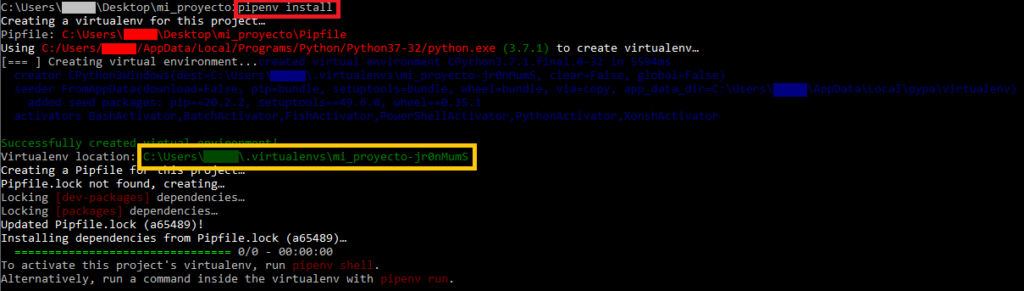
When the virtual environment is created, it is automatically named after the root folder followed by an identifier and saved in (in the image I have marked with a golden box the path where your virtual environment will have been created):
- On Linux/Mac: /home/<USUARIO>/.local/share/virtualenvs/
- On Windows: C:\Users\<USUARIO>\.virtualenvs\
Listing all the virtual environments created with Pipenv
We can list all the virtual environments created with:
pipenv --venvThis keeps our project free of code and files that should not be shared/distributed; instead, it will create two files with the “requirements of the exclusive virtual environment” inside our project, which should be shared/distributed: “Pipfile.lock” and “Pipfile”.
These two files, “Pipfile.lock” and “Pipfile”, are the requirements of our project with the configuration of the exclusive virtual environment; Pipenv created them when it created the virtual environment, it will fill them in when we install dependencies in the future (it will add a couple of lines with the information of the package we install, such as its name and version), we can edit them to change the configuration by hand (for example, to change the Python version), and ultimately we can regenerate the virtual environment from them (both if something breaks in the virtual environment and we need to recreate it, and to copy/move our project to another machine and create the virtual environment with exactly the configuration our project needs to work). Although I will explain these two files in detail later, to see how it stores the packages we want to install, I suggest you open them and take a quick look.
Activating a virtual environment
To activate the virtual environment (while in the project root where we created the virtual environment; that is, in the same path where the two requirements files “Pipfile.lock” and “Pipfile” are):
pipenv shellIn my case, when I activate the virtual environment, “(mi_proyecto)” appears in front of the path to indicate that it has been activated correctly (if you look closely, Pipenv has automatically called Virtualenv’s “activate”; that is, the same thing we did before, but managed by Pipenv):

Installing dependencies (packages) in a virtual environment
To install Python packages from the PIP repository (PyPI · The Python Package Index; in the following example I will install the sorted-in-disk package, install whichever one you want to try, similar to what I did in the article Python Virtual Environments: Standard and Anaconda):
pip install sorted-in-diskNote to speed up installing a virtual environment with one or more packages: The advantage of using the virtual environment install command is that you can take the chance to install some packages with PIP at the same time you create the virtual environment (this command creates the virtual environment if it doesn’t exist and then installs the packages from the PIP repository):
pipenv install <PAQUETE1> <PAQUETE2> <PAQUETEN>In my example, the packages will be installed inside the “lib” folder within my project’s exclusive virtual environment:
- Linux/Mac: /home/<USUARIO>/.local/share/virtualenvs/mi_proyecto-OFFUWq_4/lib/python3.8/
- Windows: c:\users\<USUARIO>\.virtualenvs\mi_proyecto-jr0nmums\lib\site-packages\
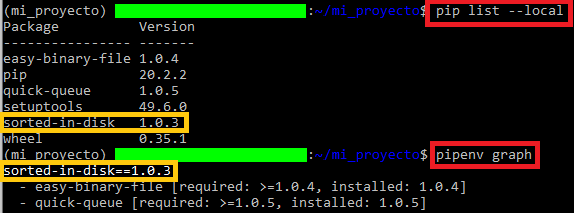
To see all the packages (with their dependencies) installed by PIP, we can list them with:
pip list --localOr also with:
pipenv graphIn the following image I show an example of both:
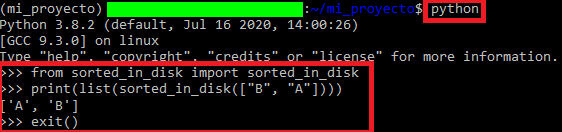
Here is how we can use Python isolated in this virtual environment:
pythonAnd try writing some code to see that it works, try the installed packages, write files and run them, etc. You know, the usual Python stuff 😉
In the following image I try the same Python code I used in the article Python Virtual Environments: Standard and Anaconda under this virtual environment managed by Pipenv:
Deactivating a virtual environment
And to deactivate the virtual environment we simply type:
exitNote about the “deactivate” command: at the time this article was written, the “deactivate” command did not work properly, only partially deactivating the virtual environment (it seems to deactivate the Virtualenv part, but not the part managed by Pipenv; so to make sure Pipenv is aware of it, it’s better to use “exit” and let Pipenv handle deactivating the virtual environment).
Deleting a virtual environment
To delete the virtual environment (it only deletes the folder with the virtual environment in the “virtualenvs” folder; it does not delete the requirements files “Pipfile.lock” and “Pipfile”):
pipenv --rmNote about the “Pipfile.lock” and “Pipfile” files: they are not deleted, for future reinstalls and because they are part of the project’s information. If you want to delete them, you can do it by hand with:
rm Pipfile Pipfile.lockRequirements files “Pipfile.lock” and “Pipfile”
The “Pipfile.lock” and “Pipfile” files are the requirements files where the complete configuration of the Python virtual environment (Virtualenv) managed by Pipenv is stored.
These will be very useful if in the future we copy/distribute our project folder containing these two files to any other machine (another computer or another server), and we run this command on that other machine:
pipenv installThe Python virtual environment exclusive to this project will be regenerated with those requirements (with the packages installed, the required Python version, etc.) and for that other machine (if the machine has any peculiarity, the global Python previously configured and working on that machine will be used, so we make sure it will work); this way, our project will work perfectly on that other machine.
“Pipfile” contains general information (I explain the sections that come by default):
- [source]: where PIP connects to download the packages (it could be configured to download packages from a company’s private repository, for example).
- [dev-packages]: the packages that are exclusive to development (such as packages for testing, checking performance, collecting logs, etc.). These packages can be excluded when we have a version of our project ready to be released.
- [packages]: the packages we want to use in our project and that will be included in the released version.
- [requires]: lets us change the Python version if we want by changing the version number in “python_version” (as long as we have the desired version as global Python; that is, by default it takes the latest installed version, which in my case is Python 3.8, and if we want it to work with Python 2, we must have Python 2 installed as global).
[[source]]
name = "pypi"
url = "https://pypi.org/simple"
verify_ssl = true

[dev-packages]

[packages]
sorted-in-disk = "*"

[requires]
python_version = "3.8"
We can modify anything by hand, for example the Python version; we would save the file, and it’s important to delete the virtual environment (if we don’t, it will show us a warning message) with:
pipenv --rmAnd we create it again with:
pipenv installThe most important requirements file is “Pipfile”: Pipenv generates the virtual environment from this file (when running “pipenv install”, if there isn’t one already it will generate a default “Pipfile”; if there is one, it will read it and apply that configuration) and creates the “Pipfile.lock” file (same thing: if it doesn’t exist it will be created, and if it exists it will be read). The “Pipfile.lock” file is also important for our project since it defines the specific versions our project will work with; that is, it guarantees a specific configuration (it “locks a configuration”, hence the “lock”), so that versions don’t change (mainly so that package or Python versions don’t get updated) if we copy/distribute our project, and so we make sure it works correctly on any machine.
“Pipfile.lock” should not be modified by hand; it’s better to regenerate it from “Pipfile”. It contains information similar to the following in JSON format:
{
    "_meta": {
        "hash": {
            "sha256": " 0123456789abcdf0123456789abcdf0123456789abcdf0123456789abcdf0123"
        },
        "pipfile-spec": 6,
        "requires": {
            "python_version": "3.8"
        },
        "sources": [
            {
                "name": "pypi",
                "url": "https://pypi.org/simple",
                "verify_ssl": true
            }
        ]
    },
    "default": {
        "easy-binary-file": {
            "hashes": [
                "sha256: 0123456789abcdf0123456789abcdf0123456789abcdf0123456789abcdf0123",
                "sha256: 0123456789abcdf0123456789abcdf0123456789abcdf0123456789abcdf0123"
            ],
            "markers": "python_version >= '3.0'",
            "version": "==1.0.4"
        },
        "quick-queue": {
            "hashes": [
                "sha256: 0123456789abcdf0123456789abcdf0123456789abcdf0123456789abcdf0123",
                "sha256: 0123456789abcdf0123456789abcdf0123456789abcdf0123456789abcdf0123"
            ],
            "markers": "python_version >= '3.0'",
            "version": "==1.0.5"
        },
        "sorted-in-disk": {
            "hashes": [
                "sha256: 0123456789abcdf0123456789abcdf0123456789abcdf0123456789abcdf0123",
                "sha256: 0123456789abcdf0123456789abcdf0123456789abcdf0123456789abcdf0123"
            ],
            "index": "pypi",
            "version": "==1.0.3"
        }
    },
    "develop": {}
}
If you take a quick look at this file, you will see the package I installed (in this case you will find “sorted-in-disk”), its dependencies (if it has any) and, most importantly, the specific version (for “sorted-in-disk” you read “version”: “==1.0.3”), among other information such as hashes, etc. As I said before, and even though it’s tempting to change the versions here, we shouldn’t touch any of this JSON created by “Pipfile.lock” (but we should keep it); if you want to change something, it’s better to edit “Pipfile” and regenerate this “Pipfile.lock” file with the “pipenv install” command.
Both “Pipfile.lock” and “Pipfile” are an essential part of the project, so they should be included in version control (a repository such as Git).
References
“Pipenv: A Python Virtual Environment Manager” by Ramón Invarato at jarroba.com, licensed under Creative Commons Attribution-NonCommercial-ShareAlike 3.0. Registered at Safe Creative.

You may also like


venv (virtual environments) in python
In this post we will show examples of how to use virtual environments (venv) in python to isolate our projects between each other
Advanced Dockerfile: Multi-Stage Builds, Registries, and Tricks
Free Docker course. Expert Docker tricks: multi-stage builds, optimizing images, faster build times, and distributing images through Docker registries.
Leave a comment