
Docker Compose
Complete free Docker Compose course: a Docker tool for defining and running multiple containers to build custom environments, step by step.
To use Docker in a much more comfortable, complete and professional way than with “Docker Desktop” (if you’re coming from the previous article this will sound familiar), it’s recommended to use “Docker Compose”.
If you’re a developer, you need to understand the following difference, because using images is not the same as building images (I’m going to separate the concepts so we understand each other, but I recommend you understand both):
- Docker Compose: for developers who use third-party images to develop more easily, understand the whole lifecycle and have complete control over what happens (without depending on abstractions built by other departments, even if we later have to put it all together). If you work at a company, it doesn’t matter if none of the company’s systems are Dockerized: as long as you can install Docker on your computer, you can take advantage of fully local development and have all the Docker technologies at your disposal.
- Dockerfile: for the developer who creates Dockerized projects, that is, who turns their project into an image that they can then, if they want, upload to Docker Hub (We’ll see this in a more advanced article about Dockerfile and its directives). It will help you understand how to Dockerize your projects.
As a reminder, Docker is a platform for building, deploying and running applications in containers. This makes applications portable and consistent across different runtime environments.
I’m going to start explaining Docker in a totally unconventional way, but I think it’s the most useful way to get value as soon as possible, and it works as a direct continuation of the previous article (which I recommend reading if you’ve never worked with Docker before; if you already know Docker you can take a look to reinforce the theory, since in this article I’m going straight to the most practical stuff).
Free docker command to docker compose file converter
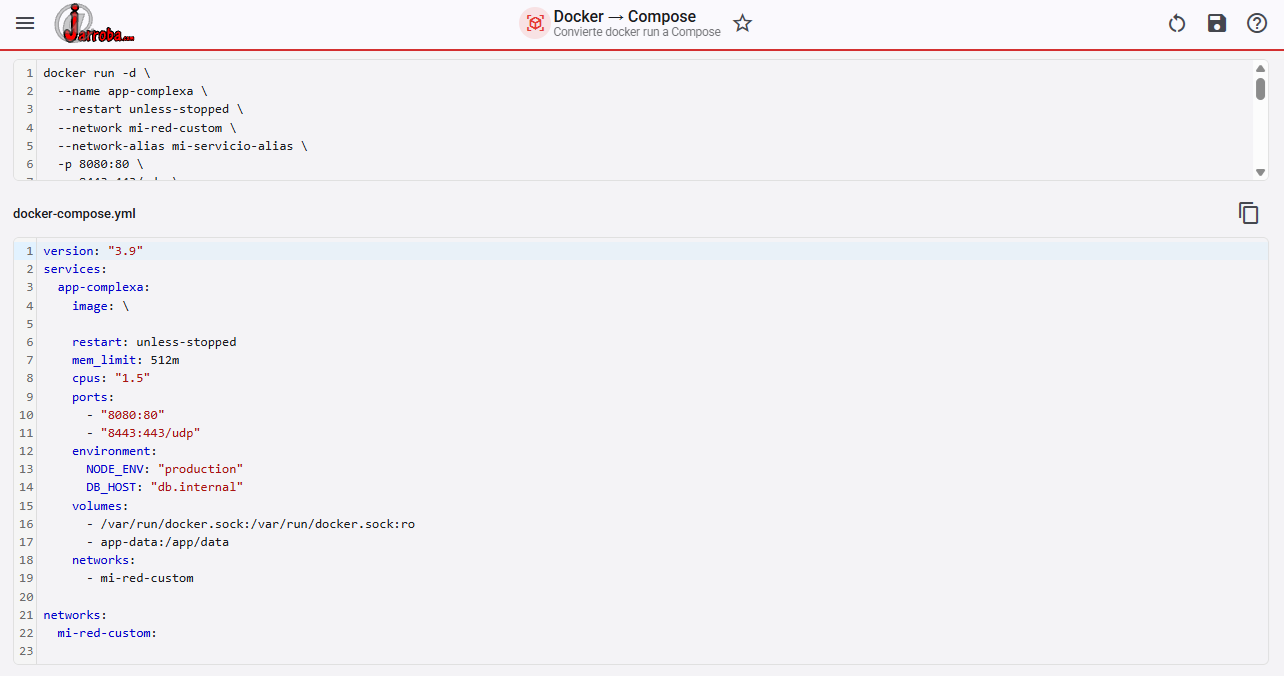
Installing Docker
There are two main ways to install Docker, both for Windows and for any Linux system (if you already have it installed in either way, skip this whole installation part), but if you’re just starting out I recommend installing “Docker Desktop” (as we saw in the basic Docker article):
- “Docker CE” (Docker Community Edition; open source and free): This is the command-line installation version, which doesn’t include a user interface.
- “Docker Desktop” (also free): Includes “Docker CE”, a user interface and local Kubernetes. We saw how to install “Docker Desktop” in the previous article.
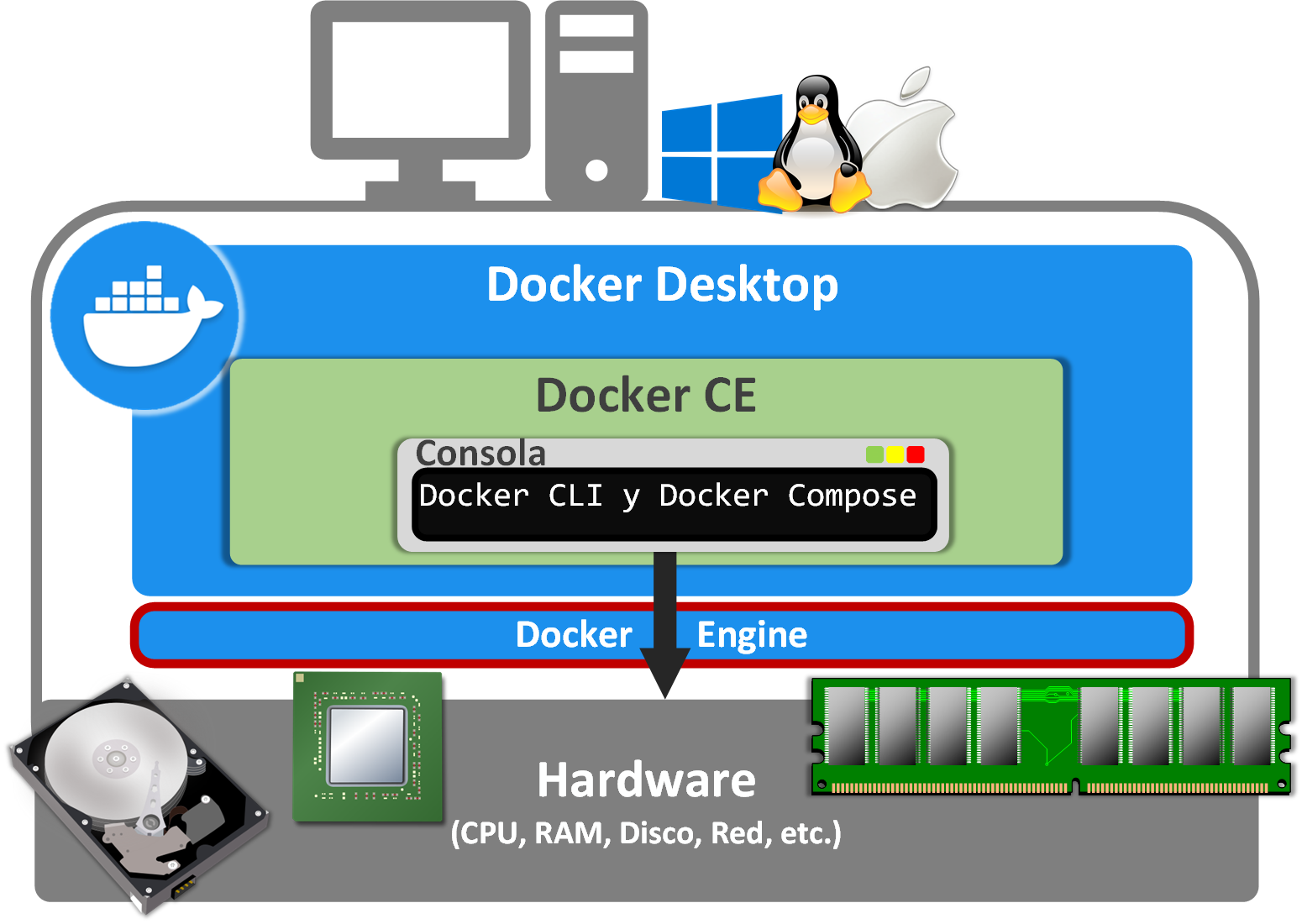
For some reason we may not be able to install “Docker Desktop” (because we don’t want to, or our operating system doesn’t allow it, or we’re DevOps/Systems people who don’t care about the user interface and only want the terminal because it weighs less and uses fewer resources), so we can always install “Docker CE” (Docker Community Edition; it includes “Docker Engine” and “Docker CLI”), which is official, free and open source. You can download it for free from: Install Docker Engine (Docker Docs)
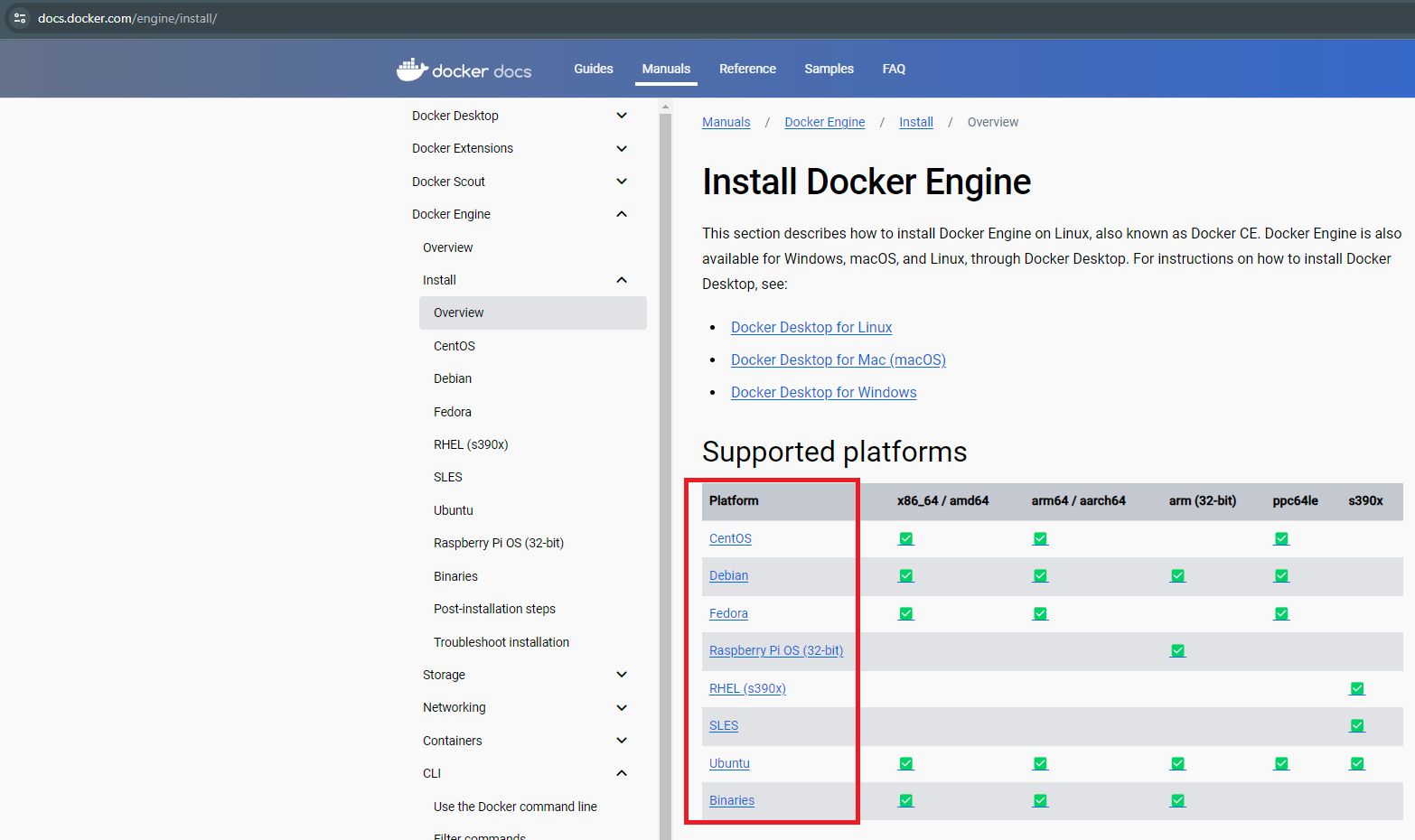
The only catch is that we won’t have the graphical interface of “Docker Desktop” and we’ll have to install any other packages we need by hand.
Note for companies: in a similar way we can install the enterprise version “Docker EE” (Docker Enterprise Edition), but this one is paid (more information at Pricing (Docker) ).
Whether you’ve installed “Docker Desktop” or “Docker CE”, to check that Docker is installed correctly, we can use the classic command to check the version:
docker --version
Starting Docker Engine
To work with Docker we need “Docker Engine” running (on Windows, “Docker Engine” has to be started in WSL 2 no matter what; after that you can work with Docker commands in PowerShell or the command prompt). There are two ways to start Docker Engine:
- Start Docker Desktop and make sure it turns green with the phrase “Engine running” (this is the most comfortable way, but if you’re reading this article, I strongly suggest you ban “Docker Desktop” for yourself until you master the commands in this article; besides, if you use Windows it may confuse you, since “Docker Desktop” runs the Docker service on Windows by targeting “WSL 2”, but it does NOT start the Linux Docker service in “WSL 2”, yet Docker DOES work in “WSL 2” as if it had been started. As you can see, although it’s the easiest way to use it, it’s not the most trivial to understand; to start out, whether you’re on Linux or Windows, better use the commands described below, you’ll understand things much better, and then, as a reward, once you master all the Docker commands in this article, I urge you to go back to “Docker Desktop”, which helps a lot visually):
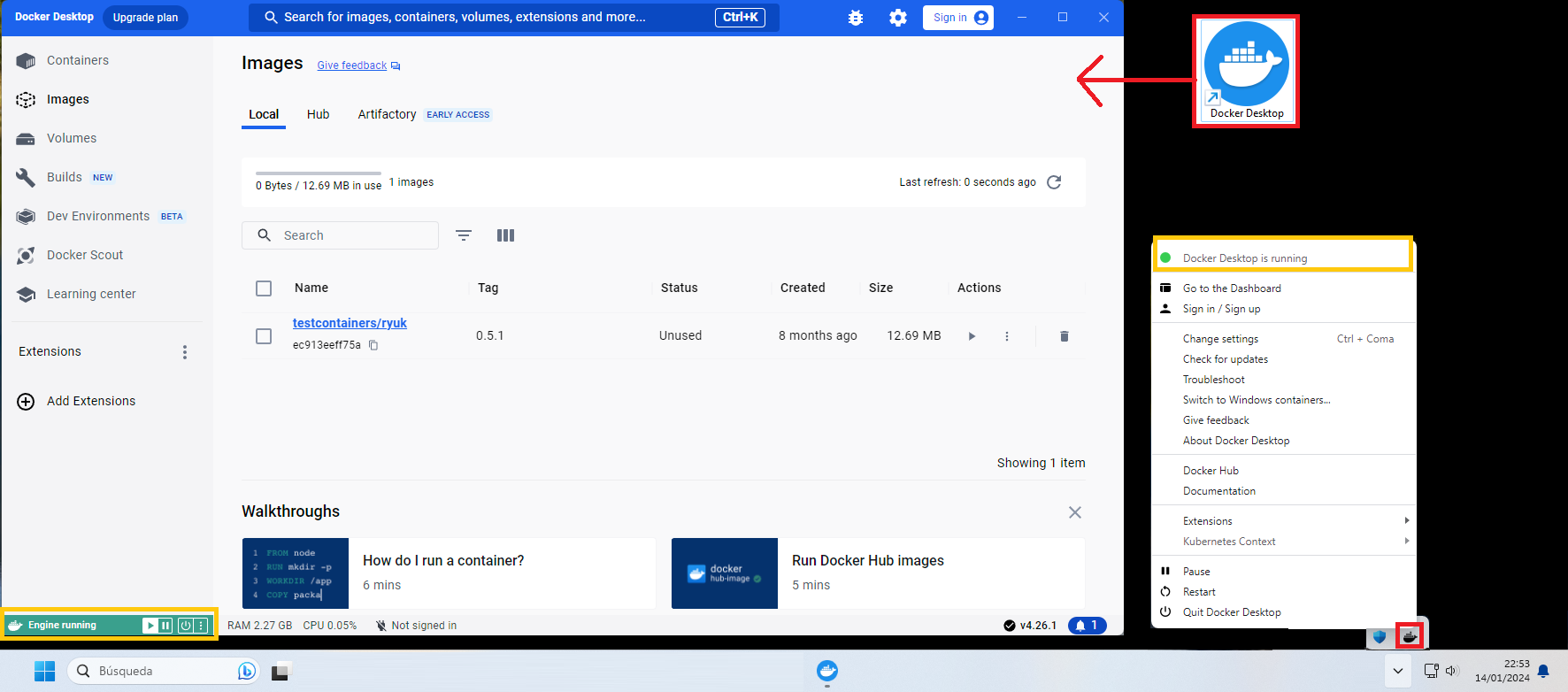
- Start Docker with commands if you have “systemd” (Ubuntu, CentOS, Debian, etc.):
sudo systemctl start dockerNote if this command doesn’t work for you: try the following one for “SysV init”.
There are other useful commands, like checking the status:
sudo systemctl status dockerAnd stopping it when we’re done:
sudo systemctl stop docker- Start Docker with commands if you have “SysV init” (that is, use this command if the previous “systemctl” command doesn’t work for you, since this one will; for example, for Windows’ WSL 2):
sudo service docker startTo check the status:
sudo service docker statusAnd to stop it:
sudo service docker stop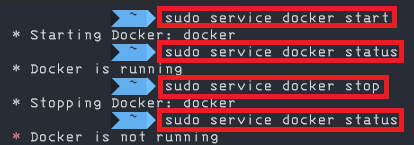
Note on starting “Docker Engine” on Windows: “Docker Engine” has to be started in WSL 2. There are several options: the first is to open a WSL 2 terminal and enter the command as explained above; the second is to start “Docker Desktop” so it starts “Docker Engine” for you, minimize the graphical interface, and then you can use Docker commands; third, from any Windows terminal (command prompt or PowerShell), if you put the “wsl” command before any of these you can start “Docker Engine” from WSL 2 (this is only needed to start and stop “Docker Engine”; afterwards you can use the command prompt or PowerShell with “Docker” commands without needing to type “wsl”), for example:
wsl sudo service docker start- Start Docker as a daemon, in case you want “Docker Engine” running in a foreground terminal with its log visible (keep in mind that when you close that terminal or press “ctrl+C”, you’ll stop “Docker Engine” completely; the previous commands are recommended, use this one only if you need to see what’s going on in the logs or for something quick):
sudo dockerd
I don’t think I need to tell you that, from this point in the article on, we’ll assume we have “Docker Engine” running (in “running” state, for example, because you ran “sudo service docker start”).
Docker commands (requires “Docker Engine” running)
Here I’ll give a few basic brushstrokes about Docker commands, which we’ll expand on in the next article about creating projects with Docker Compose, since in this article we’ll need very few.
First, I want to make clear that all the commands we’ve seen so far (“sudo systemctl start docker”, “sudo service docker start” and “sudo dockerd”) are for starting “Docker Engine”, which has to be running for Docker commands to work, but they are NOT Docker commands. Docker commands are characterized by starting with the word “docker”.
To use Docker commands we open a terminal. With Docker properly installed, the “docker” command will be registered in the operating system, followed by an “action” (a subcommand) of Docker that we want to run, and then the “parameters” of the “action” (the subcommand’s arguments). As a pseudo-command it would look like this:
docker <acción> <argumentos de la acción>Let’s start with a simple one that follows the pattern above. We can search for a Docker image on Docker Hub; for example, I’ll search for “mysql” (we write the “docker” command, the “search” action and the “mysql” parameter):
docker search mysql
This filters the images that match our search criteria (in this case, everything containing the word “mysql”); on each line it tells us whether the image is official, how many stars it has, a snippet of the description and… not much else. With this simple “docker search” command we’ve learned how to use Docker commands. However, honestly, between you and me, using the “search” action to look for images isn’t the best option here; it’s better to search on the official website of the Docker Hub repository at Docker Hub Container Image Library (Docker Hub) (For this example it would have been easier to search: Explore Docker's Container Image Repository (Docker Hub) )
Note about the rest of the Docker commands we’ll see in this article: they follow the same logic. I’m previewing them here so you understand how these commands are formed, but we’ll detail them later. We’ll see the commands “docker compose up” and “docker compose down”, where “compose” is the Docker action we want to run and “up” and “down” are the arguments; likewise, we’ll see the command “docker exec -it miMySQL-container /bin/bash” where “exec” is the action, “-it miMySQL-container” is a first argument and “/bin/bash” a second argument. We won’t need more in this article, but for more commands, I suggest you check out the next article, where we’ll talk about how to create a project with Docker Compose.
Docker compose
“Docker Compose” is a tool from Docker (meaning we’ll run it as a subcommand of the “docker” command, giving “docker compose”) that lets you define and run multiple containers to create custom environments. A “Docker Compose” setup is defined with a YAML file called “docker-compose.yaml” or simply “compose.yaml” (the latter is better), where we write which containers we want to deploy and how we want them (their properties, from the image each container will use, to its volume, environment variables, etc.); when we run our “compose.yaml” file, Docker will deploy all the containers we wanted, and when we finish, all the containers will be torn down at once (imagine you want to create a website that connects to a database to store the data from a form on your site; on one side you’ll have the container with the web server and your website’s files, and in another container the database. We’ll have this written in a “compose.yaml”, so we can bring up both the database and the web server at the same time and have everything work as if it were one). Also, “Docker Compose” makes scaling easier (if you have a “compose.yaml” with your database and your website, it’s enough to copy it to several computers to have your website and databases running in parallel as many times as you want). Likewise, as developers, what interests us first is being able to work faster, understanding the whole lifecycle of what we’re developing, and completely separating the local development environment from what’s served from the servers (perhaps your company’s, which we barely have access to, but we still have to work with).
Before any more theory, the best and easiest way to understand all this is to use it, so let’s create a very simple “Docker Compose” with a single container pointing to a “MySQL” database.
Note
Reminder from the previous article
If you’re coming from the previous article, you may remember how we defined a single container using the “Docker Desktop” graphical interface (if you haven’t read the previous article, don’t worry, it’s not necessary; this just makes it more visual). Here’s the screenshot as a summary, although you don’t have to use the “Docker Desktop” graphical interface in this article:
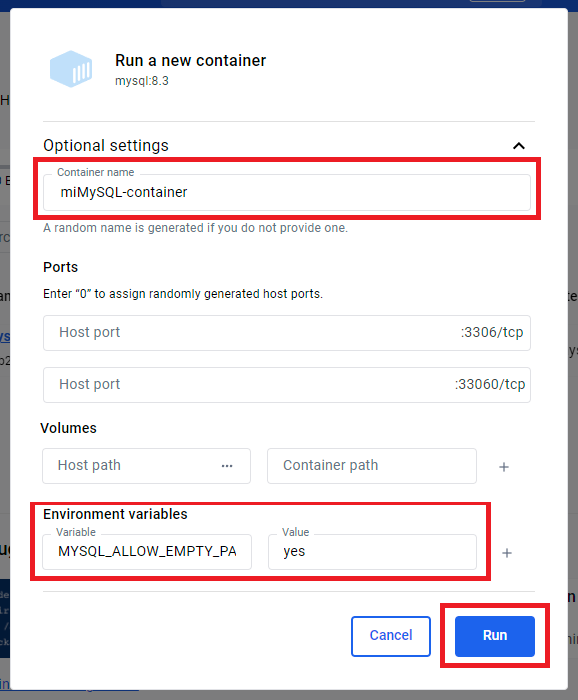
The parameters we’ll care about are (by the way, things like the port, the environment variables, the path where the data is stored, etc. I didn’t make them up; they’re in the official documentation of the MySQL Docker image mysql – Official Image (Docker Hub)):
- Docker image: “mysql:8.3”.
- Container name: “miMySQL-container”.
- Ports: “3306:3306” (where the first port is your local computer’s and the second is the container’s; in “Docker Desktop”, leaving the field blank was the same as using the same port both locally and in the container, that is: 3306:3306).
- Volumes: we’ll create the Volume named “MiVolumenDocker” pointing to “/var/lib/mysql” to persist MySQL’s data (at this point I hope you understand the difference between “Volume” and “Bind mount” that we saw in the previous article).
- Environment variable: The environment variables will be the ones we define that are supported by the official documentation. Here we set the “variable” to “MYSQL_ALLOW_EMPTY_PASSWORD” and the “value” to the affirmation “yes”.
Create a folder anywhere on your computer (I’ll create a folder on the desktop called “miDockerCompose”), inside it create a file called “compose.yaml” and open this file with any editor (I’ll use Notepad, although it’s better if you use an IDE), then copy and paste the following YAML code (take a quick look, I’ll go through it in detail afterwards, but you’ll see that all the points we just mentioned are there, so you can surely work them out before I tell you anything):
version: '3.8'

services:

  mysql:
    image: mysql:8.3
    container_name: miMySQL-container
    ports:
      - "3306:3306"
    environment:
      MYSQL_ALLOW_EMPTY_PASSWORD: true
    volumes:
      - MiVolumenDocker:/var/lib/mysql

volumes:
  MiVolumenDocker:
Note about YAML files: a YAML file has a top level and then each sublevel (what’s in a sublevel is inside and belongs to the one above) is indented (with a tab or two spaces). In the previous file, “services:” was the top level and inside it we have a sublevel called “mysql:”, which in turn has another sublevel with “image: mysql:8.3”, “container_name: miMySQL-container”, etc.
In the terminal, if you go to the folder you created with the “compose.yaml” file (with the command: cd path/miDockerCompose ), you can bring up everything in this file with:
docker compose upNote about old Docker versions: If you work with an old Docker version, you’ll have to run it with a hyphen between “docker” and “compose”, that is: docker-compose up
Note about this example: I’m going to use the Windows interface and a command prompt so that each part is clearly visible, but I prefer working directly with Linux; in other words, you can do the same on whatever operating system you have.
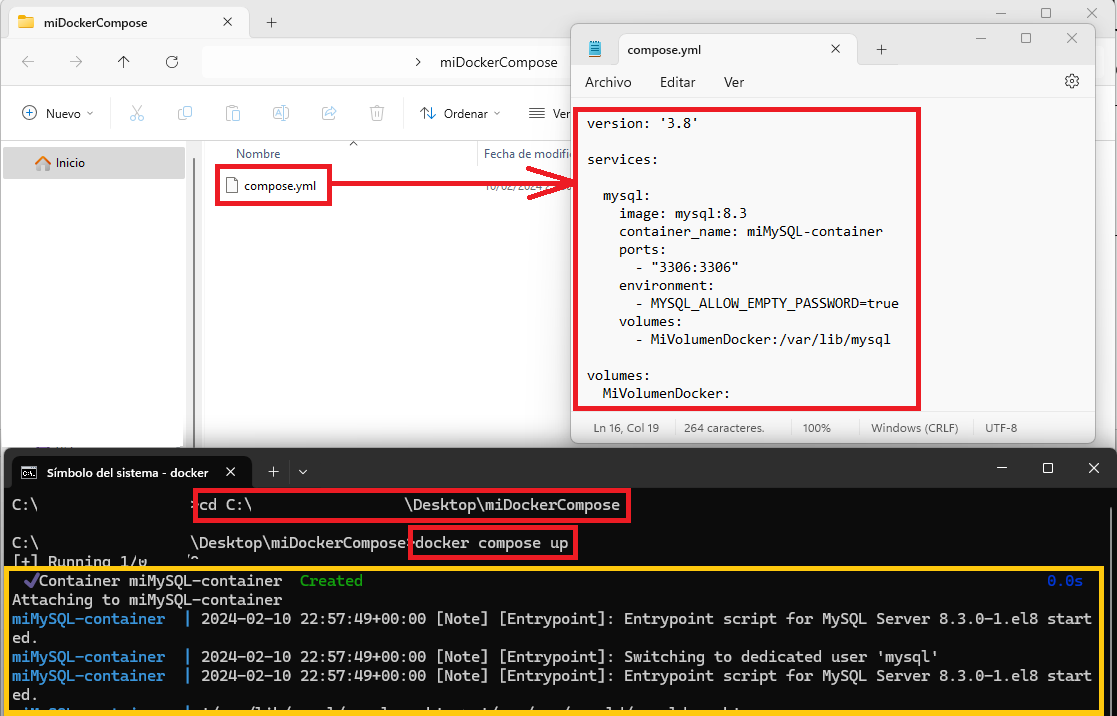
After running this and waiting a few seconds, the running container will have been created that we had previously defined in the “compose.yml”.
Now, we want to work with this running container, so we open a new terminal (don’t close the previous terminal, or our container will stop); then, to access our container’s terminal we’ll use “exec” with “-it” (“i” for interactive so it keeps the console open and “t” for terminal so we connect to it):
docker exec -it miMySQL-container /bin/bashInside the container we can navigate like in any Linux system (cd, ls, etc.); although what we really wanted to do inside this container was use the MySQL database engine by typing the command:
mysql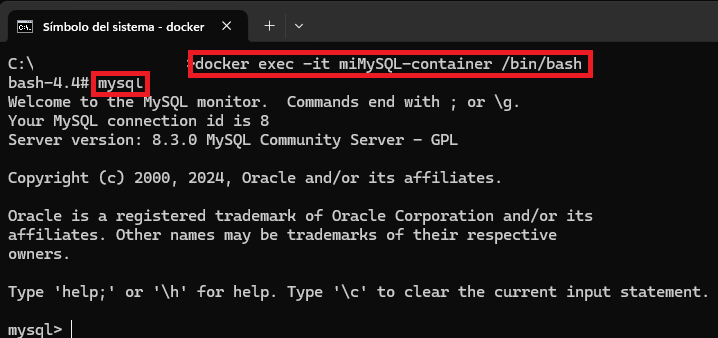
That’s how easily we can create our database and run SQL queries (there’s an example of SQL queries for this container in the previous basic Docker article).
To shut down everything that was brought up from our “compose.yaml” file, just press “ctrl+C” in the console where we ran that file (NOT in the console where we entered mysql); or also from a new console with:
docker compose downNote about volumes: The previous command does not remove the volumes created, since we may want to persist the data. You can use “–volumes” to remove the volumes (and any data stored in them) declared in the “compose.yml” file (e.g.: docker-compose down –volumes).
Parts of Docker Compose
From the “compose.yml” file we wrote earlier without knowing anything, you’ve surely already worked out a lot of things, which I’ll now describe in detail, covering some of the ones I consider most important for getting started and working properly (to see all of them go to Compose file reference (Docker Docs) ):
- version: is the Docker Compose syntax we’re going to use, and it’s usually best to use the most modern one (at the time this article was written it was “3.8”; you can check the latest at Legacy versions (Docker Docs)). Depending on which one we set, we’ll have some technologies available or others. In short:
- Version 1: supports the most basic features (no longer used).
- Version 2: introduces networks, volumes and dependencies.
- Version 3: introduces Docker Stack, Deploy and Docker Swarm
- services: Where all the services we want are listed and configured. A service can have several containers (for example, with service inheritance using “extends”; although to keep things simple, for now we can “wrongly” say that “a service is a container”, because we won’t need more, so whenever you read the word “service” in this article, you can replace it with “container”). Each service has to be inside the “services” key, and the name we give it as the service’s key (in the previous example I used “mysql” as the key) will matter, because that name will be used as the key for dependencies with other services, as well as the host name inside Docker (this isn’t important right now, but it will be good to keep in mind when we have several services interacting with each other, since if we add another container that we want to point at the one I called “mysql”, we’ll have to use “http://mysql”, because using “http://localhost” won’t work as it’s in another container). Likewise, each service will contain a set of settings that I’ll detail below (if you’re coming from the previous article many will sound familiar, since they’re the same settings):
- image: the image we want to use in Docker (the one we get from Docker Hub, for example, the one at mysql – Official Image (Docker Hub) ). You can swap this “image” key for “build”, if what we want is to give a path to a Dockerfile so it’s built from there (if we’re developing a project, for example in Java or Python, and want to Dockerize it; we’ll see this later).container_name: to give the container a custom name (otherwise a random one will be used).
- ports: port mapping; of the form “8080:80”, where the one on the left, “8080”, is your host computer’s port and “80” is the port of the application running inside the container (you’ll find more information about this in the previous article).
- volumes: volume mounting. “Volume” if it’s the name of a volume (besides putting it here, you have to declare the volume with whatever name you want under the top-level “volumes” key) or “Bind Mount” if it’s a path on our computer (you’ll find more information about this in the previous article).
- depends_on: here you can list containers that depend on one another, so the container that requires another will wait for it to finish starting before it starts (for example, we’ll want the “mysql” database to come up before any other container that needs it to work)
- hostname: to customize the container’s host name.
- environment: key-value environment variables in the form “- VARIABLE=value” or “VARIABLE: value”; for example, to define the user or password of applications (in our previous compose.yml we had the environment variable: “MYSQL_ALLOW_EMPTY_PASSWORD: true”, but there can be others like “MYSQL_USER: miUsuario”, “MYSQL_PASSWORD: miContrasenia”).
- env_file: If you have many environment variables or for security reasons, instead of writing them all in the “compose.yml”, you can create a separate file and reference it here. Both “environment” and “env_file” are compatible, meaning you can use them at the same time to keep some variables in one place and others in the other.
- command: to override the Docker image’s default commands. It can be defined as a single string (for example: “/bin/bash -c /usr/bin/mysq” or as it’s an environment variable “mysql”) or a list (for example: [“/bin/bash”, “-c”, “/usr/bin/mysql”]).
- restart: the container’s restart policy (if the container stops or fails, whether we want it to come back up, for example). Available values: “no” (don’t try to restart, the default), “always” (it will always restart), “on-failure” (it will only restart if it exits with an error code, that is, an exit code other than zero) or “unless-stopped” (it will always restart, unless the user explicitly stops it).
- links: to define a connection between services that lets one container access the other by service name or an alias.
- volumes: lets us define the volumes that will be used by the services (containers). I describe volumes in more detail in the basic Docker article, where I go deeper into this theory.
- networks: Docker networks let containers communicate with each other. This is used to define the networks the services will use. They can range from simple networks to more complex configurations, such as “driver” (the network driver to use, like the default “bridge”, as well as “host”, “overlay”, “none” and “macvlan”) and “driver_opts” (to specify configuration options specific to the driver you’re using).
- configs: where we can define configurations that can be used by the services at runtime.
- secrets: to define sensitive information (such as passwords).
Note about Docker networks (Networks): in this article (and surely, in general, with “Docker Compose” for your own private use) we won’t use networks as such, but we will use the default one (“default”) “almost without knowing it”, and the containers will be able to communicate, so it’s worth having at least a basic notion of networks.
“Docker Compose” by Ramón Invarato at jarroba.com, licensed under Creative Commons Attribution-NonCommercial-ShareAlike 3.0. Registered at Safe Creative.

You may also like
Advanced Dockerfile: Multi-Stage Builds, Registries, and Tricks
Free Docker course. Expert Docker tricks: multi-stage builds, optimizing images, faster build times, and distributing images through Docker registries.
Dockerfile: Directives and Dockerizing Projects
Free Docker course. A Dockerfile is a file of directives for building and deploying custom applications with Docker. Learn how to Dockerize your projects.
Leave a comment