
MEAN (Mongo-Express-Angular-Node) Web Application Example (Part II)
Build a simple web app with the MEAN stack (MongoDB, Express, Angular, Node): a REST API, a CRUD on MongoDB and an AngularJS frontend, step by step.
Series: MEAN: Mongo, Express, Angular and Node part 2 of 2
You can download the project for this post by clicking HERE.
In this post we are going to show a very simple example of how to develop a simple web application using MEAN (Mongo-Express-Angular-Node). If you don’t know what MEAN is or what its features are, I recommend that you read the post "MEAN (Mongo-Express-Angular-Node) Full Stack JavaScript Development (Part I)". To follow this tutorial reasonably well, it’s a good idea to have basic knowledge of MongoDB (at least know what a CRUD is, or how to build one) and to know at least (even if you don’t know how to build one) what a REST API is and the 4 types of calls it has (Get, Post, Put and Delete).
To give a short summary, MEAN uses MongoDB, Express, AngularJS and NodeJS to build web applications, and the good thing about all of them is that they use the same programming language, JavaScript. In short, this kind of application consists of developing a REST API with NodeJS and Express, and this API can do a CRUD (Create-Read-Update-Delete) on the MongoDB database. AngularJS (which is the Frontend) communicates with this REST API by making requests (Get, Post, Put and Delete), and the data is kept up to date on the web page (Single-Page-Application):

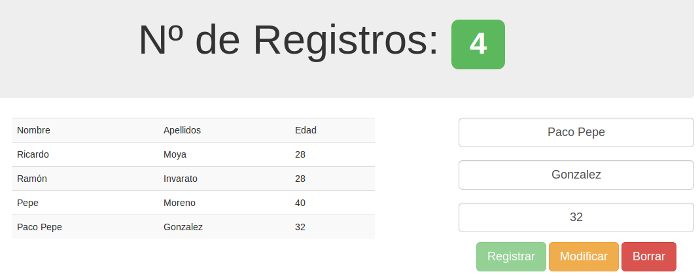
In this post we are going to build a very simple web application that will do a CRUD of "Persona" objects through a form and a table to display them. This way we’ll show how to make the 4 requests to the REST API (Get, Post, Put and Delete) and the CRUD on the database (for those of you who don’t know MongoDB and come from the SQL world, a CRUD is the same as "Create, Delete, Update and Query"). In the following image we can see what the application will do: it will "Read" all the "Persona" objects in the database to show them in the table; it will be able to "Register" ("Create") a "Persona" object through the form on the right, and once we select a row of the table, it will fill in the form with it and we’ll be able to "Modify" ("Update") or "Delete" it. Also, in the HTML file we’ll validate the form with the directives that AngularJS provides.
OK, now let’s get to it. The first thing you need to do is install NodeJS, Express and MongoDB on your machine or development environment. In this tutorial we won’t explain how to do it, since it depends on the operating system you use. Anyway, there are plenty of tutorials online on how to do it for the different operating systems. Fair warning: installing NodeJS and Express on Windows is quite tedious, so try to do it on Linux or Unix.
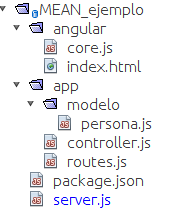 In this image we can see the structure of the project we’re going to develop. It has an "angular" folder that contains the frontend files ("index.html") with a Single-Page-Application, and the file that will make the calls to the REST API ("core.js") and keep the model up to date so it’s displayed on the web page.
In the "app" folder we’ll have the REST API, which we built with NodeJS and Express. In it we’ll have the "persona.js" file, where we define the "Persona" object model, and the routes (or endpoints) of our REST API. Inside "controller.js" are the functions that run when each route is called.
Finally, we have the "package.json" file, to see the dependencies that will be needed, and then the "server.js" file, which holds the server configuration. Now let’s look at the source code of these files:
First we show the "Package.json" file which, besides the information related to the project, tells us the dependencies we’ll need for the project (this Package.json is something like Composer in Symfony or Maven in Java, to give you an idea). In this case we need the "mongoose" and "express" libraries. We already explained what Express is, and "mongoose" will let us define the data model that will be stored in MongoDB. Another very important thing (and whether the project works depends on it) is to set the correct version of both express and mongoose, and don’t even think about setting "latest" as the version, because it will stop working when they release a new version. The code of this file is the following:
{
  "name"         : "ejemploMEAN",
  "version"      : "0.0.1",
  "description"  : "Sencilla app con MEAN",
  "main"         : "server.js",
  "author"       : "Ricardo Moya",
  "dependencies" : {
    "express"    : "~3.4.4",
    "mongoose"   : "~3.6.2"
  }
}
The next file we’ll look at is "server.js", where we configure the server. In it we define which libraries we’ll use (express and mongoose) and the port the application will "listen" on. We’ve defined port 8080, but you can use any port you want as long as it’s free. We’ll also connect to the Mongo database ("mongodb://localhost:27017/MeanExample") and load the routes or endpoints of our application ("routes.js").
// Initialization
var express  = require('express');
var app      = express(); 					// We use express
var mongoose = require('mongoose'); 				// mongoose for mongodb
var port  	 = process.env.PORT || 8080; 			// We take port 8080

// Configuration
mongoose.connect('mongodb://localhost:27017/MeanExample'); 	// We connect to the Mongo database named "MeanExample"

app.configure(function() {
	app.use(express.static(__dirname + '/angular'));
	app.use(express.logger('dev')); 			// we enable logging in 'dev' mode
	app.use(express.bodyParser());
	app.use(express.methodOverride());
});

// We load the endpoints
require('./app/routes.js')(app);

// We take the port to listen on
app.listen(port);
console.log("APP por el puerto " + port);
Now let’s explain how we built the REST API with NodeJS. First we’ll show the data model we’ll use. It’s in the "persona.js" file, and we’ve simply defined a model with first name, last name and age, all of them Strings to keep the app simpler. Its content is the following:
var mongoose = require('mongoose');

module.exports = mongoose.model('Persona', {
	nombre: String,
	apellido: String,
	edad: String
});
In the "routes.js" file we’ll define the REST API endpoints and their actions. To make the example as complete as possible, we’ve implemented all 4 types of calls (Get, Post, Put and Delete):
var Persona = require('./modelo/persona');
var Controller = require ('./controller');

module.exports = function(app) {

	// return all the Personas
	app.get('/api/persona', Controller.getPersona);
	// Create a new Persona
	app.post('/api/persona', Controller.setPersona);
	// Update the data of a Persona
	app.put('/api/persona/:persona_id', Controller.updatePersona);
	// Delete a Persona
	app.delete('/api/persona/:persona_id', Controller.removePersona);
	// application
	app.get('*', function(req, res) {
		res.sendfile('./angular/index.html'); // Single load of the view
	});
};
In the "controller.js" file we write the functions for each REST API call:
var Persona = require('./modelo/persona');

// Gets all the Persona objects from the database
exports.getPersona = function (req, res){
	Persona.find(
		function(err, persona) {
			if (err)
				res.send(err)
					res.json(persona); // returns all the Personas as JSON
				}
			);
}

// Saves a Persona object in the database
exports.setPersona = function(req, res) {

		// I create the Persona object
		Persona.create(
			{nombre : req.body.nombre,apellido: req.body.apellido, edad: req.body.edad},
			function(err, persona) {
				if (err)
					res.send(err);
				// Gets and returns all the personas after creating one of them
				Persona.find(function(err, persona) {
				 	if (err)
				 		res.send(err)
				 	res.json(persona);
				});
			});

	}

// We update a Persona object in the database
exports.updatePersona = function(req, res){
	Persona.update( {_id : req.params.persona_id},
					{$set:{nombre : req.body.nombre,apellido: req.body.apellido, edad: req.body.edad}},
					function(err, persona) {
						if (err)
							res.send(err);
				// Gets and returns all the personas after creating one of them
				Persona.find(function(err, persona) {
				 	if (err)
				 		res.send(err)
				 	res.json(persona);
				});
			});
	}

// I remove a Persona object from the database
exports.removePersona = function(req, res) {
	Persona.remove({_id : req.params.persona_id}, function(err, persona) {
		if (err)
			res.send(err);
			// Gets and returns all the personas after deleting one of them
			Persona.find(function(err, persona) {
				if (err)
					res.send(err)
				res.json(persona);
			});
		});
}
At this point we have the REST API with NodeJS built, and now we need to "connect" it with AngularJS, that is, the frontend.
Inside Angular we have the "core.js" and "index.html" files. The "core.js" file will be in charge of making the requests to the REST API and keeping the data models up to date so the web page can display them; in other words, AngularJS has "AJAX" built in, although what I’m saying isn’t 100% accurate. The content of the "core.js" file is the following:
angular.module('MainApp', [])

function mainController($scope, $http) {
	$scope.newPersona = {};
	$scope.personas = {};
	$scope.selected = false;

	// We get all the data from the database
	$http.get('/api/persona').success(function(data) {
		$scope.personas = data;
	})
	.error(function(data) {
		console.log('Error: ' + data);
	});

	// Function to register a person
	$scope.registrarPersona = function() {
		$http.post('/api/persona', $scope.newPersona)
		.success(function(data) {
				$scope.newPersona = {}; // We clear the form data
				$scope.personas = data;
			})
		.error(function(data) {
			console.log('Error: ' + data);
		});
	};

	// Function to edit the data of a person
	$scope.modificarPersona = function(newPersona) {
		$http.put('/api/persona/' + $scope.newPersona._id, $scope.newPersona)
		.success(function(data) {
				$scope.newPersona = {}; // We clear the form data
				$scope.personas = data;
				$scope.selected = false;
			})
		.error(function(data) {
			console.log('Error: ' + data);
		});
	};

	// Function that deletes a persona object given its id
	$scope.borrarPersona = function(newPersona) {
		$http.delete('/api/persona/' + $scope.newPersona._id)
		.success(function(data) {
			$scope.newPersona = {};
			$scope.personas = data;
			$scope.selected = false;
		})
		.error(function(data) {
			console.log('Error: ' + data);
		});
	};

	// Function to get the object selected in the table
	$scope.selectPerson = function(persona) {
		$scope.newPersona = persona;
		$scope.selected = true;
		console.log($scope.newPersona, $scope.selected);
	};
}
After seeing this file you’ve probably noticed a couple of strange things, like the variable passed as a parameter, "$scope", and the first line that says: "angular.module('MainApp', [])". This is a bit complicated to understand if you don’t have experience developing web applications. If you’ve worked with the Spring framework in Java, that annotation will ring a bell and it’s something similar. Since this is a tutorial to get a first taste of MEAN, we won’t explain this in detail, but we’ll leave a link to the Angular documentation (AngularJS — Superheroic JavaScript MVW Framework) so you can check it out later if you want to dig deeper into AngularJS.
Finally, let’s show the "index.html", which is where the interesting AngularJS stuff is (for this page we used the CSS styles from bootstrap. To learn more about bootstrap, check out the post "Bootstrap, or how to make Frontend development easier"). The first thing we do is load the AngularJS libraries from its website:
<!-- We load angular -->
<script src="//ajax.googleapis.com/ajax/libs/angularjs/1.2.16/angular.min.js"></script>
Then we load the "core.js" file, where we have the functions that will make the calls to the REST API and keep the model up to date:
<!-- We load the angular javascript -->
<script src="core.js"></script>
Another thing you’ll see in the "index.html" is a series of annotations that start with "ng-xxx". These are AngularJS’s own attributes, and you need to check the documentation to find out what they do or which one does what you want. If you look at the beginning, we have the ng-app="MainApp" attribute, which is the context this view belongs to. We also see other attributes like ng-model, ng-repeat, ng-click, ng-disabled and so on, which are fairly intuitive, but depending on your needs you’ll have to use one or another.
Next we’ll see how easy it is to show all the data in the database in a table. As we can see in the following code snippet for the table, we have the "ng-repeat" attribute, and we tell it to take one "persona" object at a time from the "personas" array that we defined in "core.js". Once we have the "persona" object, we render it in the table by accessing its attributes ({{ persona.nombre }}, {{ persona.apellido }},…). In short, this "ng-repeat" works just like a "foreach" loop. With the "ng-click" attribute we run the "selectPerson(persona)" function, which is defined in "core.js" and takes the persona object we select when clicking a row of the table, to show it in the form.
<table class="table table-striped">
    <tr class="info">
        <td>Nombre</td>
        <td>Apellidos</td>
        <td>Edad</td>
    </tr>
    <tr ng-repeat="persona in personas" ng-click="selectPerson(persona)">
        <td>{{ persona.nombre }}</td>
        <td>{{ persona.apellido }}</td>
        <td>{{ persona.edad }}</td>
    </tr>
</table>
Now let’s see how we built the form and how we did a simple validation of it, preventing a person from being registered if its fields aren’t filled in, or from being modified or deleted if it hasn’t been selected. In this form we define the "input" elements, and on each input we set which attribute of the persona object it corresponds to, and by adding "required" we indicate that the field is mandatory.
<div class="form-group">
    <input type="text" class="form-control input-lg text-center" placeholder="Nombre" ng-model="newPersona.nombre" required>
    <input type="text" class="form-control input-lg text-center" placeholder="Apellido" ng-model="newPersona.apellido" required>
    <input type="text" class="form-control input-lg text-center" placeholder="Edad" ng-model="newPersona.edad" required>
</div>
Then we have to define the different actions of the form. In each button we define the functions that must run after the button is clicked, using the "ng-click" attribute. Also, we disable the buttons (using "ng-disabled") if they don’t meet the requirements to perform each action, such as the attributes not being null, etc.
<!-- Actions we can perform on the form -->
<button type="submit" class="btn btn-success btn-lg" ng-click="registrarPersona()" ng-disabled="myForm.$invalid || selected">Registrar</button>
<button type="submit" class="btn btn-warning btn-lg" ng-click="modificarPersona(newPersona)" ng-disabled="!newPersona.nombre || !newPersona.apellido || !newPersona.edad || !selected">Modificar</button>
<button type="submit" class="btn btn-danger btn-lg" ng-click="borrarPersona(newPersona)" ng-disabled="!newPersona.nombre || !newPersona.apellido || !newPersona.edad || !selected">Borrar</button>
We haven’t done a very thorough validation of the form, but AngularJS lets you validate many things, such as requiring the field to be an email, to match a certain regular expression, etc. Below we show the full code of the "index.html" so you can see it whole, in context.
<!doctype html>

<html ng-app="MainApp">
<head>
	<meta charset="utf-8">
	<meta name="viewport" content="width=device-width, initial-scale=1">
	<title>Ejemplo MEAN</title>
	<!-- We load bootstrap -->
	<link rel="stylesheet" href="//netdna.bootstrapcdn.com/bootstrap/3.0.0/css/bootstrap.min.css">
	<!-- We load angular -->
	<script src="//ajax.googleapis.com/ajax/libs/angularjs/1.2.16/angular.min.js"></script>
	<!-- We load the angular javascript -->
	<script src="core.js"></script>

</head>
<body ng-controller="mainController">
	<div class="container">

		<div class="jumbotron text-center" ng-prueba>
			<h1>Nº de Registros: <span class="label label-success">{{ personas.length }}</span></h1>
		</div>

		<div class="row">
			<div class="col-sm-6 col-sm-offset-1">
				<table class="table table-striped">
					<tr class="info">
						<td>Nombre</td>
						<td>Apellidos</td>
						<td>Edad</td>
					</tr>
					<tr ng-repeat="persona in personas" ng-click="selectPerson(persona)">
						<td>{{ persona.nombre }}</td>
						<td>{{ persona.apellido }}</td>
						<td>{{ persona.edad }}</td>
					</tr>
				</table>
			</div>
			<div class="col-sm-4 col-sm-offset-1 text-center">
				<form name="myForm">
					<div class="form-group">
						<input type="text" class="form-control input-lg text-center" placeholder="Nombre" ng-model="newPersona.nombre" required>
						<br>
						<input type="text" class="form-control input-lg text-center" placeholder="Apellido" ng-model="newPersona.apellido" required>
						<br>
						<input type="text" class="form-control input-lg text-center" placeholder="Edad" ng-model="newPersona.edad" required>
					</div>

					<!-- Actions we can perform on the form -->
					<button type="submit" class="btn btn-success btn-lg" ng-click="registrarPersona()" ng-disabled="myForm.$invalid || selected">Registrar</button>
					<button type="submit" class="btn btn-warning btn-lg" ng-click="modificarPersona(newPersona)" ng-disabled="!newPersona.nombre || !newPersona.apellido || !newPersona.edad || !selected">Modificar</button>
					<button type="submit" class="btn btn-danger btn-lg" ng-click="borrarPersona(newPersona)" ng-disabled="!newPersona.nombre || !newPersona.apellido || !newPersona.edad || !selected">Borrar</button>
				</form>
			</div>
		</div>
	</div>
</body>
</html>
Getting the project up and running?
As we’ve already said, we won’t explain how to install NodeJS, Express and MongoDB, since depending on the operating system you use it’s done one way or another, and on Windows, for example, installing these tools is quite tedious. So once you have everything installed, you need to follow these steps:
-
npm install : you have to run this command in the project folder so that the express and mongoose libraries are downloaded, that is, the project’s dependencies (if you have problems, run it as "sudo" or superuser). Roughly speaking, this action is similar to running "composer install" in Symfony or downloading the ".jar" files defined in the Maven "pom.xml" file in Java.
npm install -
node server.js: In the project folder you have to run this command. If it doesn’t work for you, use "nodejs server.js". This command starts the server so the project runs.
node server.js -
http://localhost:8080: Now we can see our web application by going to the browser and entering the URL of your local machine where you have the project. As I said, you can use any port you want as long as it’s free, but you have to define it in the "server.js" file.
http://localhost:8080
CONCLUSIONS AND CLARIFICATIONS:
In this post we’ve seen how to build a "simple" MEAN project. I want to make it very clear that building a MEAN project is relatively complex and that in this post we’ve left a lot of things unexplained. Even so, it’s a good starting point to get started with MEAN, to see the architecture, the data flow and a working web application. I hope this post serves as a starting point for you to get started with MEAN.
“MEAN (Mongo-Express-Angular-Node) Web Application Example (Part II)” by Ricardo Moya at jarroba.com, licensed under Creative Commons Attribution-NonCommercial-ShareAlike 3.0. Registered at Safe Creative.

You may also like
LAMP Step by Step on Your Own Server
Learn step by step how to build a dynamic website with the full LAMP architecture: Linux, Apache, MySQL or MariaDB, and PHP, Perl or Python.

Using Servers and Building a Website
Learn what you can do with a physical server: install Apache, build your first website, edit it with Vim or an IDE, upload files over SFTP and pick a domain.
Leave a comment