
Dockerfile: Directives and Dockerizing Projects
Free Docker course. A Dockerfile is a file of directives for building and deploying custom applications with Docker. Learn how to Dockerize your projects.
Dockerfiles are files that, in a detailed and flexible way, define how to build and deploy custom applications with Docker. A Dockerfile consists of directives that let you specify everything from the base operating system, the application’s dependencies and the startup commands to much more. You can also use it to automate processes, ensure consistency and optimize your development workflows.
To start Dockerizing, we’re going to look at a quick example of using a Dockerfile to understand how it works internally, since this matters for developing well and taking advantage of the speed of caching.
Dockerizing
So far we’ve only seen how to use Docker images created by third parties. It’s time to create our own Docker images like pros.
Important concepts about Dockerization and its lifecycle:
- Dockerized project: a project you develop (with Python, Java, etc.) and to which you add a properties file called “Dockerfile”.
- Docker image: the result of building the “Dockerized project” (with the command “docker build”). A silly comparison: the image is like handing your friend your computer with the project you’re working on ready to run (if it’s a Python project, it would be your computer with everything ready: the operating system it runs on, the Python version already installed and all the libraries, without your friend even having to run “pip install”; in other words, the most your friend has to do to run your project is turn on the computer). So from here on, you no longer need your project’s code to run the project, only the image.
- Container: an isolated environment that encapsulates everything needed (including the operating system dependencies and the source code) to run your “project”. In other words, it’s where your image runs (with the command: docker run).
Dockerizing a project is as easy as writing a properties file (called “Dockerfile”) and running a very short command. Then you have it quickly encapsulated to use right away locally or to deploy on Kubernetes, which can be a highly scalable, distributed microservices environment.
Dockerfile
A Dockerfile consists of stages, each stage has layers and each layer is formed by a single instruction. An instruction starts with a Docker directive such as the “FROM” directive (we’ll go over the most useful directives shortly, but you have the official documentation for Docker directives at Dockerfile reference (Docker Docs) ) followed by parameters (so the directive does what we want it to do). Stages always start with the instruction with the FROM directive; the instruction with FROM is the base (it’s where we ask for the operating system we want with the programs we need preinstalled) that we build on for the rest of the stage. An instruction is a layer because it adds something to everything before it (to all the instructions that have been executed previously).
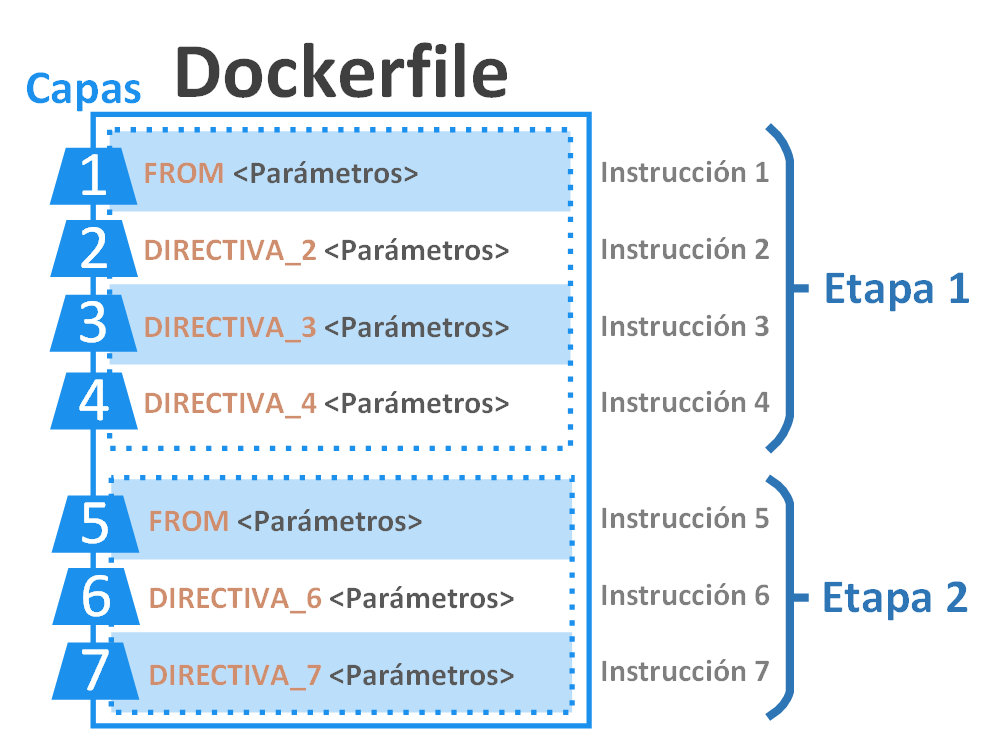
Note on the difference between layer vs. instruction vs. directive: although in Docker it’s common to say for simplicity that every instruction creates a layer, that isn’t entirely true, since only those instructions that add weight, that is, megabytes on disk, create “real” layers (usually copy instructions like “COPY”, which copy things from our computer and paste them into the Docker image; on the other hand, documentation instructions like “LABEL” only indicate metadata such as the version or a description and don’t add files to the image). Understand the difference between directive and instruction well, because you’ll often see “instruction” used instead of “directive” for brevity, for example in the “incorrect” sentence <<we’re going to use the FROM instruction>>, but what we mean is that we’ll use the FROM directive followed by the arguments allowed for that directive, which is what forms our instruction (instruction = directive + parameters).
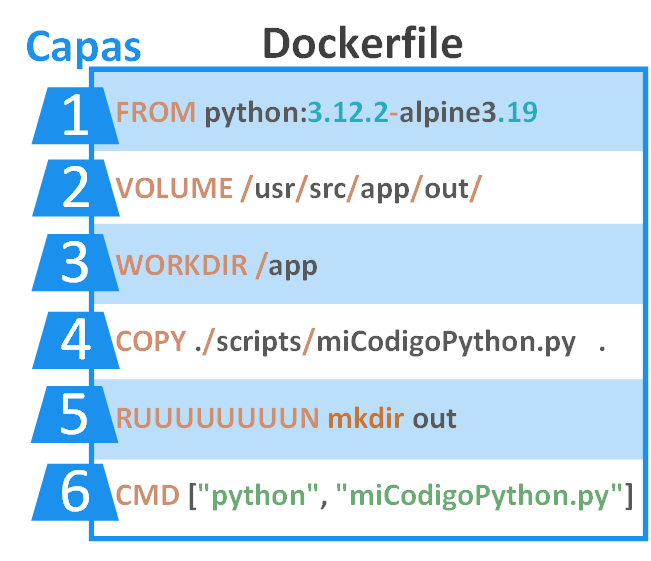
Now let’s look at a very simple real Dockerfile with a single stage (a single “FROM” instruction), with 6 layers and each layer with its “instruction” (in the following picture the “instructions” are: FROM, VOLUME, WORKDIR, COPY, RUN, CMD; on line 5, RUN is deliberately wrong, because it says RUUUUUUUUN, so that instruction won’t compile). In this part I’m not going to get into what each instruction is for, since what matters here is knowing how a Dockerfile works (later I’ll go into detail and we’ll make it work with a real project); roughly, in this Dockerfile’s FROM instruction I ask for a Docker image with Python on top of the Alpine Linux operating system (Docker will look for this image on our computer, but if it doesn’t find it, it will download it automatically from Docker Hub; you have the documentation for this prebuilt image that we’ll use at python – Official Image (Docker Hub) ) and we’ll understand the rest of the instructions later (here I just want you to see how a Dockerfile is composed of instructions/layers and the parameters to the right of each instruction).
We can create the Docker image from our Dockerfile with the “build” command, which would look something like this:
docker build -t nombre_imagen .Instructions are executed one by one from top to bottom, and every time an instruction is executed, Docker automatically processes it and caches the result up to that point. For example, if we start from scratch, when we execute FROM, Docker will look in the cache for the “Python on Alpine Linux” image, but since it won’t find it, it will download it from Docker Hub; that way, the next time we run the “build” command again, FROM will execute immediately because it will retrieve the “Python on Alpine Linux” image from the cache (from our computer) and won’t download it again. However, we’ve made a mistake in our Dockerfile: an instruction is misspelled, specifically RUUUUUUUUN, which should be RUN, so when the “build” command reaches that instruction, it will stop and return an error in the terminal.
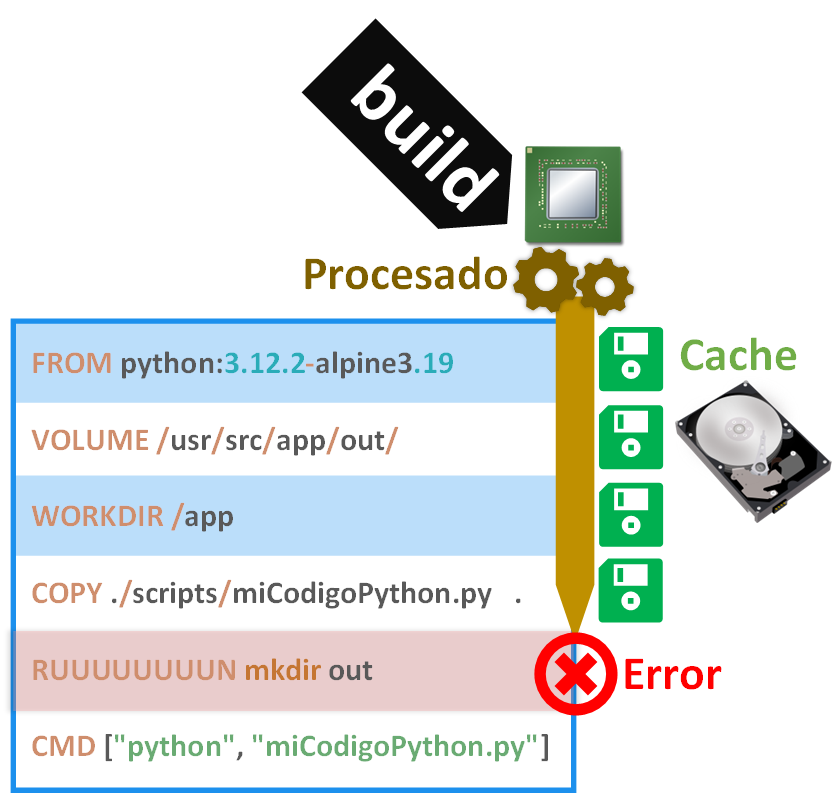
Note on the difference between executing, processing and caching: executing is starting a process (for example, asking to copy a file); the process is the processing operation that takes some time (sometimes too much) to complete (for example, the actual act of copying a file, which will take a long time if the file is very large); caching is saving something and retrieving it very quickly, so if we save the result of something processed (for example, the final state of the copy above), we won’t have to reprocess it.
We fix that line and run the “build” command again. All the instructions will be executed again from the beginning, but the cached instructions will return their result immediately, until we reach the instructions that never got executed; those will have to be processed, and they’ll be cached as they finish processing. Once all the instructions in the whole Dockerfile have been executed, we’ll have our Docker image ready to use.
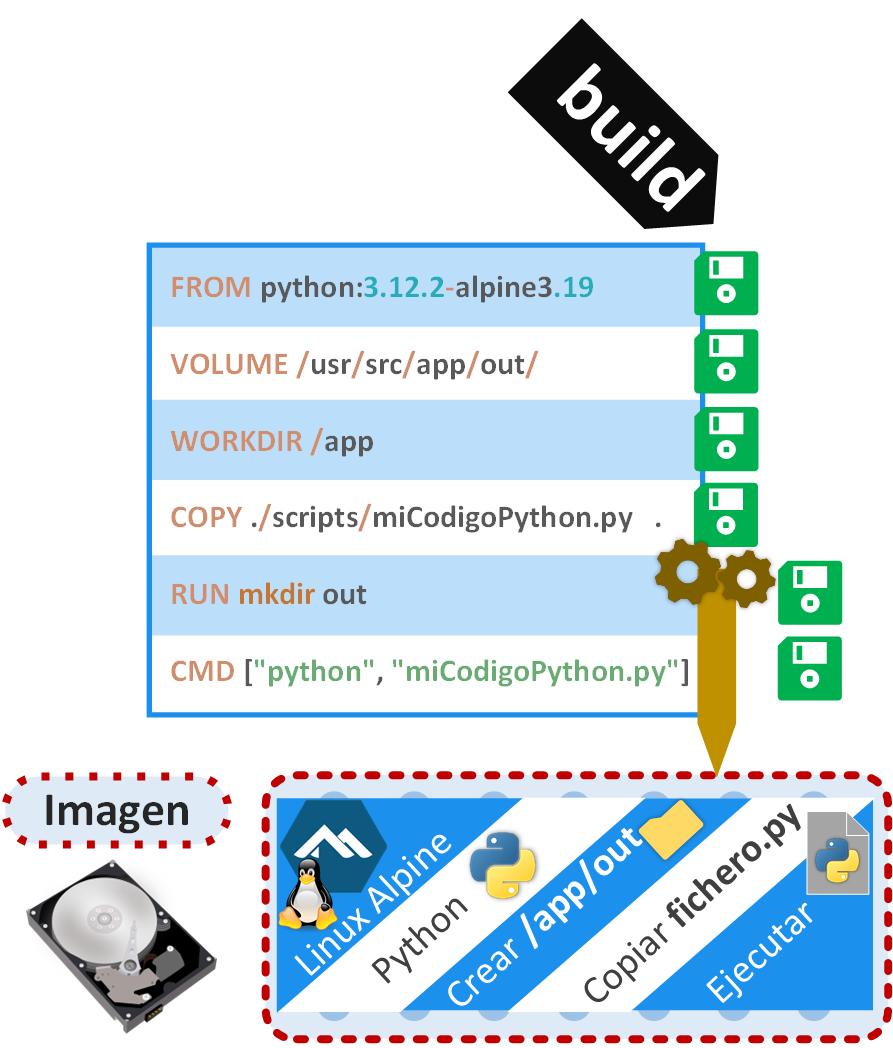
If we change any instruction, the cache is invalidated (deleted) from that point onward. For my example I’m going to swap the order of two instructions, so the cache will be invalidated from the topmost changed instruction downward; therefore, if we use the “build” command again, the result of the non-invalidated instructions will be retrieved from the cache and, when we reach the invalidated cache (which is as if there were no cache), the instruction will be processed again, saving its new result in the cache; and if all the instructions in the Dockerfile are executed, a new image will be generated.
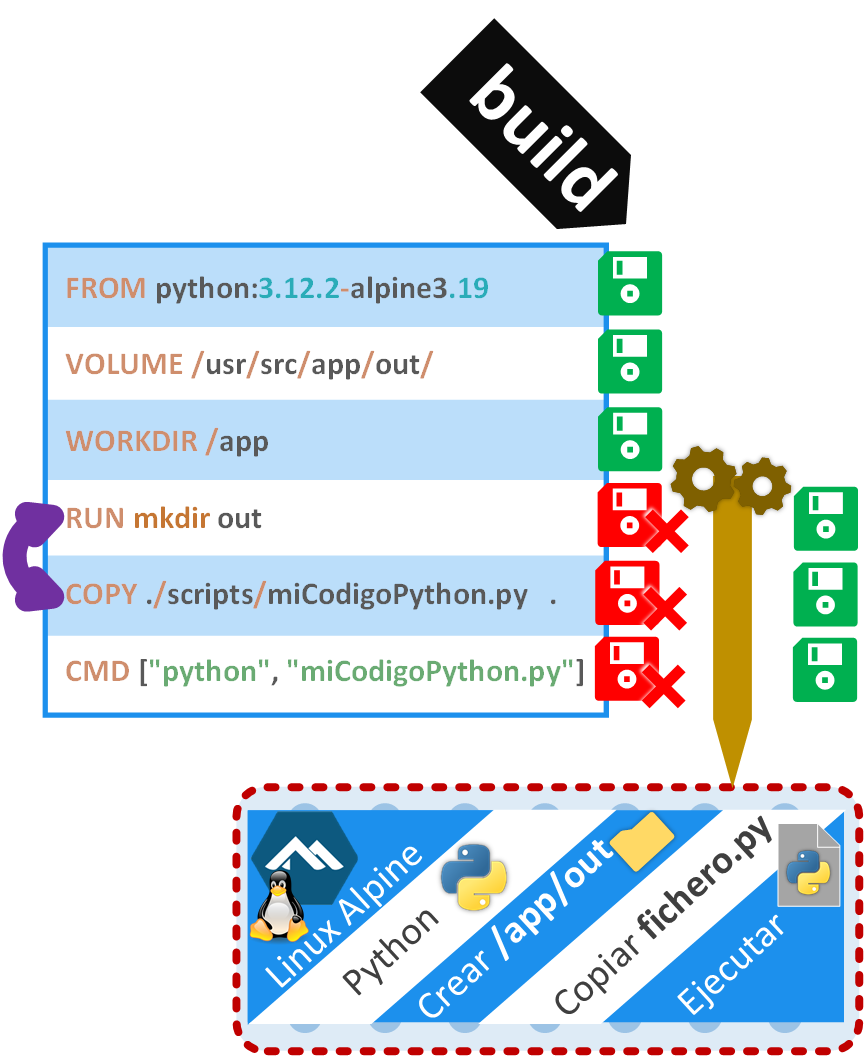
Dockerfile in technical detail
The Dockerfile lets you build one or several Docker images at once. It is made up of:
- Instruction: a line that starts with a Docker directive (RUN, CMD, ENTRYPOINT, FROM, ENV, WORKDIR, etc.) with its parameters and is executed at each step of the build process (unless it’s cached, in which case the result of the instruction is retrieved from the cache).
- Layer: the change of state in an image caused by executing an instruction (for example, FROM, RUN, COPY, ADD, etc.) during the image’s build process (“build”) (for example, suppose we have an empty image and then we run “RUN apt install -y python”; this installs Python, creating a new layer that we could call the “layer with Python”). Most instructions generate layers, but others don’t because they don’t change the state of the image (for example, the WORKDIR instruction just places the cursor in a directory inside the image; it doesn’t change anything in the image itself). A layer is saved in the cache (think of it as a Git “commit”) so that rebuilding the same thing later (if you run the same instructions in the same order and with the same content) is much faster. The order of the layers may not affect the result of running your code, but it does affect the cache behavior; for example, it’s not the same to [COPY] copy a project written in Java and then [RUN apt install -y openjdk…] install Java (every time you change anything in the project, all the layers that come after are invalidated, so you’ll have to wait for Java to install every time), as to [RUN] install Java and then [COPY] copy the project (since changes in the project invalidate the layers that come after the Java installation, the layer that installs Java is retrieved from the cache, so it’s instant).
- Build stage: a new stage is defined every time you use the FROM instruction in a Dockerfile (with its instructions). With multistage you can run build steps in parallel (for example, you can build several projects in parallel that later go together in the final image, so we gain speed) and reduce the size of the image (for example, if in a single stage you copy your code into the image and then compile it inside, you’ll end up with an image containing both the code and the build, when the code is no longer useful and takes up space unnecessarily; if you apply multistage, in the first stage your code would be copied and compiled, but only the compiled output would be passed to the final stage, so the code would be discarded and you’d keep only the build in the image, saving space).
Dockerizing a complete project with a Dockerfile
We want to Dockerize our project, so let’s suppose we have any project (Java, Python, Node, Go, Ruby, Scala, PHP, Angular, etc.). For my example I’ll create a mini Python project for simplicity that prints a line of text and saves another line of text to a file.
Below I’ll walk you through everything step by step, but first here’s a screenshot of my project’s structure in its final state:
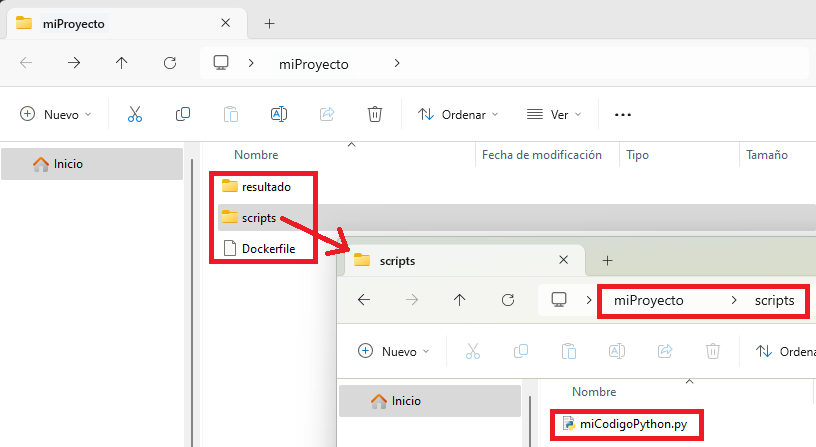
I’ll start by creating a folder that will hold my project and that I’ll call “miProyecto” (I’ll create it on the desktop). Inside this folder I’ll create two folders (in this example I’m not following any project structure convention beyond Dockerization, so it works for any project):
- “resultado”: where I want my Python code to save a file with the text it writes to a file.
- “scripts”: to store all the files with my Python code, which for this example will be just the following file that I’ll call “miCodigoPython.py” with the Python code (I’ll edit the file with Notepad, for example; remember to save your changes):
#!/usr/bin/env python3

print("Ejecutando mi codigo Python")

with open('/usr/src/app/out/resultado.txt', 'w') as f:
    f.write('Texto de mi fichero!\n')
As you can see, this code is very simple. It has:
- A “print” to output “Ejecutando mi codigo Python” to the terminal
- A “write” to save the text “Texto de mi fichero” in the file called “resultado.txt”; but watch out: if you look closely, I’ve put an odd path “/usr/src/app/out/” in the “open” that opens the file. This path isn’t on my local computer, but inside the Docker container (since when we run this code inside a Docker container, it will save the file within that container’s file structure, NOT on our local computer; that is, we’ll have to see later how to tell it that the “/usr/src/app/out/” folder corresponds to the “resultado” folder we just created on our local computer, which may sound familiar from the previous articles).
We’re going to create a file called “Dockerfile” in the root folder, which in my case is “miProyecto”. It’s important that it’s named exactly “Dockerfile” (with no file extension) because that’s the standard that lets Docker find it automatically (it could have other names, but then we’d have to complicate the commands, so I’ll go with the simple standard, which, let me tell you in advance, is the one I actually always use in my projects).
Before moving on we have to think about what we want in our image. In my case I want:
- An operating system with Python installed
- A folder where I can put my file “miCodigoPython.py”
- An output folder for the result (if you look at my Python code, I want the file to be created and saved in “/usr/src/app/out/”)
- And I want to run my Python file “miCodigoPython.py” and have everything go well.
To do that, we edit the “Dockerfile” (I’ll use Notepad), copy in the following content (the following instructions) and save the “Dockerfile” (I explain what each instruction of our Dockerfile does in the comments):
# We use the official Python base as the parent image
FROM python:3.12.2-alpine3.19

# We document that there will be a volume external to the image, which is where we'll put the resulting file
VOLUME /usr/src/app/out/

# We set the working directory to /app, which will end up being: /usr/src/app (the base from FROM already sets it to /usr/src beforehand)
WORKDIR /app

# We create a directory inside called out, which will be the one we share with the result
RUN mkdir out

# We copy our project's code to the directory of the last WORKDIR (to app)
COPY ./scripts/miCodigoPython.py .

# We run our Python code in our container
CMD ["python", "miCodigoPython.py"]
In the end the project should look like the following screenshot (I’m opening the file “miCodigoPython.py” with Sublime Text so it colors the code and stands out from the Dockerfile):
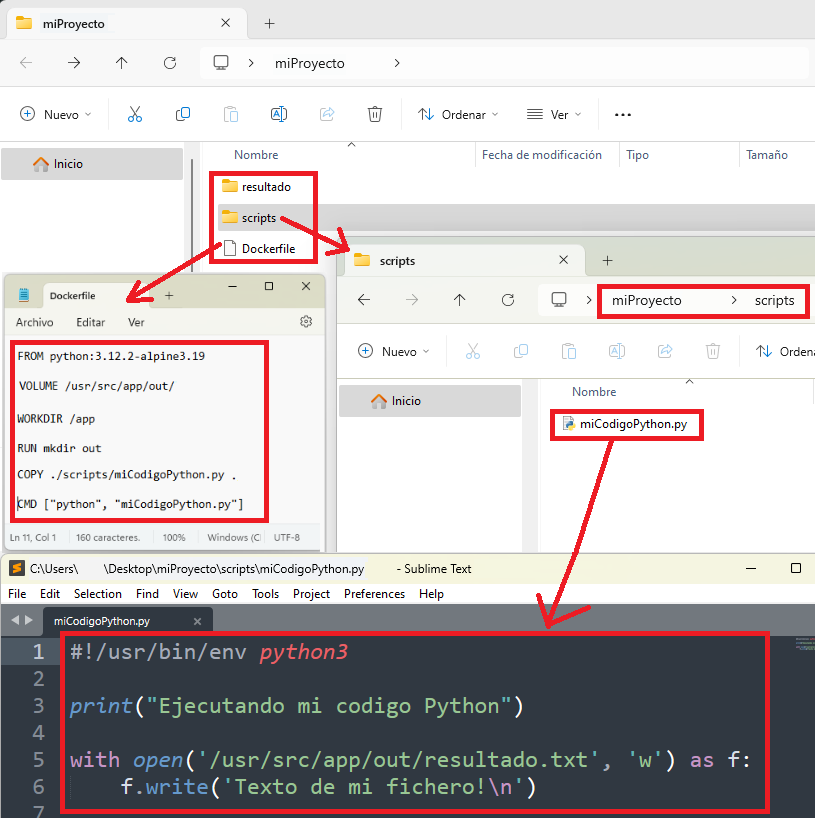
From the above, I want to clarify a couple of instructions, since I think the rest are clear from the comments (plus, I’ll go over the directives in detail later):
- FROM: I’m asking for “python:3.12.2-alpine3.19”, where “3.12.2” is the Python version installed on the Alpine Linux operating system, whose version is “3.19”.
- COPY: copies from the path relative to the “Dockerfile” on my local computer (the dot “.” indicates relative; we don’t have to write the whole absolute path “C:\Users\usuario\Desktop\miProyecto\scripts\miCodigoPython.py”) “./scripts/miCodigoPython.py” into the container, to the relative folder “.” set by the last WORKDIR, which in my case is “/app” (more precisely, as an absolute path: “/usr/src/app”).
- VOLUME: it only serves to document and indicate that our image will save data there, so it would be a good idea to create a Volume or a Bind Mount (but it doesn’t create one); in my example, I’m indicating that it would be useful to link “/usr/src/app/out/” somewhere, and in the future I’ll want to link it to the “resultado” folder on my local computer.
- CMD: runs the command “python miCodigoPython.py” in the container’s terminal (using the location set in WORKDIR as the relative path).
Now, we open a terminal and navigate to the directory that contains the Dockerfile, which in my case is the “miProyecto” folder on the desktop.
Now we build our image with the “build” command. I’ll name my image “mi-imagen” (after “-t”) and the dot “.” indicates where the Dockerfile to use is:
docker build -t mi-imagen .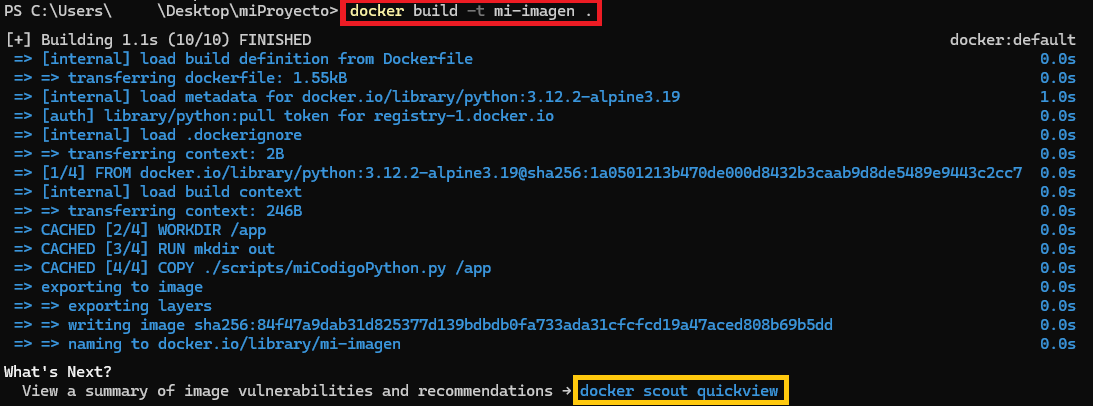
If all went well, our image will have been built.
Tip
Scanning for vulnerabilities (Optional)
If you look closely, Docker recommends using a “scout” command (it’s optional) , which analyzes our image looking for vulnerabilities. If we run it now (before running other commands), we won’t be asked to enter the container name, since the last “build” is remembered for convenience. You may not use this command much while you’re constantly Dockerizing, but it’s a good practice to run it before finishing our project (before sending it to production):
docker scout quickview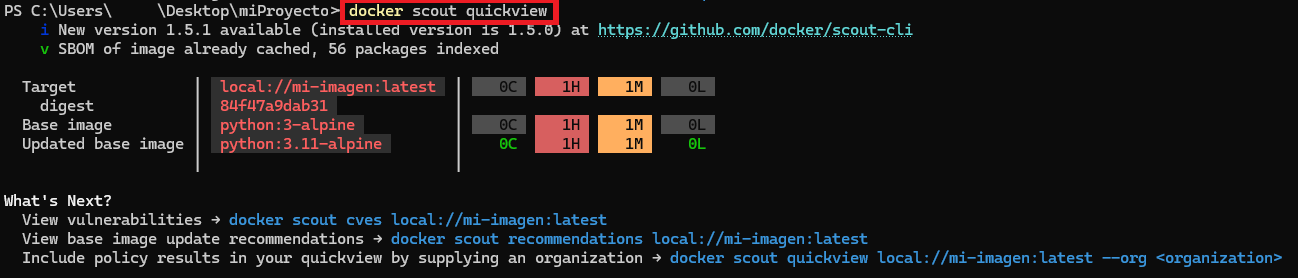
After running it we’ll see some vulnerabilities, which may not be ours. In my example it says the base image brings them, so on my end everything is perfect (it’s almost impossible to have no vulnerabilities, especially in the base images we use in FROM, since they include at least a complete operating system, which, however up to date, won’t be free of vulnerabilities; at the very least, we can minimize them by installing the latest versions). What matters on our side is not introducing new vulnerabilities. I recommend using the “recommendations” command of “scout” (also optional) so it suggests improvements for our image:
docker scout recommendations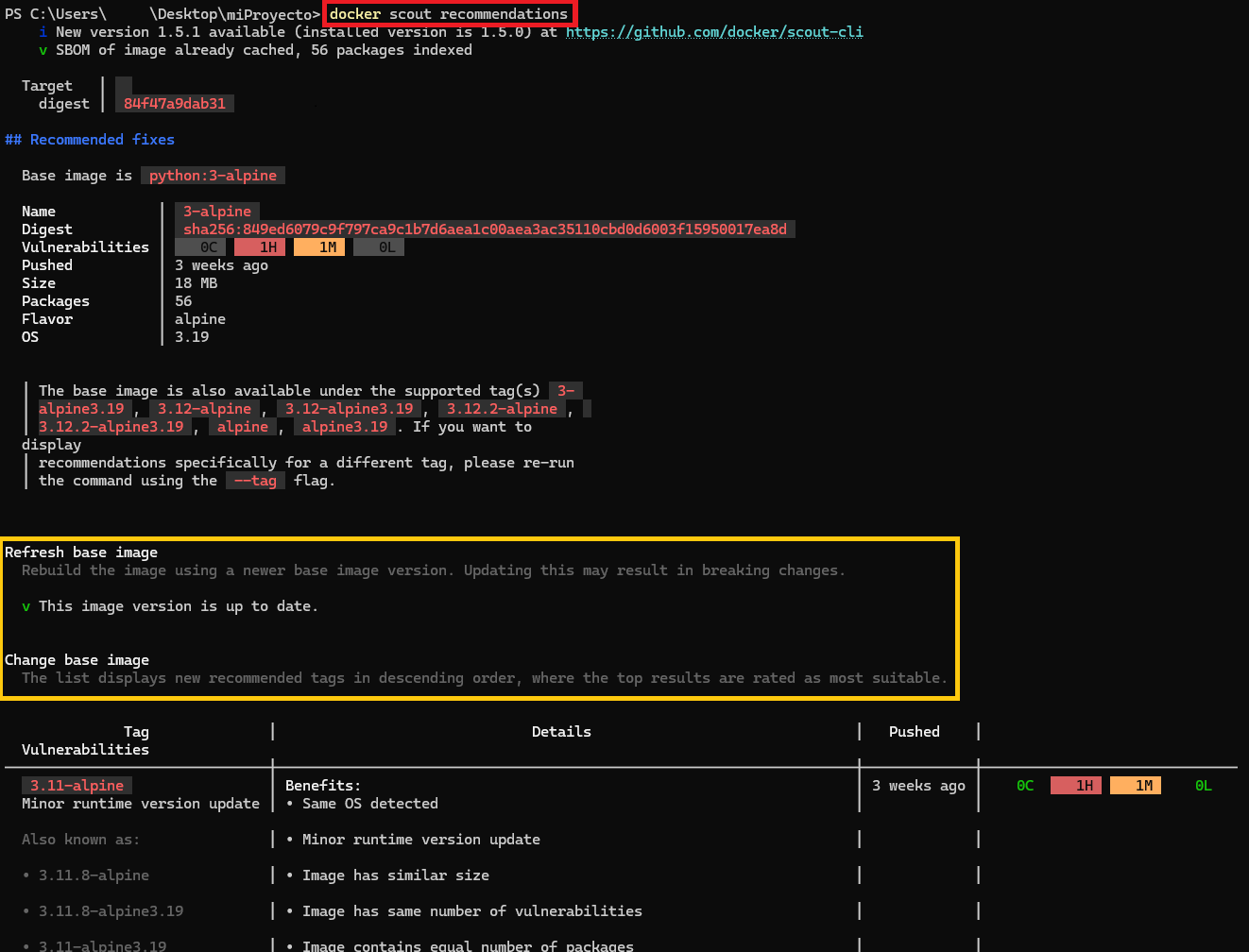
The generated report warns us whether we can do something to improve our container. The most common thing is that it suggests updating the base image if there’s a newer version (for example, I used the base “python:3.12.2-alpine3.19”; when the version I’m making up, “python:4-alpine10”, comes out, it will tell us to update because the newer version has fewer vulnerabilities). In my case it doesn’t suggest anything because I’m using the latest version at the time of writing this article.
Image history
Another useful command is the history command, since it shows each of the layers generated in our image (this is important for optimizing the image):
docker history mi-imagen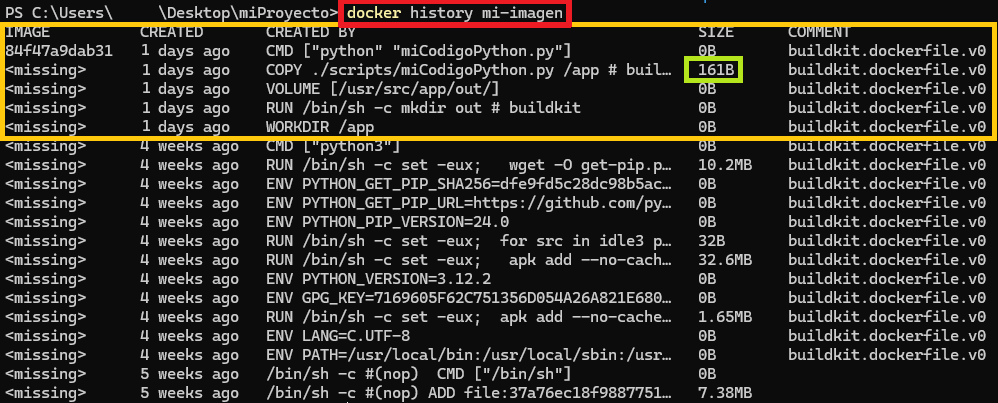
It comes in reverse order, newest on top, so my Dockerfile is at the top, and everything that comes after is the extra layers other developers added to the image I got with “FROM python:3.12.2-alpine3.19”.
Another interesting thing is the SIZE column: if it’s greater than zero, it points to the “real” layers, so to speak, since they’re the ones that add content to the image and the ones to watch to keep our image lightweight. In my case it was when we copied the file with COPY; the rest of the instructions didn’t add weight to the image.
To run a container from the image we’ve created, we use Docker’s “run” command. With “–name” I always recommend naming the container. With “-v” we create the Bind Mount (it’s the same as we saw in the previous articles), where I put the absolute path to my local “resultado” folder, a colon “:” and the absolute path to the folder I called “out” inside my container. At the end of the command we say which of the existing images we want to use, in my case the one we just created, “mi-imagen”:
docker run --name mi-contenedor -v C:\Users\usuario\Desktop\miProyecto\resultado:/usr/src/app/out/ mi-imagen
You’ll be able to see the text from Python’s “print” in the terminal, so at least we know the Python file has run.
Finally, we check in the “resultado” folder on our local computer whether the file “resultado.txt” has been created with the text inside that we wanted:
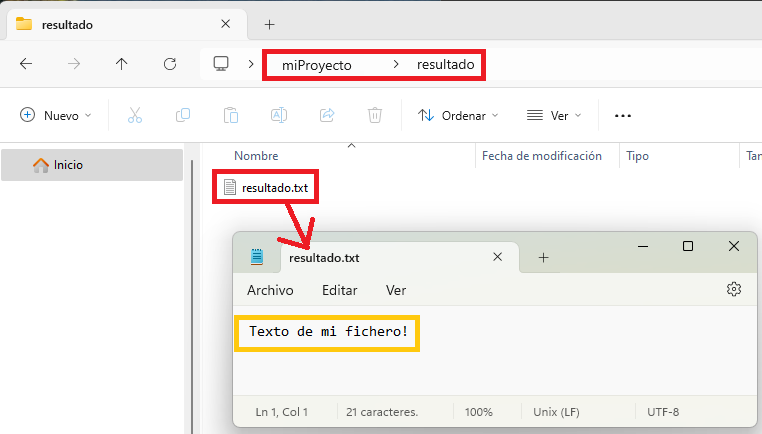
You may be surprised that our container barely lived a second, since the base image we used is designed to create “ephemeral containers” (we defined them in the Docker basics article), which only live while they run what they have to run and then shut down. Creating a file in this example wasn’t by chance: “ephemeral containers” are very useful for one-off jobs that finish, but we’ll want the resulting data somewhere (otherwise it would be lost as soon as the container shuts down), and that somewhere is our local computer, for example.
Daemon container
If we want the container to stay alive forever, for example, to run Python commands inside it through the container’s terminal, then we’ll have to create a Daemon container (if the base image we put in the “FROM” isn’t one already).
To do that and keep a container running, you use a command that never ends, like an infinite loop (for example, a server). A very common trick is to use “sleep infinity” at the end (to keep it alive forever), “exec /bin/sh” (which opens a shell so the process never ends) or “tail -f /dev/null” (which reads the “null” file forever, a file that never fills up).
For example, I could edit my Dockerfile to change the last line to (the “&” tells Linux to run the command “python miCodigoPython.py” and the command “sleep infinity” in parallel):
CMD python miCodigoPython.py & sleep infinityResulting in:
FROM python:3.12.2-alpine3.19

VOLUME /usr/src/app/out/

WORKDIR /app

RUN mkdir out

COPY ./scripts/miCodigoPython.py .

CMD python miCodigoPython.py & sleep infinity
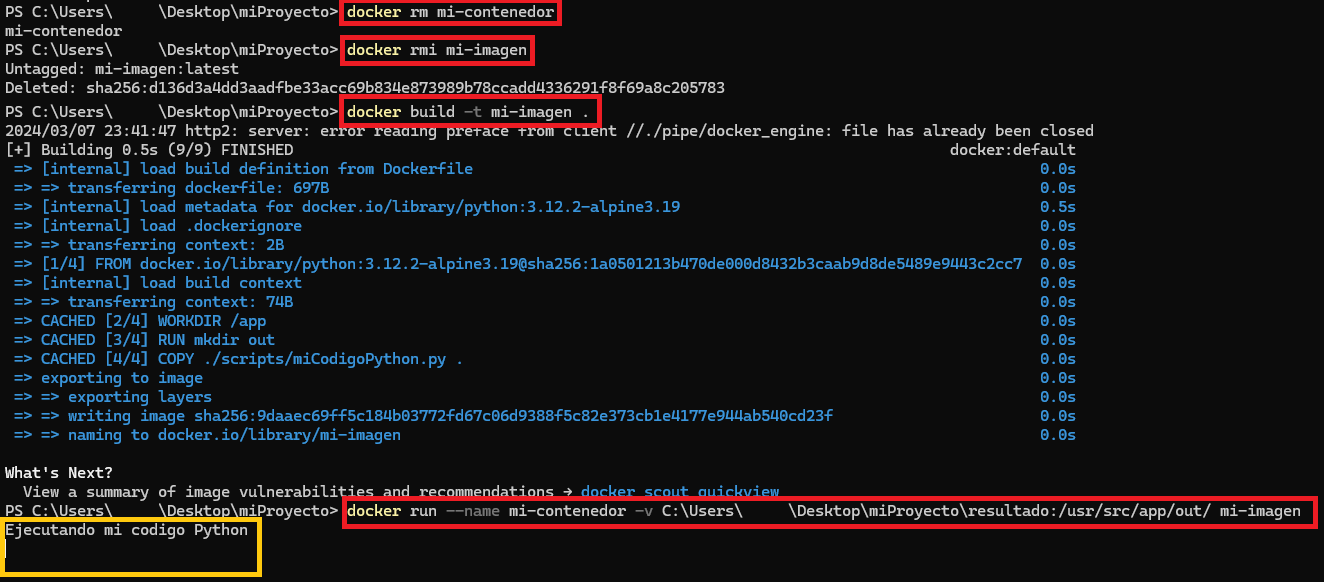
We have to build the image again, but first we have to delete it, and before that delete the containers that use it. For my example it can be deleted with:
docker rm mi-contenedor
docker rmi mi-imagen
And we rebuild with “build” and start the container with “run”:
docker build -t mi-imagen .
docker run --name mi-contenedor -v C:\Users\usuario\Desktop\miProyecto\resultado:/usr/src/app/out/ mi-imagen
You’ll see that the Python code has run and that, in addition, the terminal is stuck (that’s because we’ve achieved a “Daemon container”).
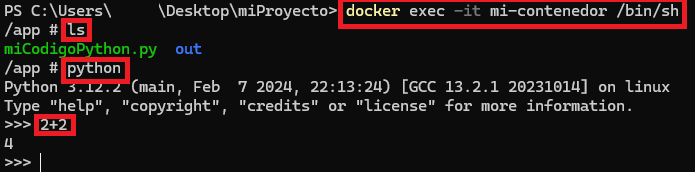
If you open a second terminal and run “exec”, you can get into our container’s terminal and work inside it:
docker exec -it mi-contenedor /bin/shTo try it out a bit, I run an “ls” to see my file “miCodigoPython.py” and the “out” folder. Then I open the Python terminal and do a simple addition (all of this inside my container):
To stop the container, run “stop” in another terminal (or “kill”, if it gets stubborn):
docker stop mi-contenedorRecommended and standardized files for a Docker project
When you create a Docker project, it’s common to include the following files (in addition to your project’s own files) in your Docker project structure (we’ve already seen the first two files, and for the rest I give you an example):
- Dockerfile: as we’ve seen, it’s used to Dockerize the project (use “.dockerignore” to ignore files).
- compose.yaml: we saw it in the article about Docker Compose. It’s used to work with systems locally, typically for development, and so the microservice works independently of other systems (“standalone”; for example, you can add a database so the microservice connects to it locally and works without internet access).
- .dockerignore: so Docker ignores those files and directories when building the image (similar to Git’s .gitignore). Example:
# .dockerignore
node_modules/
npm-debug.log
Dockerfile*
compose*
.git
.gitignore
README.md
README.Docker.md
LICENSE
.vscode
.idea- README.Docker.md: A Readme exclusively for everything Docker-related in the project, such as how to build it from the “Dockerfile” or considerations for bringing up the “compose.yaml”. Example:
# README.Docker.md

## Comienzo rápido

Esta aplicación está diseñada para ejecutarse sobre [Docker](https://www.Docker.com/what-docker).

Construir la imagen:

````shell
docker build -t mi-imagen .
````

Para ejecutar un contenedor desde la imagen:

````shell
docker run --name mi-contenedor -v directorio/local/resultado:/usr/src/app/out/ mi-imagen
````

Se generará un fichero de ejemplo en la carpeta local `directorio/local/resultado`.
Docker directives
Most instructions in a Dockerfile create a new layer that is added to the image. I’m listing the instructions in the order in which they’re usually needed in a Dockerfile, though it’s not the only possible order (except for FROM, which has to go first, and CMD or ENTRYPOINT, which go last):
1) Initializes a new build stage and sets the base image (required):
- FROM: Sets the base image for the following instructions (below I show you some base images that can be used here and in the next article I’ll show you bare operating system images that we can use). Example:
FROM mysql:8.32) Documents:
- LABEL: Adds metadata to an image that can be consumed by users, by Docker, etc. Example:
LABEL authors="Ramon Invarato"- EXPOSE: Informs that the container will listen on the specified network ports at runtime. Example:
EXPOSE 8080- VOLUME: Creates a mount point for a volume (volumes allow persistence and sharing files or directories between containers and the host). It creates a new Docker volume and mounts it at the specified mount point; if you don’t specify a volume when starting the container, Docker uses the volume it created automatically. It’s also used as documentation, to indicate that the container is designed to use volumes at the specified mount points. Example:
VOLUME /datos3) Defines variables:
- ARG: Defines a variable that users can pass to the builder at build time with the parameter docker build –build-arg <varname>=<value>. Whatever comes after the equals sign is the default value. Example:
ARG VERSION_PROYECTO=0.0
# Se puede usar más adelante con $VERSION_PROYECTO
# Comando que lo usa: docker build --build-arg VERSION_PROYECTO=1.0 -t nombreimagen:tag .
- ENV: Sets a persistent environment variable for the following steps in the Dockerfile, and it can be used in the container when it runs. Example (of setting Java’s variables, after installing Java with RUN, for instance):
ENV JAVA_HOME /usr/lib/jvm/java-11-openjdk-amd64
ENV PATH $JAVA_HOME/bin:$PATH
4) Sets the working directory and does the work:
- WORKDIR: Sets the working directory in the container for the following RUN, CMD, ENTRYPOINT, COPY and ADD instructions. Example (the following would be like doing a “mkdir app” and then a “cd app”):
WORKDIR /app- ADD: Copies files and directories into the container’s “file system”. It can also handle URLs and extract tar files.
- COPY: Similar to ADD, but simpler, since it only supports copying files and directories (it doesn’t support URLs or extracting tar files). Using COPY rather than ADD is recommended. Example (where “rutahots/*.jar” means copy all the JAR files from the host folder “rutahosts” to the container directory set with WORKDIR, which in the previous example was the “app” directory):
COPY rutahots/*.jar ./- RUN: Lets you run a command in the operating system and create a new image layer. This command allows other options. An interesting one is mounting a persistent cache (with “–mount=type=cache”) to speed up build steps, especially when installing packages (through package managers) so that only new or modified packages are downloaded; it also mounts bind links (with “–mount=type=bind”) of files from the host, so you don’t have to copy the files into the image (saving us from using COPY). Example (installing Java):
RUN apt update && \
    apt install -y openjdk-11-jdk && \
    apt clean;

# O forzando el guardado en caché de la descarga del openjdk
RUN --mount=type=cache,target=/var/cache/apt \
    apt update && \
    apt install -y openjdk-11-jdk && \
    apt clean;
4) Switches to a non-root user:
- USER: Sets the user to be used for the following RUN, CMD, and ENTRYPOINT instructions in the container (the default is root). Example (creating a user and setting it; if the user already exists in the base image you wouldn’t need to create it):
RUN useradd -ms /bin/bash usuarionoroot
USER usuarionoroot
5) Checks your container’s health:
- HEALTHCHECK: a way to tell Docker how to test whether a container is still working correctly. Example (after a startup period “start-period” of 5 seconds to wait for the container to come up, it checks every “interval” of 30 seconds that http://localhost:8080 is up and waits for a response within 15 seconds “timeout”, and makes 3 attempts “retries” before considering the container unhealthy; it’s considered healthy if it returns 0, and if it’s NOT healthy it will return 1):
HEALTHCHECK --interval=30s --timeout=15s --start-period=5s --retries=3 CMD curl -f http://localhost:8080 || exit 16) Runs your container (required):
- ENTRYPOINT: Configures a container to run as an executable. It’s not recommended to override this command, although you could. Only the last ENTRYPOINT instruction in the Dockerfile takes effect. Example (runs “java -jar /app/miFicheroJava.jar”, which runs the file “miFicheroJava.jar” with Java):
ENTRYPOINT ["java", "-jar", "/app/miFicheroJava.jar"]- CMD: Provides default values for a running container. It’s used to provide the default arguments that can be included on the command line when Docker starts; that way, if you specify any arguments when starting the container, those arguments will replace the ones defined in CMD (unlike ENTRYPOINT, CMD can be overridden). Only one CMD instruction can exist in a Dockerfile; if you specify several, only the last one takes effect. Example (runs “python /app/miFicheroPython.py”, which runs the file “miFicheroPython.jar” with Python and passes it the parameter “parametroPorDefecto” by default, which can be overridden when running “docker run”):
ENTRYPOINT ["python", "/app/miFicheroPython.py"]
CMD ["parametroPorDefecto"]

# Podemos cambiar el CMD si ejecutamos: docker run <nombreimagen> parametroNuevo
Note on overriding: Both ENTRYPOINT and CMD can be overridden, although ENTRYPOINT has to be specified explicitly since overriding it isn’t recommended. In the following examples we change (override) the Dockerfile’s ENTRYPOINT to the “echo” command and the CMD to the text “Hola Mundo”:
- Dockerfile: docker run –entrypoint echo <nombreimagen> “Hola Mundo”
- Docker Compose (“compose.yml”):
version: '3'
services:
  my_service:
    image: mi_imagen
    entrypoint: echo
    command: ["Hola Mundo"]
7) Adds information for whoever uses your Docker image as a base (only in case of extreme need):
- ONBUILD: Adds a trigger to the image that will run when that image is used as the base for another image. It doesn’t affect the current image, but it will be “incorporated” into any image based on it. For example (to force everyone who uses your image as a base to stay up to date):
ONBUILD RUN apt-get update && apt-get upgrade -yComplete Dockerfile example with all the previous directives (the following Dockerfile is only illustrative, not functional; we’ll see a working one in the next article):
# We set the base image.
FROM node:16-alpine

# We tag with metadata
LABEL version="1.0"
LABEL description="Mi aplicacion Node.js"
LABEL authors="Ramon Invarato"
LABEL maintainer="ramon@jarroba.com"

# We expose the application's port
EXPOSE 8080

# Argument with a default value
ARG NODE_ENV=desarrollo

# We set the environment variable
ENV NODE_ENV=$NODE_ENV

# We create the working directory and move into it
WORKDIR /app

# We copy the file with the dependencies (this way they're only downloaded once and we can modify what we need many times)
COPY package.json .

# We install the dependencies
RUN npm install

# We copy the rest of the application, where the files we've worked on are
COPY . .

# We install 'curl' for the health check (since the base image doesn't include it)
RUN apk add --no-cache curl

# We set a non-root user
USER node

# We check the application's health
HEALTHCHECK --interval=30s --timeout=30s --start-period=5s --retries=3 CMD curl -f http://localhost:8080 || exit 1

# We run the application with the arguments it needs to work
ENTRYPOINT ["npm", "start"]

# We complete the previous command with optional arguments that can be overridden
CMD ["--entorno=$NODE_ENV"]

# Instruction to run when this image is used as the base of another image
ONBUILD RUN echo 'Construyendo desde imagen base'
Base images
There are many third-party base images to use in FROM (I recommend browsing them at Docker Hub Container Image Library (Docker Hub)); some examples are (we’ve already seen many of them in these articles):
- Node (node – Official Image (Docker Hub)): For Node.js applications
- Python (python – Official Image (Docker Hub)): For Python applications
- Ruby (ruby – Official Image (Docker Hub)): For Ruby applications
- Golang (golang – Official Image (Docker Hub)): For Go applications
- Java (there are several, one is eclipse-temurin – Official Image (Docker Hub)): For Java applications
- Php (php – Official Image (Docker Hub)): For PHP applications
- Mysql (mysql – Official Image (Docker Hub)): For the MySQL database service
- Postgres (postgres – Official Image (Docker Hub)): For the PostgreSQL database service
- Mongo (mongo – Official Image (Docker Hub)): For the MongoDB database service
- Nginx (nginx – Official Image (Docker Hub)): For the Nginx web server/reverse proxy
- Httpd (httpd – Official Image (Docker Hub)): For the Apache HTTP Server web server
- Redis (redis – Official Image (Docker Hub)): For the Redis in-memory database
- WordPress (wordpress – Official Image (Docker Hub)): For the WordPress blogging and content management platform
- Drupal (drupal – Official Image (Docker Hub)): For the Drupal content management platform
- Jenkins (jenkins/jenkins – Docker Image (Docker Hub)): For the Jenkins continuous integration server
Viewing public Dockerfiles
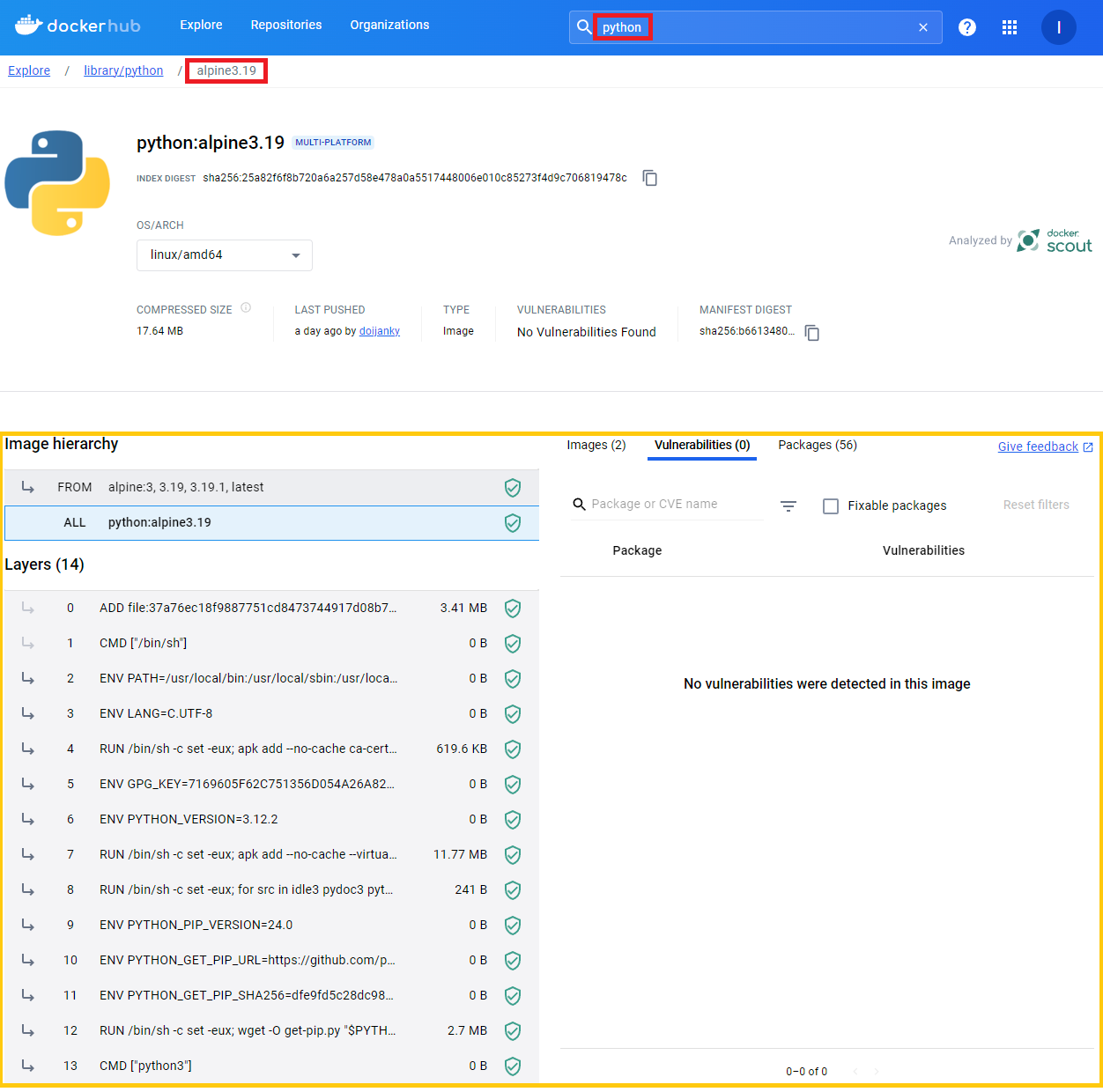
If we go to Docker Hub, pick any image and open its tag, we can see the Dockerfile that image was built with. This is useful both for learning from it and for seeing what they’re doing so you can trust the Docker image, as well as checking whether it has vulnerabilities, etc.
I’ll open the “alpine3.19” tag of “python”: Image Layer Details – sha256-b6613480a7eac9a1e50ef5dbe57195e335b5545e1ef8d1d20e97db531033c8b6:alpine3.19 (Docker Hub)
Inside we can see the Dockerfile, as well as a lot of other information, in quite a detailed way:
“Dockerfile: Directives and Dockerizing Projects” by Ramón Invarato at jarroba.com, licensed under Creative Commons Attribution-NonCommercial-ShareAlike 3.0. Registered at Safe Creative.

You may also like
Advanced Dockerfile: Multi-Stage Builds, Registries, and Tricks
Free Docker course. Expert Docker tricks: multi-stage builds, optimizing images, faster build times, and distributing images through Docker registries.
Docker Images: Complete Guide to Docker Commands
Free Docker course. Take full control of Docker images and learn to work in depth with Docker commands, from pull and run to volumes and networks.
Leave a comment