
Docker Images: Complete Guide to Docker Commands
Free Docker course. Take full control of Docker images and learn to work in depth with Docker commands, from pull and run to volumes and networks.
In this article we are going to have absolute control over all Docker images, over everything that happens inside an image, and we will work in depth with Docker commands.
So this will be an even more technical article compared to the previous ones on “Docker Desktop” , “Docker Compose” and “Docker Compose in a Project”, which I recommend you at least take a look at, since in them I explain the basic theory step by step (this article can be followed without having read the previous ones, but we are going to build on them as if it were a continuous course, so it will help you understand much more if you come from them). If you come from the previous articles, here we are going to use Docker with commands; we won’t use “Docker Desktop” or “Docker Compose” (although I recommend that you rely on them, since some things are easier, for example, it is easier to write a “compose.yml” than to use certain commands, while for other things it isn’t, for example, to see running containers it is better to use “Docker Desktop”, etc.).
Depending on your needs, the following will be interesting (we will go through them in order):
- Using third-party images.
- Building our own image by enriching existing ones.
- Creating our own Dockerized project (like the previous one, but with our own code).
Note on the requirements for this article: in this article we assume that you have Docker installed and that you have “Docker Engine” running (we saw this in the Docker Compose article).
Working with Docker images using commands
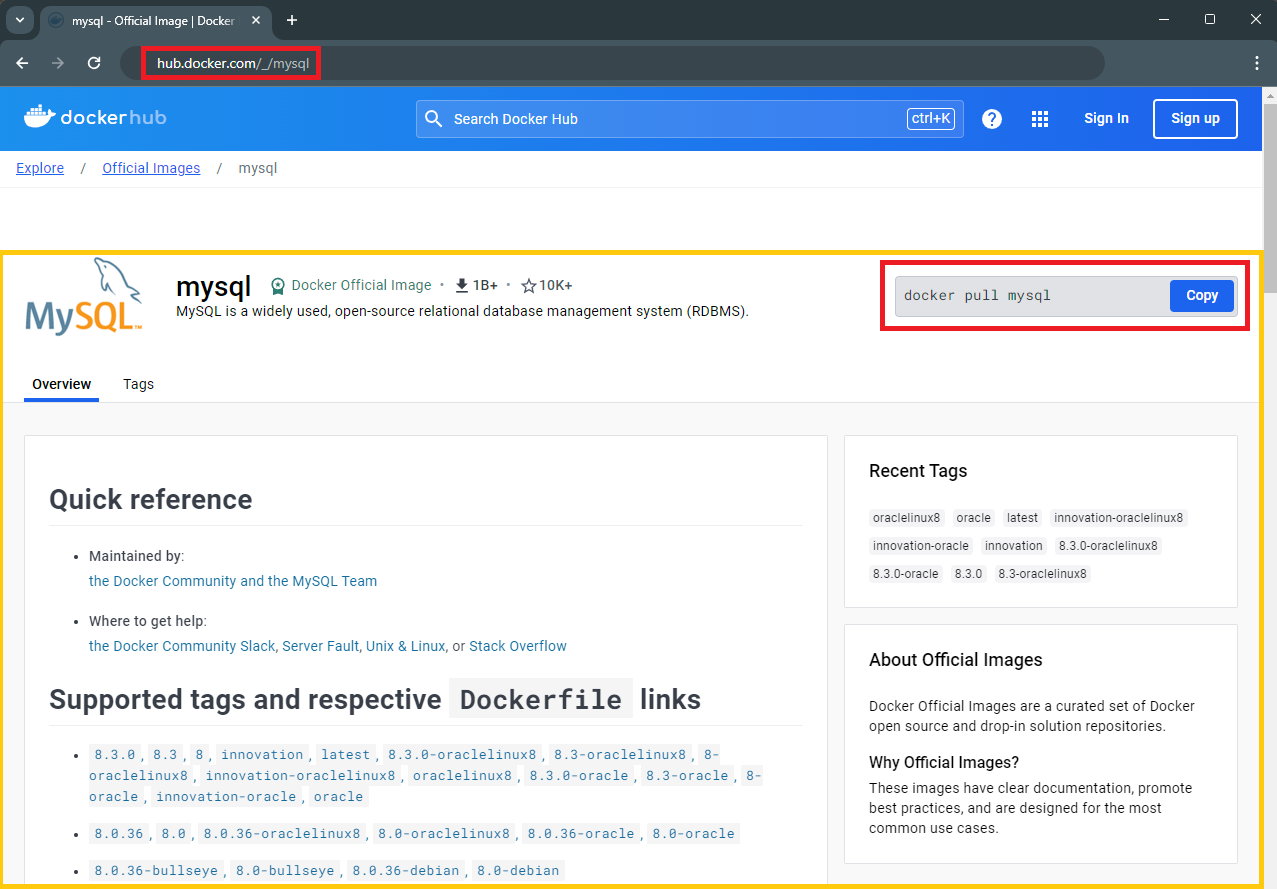
For this example, we want to work with the MySQL database (it will sound familiar if you come from the previously mentioned articles, so in this article I’m going to go very fast and not repeat what I already covered in them, so we can focus exclusively on the commands) and for that we will download the Docker image, whose documentation and information we can find at: mysql – Official Image (Docker Hub)
After that, we open a terminal to run our commands.
We will download the image with “pull” (Docker Hub is a repository, like Git, so it uses the standard terms; in this case, to download it is “pull”), followed by the image name “mysql”, a colon “:” and the “tag” that indicates the version “8.3” (if you follow this article, I recommend that you download the versions you see here so you don’t run into incompatibilities or problems):
docker pull mysql:8.3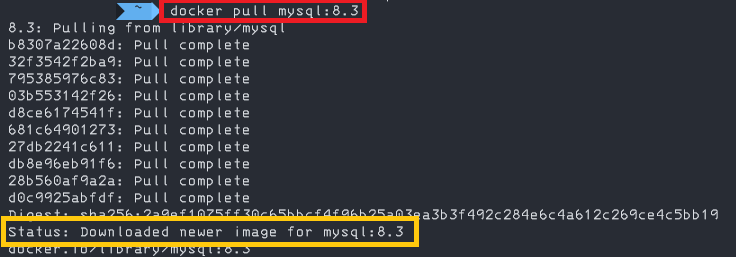
Note for quickly downloading the latest version: If we don’t add the colon and the version (that is, we just write “mysql”, without the “:8.3”), it is the same as writing “:latest” (the command would be: “docker pull mysql:latest” ), which indicates the most recent version available (it is always recommended to pin the version, except for our own tests, since we don’t want uncontrolled incompatibilities). You should know that the word “latest” is a naming convention that should point to the most recent version. This is important because it is not automatic, so if the developer who uploaded an image has not created “latest” by hand, we won’t be able to use this convention (you will come across images without “latest” on “Docker Hub”); in other words, if we are the creators of a Docker image, we will have to manually create the latest numbered version of our image (for example, “1.2”) and then a “latest” that is the same. Besides, “latest” doesn’t always make sense; for example, we could create several images with the same version of our code, but on different operating systems. Which one is the latest version if all the operating systems share the same latest version? It isn’t always useful.
If we want to see all the “Docker images” we have downloaded, we use the “images” command (you will notice the word “REPOSITORY” appears, since it is our local repository; along with other information, such as the TAG, which is the version, the IMAGE_ID, which is the identifier, etc.):
docker images
Note: you can also use: docker image ls
If we want to delete an image we do it with “rmi” followed by the image name (the one we gave it before, for example “mysql:8.3”) or the “IMAGE_ID”:
docker rmi mysql:8.3To start a container from an image, we will use “run” with the Docker image we downloaded earlier, which is the way to create a running “Docker Container”. For this we have several interesting parameters
- -d (“detached mode”): Tells Docker to run the container it is going to create in the background, so it frees up the terminal and we can enter more commands. If we don’t add this “-d”, it is assumed you want “attached mode”, so we will see the container’s logs after running the command and we won’t be able to use the terminal (until we press “ctrl+C”, which will stop the container).
- -p (port mapping): the port, although not mandatory, is good practice to set so you keep it under control and can use the container (otherwise, a random local port will be assigned each time and that is madness). To map the ports, you first put the port of your computer you want it mapped to (the one you will use after “localhost:<my_local_port>”), a colon “:” and the container’s internal port (the one MySQL listens on in this case). For this example I’ll use 3306:3306, so they match (and because port 3306 is the standard for MySQL), although they don’t have to, especially if we have many containers running MySQL at the same time (all of these containers will listen internally on 3306, but on my localhost I can’t have more than one 3306, so I’ll name them whatever I want: 3307, 3308, etc.).
- –name (name of my container): first, so it is easy to tell apart from images (and second, because when you’ve been programming for hours it helps you tell them apart quickly), I recommend using whatever name you want (normally the same as the image), but including the word “Container”. For example, I’ll use: “miContenedorMysql” here (I use this one so it partially matches the one from the previous article, although professionally I usually use something like “mysql-container”).
- -e (set environment variables): this depends on the container’s documentation (which, for my example, is at mysql – Official Image (Docker Hub) ). To make it as simple as possible, I’ll create a MySQL container without a password (not recommended, only to play with it and learn), setting the environment variable: MYSQL_ALLOW_EMPTY_PASSWORD=yes
The resulting command I’ll run looks like this:
docker run -d -p 3306:3306 --name=miContenedorMysql -e MYSQL_ALLOW_EMPTY_PASSWORD=yes mysql:8.3
We can see a list of all the running “Docker Containers” with “ps” (not to be confused with the “Docker Images” that we saw with the previous command “docker images”; the ps command for viewing containers gives us information such as the CONTAINER_ID, NAMES, which is the name we gave the container, the port mapping in PORTS, in STATUS it will show “Up” if it is running, the image it is using in IMAGE, etc.):
docker ps
Note for seeing all containers (with -a), both running and stopped: docker ps -a
If we want to delete an image from our local repository with “rmi” followed by the image name (the one we gave it before, for example “mysql:8.3”) or the “IMAGE_ID”
docker rmi mysql:8.3A container can be running, so we can stop a container with “stop” followed by the container name (the one we gave it before, for example “miContenedorMysql”) or the “CONTAINER_ID”:
docker stop miContenedorMysqlIf we want to delete a container (to delete a running container you must stop it first) from our local repository with “rm” followed by the container name (the one we gave it before, for example “miContenedorMysql”) or the “CONTAINER_ID”:
docker rm miContenedorMysqlNote for stopping the container and then deleting it in a single command (with -f): docker rm -f miContenedorMysql
List of Docker commands
We have already seen the general idea of how Docker commands work. Below, I show you a diagram of the commands for the different states:
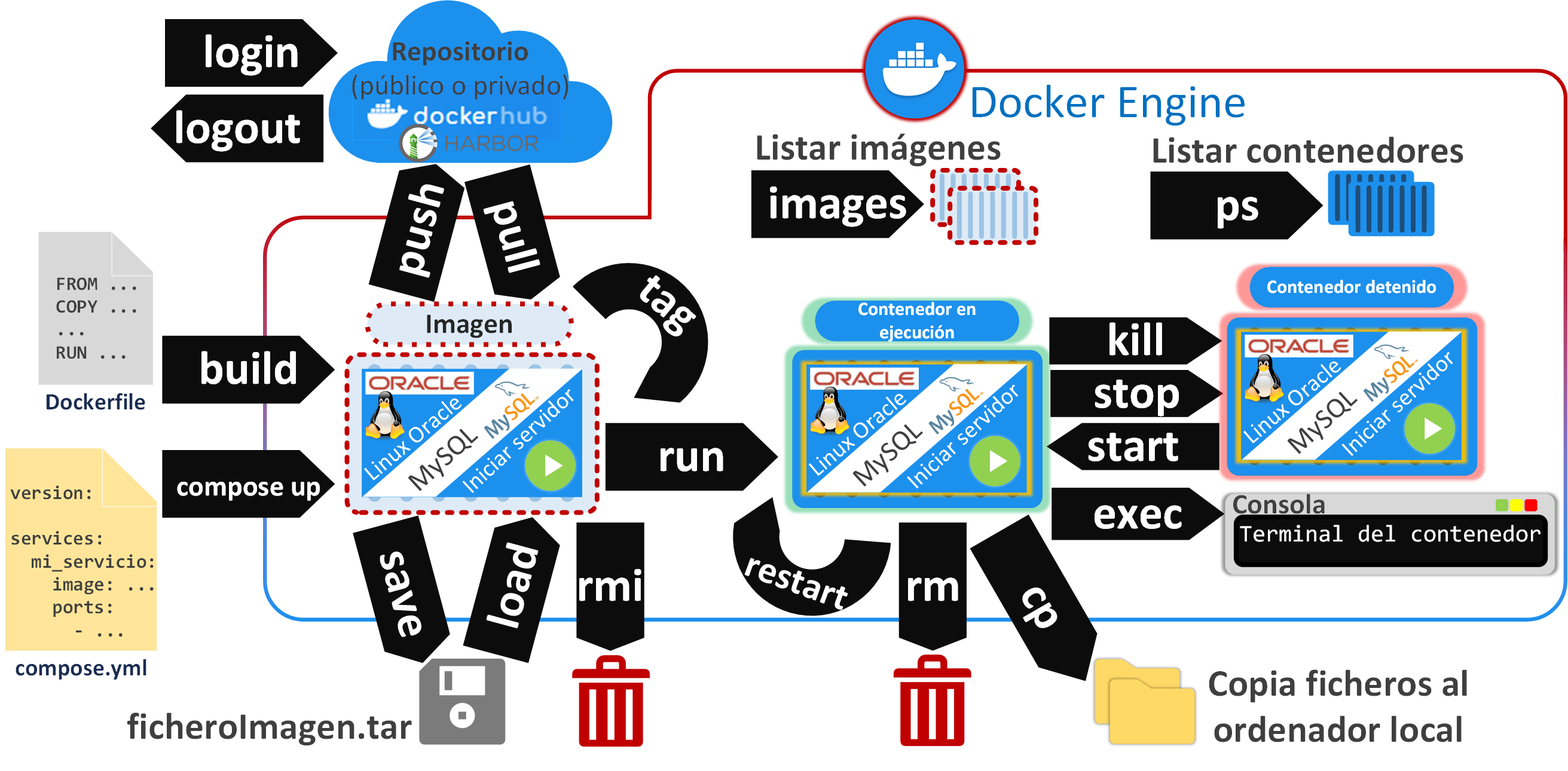
And here are a few of the Docker commands I consider most useful, but there are many more. You can find all the commands in the official documentation: docker (Docker Docs)
Management commands for Dockerfile and Docker Compose:
- docker compose up: Creates and starts containers from a “compose.yml” file (or “docker-compose.yml”). When run, if the containers haven’t been created yet, it will create them for you; if the containers are running and the “compose.yml” file has changed, it will recreate and start the containers.
- docker compose down: Stops and removes the containers and their networks defined in the “compose.yml”. You can use “–volumes” to remove the volumes (and any data stored in them) declared in the “compose.yml” file (e.g., docker-compose down –volumes)
- docker build -t [tag] [directory_with_the_dockerfile]: Builds an image from a Dockerfile and adds a tag to it (the name and the version, for example: myimage:1.0 ).
General management commands for Docker objects:
- docker inspect [object_name]: Returns detailed information about the Docker object (image, container, network, volume, node, service).
Management commands for existing images:
- docker history [image_id_or_tag]: Change history of an image.
- docker images: Lists the locally available images.
- docker load -i [path_to_file]: Loads an image from a “.tar” file.
- docker pull [image_tag]: Downloads an image from a repository you are logged in to.
- docker push [image_tag]: Uploads a tagged image to a repository you are logged in to (such as “Docker Hub” or Harbor).
- docker rmi [image_id_or_tag]: Deletes a local image.
- docker run -p [host_port:container_port] –name [container_name] [image_tag]: Runs a container with a given port from an image (add “-d” if you want it in “detached mode”, that is, a background daemon process, useful for quick tests).
- docker run -it -p [h_port:c_port] –name [c_name] [image_tag] /bin/bash: Runs a container with a given port from an image in interactive mode (“-i” for “interactive” and “-t” for “tty”) and opens a bash shell (from the path “/bin/bash”) so you can interact with the container.
- docker run -p [h_port:c_port] –name [c_name] –mount source=[volume_name],target=[path_to_mount_inside_the_container] [image_tag]: Runs a container with a given port from an image with a previously created volume (see below how volumes are created) pointing to a path (which gets mounted) inside the container.
- docker save [image_tag] -o [path_to_file]: Saves an image to a “.tar” file.
- docker search [search_term]: Searches the repository for images containing the term.
- docker tag [image_id] [new_tag]: Tags an image with a new name and version.
Management commands for existing containers:
- docker exec [container_id_or_name]: Runs a command in a running container.
- docker kill [container_id_or_name]: Immediately stops a running container (“stop” is recommended to avoid inconsistent states).
- docker ps: Lists the running containers.
- docker rm [container_id_or_name]: Deletes a stopped container (if you add “-f” you force the deletion, even if it isn’t stopped).
- docker start [container_id_or_name]: Resumes a stopped container.
- docker stop [container_id_or_name]: Gracefully stops a running container.
- docker port [container_id_or_name]: Shows the port mappings for a container.
Management commands for Docker volumes:
- docker volume create [volume_name]: Creates a Docker volume.
- docker volume ls: lists the volumes.
- docker volume prune: removes all volumes not used by any container.
- docker volume rm [volume_name]: removes a volume that is not in use by any container.
Management commands for Docker networks:
- docker network create –driver [driver] [network_name]: Creates a Docker network with an available network driver (bridge, overlay, macvlan, etc.).
- docker network connect [network_name] [container_id_or_name]: Connects a created network to an existing container.
- docker network disconnect [network_name] [container_id_or_name]: Disconnects a network from a container.
- docker network ls: lists all Docker networks.
- docker network rm [network_name]: Removes a network with no connected containers.
Management commands for repository connection:
- docker login [repository_url] -u [user] -p [password]: Logs in to a Docker registry (public like “Docker Hub” or private like “Harbor”).
- docker logout [repository_url]: Logs out of a Docker registry.
“Docker Images: Complete Guide to Docker Commands” by Ramón Invarato at jarroba.com, licensed under Creative Commons Attribution-NonCommercial-ShareAlike 3.0. Registered at Safe Creative.

You may also like
Advanced Dockerfile: Multi-Stage Builds, Registries, and Tricks
Free Docker course. Expert Docker tricks: multi-stage builds, optimizing images, faster build times, and distributing images through Docker registries.
Dockerfile: Directives and Dockerizing Projects
Free Docker course. A Dockerfile is a file of directives for building and deploying custom applications with Docker. Learn how to Dockerize your projects.
Leave a comment