
Docker Compose in a Project
Free Docker course. As developers, we want to build Docker Compose files that are part of a project (Java, Python, Go, etc.). Learn how, step by step.
As developers, we will want to build complex Docker Compose files that are part of a project (it can be any kind of project: Java, Python, Go, etc.) that we will build step by step.
Note about this article: Although this article is designed to stand on its own in case you already know some Docker Compose, it is also meant to be a continuation of the previous article about Docker Compose
Example project using Docker Compose
For this example I’m going to build a “PHP web project” (that is, a PHP server that processes data from our database and shows it on the web; this is similar to the first article on Docker basics, if you come from it, but instead of using the “httpd” image we will use the “php” one, which is similar but has PHP installed). It will show us a web page where we will see the data from the database and be able to insert new records. I also want to initialize the database with a table and some sample data; and since I want to develop properly, we want visibility into the database data with a web admin tool.
First, we will sketch the architecture we are going to build, with the Docker images we will use (I’m including their official documentation so you can check it out):
- MySQL (database that we will initialize with an “init.sql” file): mysql – Official Image (Docker Hub)
- Adminer (web database admin tool): adminer – Official Image (Docker Hub)
- PHP (Apache Httpd server with PHP where we will write a web file “index.php”): php – Official Image (Docker Hub)

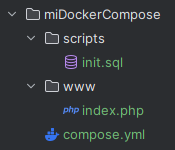
To build this project I will create a folder “miDockerCompose”; right inside it, we will create the “compose.yml” file, a first folder “scripts” (inside it we will create an “init.sql” file to initialize the database) and a second folder “www” (inside it we will create an “index.php” file to build our web page with the database connection). It will look like the following screenshot:
We will start by filling in the “compose.yml” file, so we need to know what to put inside (we would normally check the official documentation, but in this article I’ll tell you myself). I’m going to show you what the complete architecture we will build looks like and, after this drawing, I’ll explain each service one by one (I’ll explain what is new; for what was already explained earlier I’ll just give you the value). I recommend you review it alongside the contents of “compose.yml” that I’ve placed after it:
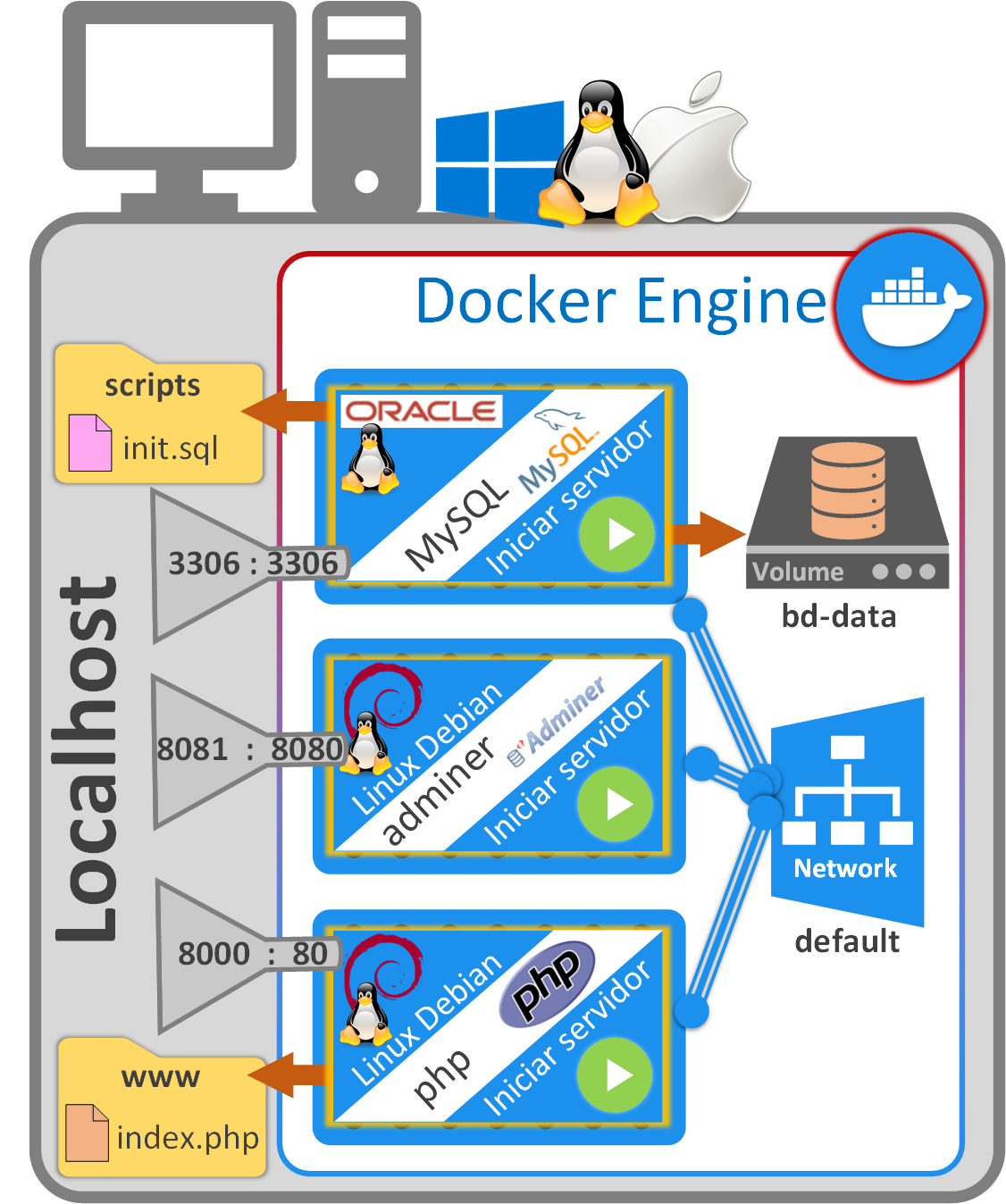
Service for the database that I’ve named “bd”, configured with:
- Docker image: mysql:8.3.0
- Container name: miMySQL-container
- Restart: always (so that when something happens to the container, such as crashing because of an error, it automatically starts again; this parameter is not required and defaults to “no”, but I wanted to show it to you so that you)
- Ports: 3306:3306
- Environment variable: (this time we will set a root password “contrseniaroot” and create a database “mibd” with user “usuariobd” and password “contraseniabd”):
- MYSQL_ROOT_PASSWORD: contrseniaroot
- MYSQL_USER: usuariobd
- MYSQL_PASSWORD: contraseniabd
- MYSQL_DATABASE: mibd
- Volumes:
- Named volume “bd-data” (watch out, this is the same as before, but I’ve renamed it compared to the previous example, since the “-data” suffix is clearer and more widely used in the community) pointing to “/var/lib/mysql”.
- Bind Mount pointing on our local computer to the path “./scripts/init.sql” (the “.” of the relative path with respect to “compose.yml”, the “scripts” folder and the “init.sql” file) and that one in turn pointing to “/docker-entrypoint-initdb.d/init.sql” inside the container (we know this last path from the official documentation).
Service for the database admin tool that I’ve named “adminer”, configured with:
- Docker image: adminer:4.8.1
- Container name: adminer-container
- Restart: always
- Depends on: bd (here we will add a dependency on the previous “bd” service, since if the database hasn’t started, the database admin tool has nothing to administer; besides, if it were highly dependent, we would get errors from not finding the database).
- Ports: 8081:8080 (I could have left “8080:8080”, but I wanted to change it so you could see the difference between the local port and the container port in this article 😉 )
Service for the database that I’ve named “bd”, configured with:
- Docker image: php:8-apache
- Container name: php_web-container
- Restart: always
- Depends on: bd
- Ports: 8000:80
- Volumes:
- Bind Mount pointing on our local computer to the path “./www” (unlike the previous “Bind Mount”, which pointed to an “init.sql” file, here I want the whole contents of the folder to be passed in, since we may want to put in many web files: HTML, CSS, JavaScript, PHP, etc.) and that one in turn pointing to “/var/www/html” inside the container.
- Command: bash -c “docker-php-ext-install mysqli && apache2-foreground” (this PHP image comes “virgin of modules” so that we install the ones we need; in this case I need the “mysqli” module to connect to the MySQL database in the other container, so I install it using the “docker-php-ext-install” command. What I’m about to tell you we will see in detail later, but I’m giving you a preview so you can start understanding it and putting the pieces together: “Command” runs whatever command we want, overriding the last “CMD” layer of the “Dockercompose” of the “php:8-apache” image, which, if you’re curious, is “CMD [“apache2-foreground”]”. That’s why the command ends with “apache2-foreground”: this makes the container a daemon; otherwise it would be ephemeral and would close immediately when it finished, just as we saw in the first article. By the way, this way of installing modules in PHP with “command” is not the most recommended; it would be better to create a new “Dockercompose”, but for this example we are going to do it this way).
All these services will be connected to each other by a default network (network) (it’s called “default”) that Docker manages and that always exists (you can see it in the previous drawing). We don’t have to do anything, because by not specifying one in the “compose.yml”, it is assumed that we want each service to connect to this one.
In summary, the complete Docker Compose file “compose.yml” that we will have with all of this is:
version: '3.8'


services:

  bd:
    image: mysql:8.3.0
    container_name: miMySQL-container
    restart: always
    ports:
      - "3306:3306"
    environment:
      MYSQL_ROOT_PASSWORD: contrseniaroot
      MYSQL_USER: usuariobd
      MYSQL_PASSWORD: contraseniabd
      MYSQL_DATABASE: mibd
    volumes:
      - bd-data:/var/lib/mysql
      - ./scripts/init.sql:/docker-entrypoint-initdb.d/init.sql

  adminer:
    image: adminer:4.8.1
    container_name: adminer-container
    restart: always
    depends_on:
      - bd
    ports:
      - '8081:8080'

  web:
    image: php:8-apache
    container_name: php_web-container
    restart: always
    depends_on:
      - bd
    ports:
      - "8000:80"
    volumes:
      - ./www:/var/www/html
    command: bash -c "docker-php-ext-install mysqli && apache2-foreground"

volumes:
  bd-data:
Now we will create the contents of “init.sql” inside the “scripts” folder, where we will use “CREATE” to make a table that I’ve named “mi_tabla”, with an “id” column as the primary key, a “nombre” column and an “apellido” column; I’ll also add an “INSERT” with some data:
CREATE TABLE IF NOT EXISTS mi_tabla (
    id SERIAL PRIMARY KEY,
    nombre VARCHAR(255) NOT NULL,
    apellido VARCHAR(255) NOT NULL
);

INSERT INTO mi_tabla (nombre, apellido) VALUES('Juan', 'Sanchez'), ('Laura', 'Lopez'), ('Paco', 'Diaz');
Before creating the “index.php” file, we will open a terminal and bring up our “compose.yml” by running this command (we have to be inside the “miDockerCompose” folder):
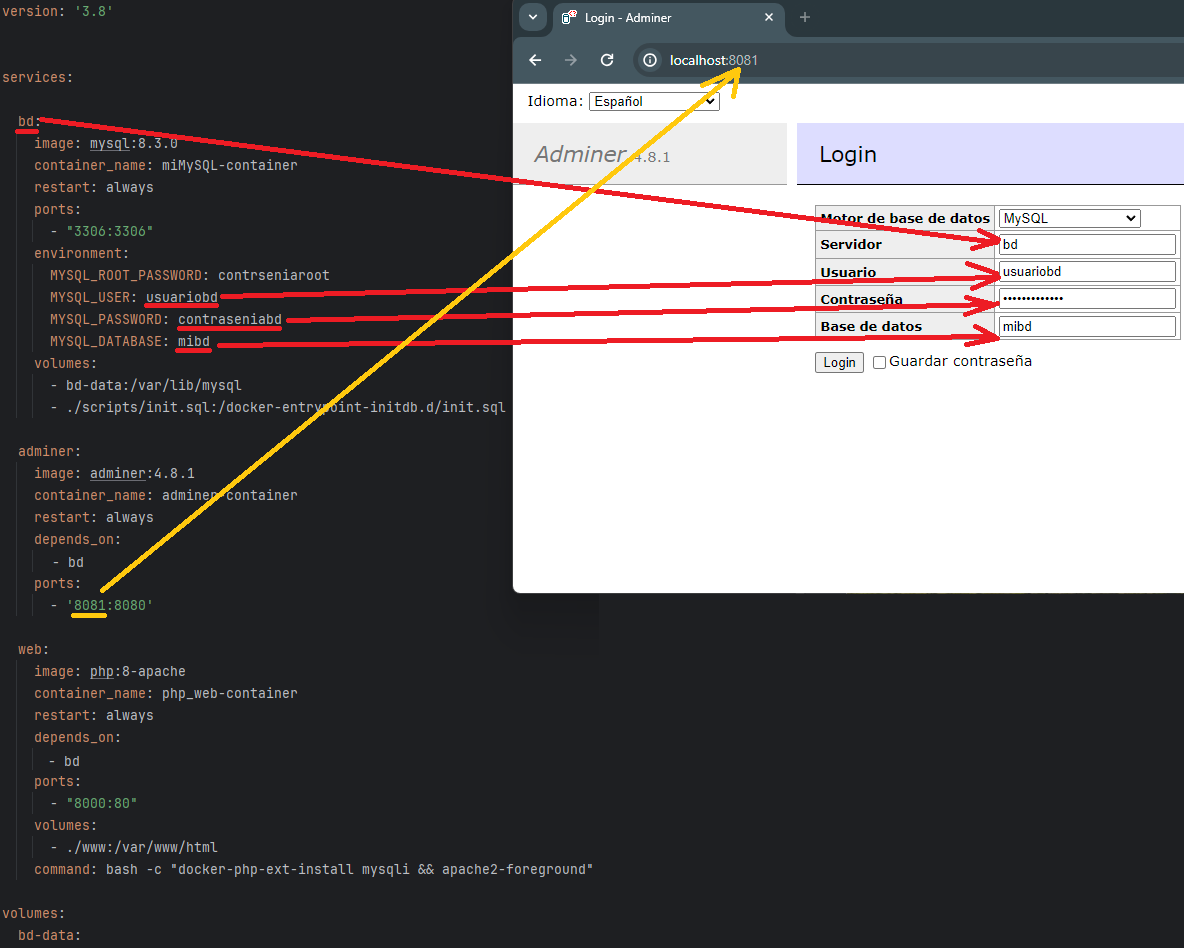
docker compose upLet’s test that “adminer” started correctly (we could also take a look at the container logs, but this is more visual). To do so, open any web browser you have installed (I’ll use Chrome) and type in the address bar: http://localhost:8081/ (port “8081” is the local one we set earlier in the “adminer” service in “compose.yml”)
When “adminer” opens, it will ask us for some data, which is what we previously configured in our “bd” service (thanks to the “default network” we can use the “service name” as the “IP”; that is, in the “server” field of “adminer” we won’t put something like “http://192.1.2.3…”, but just the service name “bd”, and Docker underneath, with its “default network”, makes the job very easy for us):
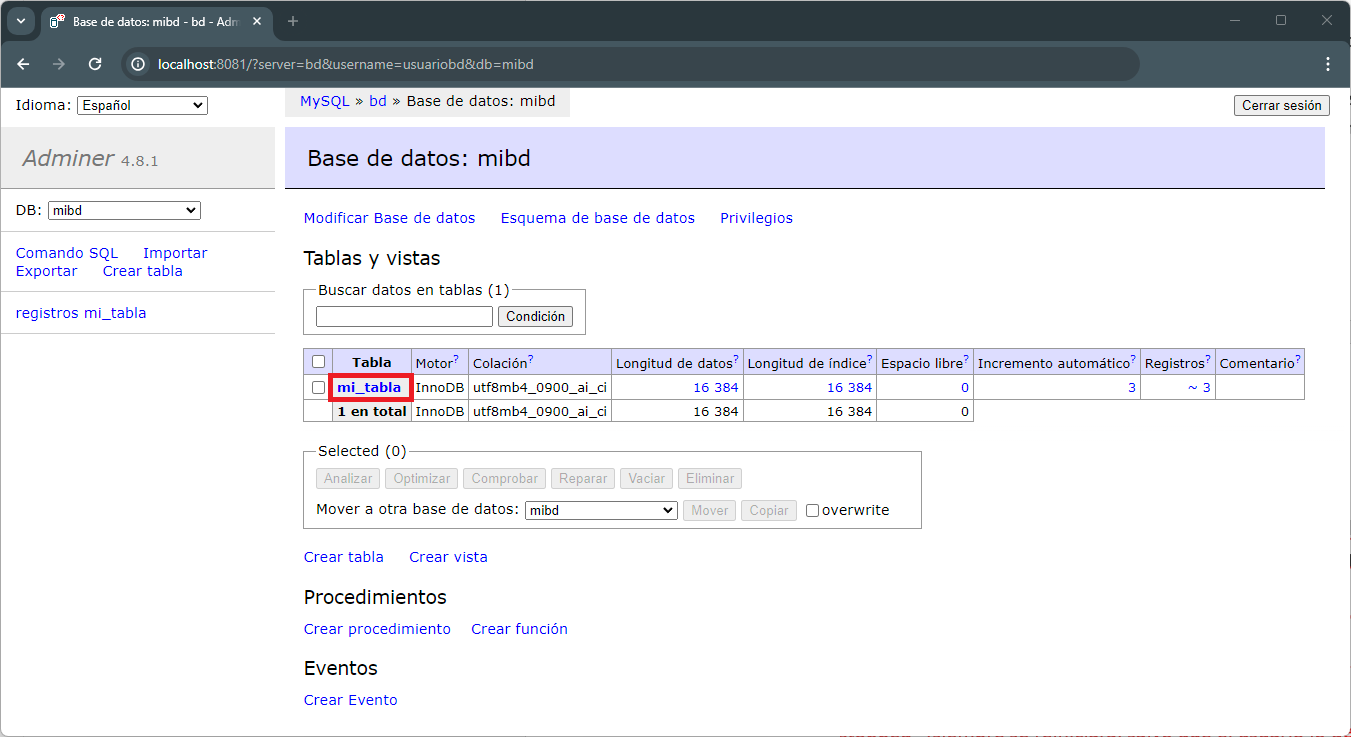
Inside, we can see that we have created our table correctly in our MySQL database:
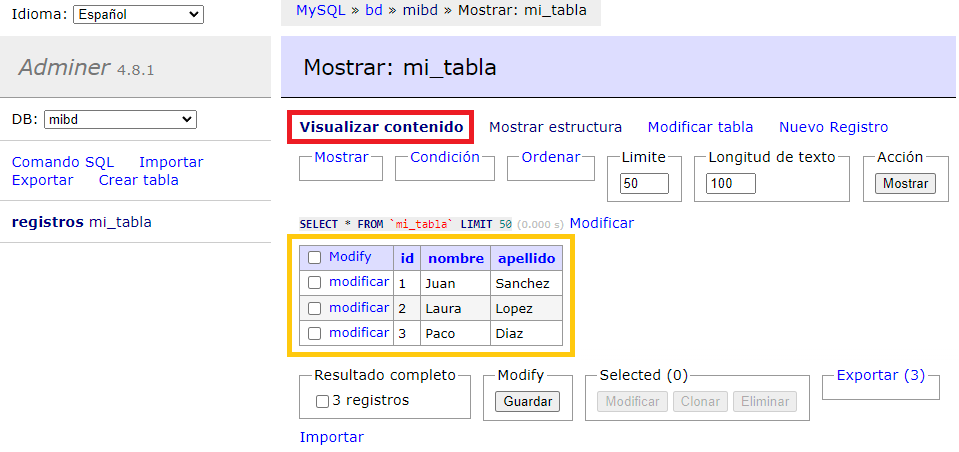
And if we go into the table, in the “Select data” tab (“Visualizar contenido” in the Spanish interface) we can see our data loaded without having done anything ourselves, which means everything is working like a charm:
Why didn’t we fill in “index.php” earlier? Because the “Httpd” server inside the PHP image lets us add web files on the fly.
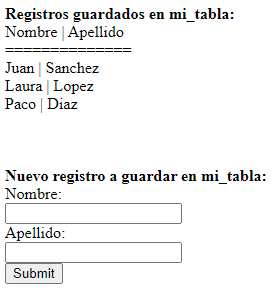
Next, we want to create our web page, which will consist of the following parts:
- Reading from the database: it will render on our web page the full list with the data, but only the first names and last names.
- Writing to the database: a form that asks for the first name and last name.
- Automatic refresh: to see the data instantly.
That is, we want to see the following:
Now it’s time: we will create the “index.php” file inside the “www” folder with the following content, which does what we wanted (we won’t explain the PHP code here, since in this article what interests us is seeing how to work on any project with “compose.yml”):
<?php
$server = 'bd';
$username = 'usuariobd';
$password = 'contraseniabd';
$dbname = 'mibd';

$conn = new mysqli($server, $username, $password, $dbname);
if ($conn->connect_error) {
    die("Fallo de conexión a la base de datos: " . $conn->connect_error);
}

if ($_SERVER["REQUEST_METHOD"] == "POST") {
    $name = $_POST['nombre'];
    $value = $_POST['apellido'];

    $query = "INSERT INTO mi_tabla (nombre, apellido) VALUES (?, ?)";
    $stmt = $conn->prepare($query);
    $stmt->bind_param('ss', $name, $value);
    $stmt->execute();
    echo "¡Nuevo registro añadido a la tabla mi_tabla de la base de datos!<br>";
}

$query = "SELECT * FROM mi_tabla";
$result = $conn->query($query);

echo "<b>Registros guardados en mi_tabla:</b><br>";
echo "Nombre | Apellido<br>";
echo "==============<br>";

if ($result->num_rows > 0) {
    while($row = $result->fetch_assoc()) {
        echo $row['nombre']. " | " . $row['apellido'] . "<br>";
    }
} else {
    echo "0 resultados encontrados en la tabla mi_tabla";
}

$conn->close();
?>

<!DOCTYPE html>
<html lang="es">
<body>
<br><br><br>
<b>Nuevo registro a guardar en mi_tabla:</b>
<form method="post" action="index.php">
    <label for="nombre">Nombre:</label><br>
    <input type="text" id="nombre" name="nombre"><br>
    <label for="apellido">Apellido:</label><br>
    <input type="text" id="apellido" name="apellido"><br>
    <input type="submit" value="Submit">
</form>

</body>
</html>
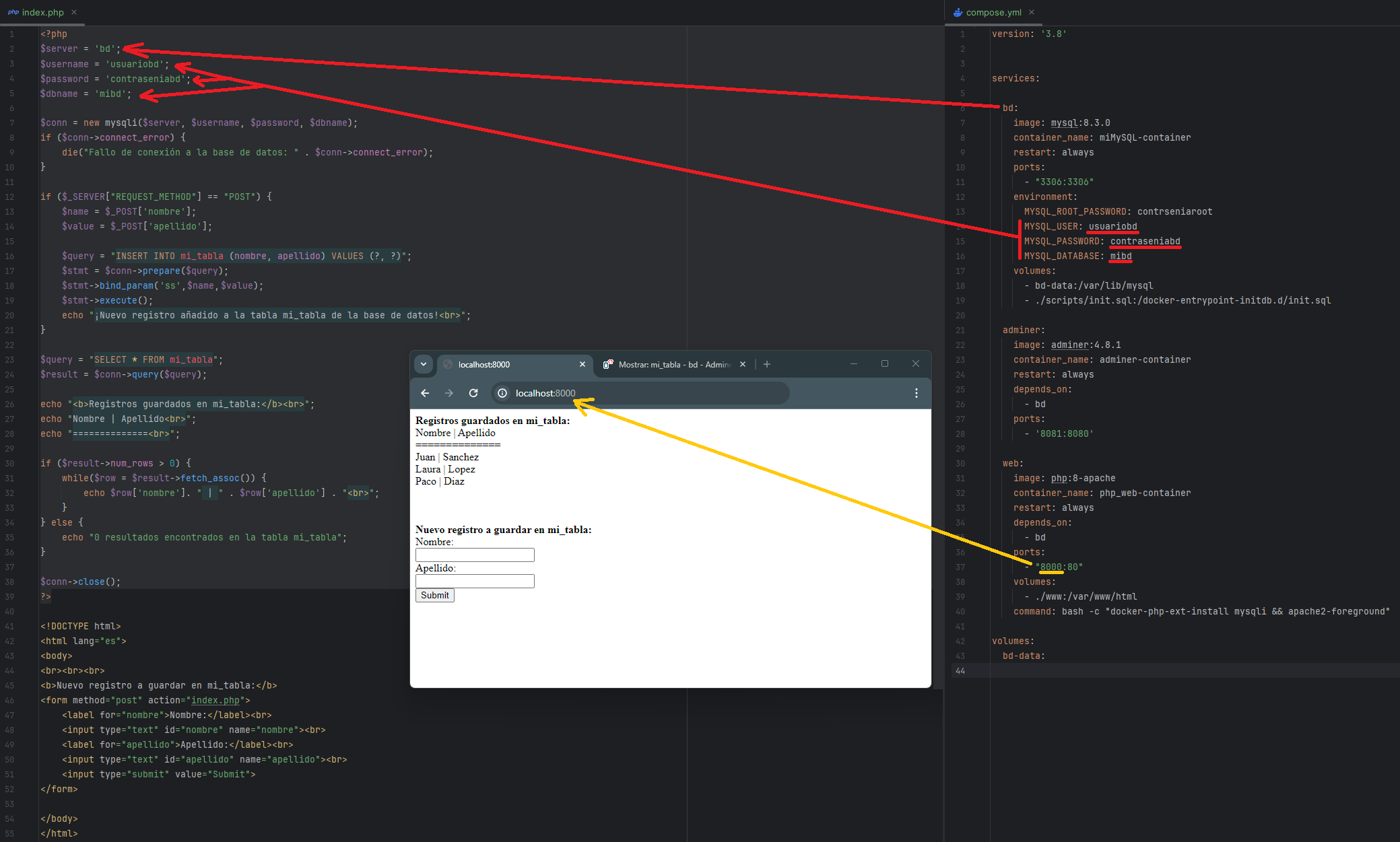
Just like we did with “adminer”, the database credentials are the ones we set in the “compose.yml”:
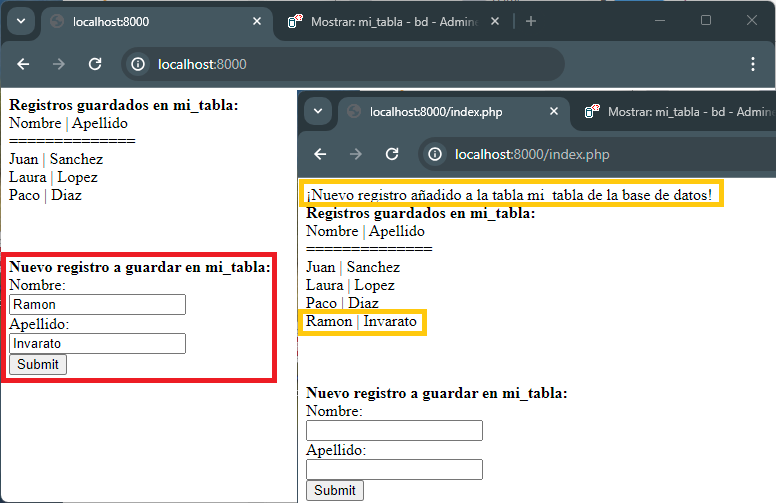
We finish by opening another tab in your browser and going to: https://jarroba.com/
And you can test that it works:
Congratulations, you’ve done the DevOps job! But remember, this article is not about DevOps (although I recommend it to everyone in tech), it’s so that you have a more complete understanding of the whole project lifecycle (whether you’re a developer, DevOps engineer, manager, etc.); also, if you’re a developer, so that you can test your projects as close as possible to real systems (close to the “production environment”, but without needing to run the tests directly in “production” XD ).
“Docker Compose in a Project” by Ramón Invarato at jarroba.com, licensed under Creative Commons Attribution-NonCommercial-ShareAlike 3.0. Registered at Safe Creative.

You may also like
Advanced Dockerfile: Multi-Stage Builds, Registries, and Tricks
Free Docker course. Expert Docker tricks: multi-stage builds, optimizing images, faster build times, and distributing images through Docker registries.
Dockerfile: Directives and Dockerizing Projects
Free Docker course. A Dockerfile is a file of directives for building and deploying custom applications with Docker. Learn how to Dockerize your projects.
Leave a comment