
Pandas in Python, with Examples – Part II – Reading/Writing, Merge & GroupBy
In this tutorial we show some of the operations and features the Pandas library offers for working with DataFrames, including I/O, merge and groupby.
You can download the project for this post by clicking HERE.
Reading/Writing, Merge and GroupBy
In this tutorial we are going to show some of the operations and features that the Pandas library gives us for working with DataFrames. To do so, we will use the MovieLens recommender system data set, which contains information about movies, users, and the ratings that users give to movies. You can download this data set (with different numbers of ratings: 100K, 1M, 10M, etc.) through the following link (http://grouplens.org/datasets/movielens/), although the project we have shared on github already includes the data set files we are going to use (with 100K ratings).
Although the MovieLens data set comes with several files containing different information, for the example we are going to build we will only use the data about users, movies, and ratings. Since MovieLens shared this data after extracting it from its database, the relationship between these files would look like this (in an Entity-Relationship diagram):
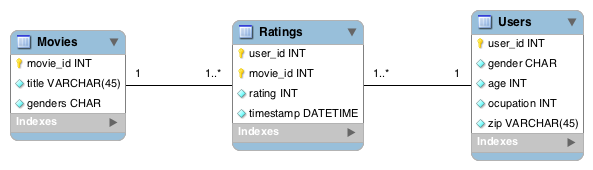
As we can see, we have information about users and movies, and as an N-M relationship we have the intermediate ratings table.
Reading/Writing
With the Pandas library we can read data sets from many different formats, such as txt, csv, json, sql, html, and a long etc. In the following link http://pandas.pydata.org/pandas-docs/stable/io.html you can see all the possible formats. Each of these methods for reading specific formats (read_FormatName) has countless parameters that you can see in the documentation and that we are not going to explain, because it would take forever. However, I will explain the "generic" method for reading files whatever their format, which is the "read_table()" method. This method can also have countless parameters, but to be practical, for most of the cases we will run into, the parameters would be the following:
pd.read_table(dir_fichero, engine='python', sep=';', header=True|False, names=[lista con nombre columnas])
Basically, you have to pass it the file to read, its separator, whether the first line of the file contains the column names, and, if it doesn't, pass the column names in 'names'. Let's see, for example, how we would read the file with the users data, whose first 5 lines look like this:
1::F::1::10::48067
2::M::56::16::70072
3::M::25::15::55117
4::M::45::7::02460
5::M::25::20::55455
We can see that the first line has no header names, so we have to set 'header=False'. We also see that the column separator is '::' and that the column names are the ones shown in the Entity-Relationship diagram above. So, to read the users data from the txt file into a DataFrame, we would do the following:
# Load users info
userHeader = ['user_id', 'gender', 'age', 'ocupation', 'zip']
users = pd.read_table('dataSet/users.txt', engine='python', sep='::', header=None, names=userHeader)

# print 5 first users
print '# 5 first users: \n%s' % users[:5]
The output of this code snippet, where at the end we print the first 5 users to the screen, would look like this:
# 5 first users:
   user_id gender  age  ocupation    zip
0        1      F    1         10  48067
1        2      M   56         16  70072
2        3      M   25         15  55117
3        4      M   45          7  02460
4        5      M   25         20  55455
To write a DataFrame to a text file you can use the write methods (see http://pandas.pydata.org/pandas-docs/stable/io.html) to write it in whatever format you want. For example, if we use the 'to_csv()' method, it will write the DataFrame in this standard format that separates the fields with commas; but we can also tell the method to use, for example, a hyphen instead of a comma as the separator. If we want to write the 'users' DataFrame to a file with these characteristics, we can do it like this:
users.to_csv('MyUsers.txt', sep='-')
For this example, it generates a text file called 'MyUsers.txt' with the following content, where we can see that the first line contains the column names and the following lines contain the content of the DataFrame, but with the index included in the first position:
-user_id-gender-age-ocupation-zip
0-1-F-1-10-48067
1-2-M-56-16-70072
2-3-M-25-15-55117
3-4-M-45-7-02460
4-5-M-25-20-55455
5-6-F-50-9-55117
.................
.................
Merge
A very powerful feature Pandas offers is the ability to merge data (in databases this would be doing a JOIN) whenever it is possible. In the example we are building with the MovieLens data set we can see this feature very intuitively, since the data in this data set was obtained from a relational database. Let's see how to do a JOIN, or a merge, of the files 'users.txt' and 'ratings.txt' using 'user_id':
# Load users info
userHeader = ['user_id', 'gender', 'age', 'ocupation', 'zip']
users = pd.read_table('dataSet/users.txt', engine='python', sep='::', header=None, names=userHeader)

# Load ratings
ratingHeader = ['user_id', 'movie_id', 'rating', 'timestamp']
ratings = pd.read_table('dataSet/ratings.txt', engine='python', sep='::', header=None, names=ratingHeader)

# Merge tables users + ratings by user_id field
merger_ratings_users = pd.merge(users, ratings)
print '# Merge tables users + ratings by user_id field \n%s' % merger_ratings_users[:10]
The result of this code snippet is the first 10 rows of this union:
# Merge tables users + ratings by user_id field
   user_id gender  age  ocupation    zip  movie_id  rating  timestamp
0        1      F    1         10  48067      1193       5  978300760
1        1      F    1         10  48067       661       3  978302109
2        1      F    1         10  48067       914       3  978301968
3        1      F    1         10  48067      3408       4  978300275
4        1      F    1         10  48067      2355       5  978824291
5        1      F    1         10  48067      1197       3  978302268
6        1      F    1         10  48067      1287       5  978302039
7        1      F    1         10  48067      2804       5  978300719
8        1      F    1         10  48067       594       4  978302268
9        1      F    1         10  48067       919       4  978301368
Just as we did the JOIN of users and ratings, we can do the same while also adding the movie data:
# Load Data
userHeader = ['user_id', 'gender', 'age', 'ocupation', 'zip']
users = pd.read_table('dataSet/users.txt', engine='python', sep='::', header=None, names=userHeader)

movieHeader = ['movie_id', 'title', 'genders']
movies = pd.read_table('dataSet/movies.txt', engine='python', sep='::', header=None, names=movieHeader)

ratingHeader = ['user_id', 'movie_id', 'rating', 'timestamp']
ratings = pd.read_table('dataSet/ratings.txt', engine='python', sep='::', header=None, names=ratingHeader)

# Merge data
mergeRatings = pd.merge(pd.merge(users, ratings), movies)
If we wanted to see, for example, one element of this new JOIN (say, position 1000), we could do it like this:
info1000 = mergeRatings.ix[1000]
print 'Info of 1000 position of the table: \n%s' % info1000[:10]
The result is the following:
Info of 1000 position of the table:
user_id                                        3612
gender                                            M
age                                              25
ocupation                                        14
zip                                           29609
movie_id                                       1193
rating                                            5
timestamp                                 966605873
title        One Flew Over the Cuckoo's Nest (1975)
genders                                       Drama
Name: 1000, dtype: object
GroupBy
The last feature we are going to see in this tutorial is data grouping in DataFrames, which corresponds to the 'groupby' operation you can do in databases. This feature doesn't just let you group data; it also lets you perform operations based on those groups, such as calculating sums, averages, standard deviations, etc. For the examples we are about to see, we will need the 'numpy' library to do these kinds of operations, so we have to import it in our project:
import pandas as pd
import numpy as np
To see an example of the 'groupby' operation, we will first join the three data sources (users, movies, and ratings), then group by the movie title (the 'title' column) and count how many ratings each movie has received (by counting the number of tuples). Afterwards we will sort from highest to lowest to see the 10 most rated. We do it like this:
# Load Data
userHeader = ['user_id', 'gender', 'age', 'ocupation', 'zip']
users = pd.read_table('dataSet/users.txt', engine='python', sep='::', header=None, names=userHeader)

movieHeader = ['movie_id', 'title', 'genders']
movies = pd.read_table('dataSet/movies.txt', engine='python', sep='::', header=None, names=movieHeader)

ratingHeader = ['user_id', 'movie_id', 'rating', 'timestamp']
ratings = pd.read_table('dataSet/ratings.txt', engine='python', sep='::', header=None, names=ratingHeader)

# Merge data
mergeRatings = pd.merge(pd.merge(users, ratings), movies)

# Clone DataFrame
def cloneDF(df):
    return pd.DataFrame(df.values.copy(), df.index.copy(), df.columns.copy()).convert_objects(convert_numeric=True)

# Show Films with more votes. (groupby + sorted)
numberRatings = cloneDF(mergeRatings)
numberRatings = numberRatings.groupby('title').size().sort_values(ascending=False)
print 'Films with more votes: \n%s' % numberRatings[:10]
We can see that the 'groupby()' method lets us group by the column we specify, the 'size()' method counts the number of times the titles repeat after grouping, and finally the 'sort_values()' method sorts the result from highest to lowest, giving the following result:
Films with more votes:
title
American Beauty (1999)                                   3428
Star Wars: Episode IV - A New Hope (1977)                2991
Star Wars: Episode V - The Empire Strikes Back (1980)    2990
Star Wars: Episode VI - Return of the Jedi (1983)        2883
Jurassic Park (1993)                                     2672
Saving Private Ryan (1998)                               2653
Terminator 2: Judgment Day (1991)                        2649
Matrix, The (1999)                                       2590
Back to the Future (1985)                                2583
Silence of the Lambs, The (1991)                         2578
dtype: int64
Warning
for copying or "cloning" DataFrames:
In general, most data structures in Python have a 'copy()' or 'clone()' method that makes a copy of a given data structure. For DataFrames (although if you search the internet you will see some examples that don't work), these methods don't apply, and to create a copy of a DataFrame you have to build another DataFrame with the same data as the original. Below I share a method ('cloneDF(df)') that returns a copy of the DataFrame passed as a parameter:
# Clone DataFrame
def cloneDF(df):
    return pd.DataFrame(df.values.copy(), df.index.copy(), df.columns.copy()).convert_objects(convert_numeric=True)
There is probably a better solution than the one proposed here, but this solution works.
To see what else we can do, we can group by more columns; for example, by movie title and ID, and in this case we will calculate the average rating per movie with the 'mean()' method:
# Show avg ratings movie (groupby + avg)
avgRatings = cloneDF(mergeRatings)
avgRatings = avgRatings.groupby(['movie_id', 'title']).mean()
print 'Avg ratings: \n%s' % avgRatings['rating'][:10]
Avg ratings:
movie_id  title
1         Toy Story (1995)                      4.146846
2         Jumanji (1995)                        3.201141
3         Grumpier Old Men (1995)               3.016736
4         Waiting to Exhale (1995)              2.729412
5         Father of the Bride Part II (1995)    3.006757
6         Heat (1995)                           3.878723
7         Sabrina (1995)                        3.410480
8         Tom and Huck (1995)                   3.014706
9         Sudden Death (1995)                   2.656863
10        GoldenEye (1995)                      3.540541
Name: rating, dtype: float64
In this case we asked it to show the average value of the 'rating' field, but when applying the 'mean()' method to the DataFrame, it calculated the averages of all the columns that contain numeric data.
Now we keep grouping by title and ID, but we are also going to do several calculations at once, which we specify with a list that we pass to the 'agg()' method:
# Show data ratings movies (groupby + several funtions)
dataRatings = cloneDF(mergeRatings)
dataRatings = dataRatings.groupby(['movie_id', 'title'])['rating'].agg(['mean', 'sum', 'count', 'std'])
print 'Films ratings info: \n%s' % dataRatings[:10]
Films ratings info:
                                                 mean   sum  count       std
movie_id title
1        Toy Story (1995)                    4.146846  8613   2077  0.852349
2        Jumanji (1995)                      3.201141  2244    701  0.983172
3        Grumpier Old Men (1995)             3.016736  1442    478  1.071712
4        Waiting to Exhale (1995)            2.729412   464    170  1.013381
5        Father of the Bride Part II (1995)  3.006757   890    296  1.025086
6        Heat (1995)                         3.878723  3646    940  0.934588
7        Sabrina (1995)                      3.410480  1562    458  0.979918
8        Tom and Huck (1995)                 3.014706   205     68  0.954059
9        Sudden Death (1995)                 2.656863   271    102  1.048290
10       GoldenEye (1995)                    3.540541  3144    888  0.891233
We can also pass functions we have declared ourselves to the 'agg()' method, as in the following case, where we write a function that calculates the average of the ratings, and to check that it is correct, we also ask it to calculate the mean (in this case we are going to use the functions from the numpy library):
# Show data ratings movies, applying a function (groupby + lambda function)
myAvg = cloneDF(mergeRatings)
myAvg = myAvg.groupby(['movie_id', 'title'])['rating'].agg(
    {'SUM': np.sum, 'COUNT': np.size, 'AVG': np.mean, 'myAVG': lambda x: x.sum() / float(x.count())})
print 'My info ratings: \n%s' % myAvg[:10]
My info ratings:
                                             COUNT   SUM       AVG     myAVG
movie_id title
1        Toy Story (1995)                     2077  8613  4.146846  4.146846
2        Jumanji (1995)                        701  2244  3.201141  3.201141
3        Grumpier Old Men (1995)               478  1442  3.016736  3.016736
4        Waiting to Exhale (1995)              170   464  2.729412  2.729412
5        Father of the Bride Part II (1995)    296   890  3.006757  3.006757
6        Heat (1995)                           940  3646  3.878723  3.878723
7        Sabrina (1995)                        458  1562  3.410480  3.410480
8        Tom and Huck (1995)                    68   205  3.014706  3.014706
9        Sudden Death (1995)                   102   271  2.656863  2.656863
10       GoldenEye (1995)                      888  3144  3.540541  3.540541
As a last example, we are going to group by title and ID, calculate the number of ratings received per movie, calculate the average rating, and finally sort the movies by number of ratings so we can see the average rating of the most rated movies:
# Sort data ratings by created field (groupby + lambda function + sorted)
sortRatingsField = cloneDF(mergeRatings)
sortRatingsField = sortRatingsField.groupby(['movie_id', 'title'])['rating'].agg(
    {'COUNT': np.size, 'myAVG': lambda x: x.sum() / float(x.count())}).sort('COUNT', ascending=False)
print 'My info sorted: \n%s' % sortRatingsField[:15]
My info sorted:
                                                             COUNT     myAVG
movie_id title
2858     American Beauty (1999)                               3428  4.317386
260      Star Wars: Episode IV - A New Hope (1977)            2991  4.453694
1196     Star Wars: Episode V - The Empire Strikes Back ...   2990  4.292977
1210     Star Wars: Episode VI - Return of the Jedi (1983)    2883  4.022893
480      Jurassic Park (1993)                                 2672  3.763847
2028     Saving Private Ryan (1998)                           2653  4.337354
589      Terminator 2: Judgment Day (1991)                    2649  4.058513
2571     Matrix, The (1999)                                   2590  4.315830
1270     Back to the Future (1985)                            2583  3.990321
593      Silence of the Lambs, The (1991)                     2578  4.351823
1580     Men in Black (1997)                                  2538  3.739953
1198     Raiders of the Lost Ark (1981)                       2514  4.477725
608      Fargo (1996)                                         2513  4.254676
2762     Sixth Sense, The (1999)                              2459  4.406263
110      Braveheart (1995)                                    2443  4.234957
CONCLUSIONS:
Pandas is a data analysis library widely used by 'data scientists'. You can do countless things with it, and here we have seen some practical cases using the MovieLens data set, which, together with the Netflix data set, is one of the reference data sets in Recommender Systems research (mainly collaborative filtering) and Machine Learning. Since this is an introductory tutorial, we have only covered a few things about this library, but we have covered what you need to start working with Pandas, and once you are comfortable with it, you will surely be able to do very thorough and precise data analysis, since it is a library that professional data scientists use today.
“Pandas in Python, with Examples – Part II – Reading/Writing, Merge & GroupBy” by Ricardo Moya at jarroba.com, licensed under Creative Commons Attribution-NonCommercial-ShareAlike 3.0. Registered at Safe Creative.

You may also like
Reading and Writing Files in Python, with Examples
In this tutorial you'll learn how to read and write files in Python, one of the most useful and commonly used tasks when programming. Examples included.

“If It Works, Don’t Touch It” and Other Excuses That No Longer Hold
Four corporate excuse-phrases, why the calculus has changed with AI, and what to do if you're stuck in an inertia-bound organization.
Leave a comment